After you have created a connection to Power BI in your Edge or Collibra Cloud site, you have to add the Power BI technical lineage capability to the connection.
Required permissions
- You have a global role with the Product Rights > System administration global permission.
- You have a global role that has the Manage connections and capabilities global permission, for example, Edge integration engineer.
Steps
- Open a site.
-
On the main toolbar, click
 →
→
 Settings.
The Settings page opens. -
In the tab pane, click Edge.
The Sites tab opens and shows a table with an overview of your sites. - In the table, click the name of the site whose status is Healthy.
The site page opens.
-
On the main toolbar, click
- In the Capabilities section, click Add capability.
The Add capability page appears. - Select the Technical Lineage for Power BI capability template.
- Enter the required information.
Field Description Required Name
The name of the capability.
 Yes
Yes
Description
The description of the capability.
 No
No
Source ID
The name of the data source. The name must be unique and cannot contain special characters, for example,
/.Warning- You can only specify one source ID per Power BI service. Ingesting the same Power BI service under different source IDs will fail.
- Any single Power BI service can be ingested only once. If you create more than one connection for the same Power BI service, integration will fail. If you want to ingest from multiple unique Power BI service, you have to create a new Edge connection for each one, configure a new capability template for each one, and each must have a unique source ID.
- If you are switching between the lineage harvester and Edge, the value in this field must exactly match the value of the
idproperty in your lineage harvester configuration file. - We recommend that you do not change the source ID after the initial configuration. For BI data sources, changing the source ID can cause synchronization to fail. If you need to change the source ID, first delete the lineage for the existing data source, and then configure the new source ID. For more information, go to About source IDs and the data source lifecycle.
Yes
TechLin Admin Connection (beta) If you want to use the OAuth authentication type to connect to the Collibra Data Lineage service instances, you have to create a Technical Lineage Admin Edge or Collibra Cloud site connection and select the OAuth authentication type. Then, in this field, specify the name of the Technical Lineage Admin connection.
For more information about the authentication types, go to Create a Technical Lineage Admin connection.
No
Power BI Connection
The Power BI connection that you created for ingestion in Data Catalog.
Tip Select the name that you provided in the Name field when you created a connection to Power BI.
Yes
API URL
The API URL of your Power BI service.
The default value is
https://api.powerbi.com.Important This property is only relevant for US government or national cloud Power BI customers, in which case you must include and specify values for both this property and the
scopeproperty. For complete information, consult Microsoft's documentation on Power BI for US government customers. No
Scope
Optional property that is intended only for customers with a different scope, such as Chinese tenants.
Example https://analysis.chinacloudapi.cn/powerbi/api/.default
Important If you are a US government or national cloud Power BI customer, you must include and specify values for both this property and the
apiUrlproperty. For complete information, consult Microsoft's documentation on Power BI for US government customers. No
Domain ID
The unique reference ID of the domain in Collibra Platform into which you want to ingest the Power BI tenant and capacity assets. If you don't configure filters, all Power BI assets are ingested into this domain.
To move workspaces and their assets to a different domain, update the filter block's
domainIdproperty in the source configuration. To move tenant and capacity assets, update the capability's Domain ID field. In either case, synchronize the capability again. For more information, go to Move BI assets to a different domain.How do I find a domain reference ID?Open the relevant domain in Collibra. The URL looks like: https://<yourcollibrainstance>/domain/22258f64-40b6-4b16-9c08-c95f8ec0da26?view=00000000-0000-0000-0000-000000040001. In this example, the reference ID is in bold.
Yes
Source Configuration
The JSON configuration for database mapping, workspace filtering, and System asset name.
This field has a size limit. If your JSON content exceeds 256 KB, do not use this field. Instead, use the Source Configuration File field to prevent the synchronization job from failing.
Specify the properties in JSON format and enter the content in this field. For property details and example JSON, go to Power BI source configuration.
NoSource Configuration File
An alternative to the Source Configuration field. Upload a .json file that contains your source configuration.
This file is required if your JSON content exceeds 256 KB, because large JSON strings provided in the Source Configuration field can cause the synchronization job to fail.
For details on the JSON content, go to Power BI source configuration.
No
Property Use this section to define custom parameters for technical lineage. Click Add property to add a parameter.
Available properties:Type Value Type Name Descriptions Example value Text
Plaintext
httpTimeoutSets the HTTP timeout duration, in seconds. You can enter a value in the range of 1 to 3599. The default value is 15.
15Properties for Collibra Platform for Government customersType Value type Name Description Example value Text
Plaintext
techlinHostThis is the URL of the Collibra Data Lineage service instance to which you want to upload metadata.
techlin-europe-west1.collibra.comText
Secret
techlinKeyThis is the unique API key to connect to a Collibra Data Lineage service instance.
Specify a unique user key for each Collibra environment. If you're not sure what your user key is, contact your Collibra Collibra Account Team.
<your-techlin-key> Yes for US government customers.
Dependent On Sources
This option allows you to provide table-definition details from an independent data source to a data source that is dependent on those details. This is needed to avoid analysis errors and to have a complete lineage that includes lineage from the SQL statements from dependent data sources.
To use this option, enter the source ID of the independent source.
Show me an exampleLet's consider an example. Let's say that you want to create a technical lineage for two data sources:
Database1 contains the DDL that specifies that the database has a table named "Table1", which has three columns: Col1, Col2, Col3, and Col4.
Database2 contains an SQL statement: SELECT * from Database1.Schema1.Table1.
The SQL statement in Database2 refers to the table in Database1. Therefore, to get lineage from the statement in Database2, the table definition from Database1 must be known. In this case, we say that Database2 is dependent on Database1. Database1 is considered the independent data source.
To configure this option, specify the Source ID of the independent data source, in this example, Database1, as shown in the following imagee
 Important If a dependent data source contains lowercase column names, this feature will only work for the following dialects: Oracle, Snowflake, and Teradata. For all other dialects:
- An analyze error is raised, prompting you to provide the DDL file.
- The only workaround is to consolidate your SQL statements and DDL file in a single data source.
For complete information, go to Sharing database models across data sources.
No
Delete Raw Metadata After Processing
Metadata is harvested and uploaded in a ZIP file to a Collibra Data Lineage service instance, for processing.
Use this optional property to specify whether or not the raw metadata should be deleted after it has been processed.
If you select this option, the raw metadata is deleted after processing. If you don't select this option, it is stored in an Amazon S3 bucket.
Analyze Only (Deprecated)
Important This option is deprecated and will be removed in a future version of Collibra. We recommend that you no longer use it. The mandatory Processing Level setting, below, replaces this option.- The "Analyze" option in the Processing Level setting is the equivalent of selecting the Analyze Only option.
- The "Sync" option in the Processing Level setting is the equivalent of clearing the Analyze Only option.
No
Important This setting replaces the deprecated Analyze Only option, which will be removed in a future version of Collibra.
For each of your data sources, you have to specify one of the following values: Load, Analyze, or Sync. Then, when you synchronize your technical lineage, the following process begins:
- Metadata for all data sources is loaded, regardless of the value of this setting for a particular data source.
- Metadata from data sources for which the value of this setting is either Analyze or Sync, is analyzed.
- Metadata from data sources for which the value of this setting is Sync, is synchronized.
Value Description Load Harvest metadata from the data source and upload it to your Collibra environment. This allows you to inspect and, if necessary, edit the harvested metadata before uploading it to the Collibra Data Lineage service instance for analysis.
When the job is done, you can download and review the metadata. The ZIP file is available for 8 hours after the job completes. If the file is no longer available, run the job again and download the file from the new run.
- Open the Activities list.
-
In the row containing the job, click Result.
The Synchronization Results dialog box appears.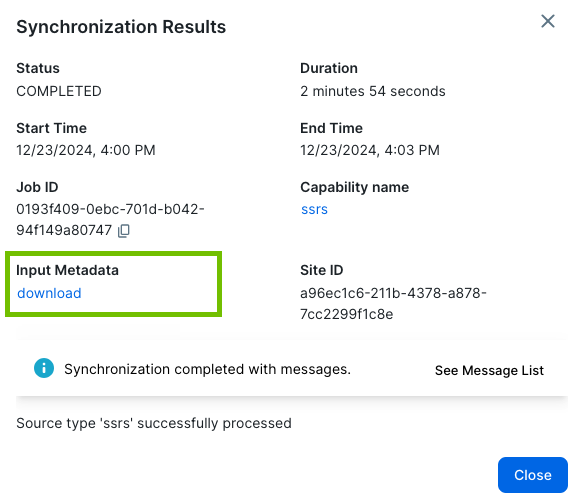
- Click download and save the ZIP file to your hard drive.
Tip The download link resembles the following:
https://integrations.collibra-abc.com/rest/2.0/files/01944f12-7665-7d9c-8bc5-aa426b6a63cc. Take note of the file ID, in this example:01944f12-7665-7d9c-8bc5-aa426b6a63cc. After you inspect the metadata, you can send the ZIP file for analysis by using the "Analyze files" option. Alternatively, you can upload the ZIP file using the POST /files API. In either case, you need to specify the file ID.Analyze Load and analyze the metadata on the Collibra Data Lineage service instance.
Synchronization does not start after analysis; it starts only after either:
- You trigger synchronization of another data source for which you specify Sync in the Processing Level drop-down list.
- You configure the Technical Lineage Admin Edge or Collibra Cloud site capability, and trigger synchronization via the Sync option in the Integration Configuration tab in Data Catalog.
Important If you want to synchronize multiple data sources, we strongly recommend that you select this option in the respective Edge or Collibra Cloud site capabilities for each of your data sources. This allows you to synchronize all data sources in a single job, thereby maximizing efficiency and mitigating the risk of failed synchronization jobs.- For complete information and important considerations, go to Tips for successful lineage synchronization
- For more information about the Sync option in the Technical Lineage Admin Edge or Collibra Cloud site capability, go to Technical lineage admin options.
Sync Load, analyze, and synchronize metadata from all data sources. Synchronization starts – or is queued, if another synchronization job is running – immediately after analysis.
Important If you want to synchronize multiple data sources and you select this option, each data source is processed as a separate job. This is highly inefficient and will likely lead to failed sync jobs. For complete information and important considerations, go to Tips for successful lineage synchronization.
No
Active
The option determines whether to include or remove the technical lineage of the data source.
Select this option to include the technical lineage of this data source.
Clear the checkbox to exclude the technical lineage of this data source.
No
Use HTTP/1.1 protocol
Option to use HTTP/1.1 streams, in case file-size limitations are resulting in timeout errors when using the default HTTP/2 streams. No
Enable lineage for DAX queries
Important This is a cloud-only feature. It is not supported for Collibra Platform for Government or Collibra Platform Self-Hosted (CPSH) environments.Option to enable DAX analysis via Collibra AI. This feature:
- Creates column-level lineage that includes your calculated columns and measures in Power BI.
- Enables stitching between calculated columns in the technical lineage and the corresponding Power BI Column assets in Data Catalog.
Select this option to enable DAX analysis.
Clear the checkbox to disable DAX analysis.
For complete information on this feature, go to DAX analysis via Collibra AI.
No
Enable Attribute Level Lineage for Reports (Preview) Option to enable attribute-level (field-level) lineage for Power BI. Enabling this feature will increase the processing time.
For more information, go to Attribute-level lineage for Power BI (in preview) .
No
Debug
This setting is not valid for this integration. It should be set to false.
No
Log level
Only complete this field on the request of or together with Collibra Support.
No
- Click Add.
The capability is added to the Edge or Collibra Cloud site.
The fields become read-only.

You can now synchronize the technical lineage.