Maestro Assistant is a chat-based assistant. What Maestro Assistant can do for you depends on the agents that are active in your environment and to which you have access. The following types of agents exist:
- Maestro Assistant agent is managed by Collibra and includes Collibra-managed subagents. It is read-only: it can search and read anything you have access to, but it can't make changes, such as creating or editing assets, or starting workflows. To make a change, choose a custom agent with the right tools from the Ask an agent list, or create one in Maestro Studio.
- Custom Maestro agents are created by Maestro Studio users and are specific to your organization and environment. Custom agents can be given tools to take action on your behalf, such as creating an asset, in addition to reading data. For example, a FinREP assistant available only to finance professionals that provides regulatory guidance based on approved data and can create new regulatory terms.
Start a Maestro Assistant
Prerequisites
- Maestro Assistant is enabled in your environment.
- You have a global role with the Maestro Assistant global permission.
- For the Maestro agents, you have access to the agent and have view permission on the data that the agent references.
Steps
- Click Maestro to start a chat with Maestro Assistant.

A Maestro Assistant dialog box opens.
Maestro Assistant can show up to 4 clickable example questions. These questions help you understand the types of queries you can ask. You can click an example to see how the agent responds. - To start a chat with a custom Maestro agent, select the agent from the Ask an Agent drop-down list or @ mention the agent in the chat with the handle.
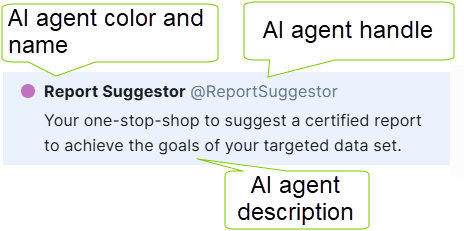
The drop-down list shows the Maestro agent color and name, a description of the agent, and its handle. A handle is a shortcut name you can type directly in the chat to call that specific agent.
Use the All, Live, and Test tabs at the top of the list to filter agents. Agents you own appear under Test with a Test label before they are published.
If you select or call a custom Maestro agent, the Maestro Assistant dialog box shows the welcome message and example questions of that agent.
- Click an example question, or type your question and press Enter or click the Post icon
 .
. - You can add up to 5,000 characters in one question, also known as a prompt.
- Maestro Assistant supports English, Spanish, French, German, and Dutch. When you ask a question in any of these languages, Maestro Assistant responds in the same language. To ask questions in a different language, start a new chat.
TipTo get the best out of Maestro Assistant, go to the prompt tips.
Work within a Maestro Assistant
After you start a chat, you can interact with Maestro Assistant in several ways. Maestro Assistant uses the full conversation history of your current chat to generate an answer. This includes all previous messages across all agents you have spoken with in the same conversation.
Reading and validating answers
After the agent responds, you can:
- Ask a follow-up question.
- Respond to the question asked by the agent.
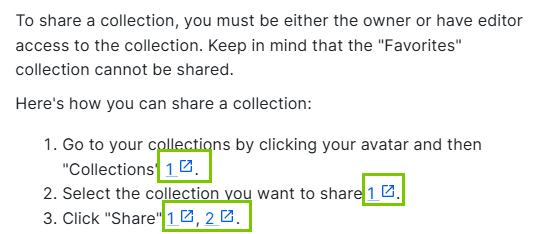
- Click the provided link to an asset in Collibra.Note
- The agent suggests assets only if the agent can get to the information and if you have View permission on the asset.
- If Maestro Assistant suggests assets, the asset content is shown in its original language to provide the correct context.
- Click a provided link to a page in the Documentation Center.
- Click New chat to remove the conversation and start over. This ensures that responses are based only on the new subject and are not influenced by the previous conversation.
- Select the expand icon in the chat header to open the conversation in full screen. Select it again to return to the docked view.
Switching between agents
To continue the conversation using another agent, select the agent from the drop-down list or type the handle before your question.
- The selected agent can reference the messages from earlier agents in the same conversation.
- No welcome message or example questions appear when you switch to another agent in the middle of a conversation.
- You can't ask a question to more than one agent at a time.
To go back to a conversation with the Maestro Assistant agent, select the x icon in the drop-down list.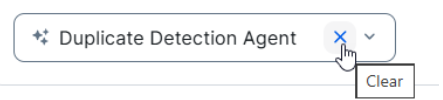
Agent tools
If you see Show steps in the Maestro Assistant, the Maestro agent has activated one of its assigned tools. Tools allow an agent to perform tasks, such as retrieving attributes. Custom Maestro agents can also be given tools to take action, such as creating an asset. The Maestro Assistant agent doesn't have any action tools, it can only read and retrieve information.
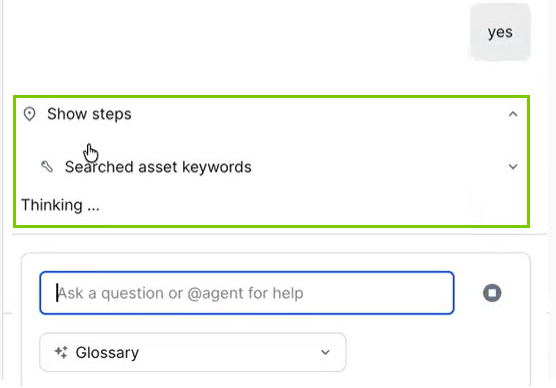
Custom Maestro agents with action tools use human-in-the-loop tools, meaning the agent explicitly asks for your approval before performing an action. An approval request always consists of a designated section with buttons to allow or deny. The agent takes the action only after you allow it.
Tips to get the best out of Maestro Assistant
Maestro Assistant works best when you provide context and enough details. Use the following tips to get better results:
- Include your role
Including your role when asking questions helps Maestro Assistant tailor its answer to your specific needs.
Example: "As a data steward, how do I manage data sets?" - Break down complex questions
If your question involves multiple parts, split it into smaller, simpler questions. Splitting up a question helps Maestro Assistant focus on what you want to know.
Example: First ask: "What is a Business Term asset?". Then follow up with: "How do I create a Business Term asset?". - Use “Tell me about…” to get a global overview
With "Tell me about...", Maestro Assistant gives you a summary on a specific topic.
Example: "Tell me about classification in Collibra". - Be explicit when you need detailed guidance
If you are looking for instructions, explicitly ask for step-by-step instructions.
Example: "Provide step-by-step instructions to create a workflow." - When Maestro Assistant is stuck or provides an incorrect or incomplete answer:
- Rephrase your question or be more specific. Maestro Assistant may not fully understand your question.
Example: Instead of asking, "How do I use Collibra?" ask, "How do I create a Business Term in Collibra?" or add an example: "How do I classify data, for example to tag sensitive data in a Data Set." - Click New chat to clear the current chat, allowing Maestro Assistant to start fresh without considering previous prompts.
ImportantMaestro Assistant may not be aware of the specific information you are looking for or you may not have the required permissions to access the data. In such cases, Maestro Assistant may direct you to other resources.
- Rephrase your question or be more specific. Maestro Assistant may not fully understand your question.