The Snowflake Cortex AI integration assets are included out of the box with Collibra Platform.
| Asset type | Description |
|---|---|
|
AI Base Model
|
Represents foundational business concepts that define the model’s purpose and governing principles in your Snowflake Cortex AI workspace. |
|
Snowflake Cortex AI Model Version
|
A subtype of AI Model Version that represents AI model versions in Snowflake Cortex AI. |
|
AI Model Deployment
|
The operational instance where a model version is assigned computational resources to execute and generate real-time outputs. |
|
AI Agent
|
An autonomous system that perceives its environment, makes decisions based on predefined rules or learned patterns, and takes actions to achieve specific goals. |
|
AI Agent Version
|
A specific, immutable implementation of the model logic and parameters that serves as the audited "raw" model version before it is activated. |
|
AI Agent Tool
|
A service accessible to an AI agent that automates tasks, generates content, or delivers intelligent insights. Each AI Agent Tool represents a Snowflake Cortex AI tool resource, such as a semantic view, semantic model, search service, custom tool, skill, or MCP server, and is shared across every agent version that uses it. |
|
AI Endpoint
|
The access point for external systems that provides a consistent interface while allowing for the seamless exchange of underlying deployments. |
|
AI Monitor
|
The configuration of automated tracking parameters and alerting thresholds used to observe a deployment’s real-world performance and detect deviations from expected behavior. |
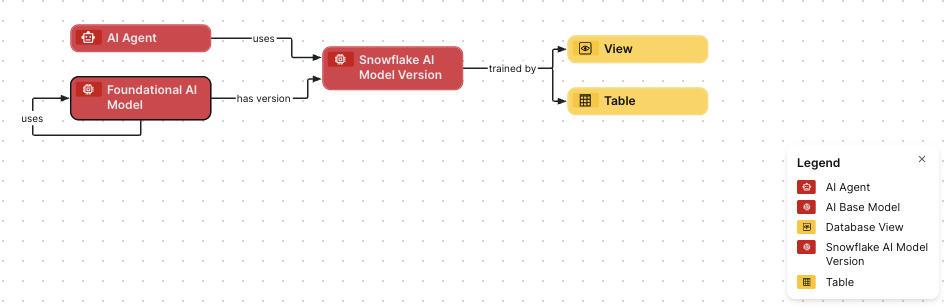
Snowflake Cortex AI diagram view
For information on the data that is integrated from Snowflake Cortex AI, go to Integrated Snowflake Cortex AI data.
Steps
- Open the asset page.
- Click the
Diagram tab.
The diagram is shown in the default diagram view. - Click
 to add a new view.
 - Select the Text option below the diagram view name.
The diagram view text editor is shown. - Copy the code from the Show JSON code section below and paste it in the diagram view text editor.
- Click Save.
- Edit the name and description of the diagram view as needed.
{
  "nodes": [
    {
      "id": "Foundational AI Model",
      "type": {
        "id": "00000000-0000-0000-0000-000000031422"
      }
    },
    {
      "id": "Snowflake AI Model Version",
      "type": {
        "id": "00000000-0000-0000-0000-000000031414"
      }
    },
    {
      "id": "AI Model Deployment",
      "type": {
        "id": "00000000-0000-0000-0000-000000031500"
      }
    },
    {
      "id": "AI Endpoint",
      "type": {
        "id": "00000000-0000-0000-0000-000000031501"
      }
    },
    {
      "id": "AI Agent",
      "type": {
        "id": "00000000-0000-0000-0000-000000031450"
      }
    },
    {
      "id": "AI Agent Version",
      "type": {
        "id": "00000000-0000-0000-0000-000000031452"
      }
    },
    {
      "id": "AI Agent Deployment",
      "type": {
        "id": "00000000-0000-0000-0000-000000007505"
      }
    },
    {
      "id": "AI Agent Tool",
      "type": {
        "id": "00000000-0000-0000-0000-000000031453"
      }
    },
    {
      "id": "Table",
      "type": {
        "id": "00000000-0000-0000-0000-000000031007"
      }
    },
    {
      "id": "Semantic View",
      "type": {
        "id": "00000000-0000-0000-0000-000000031601"
      }
    }
  ],
  "edges": [
    {
      "from": "Foundational AI Model",
      "to": "Foundational AI Model",
      "label": "",
      "style": "arrow",
      "type": {
        "id": "00000000-0000-0000-0000-000000007116"
      },
      "roleDirection": true
    },
    {
      "from": "Foundational AI Model",
      "to": "Snowflake AI Model Version",
      "label": "",
      "style": "arrow",
      "type": {
        "id": "00000000-0000-0000-0000-000000077000"
      },
      "roleDirection": true
    },
    {
      "from": "Snowflake AI Model Version",
      "to": "AI Model Deployment",
      "label": "",
      "style": "arrow",
      "type": {
        "id": "00000000-0000-0000-0000-000000077001"
      },
      "roleDirection": true
    },
    {
      "from": "AI Model Deployment",
      "to": "AI Endpoint",
      "label": "",
      "style": "arrow",
      "type": {
        "id": "00000000-0000-0000-0000-000000077006"
      },
      "roleDirection": true
    },
    {
      "from": "Snowflake AI Model Version",
      "to": "Table",
      "label": "",
      "style": "arrow",
      "type": {
        "id": "00000000-0000-0000-0000-000000007102"
      },
      "roleDirection": true
    },
    {
      "from": "AI Agent",
      "to": "AI Agent Version",
      "label": "",
      "style": "arrow",
      "type": {
        "id": "00000000-0000-0000-0000-000000007206"
      },
      "roleDirection": true
    },
    {
      "from": "AI Agent Deployment",
      "to": "AI Endpoint",
      "label": "",
      "style": "arrow",
      "type": {
        "id": "00000000-0000-0000-0000-000000007214"
      },
      "roleDirection": true
    },
    {
      "from": "AI Agent Version",
      "to": "AI Agent Tool",
      "label": "",
      "style": "arrow",
      "type": {
        "id": "00000000-0000-0000-0000-000000007207"
      },
      "roleDirection": true
    },
    {
      "from": "AI Agent Tool",
      "to": "AI Agent Version",
      "label": "",
      "style": "arrow",
      "type": {
        "id": "00000000-0000-0000-0000-000000007208"
      },
      "roleDirection": true
    },
    {
      "from": "Snowflake AI Model Version",
      "to": "AI Agent",
      "label": "",
      "style": "arrow",
      "type": {
        "id": "00000000-0000-0000-0000-000000007108"
      },
      "roleDirection": false
    },
    {
      "from": "AI Agent Version",
      "to": "AI Agent Deployment",
      "label": "",
      "style": "arrow",
      "type": {
        "id": "00000000-0000-0000-0000-000000007213"
      },
      "roleDirection": false
    },
    {
      "from": "AI Agent Tool",
      "to": "Semantic View",
      "label": "",
      "style": "arrow",
      "type": {
        "id": "00000000-0000-0000-0000-000000007211"
      },
      "roleDirection": true
    }
  ],
  "showOverview": false,
  "enableFilters": true,
  "showLabels": true,
  "showFields": true,
  "showLegend": true,
  "showPreview": true,
  "visitStrategy": "directed",
  "layout": "HierarchyLeftRight",
  "maxNodeLabelLength": 50,
  "maxEdgeLabelLength": 30,
  "layoutOptions": {
    "compactGroups": false,
    "componentArrangementPolicy": "topmost",
    "edgeBends": true,
    "edgeBundling": true,
    "edgeToEdgeDistance": 5,
    "minimumLayerDistance": "auto",
    "nodeToEdgeDistance": 5,
    "orthogonalRouting": true,
    "preciseNodeHeightCalculation": true,
    "recursiveGroupLayering": true,
    "separateLayers": true,
    "webWorkers": true,
    "nodePlacer": {
      "barycenterMode": true,
      "breakLongSegments": true,
      "groupCompactionStrategy": "none",
      "nodeCompaction": false,
      "straightenEdges": true
    }
  }
}