Before you can synchronize Databricks Unity Catalog via Edge, you need to prepare your Edge or Collibra Cloud site. If you have defined an outbound (forward) proxy on your Edge site, the integration considers that configuration when connecting to the data source.
Ensure that you have completed all the prerequisites in your Databricks Unity Catalog and Collibra environments. Once you have created a connection, you can then proceed with metadata ingestion.
- Tip
-
- If you're looking for information on how to create technical lineage for Databricks Unity Catalog via Edge, go to the technical lineage for Databricks Unity Catalog documentation.
Do you use a vault?
|
You can use a vault to add your data source information to your Edge site connection. Check the connection property table below to see which information is available for your vault. Vaults are not available for Collibra Cloud sites. |

No vault

AWS Secrets Manager

Azure Key Vault

CyberArk Vault

Google Secret Manager

HashiCorp Vault
|
|
|
|
||
|
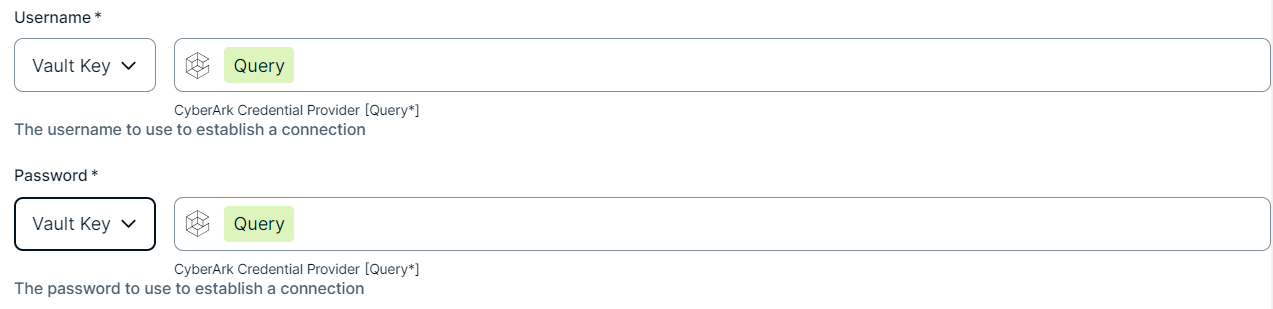
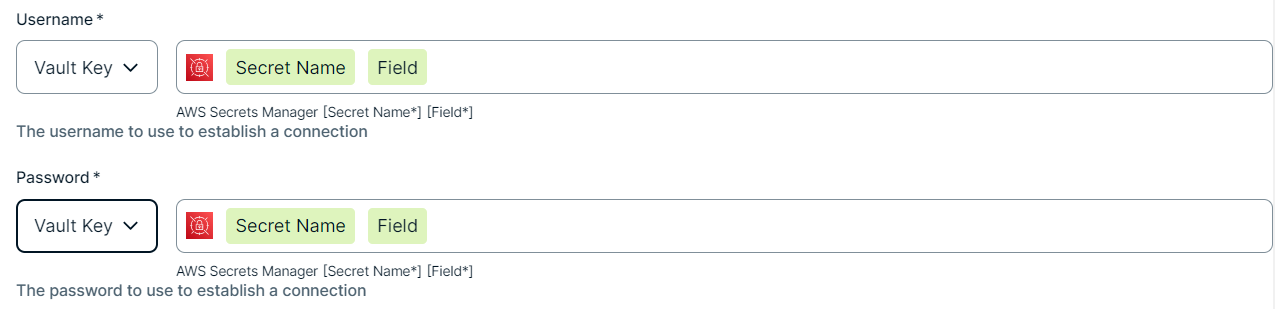
How to use your vault...
To use your vault, do the following:
To use your vault, do the following:
To use your vault, do the following:
To use your vault, do the following:
To use your vault, do the following:
|
||



Prerequisites
In your Collibra environment
-
You
- You have added a vault to your Edge site.Note Vaults are not supported on Collibra Cloud sites.
- If your data source connection requires a file from your vault, the file must be encoded into Base64 and stored as a regular secret in your vault.
- You have a global role that has the Manage connections and capabilities global permission, for example, Edge integration engineer.
In your Databricks environment
Metadata inbound
- Your Databricks access token or OAuth client must have the
BROWSEpermission on the catalogs in Databricks Unity Catalog from which you want to integrate metadata. For more information on theBROWSEpermission, go to the Databricks documentation. - If you want to integrate source tags, additional permissions are needed.
- The metadata synchronization for Databricks Unity Catalog uses a compute resource to collect source tags. The compute resource can be a classic compute cluster or a SQL warehouse. Grant the following permissions based on your compute resource type:
- Classic compute clusters:
CAN ATTACH TOandCAN RESTART - SQL warehouses (including serverless SQL warehouses):
CAN USEto only integrate source tags. If you also want the integration to stop the compute resource after extraction, the access token or OAuth client needsCAN MANAGEinstead.
- Classic compute clusters:
- To integrate source tags from specific tables in
system.information_schema, grant the following permissions:USE CATALOGpermission onsystemcatalogUSE SCHEMApermission onsystem.information_schema
SELECTpermission on the following:system.information_schema.catalog_tagssystem.information_schema.schema_tagssystem.information_schema.table_tagssystem.information_schema.column_tags
- The metadata synchronization for Databricks Unity Catalog uses a compute resource to collect source tags. The compute resource can be a classic compute cluster or a SQL warehouse. Grant the following permissions based on your compute resource type:
- To ingest Databricks Volume assets using the Ingest volumes field in the integration settings, ensure that your Databricks access token or OAuth client has the
READ_VOLUMEpermission on the volumes you want to integrate.
Metadata outbound
To send outbound metadata from Collibra to Databricks Unity Catalog:
- For tag mapping, ensure that you have the following permissions based on the tag type you want to map:
- For custom tags:
USE CATALOGon the parent catalog of the asset type.USE SCHEMAon the parent schema of the asset type.APPLY TAGon the asset type. This permission is required to manage tags on database objects in Databricks Unity Catalog.
- For governed tags, in addition to the permissions listed above, you will need:
ASSIGNorMANAGEpermission on the tag policy defining the governed tags. For more information on managing permissions for governed tags, go to the Databricks documentation.
- For custom tags:
- For description mapping (in preview), ensure that you have the following permissions on the Databricks objects:
- Catalog (database): be the owner of the catalog or have
MANAGEprivilege on the catalog. - Schema: be the owner of the schema or have
MANAGEprivilege on the schema. In either case, you also need to haveUSE CATALOGprivilege on the parent catalog. - Table:
MODIFYprivilege on the table. - Database View:
OWNERprivilege on the view. - Column: follows the permissions of its parent object.
- Updating a column on a Table asset requires
MODIFYprivilege on the parent table. - Updating a column on a Database View asset requires
OWNERprivilege on the parent view.
- Updating a column on a Table asset requires
For more information on the permissions required, go to the Databricks documentation on managing catalogs, altering schemas, and commenting on tables and views.
- Catalog (database): be the owner of the catalog or have
Listings (in preview)
- To ingest Databricks Listings, ensure the following :
- The Databricks user or service principal for the Databricks Workspace connection is registered as a Marketplace provider in your Databricks workspace, through the Marketplace Admin role or delegated provider profile access. This is an account-level Databricks Marketplace admin console setting, separate from any Unity Catalog permission.
- That same user or service principal has the
USE_SHAREprivilege (or Share ownership) on every Share referenced by a published Listing. - If you use a separate principal for Listings synchronization than the one running inbound synchronization, it also needs
USE_CATALOG,USE_SCHEMA,SELECTorBROWSE, andEXECUTEon any catalog or schema shared in full via a Share.
Steps
- Open a site.
-
On the main toolbar, click
 →
→
 Settings.
The Settings page opens. -
In the tab pane, click Edge.
The Sites tab opens and shows a table with an overview of your sites. - In the table, click the name of the site whose status is Healthy.
The site page opens.
-
On the main toolbar, click
- In the Connections section, click Create connection.
- Select Databricks Workspace to connect to your Databricks workspace.
The Create connection page appears. - Enter the required information.
Field Description Required Available for Vaults? Name The name of the Edge or Collibra Cloud site connection for Databricks.
 Yes
Yes No
No
Description The description of the connection.
No
No
Vault The vault where you store your data source values. No
No
Workspace URL Enter the URL of any Databricks workspace connected to Unity Catalog that you want to integrate.
To retrieve the URL, log into Databricks and copy the URL. For example:https://123.cloud.databricks.com. Yes
Yes
Authentication TypeSelect the type of authentication that you want to apply. You can select any of the following values:
- Personal Access Token
- OAuth
For information on OAuth-based authentication in Databricks Unity Catalog, go to the Databricks documentation. - Microsoft Entra ID
For information, go to Microsoft Entra service principal authentication in the Azure Databricks documentation. The Databricks Workspace connection supports the Microsoft Entra ID authentication type for the public Azure Cloud only. Azure sovereign clouds, including Azure China, Azure US Government, and Azure Germany, are currently not supported.
Yes
No
Access Token The security token that was generated in Databricks for the workspace. The access token must be a personal access token (PAT).
It is possible to generate a PAT for service principals. For information on the service principal token, go to the Databricks documentation.Note Ensure that your Databricks access token has been granted the required permissions in your Databricks environment.
Yes, if you select
Personal Access Tokenas the authentication type. Yes
Client IDThe client ID for OAuth-based authentication in Databricks, or the client ID of the Microsoft Entra ID service principal.
For information on OAuth-based authentication in Databricks Unity Catalog, go to the Databricks documentation.
For information on the Microsoft Entra ID service principal, go to Microsoft Entra service principal authentication in the Azure Databricks documentation.
Note Ensure that your Databricks OAuth client or Microsoft Entra ID service principal has been granted the required permissions in your Databricks environment.
Yes, if you select
OAuthorMicrosoft Entra IDas the authentication type. No
Client SecretThe client secret generated for the OAuth-based authentication on Databricks, or the client secret of the Microsoft Entra ID service principal.
Yes, if you selectOAuthorMicrosoft Entra IDas the authentication type. No
Tenant ID The Directory (tenant) ID for the related application registered in Microsoft Entra ID.
For information, go to Microsoft Entra service principal authentication in the Azure Databricks documentation.
Yes, if you select Microsoft Entra IDas the authentication type. No
- Click Create.
The connection is added to the Edge or Collibra Cloud site.
Collibra validates the credentials when synchronizing Databricks Unity Catalog.
If you want to allow for sampling, profiling, and classification, create a Databricks JDBC connection. If you created a Databricks JDBC connection, you can use that JDBC connection when you configure the synchronization page. You can then add the Databricks Unity Catalog capability to an Edge or Collibra Cloud site.
To create technical lineage for Databricks Unity Catalog, go to Create a technical lineage via Edge.