The Lifecycle management feature is available for all asset types (in preview), except for BI Folder, BI Report, Data Element, Data Structure, and their child asset types. It's enabled by default for the following asset types. For all other eligible asset types, it is disabled by default.
- AI Agent
- AI Agent Version
- AI Base Model
- AI Model Version
- AI Use Case
- Data Product
1. Enable in Collibra Console
A global setting in Collibra Console controls whether Lifecycle management is available across your environment.
Prerequisites
- You have a global role with the Product Rights > System administration global permission.
Steps
- Open Collibra Console.
- In the left pane, click the Data Governance Center node under your environment.
The service overview page opens. - Click the Configuration tab.
- Click Edit configuration.
- Scroll to section Beta features.
- Enable Lifecycle management.Tip To take full advantage of the Governance by design toolkit features, we recommend that you also enable smart checks and the AI-powered writing assistant agent. For more information, go to Enable the Governance by design toolkit features.
- Save the configuration.
2. Enable for a specific asset type
After switching on the global setting, you have to enable Lifecycle management per asset type in the operating model.
Prerequisites
- You have a global role with the Product Rights > System administration global permission.
Steps
-
On the main toolbar, click
 →
→
 Settings.
The Settings page opens. - Click the Operating model tab.
Operating Model settings are shown. - In the Asset types table, click the relevant asset type.
The asset type overview page opens. - In the tab pane, expand the Global Assignment tab (or the tab of the relevant assignment), and then click Lifecycle.Note If only the Global Assignment tab is shown, it means no one in your organization has added another assignment. In this case, use the Global Assignment. For more information on assignments and scopes, go to Create scoped assignments for the AI Governance asset types.The Lifecycle page opens.
- Select (to enable) or clear (to disable) the Activate Lifecycle tracker option.
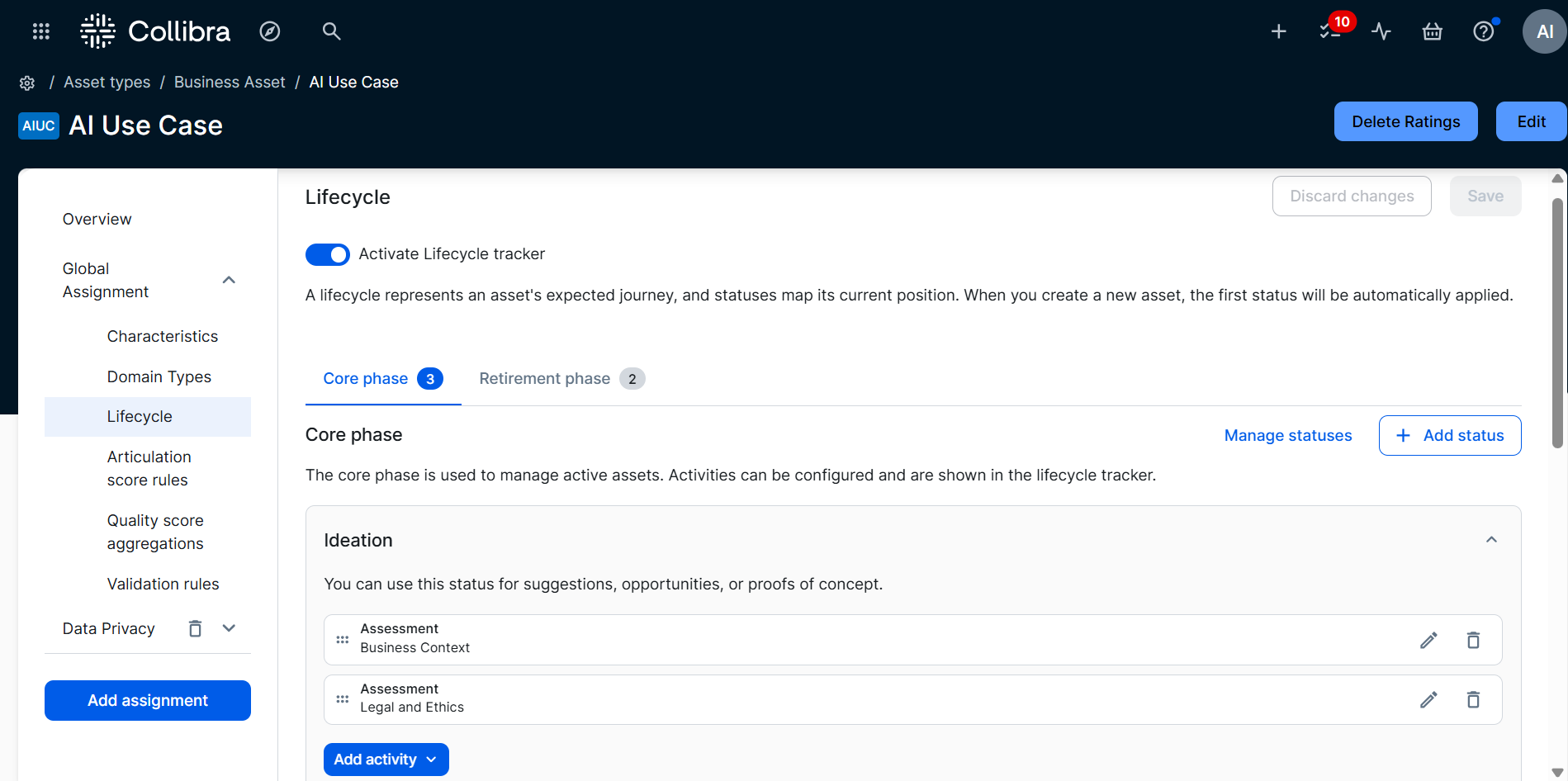
- Click Save.