An asset page provides an overview of information about an asset, based on the assignment of its asset type. This includes relations and complex relations. A relation view is a section on an asset page that shows all related assets of the same relation type or complex relation type.
Display modes
Relations and complex relations of the same type are grouped into separate sections, with the relation type as the section heading. Each section can be shown in one of the following modes:
- Table (default): Related assets are shown as a table. You can filter on multiple column headings at once. This is the default display mode for relation views. A relation view in the table display mode is called a relation table.
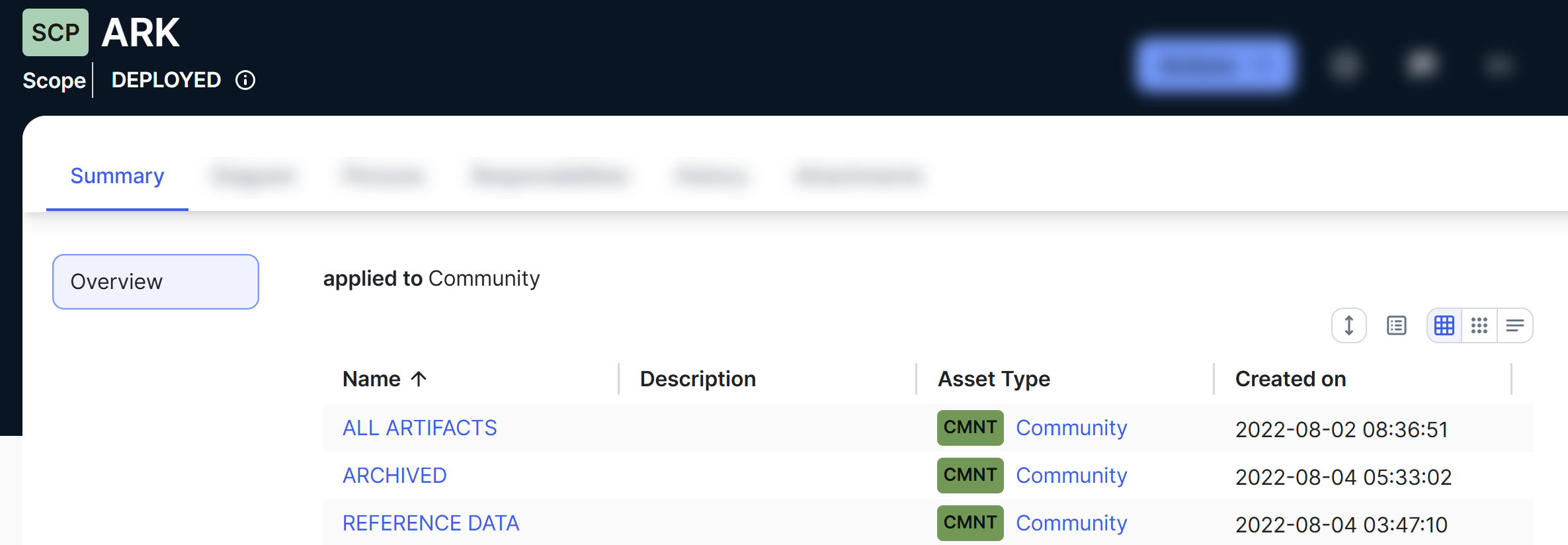 Tip If the related asset is a Data Notebook asset, you can see the full contents of the Data Notebook asset by clicking
 in the Name column. This opens the Data Notebook preview sidebar showing all associated queries, charts, and tables.
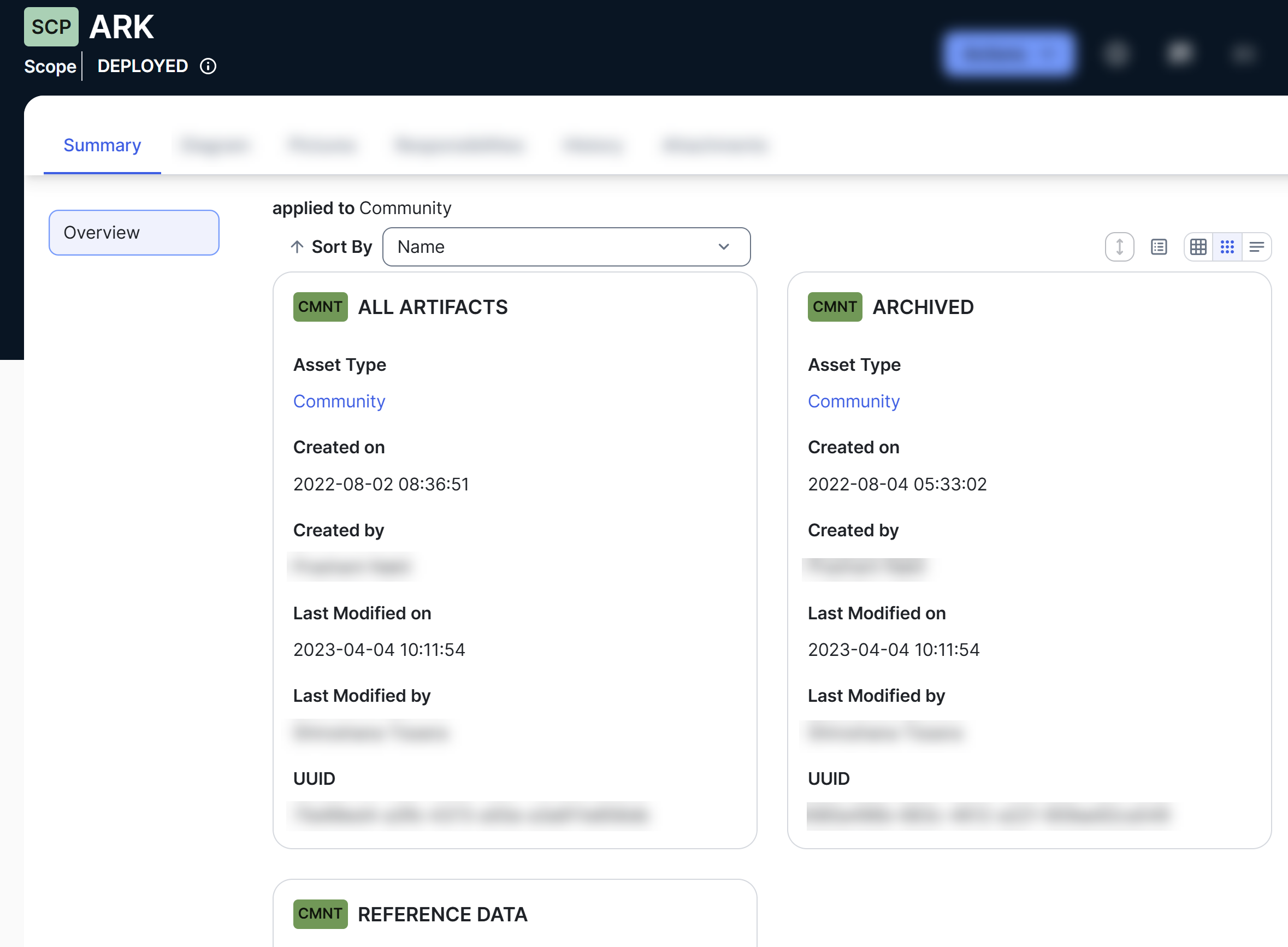
 - Tile: Related assets are shown as a set of tiles. A relation view in the tile display mode is called a relation tile.
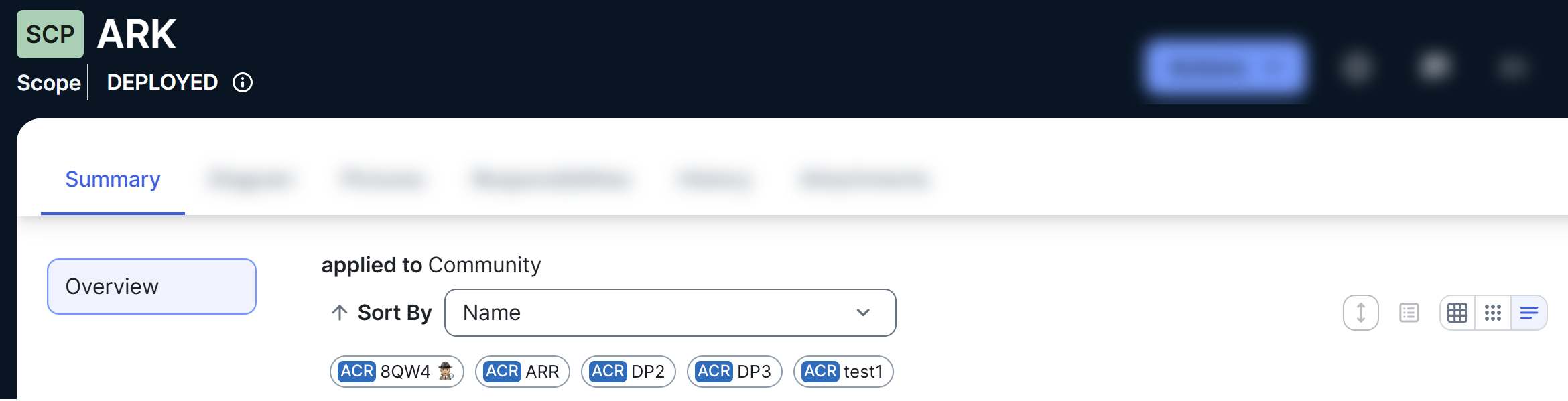
- List: Related assets are shown as a list.
The list display mode isn't available for complex relation views. A relation view in the list display mode is called a relation list.
Customize a relation view for yourself
Each relation type or complex relation type section on an asset page has a default relation view. You can customize the default relation view by changing the following:
- Display mode (table, tile, or list)
- Columns shown in a table or fields shown in a tile
- Number of rows or tiles shown per page
- Sorting direction
- Width of each column in the relation table
Your changes are automatically saved, and they don't affect the customizations made by other users.
A relation view applies to all assets of the same asset type, relation type, and role direction. For example, if you sort the Status column in ascending order in the synonym relation table of an Acronym asset, the Status column in the synonym relation table of all other Acronym assets is also sorted in ascending order—only for yourself.
Set a default relation view for everyone
Warning By performing this action, you overwrite the customizations made by other users to a relation view.
If you have the Manage shared views, dashboard and search filter global permission, you can set a default relation view for all users.
To set a default relation view for all users, customize the relation view as appropriate, and then click  (Save for all users). When you do this:
- Your customized relation view becomes the default relation view for all users.
- Any individual customizations made by other users to the relation view are replaced with your customized relation view.
A relation view applies to all assets of the same asset type, relation type, and role direction. For example, if you sort the Status column in ascending order in the synonym relation table of an Acronym asset and then click , the Status column in the synonym relation table of all other Acronym assets is also sorted in ascending order—for all users. That is, any customizations made by other users to the synonym relation table are replaced with the view you saved.