Use Slack with Collibra
Important This feature is available only in the latest UI.
Once the Slack integration is set up, you can start using Slack with Collibra. You can:
- Receive Collibra notifications in Slack
- Reply to Collibra comments in Slack
- Search Collibra data in Slack
- Share Collibra assets in Slack
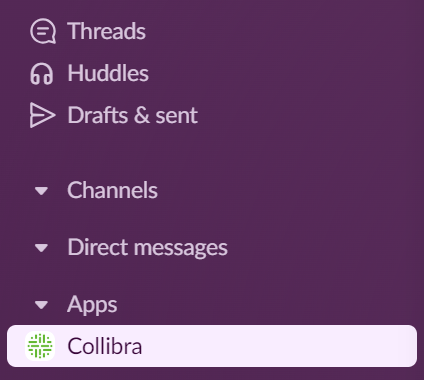
These features are available in the Collibra app in Slack, which displays in the Apps section.
Receive notifications
You will receive notifications in the Collibra app in Slack for task-assigned workflows, mentions, and comment threads. The text in the Slack notifications is the same as in the Collibra emails.
- You don't receive Slack notifications for workflow approvals or rejections.
- A new notification won't be sent when a comment is edited.
- Slack removes any unsupported formatting from a comment, but it remains visible in Collibra.
Reply to comments
You can reply to resource and assessment comments via Slack.
- You can’t reply to a deleted message.
- If a comment is resolved, you must reopen it in Collibra before replying.
- In Slack, click Reply to the comment in the Collibra app.
A dialog box appears. - Enter your comment and click Submit.
A green checkmark is shown in Slack to indicate that you replied. The comment shows in the Comment box for the asset.
Search Collibra data
You can search Collibra data in Slack using the /collibra_search prompt in a direct message or channel. The search results are the same as using the Search bar in the Collibra Platform. You can search only for asset categories. You can't search for users, user groups, domains, or communities.
- In the Slack message bar, enter
/collibra_searchand a search parameter, for example,/collibra_search report.
A dialog box shows the results. - If necessary, filter the results by asset type or tag.
- Click Share to share the results or click Close to close the dialog box.
Share assets
When you share an asset, a link to the asset shows in the Slack notification. You can share only assets. You can't share users, user groups, domains, or communities.
- In the Slack message bar, enter
/collibra_searchand a search parameter, for example,/collibra_search report.
A dialog box shows the results. - If necessary, filter the results by asset type or tag.
- Click Share to share the asset.
A notification is sent to the Collibra app in the Slack workspace indicating which asset was shared and by whom.