Manage Page Editor Tasks and issues widgets
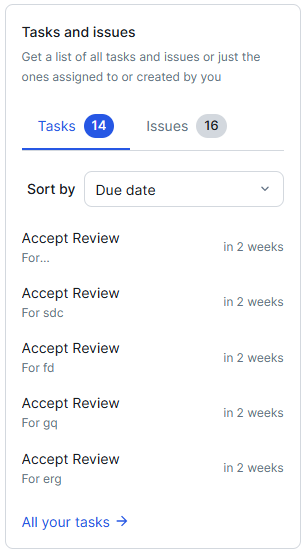
The Tasks and issues widget shows an overview of the open tasks and issues in your Collibra Platform. In the widget, you can configure what information is shown to a user, for example you can specify that only the tasks assigned to the user viewing the page are visible.
Prerequisites
You have the required permissions to edit the product page or dashboard.
Steps
- Go to the page where you want to add or edit a Tasks and issues widget.
- Click Edit.
- Place the widget:
- If this is a new widget, under Widgets, drag and drop Tasks and issues to the desired row on the page.
- If this is an existing widget, select the existing Tasks and issues widget and drag and drop it to the new position on the page.
- Select the Tasks and issues widget you want to configure.
- In the right-side Pages panel, update the widget details:
- In Title, enter the name of the widget.
- In Description, enter a description of the widget.
- Select the Show description in a tool tip checkbox to show the description in a tooltip. This helps consolidate space on your page.
- For Tasks:
- Select the Show tasks checkbox to show or hide tasks in the widget.
- In Assignment: select which tasks to show in the widget:
- All tasks: Shows all open tasks in your Collibra Platform.
- Tasks assigned to user: Shows only the open tasks assigned to the user viewing the page.
- In Maximum number of tasks, select the max number of tasks you want shown in the widget.
- For Issues:
- Select the Show issues checkbox to show or hide issues in the widget.
- In Assignment, select which issues to show in the widget:
- All issues: Shows all open issues in your Collibra Platform.
- Issues assigned to user: Shows only the open issues assigned to the user viewing the page.
- In Maximum number of issues , select the max number of issues you want to show in the widget.
- In Refresh level, select how often you want the counter data to be refreshed:
- No refresh: The data is not refreshed, and the information remains static from the time you publish the page.
- 5 minutes
- 10 minutes
- 25 minutes
- 50 minutes
- 100 minutes
- Optionally, select
 above the component to copy and paste the component.
 - Optionally, select
 above the component to delete the component.
 - Click Publish to publish your changes.
Example
You want users to quickly see how many open tasks they individually have, as well as how many open issues there are in your Collibra Platform.
- Add the Tasks and issues widget to a page.
- Under Tasks:
- You select the Show tasks checkbox to show tasks in the widget to ensure this tab is available.
- In Assignment, you select Tasks assigned to user. The widget will only show tasks assigned to the user viewing the page.
- In Maximum number of tasks, you set the max to 5. This shows a preview of open tasks, but doesn't take up too much space on the page.
- Under Issues:
- You select the Show issues checkbox to show issues in the widget to ensure this tab is available.
- In Assignment, you select All issues. The widget will show all open issues in your Collibra Platform.
- In Maximum number of issues , you set the max to 5. This shows a preview of open issues, but doesn't take up too much space on the page.
- Click Publish.
When the user views the page, they can sort the tasks and issues by asset, name, or due date.