Databricks connects to the Collibra MCP server through an MCP Service in Unity Catalog. Once connected, agents and the Databricks AI Playground can use Collibra's governed metadata tools. The recommended approach is for an administrator to create the connection once and share it with selected user groups.
Important While you can use an external IDP to set up this integration, the following instructions outline how to set up this integration if you use the Collibra IDP. If you use an external IDP, go to that IDP's documentation and refer to Collibra's JWT configuration documentation.
Note The Databricks integration connects to a server in the Collibra Cloud environment, so it is not available for Collibra Platform for Government or Collibra Platform Self-Hosted (CPSH).
Before you begin
- You need admin privileges in Collibra to register an OAuth application.
- Each user signs in with their own Collibra credentials (OAuth 2.0, user to machine, per user).
- Have an administrator create the connection once and share it with the relevant user groups.
- Do not share a Client ID and Client Secret between individual users.
If you upgrade to Databricks Runtime 19 or later, existing Collibra MCP connections might fail to authenticate. To fix this, edit the connection and re-enter the OAuth Client Secret from Step 1.
Step 1: Register an OAuth application in Collibra
This step requires admin privileges in Collibra.
- Go to Settings.
- Click OAuth applications.
- Click New Application.
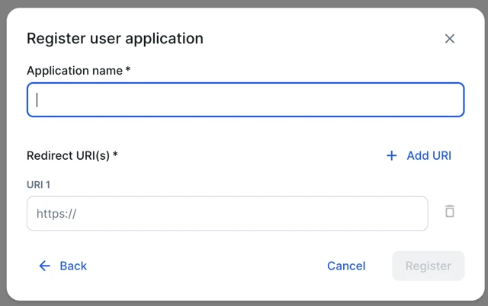
- Click Register user application.
- Enter an application name.
- Enter the redirect URI for Databricks:
https://<workspace-id>.cloud.databricks.com/login/oauth/http.html - Click Register.
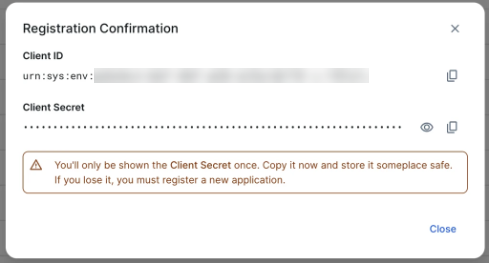
- Copy the Client ID and Client Secret. You need them to configure the connection in Databricks.
Step 2: Configure the connection in Databricks
You can set up the connection in two ways: through Databricks Marketplace or by creating an MCP Service directly. Both create the same MCP Service. Marketplace is the more guided option.
Option A: Databricks Marketplace (recommended)
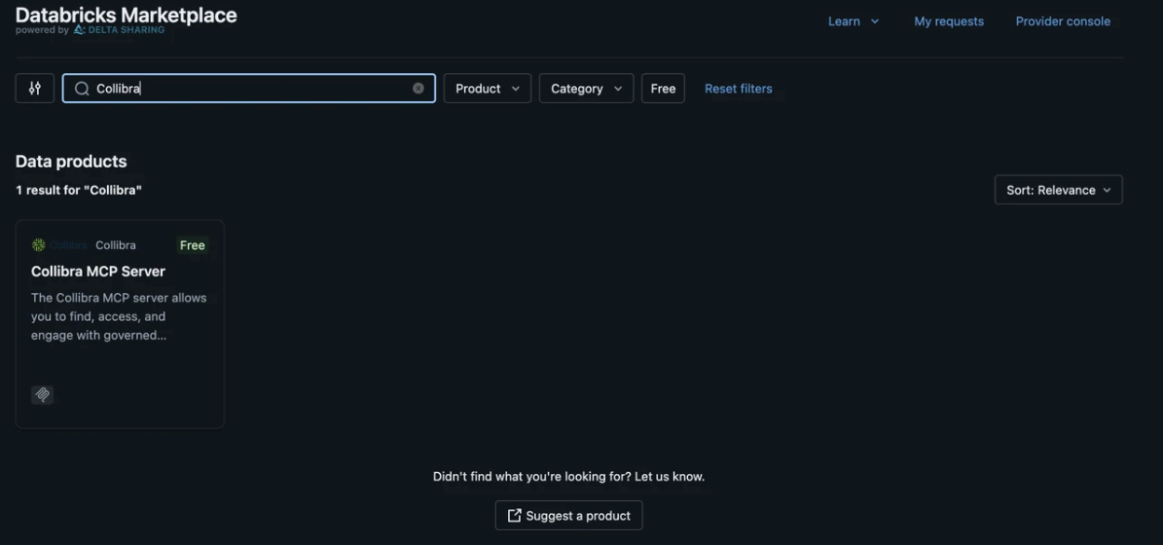
- Go to Marketplace and search for Collibra.
- Click Install.
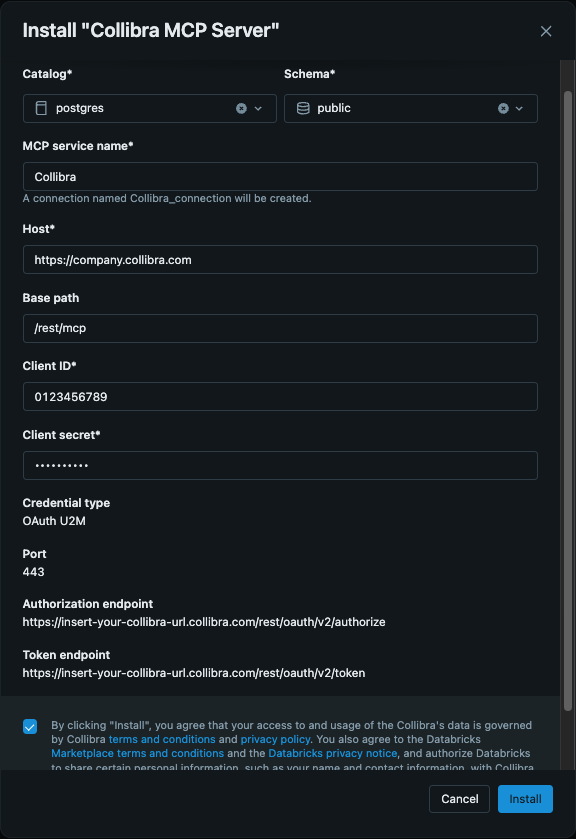
- Complete the form and click Install. Enter the Client ID and Client Secret from step 1. You set the authorization and token endpoints in step 6.
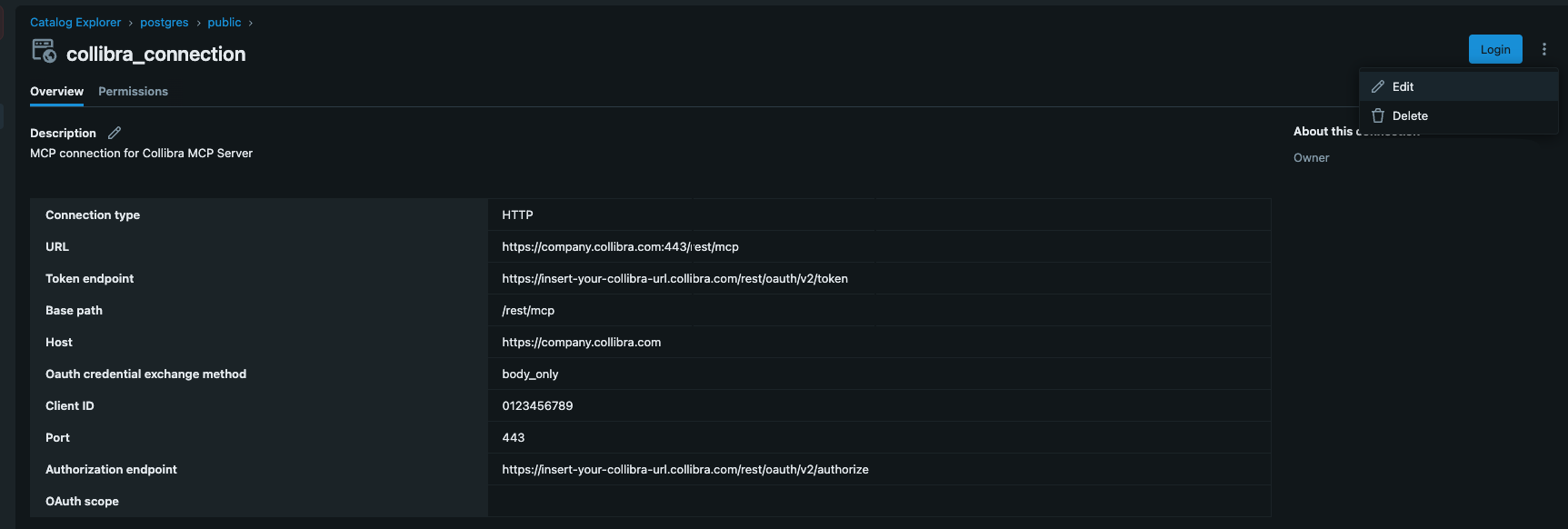
- Go to Catalog, click Schema, click Connections, and then open the new Collibra MCP Server connection.
- Click
 in the top right, then click Edit.
 - Update the endpoints, replacing
<instance>with your Collibra instance name:- Authorization endpoint:
https://<instance>.collibra.com/rest/oauth/v2/authorize - Token endpoint:
https://<instance>.collibra.com/rest/oauth/v2/token
- Authorization endpoint:
- Optional: go to AI Gateway, select the MCPs tab, and open the new MCP Service. Open the Permissions tab and grant
EXECUTEto all or selected users.

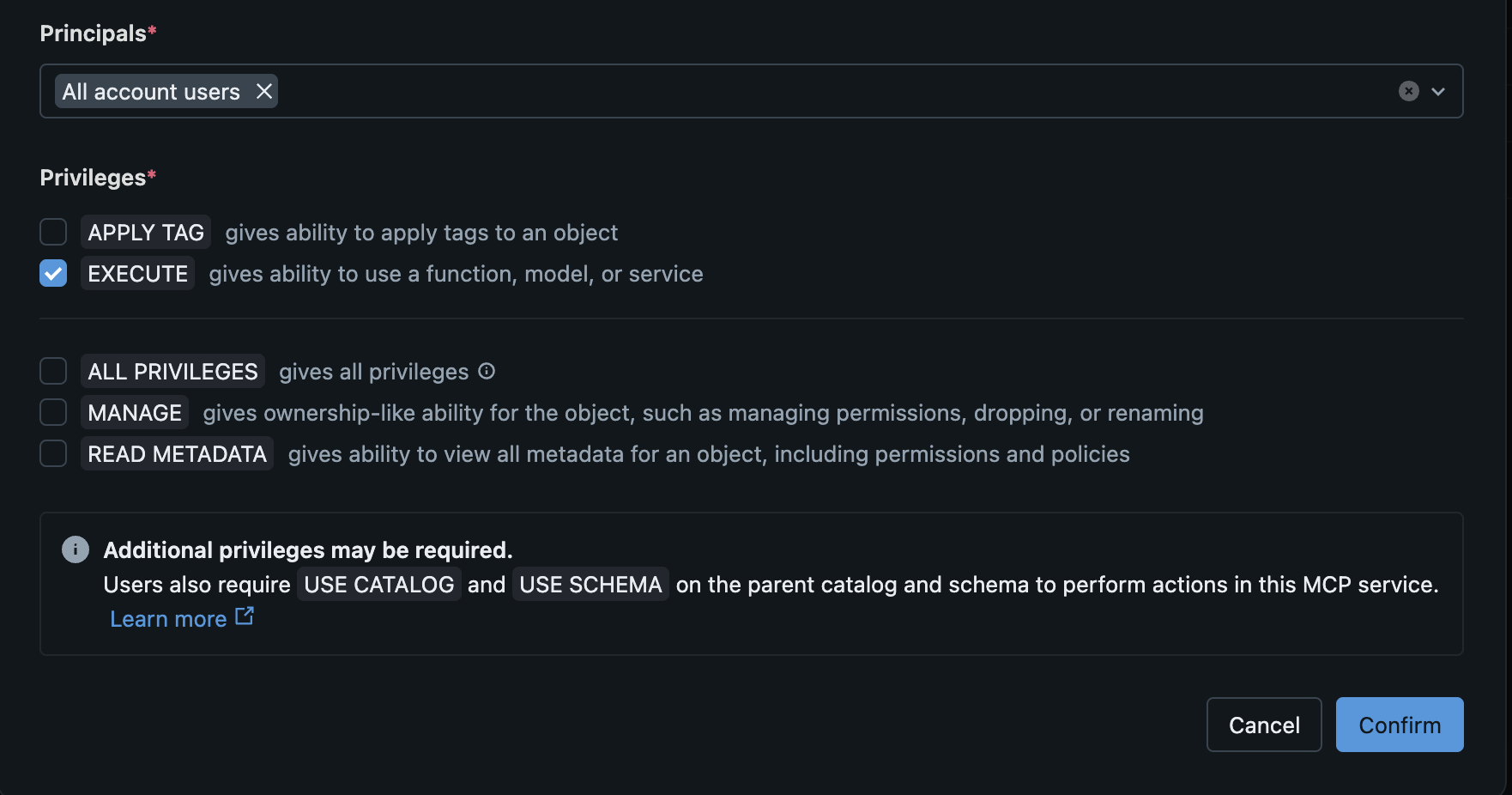
Note Users also need USE CATALOG on the parent catalog and USE SCHEMA on the parent schema to use the MCP Service.
Option B: MCP Service
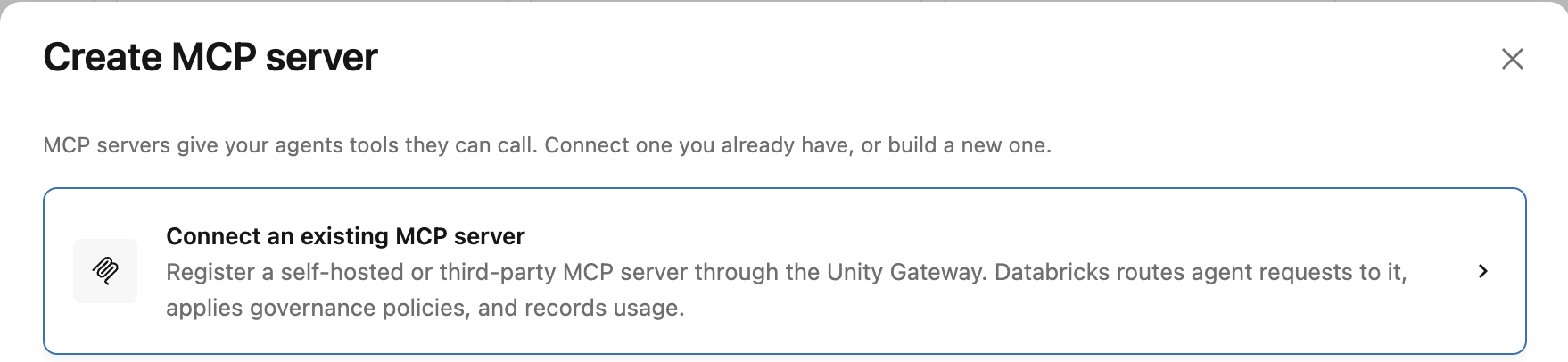
- In the left menu, go to AI Gateway, click + MCP, and then click Connect an existing MCP server.
- Complete the Name section of the Create MCP Service form:
- Catalog: the catalog that stores the MCP Service
- Schema: the schema that stores the MCP Service
- Name: the name of the MCP Service. You cannot change this later.
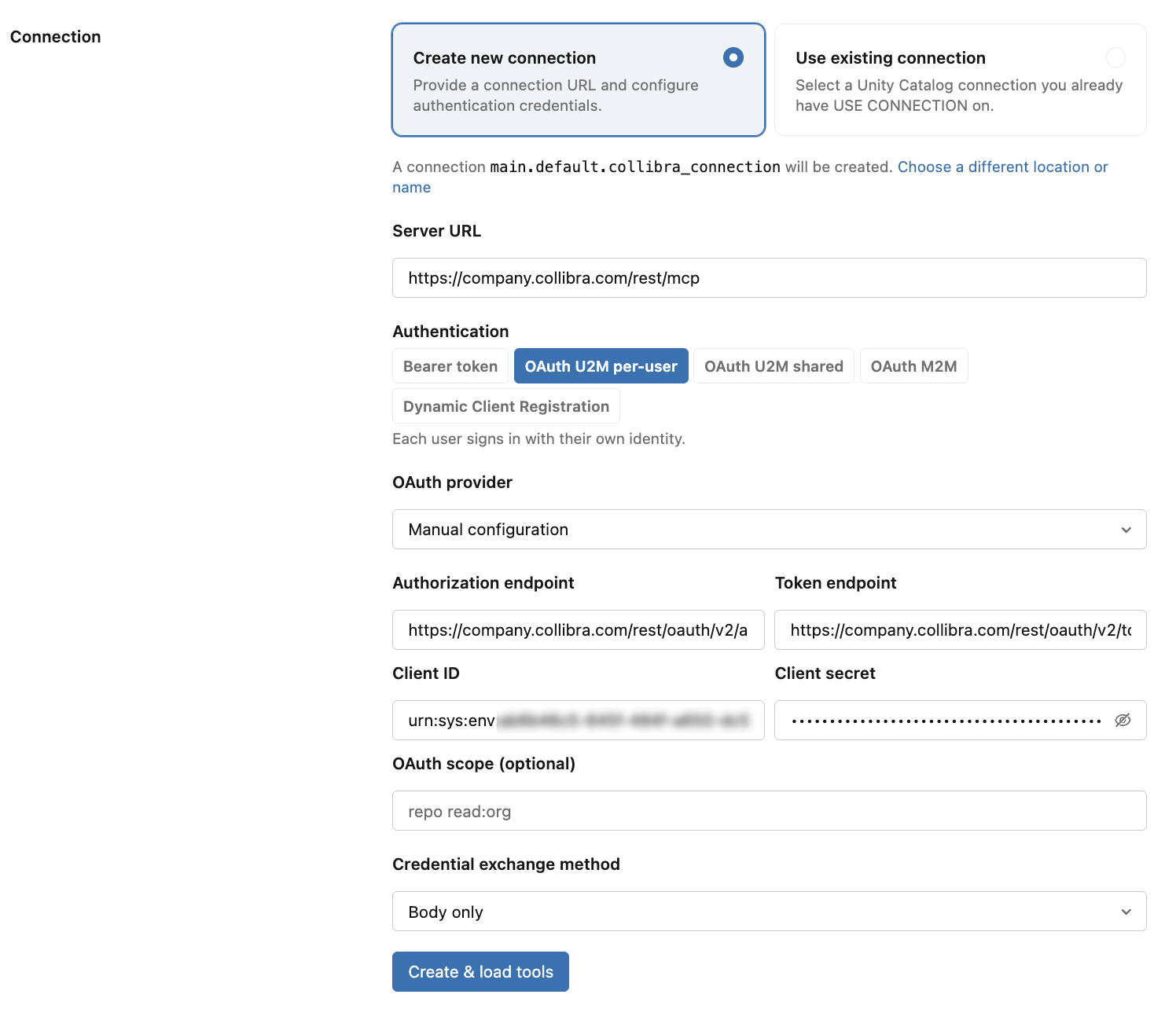
- Complete the Connection section, replacing
<instance>with your Collibra instance name:- Connection: Create new connection
- Server URL:
https://<instance>.collibra.com/rest/mcp - Authentication: OAuth U2M per-user
- OAuth provider: Manual configuration
- Authorization endpoint:
https://<instance>.collibra.com/rest/oauth/v2/authorize - Token endpoint
https://<instance>.collibra.com/rest/oauth/v2/token - Client ID and Client secret: from step 1
- OAuth scope: leave empty
- Credential exchange method: Body only
- Click Create & load tools.
- Click Login and sign in with your Collibra credentials.
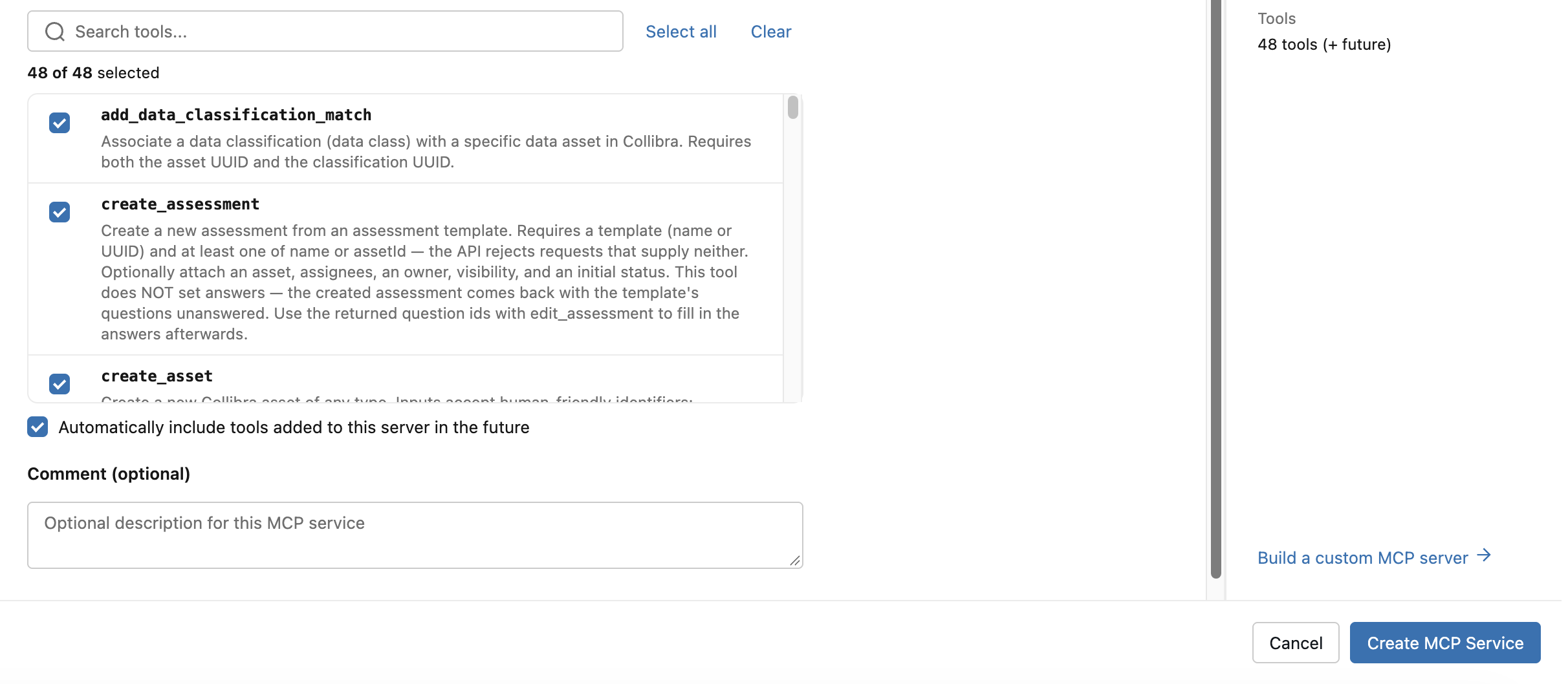
- Optional: select the tools to include in the MCP Service.
- Click Create MCP Service.
- Optional: open the Permissions tab and grant
EXECUTEto all or selected users.


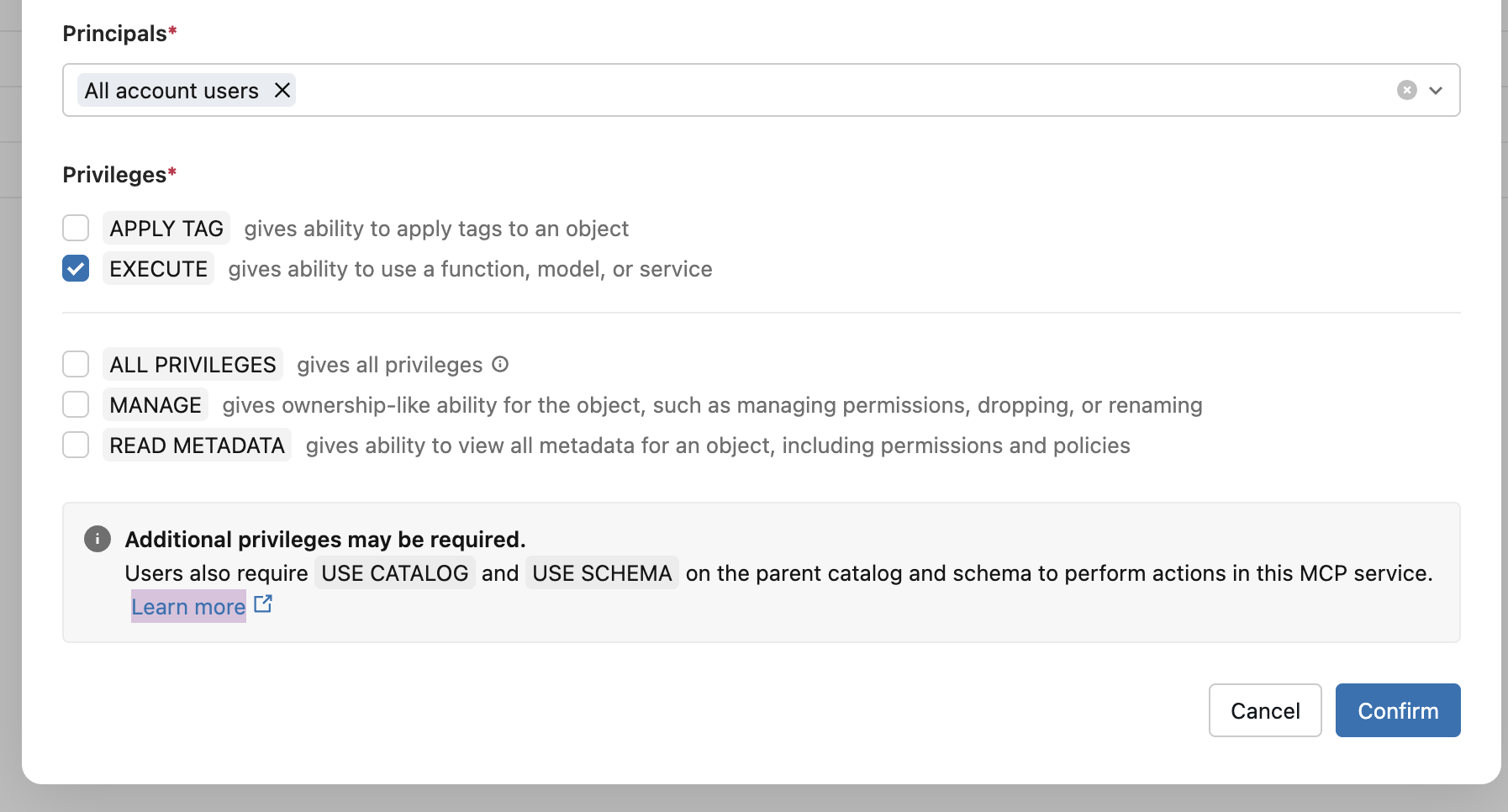
Note Users also need USE CATALOG on the parent catalog and USE SCHEMA on the parent schema to use the MCP Service.
Use the connection
The connection appears in AI Gateway, on the MCPs tab. Each user authenticates with their own credentials:
- Open the connection and click Login in the top right.
- Sign in with your Collibra credentials, or through SSO if it is configured.

Once authenticated, you can use the Collibra tools:
- Go to AI Gateway in the left menu, select the MCPs tab, and find the connection.
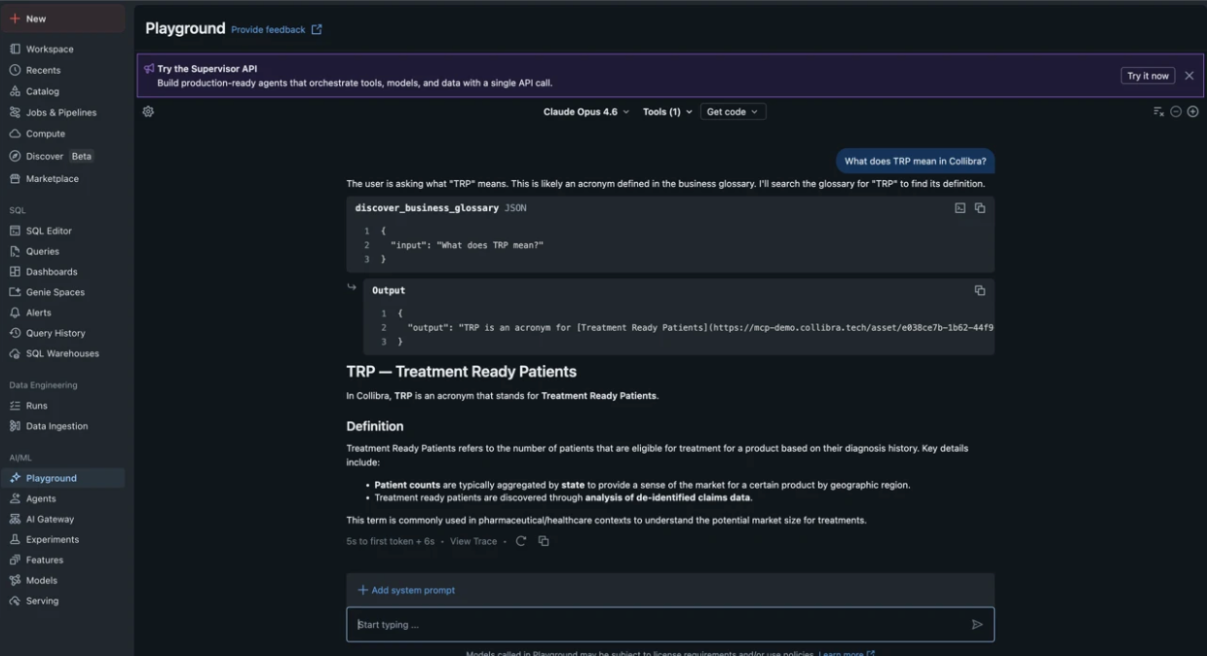
- Click Playground to open the AI Playground with the Collibra MCP server preselected.
After you connect
- Agents dynamically discover the Collibra tools that the MCP Service exposes, including search, lineage, and glossary.
- Access is enforced through Unity Catalog permissions. You can also limit which tools agents can use in the MCP Service.
- The AI Playground lets you prototype with Collibra tools before building production agents.