You can create or manage data contracts and their manifests through the Collibra user interface (UI). You can also use a command-line interface (CLI) or direct API calls to interact with the Data Contract service.
Create a data contract
You can create a data contract from the Data Product asset page.
Prerequisites
- You have a global role with the Product Rights > Data Contract global permission.
- You have View permission on the domain where you want to create a data contract.
- You have a resource role with the following resource permissions on the domain where you want to create a data contract:
- Asset > Add
- Asset > Attribute > Add
- You have a resource role with the Asset > Attribute > Add resource permission on the governed asset.
- If a data contract is already created without a manifest and you want to initialize the contract:
- You have View permission on the Data Contract asset.
- You have a resource role with the following resource permissions on the Data Contract asset:
- Asset > Attribute > Add
- Asset > Attribute > Update
Steps
- Open the Data Product asset page.
- In the exposes data as Data Product Port section, click the data product port card.
- In the Preview sidebar, click the Data contract tab.
- Choose one of the following methods.
Method Description Knowledge graph generation Creates or updates a data contract with a manifest based on the information in the governed asset and any linked tables. If you select this method:
- Click Generate contract manifest.
- In the Generate manifest dialog box, review or edit the values.
- Click Generate (or Generate and download).
File upload Creates or updates a data contract with a manifest based on the information in the file that you upload. If you select this method:
- Click Upload contract manifest.
- In the Upload manifest dialog box, click Upload a file, and then select the required manifest.
- Review or edit the values. Ensure that the value in the Initial version field matches the version in the file content.
- Click Upload.
CLI Provides the CLI command to create a new Data Contract asset with manifest.
- You can create a data contract without a governed asset in the data contract registry.

-
You can link a governed asset to the data contract later. To do so, on the Contract Manifest tab of the Data Contract asset page, click Link asset. You need to have View permission on the Data Contract asset and a resource role with the Asset > Attribute > Add resource permission on the governed asset.
Generate a new manifest version
Prerequisites
- You have a global role with the Product Rights > Data Contract global permission.
- You have View permission on the Data Contract asset.
- You have a resource role with the Asset > Attribute > Update resource permission on the Data Contract asset.
Steps
You can generate a new version of a manifest based on the latest synchronized metadata.
- Open the Data Contract asset page, and then click the Contract Manifest tab.
- In the upper-right corner within the tab, in the drop-down list, select the version that you want to be the base for the new version.
- Click
 > Generate a new version.
 - In the Generate and upload a new version dialog box, in the New version field, enter the version number that you want to assign to the new version.
- Click Generate.
Collibra retrieves the latest synchronized metadata and updates the relevant content in your base version. Any custom code or unsynchronized content in your base version is preserved. The generated version is shown as raw code. - Review, edit, or download the new version. To see the differences between the new version and the base version, click Compare.
- Click Continue.
- If you want to make the new version the active version, select the Set as active manifest version checkbox. A data contract can have multiple manifest versions. This action deactivates the current active version.
- If you want to generate the new version even if it already exists for the data contract, select the Force overwrite if version already exists checkbox. To check whether a manifest version already exists, Collibra considers the version number that is shown in this dialog box.
- Click Upload.
Upload a new manifest version
Prerequisites
- You have a global role with the Product Rights > Data Contract global permission.
- You have View permission on the Data Contract asset.
- You have a resource role with the Asset > Attribute > Update resource permission on the Data Contract asset.
- The size of the manifest file that you want to upload is not more than 10 MB.
Steps
- Open the Data Contract asset page, and then click the Contract Manifest tab.
- In the upper-right corner within the tab, click > Upload a new version.
- In the Upload new manifest version dialog box, click Upload a file, and then select the required manifest.
- Enter the following information, and then click Upload.
Field Description New version to upload The version of the manifest. The default value is 0.0.1. Ensure that the value in this field matches the version in the file content.
Collibra checks the version in this field against existing versions to prevent duplicates, ignoring the file name or file content. If the version number already exists, Collibra shows an error message unless you select the Force overwrite if version already exists checkbox.
Set as active manifest version A data contract can have multiple manifest versions. Select this checkbox if you want to make the new version the active version. This deactivates the current active version.
Force overwrite if version already exists Select this checkbox if you want to upload the new version even if it already exists for the data contract. To check whether a manifest version already exists, Collibra considers the version number that is shown in this dialog box, not your manifest file name or the version number that is inside the file.
Compare two manifest versions
Prerequisites
- You have a global role with the Product Rights > Data Contract global permission.
- You have View permission on the Data Contract asset.
Steps
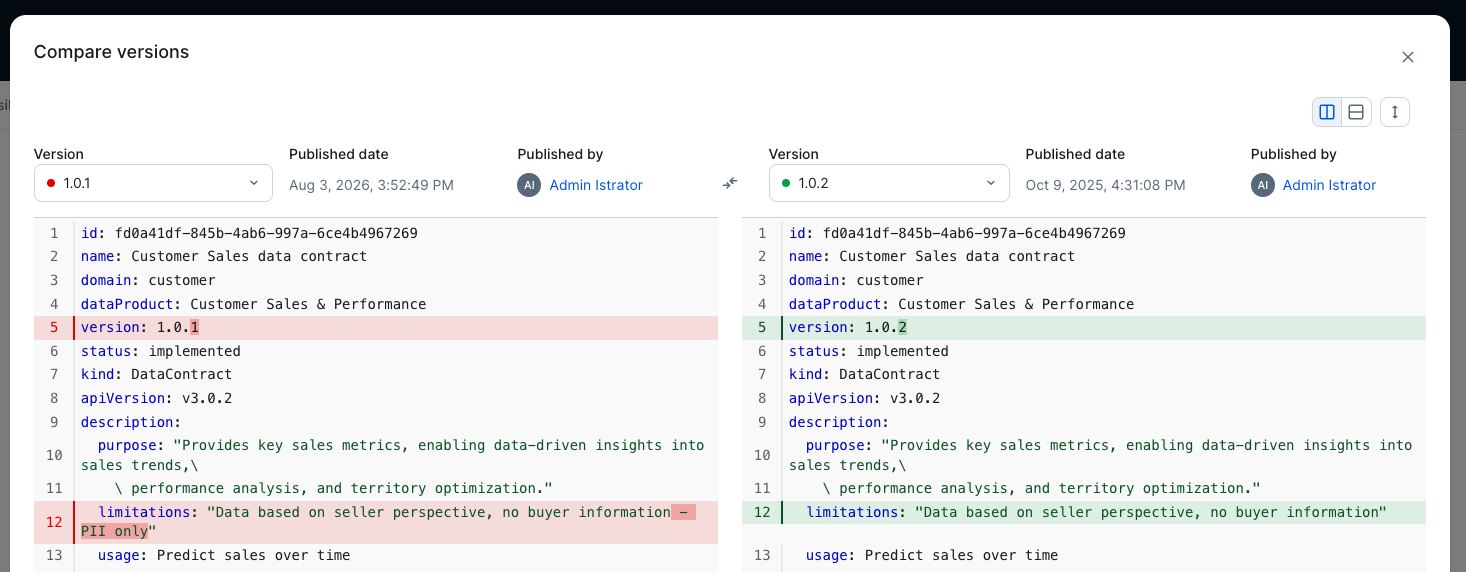
- Open the Data Contract asset page, and then click the Contract Manifest tab.
The active version of the manifest is shown. - In the upper-right corner within the tab, in the drop-down list, select the primary version that you want to compare.
- Click > Compare two versions.
- In the Compare versions dialog box, in the Version field that is on the right, select the version that you want to compare with the primary version.
Set a manifest version as active
Prerequisites
- You have a global role with the Product Rights > Data Contract global permission.
- You have View permission on the Data Contract asset.
- You have a resource role with the Asset > Attribute > Update resource permission on the Data Contract asset.
Steps
- Open the Data Contract asset page, and then click the Contract Manifest tab.
- In the upper-right corner within the tab, in the drop-down list, select the version that you want to set as active.
- Click > Set as active.
- In the Set new active version dialog box, click Set as active.
Update knowledge graph with a data contract
You can update the Collibra knowledge graph to match your active manifest. The process updates Service Level Agreement (SLA) attributes on the Data Contract asset and creates or updates relations between Data Product Port assets and Table assets based on the information in the manifest.
Prerequisites
- You have a global role with the Product Rights > Data Contract global permission.
- You have View permission on the Data Contract asset.
- To update SLAs: You have a resource role with the following resource permissions on the Data Contract asset:
- Asset > Attribute > Add
- Asset > Attribute > Update
- Asset > Attribute > Remove
- To update relations: You have a resource role with Asset > Attribute > Add resource permission on the Data Product Port asset.
Steps
- Open the Data Contract asset page, and then click the Contract Manifest tab.
The active version of the manifest is shown. - If needed, set a different version as active.
- In the upper-right corner within the tab, click > Update knowledge graph.
- In the Update knowledge graph dialog box, verify that the correct target governed asset and manifest version are shown, and then click Next.
- Review the proposed changes to SLA attributes.
- To accept the changes, click Update. To skip the changes, switch off the Update option, and then click Skip.
- Review the proposed changes to relations.
- To accept the changes, click Update. To skip the changes, switch off the Update option, and then click Skip.
- Click Done.
Check alignment between an active manifest and knowledge graph
Every 24 hours, Collibra automatically checks whether a data contract's active ODCS manifest matches the current state of the knowledge graph. It also checks the alignment immediately after you set a manifest version as active or update the knowledge graph with a data contract. You can also manually check the alignment.
Prerequisites
- You have a global role with the Product Rights > Data Contract global permission.
- You have View permission on the Data Contract asset.
Steps
- Open the Data Contract asset page, and then click the Contract Manifest tab.
The active version of the manifest is shown. - Point to the alignment status, and then click
 (Re-check now).Tip You can also compare the active manifest to the knowledge graph.
A message appears after the alignment check is complete.
Compare an active manifest to knowledge graph
You can compare an active manifest to the current state of the knowledge graph, and then choose whether to update the manifest or the knowledge graph to resolve any differences.
Prerequisites
- You have a global role with the Product Rights > Data Contract global permission.
- You have View permission on the Data Contract asset.
Steps
- Open the Data Contract asset page, and then click the Contract Manifest tab.
The active version of the manifest is shown. - Click > Compare to knowledge graph.
The Compare to knowledge graph dialog box appears, showing the active manifest and the knowledge graph side by side, along with a table listing all differences.
- Click Next.
- Verify that the targeted data contract is correct.
- Select one of the following options.
Option Description Generate new manifest version Generates a new version of the manifest based on the latest SLA and schema metadata.
Click Generate new version, and then complete the remaining steps.
Update the knowledge graph Updates the knowledge graph based on the active manifest.
Click Update knowledge graph, and then complete the remaining steps.
Download a manifest version
Prerequisites
- You have a global role with the Product Rights > Data Contract global permission.
- You have View permission on the Data Contract asset.
Steps
- Open the Data Contract asset page, and then click the Contract Manifest tab.
- In the upper-right corner within the tab, in the drop-down list, select the version that you want to download, and then click
 .
.
Delete a manifest version
Prerequisites
- You have a global role with the Product Rights > Data Contract global permission.
- You have View permission on the Data Contract asset.
- You have a resource role with Asset > Attribute > Remove resource permission on the Data Contract asset.
Steps
- Open the Data Contract asset page, and then click the Contract Manifest tab.
- In the upper-right corner within the tab, in the drop-down list, select the version that you want to delete, and then click > Delete.
Delete a data contract
Prerequisites
- You have a global role with the Product Rights > Data Contract global permission.
- You have View permission on the Data Contract asset.
- You have a resource role with Asset > Remove resource permission on the Data Contract asset.
Steps
- Open the Data Contract asset page.
- Click > Delete.