This page describes how Data Marketplace administrators can configure the Data Marketplace landing page through Settings > Data Marketplace > Landing page.

About the Data Marketplace landing page
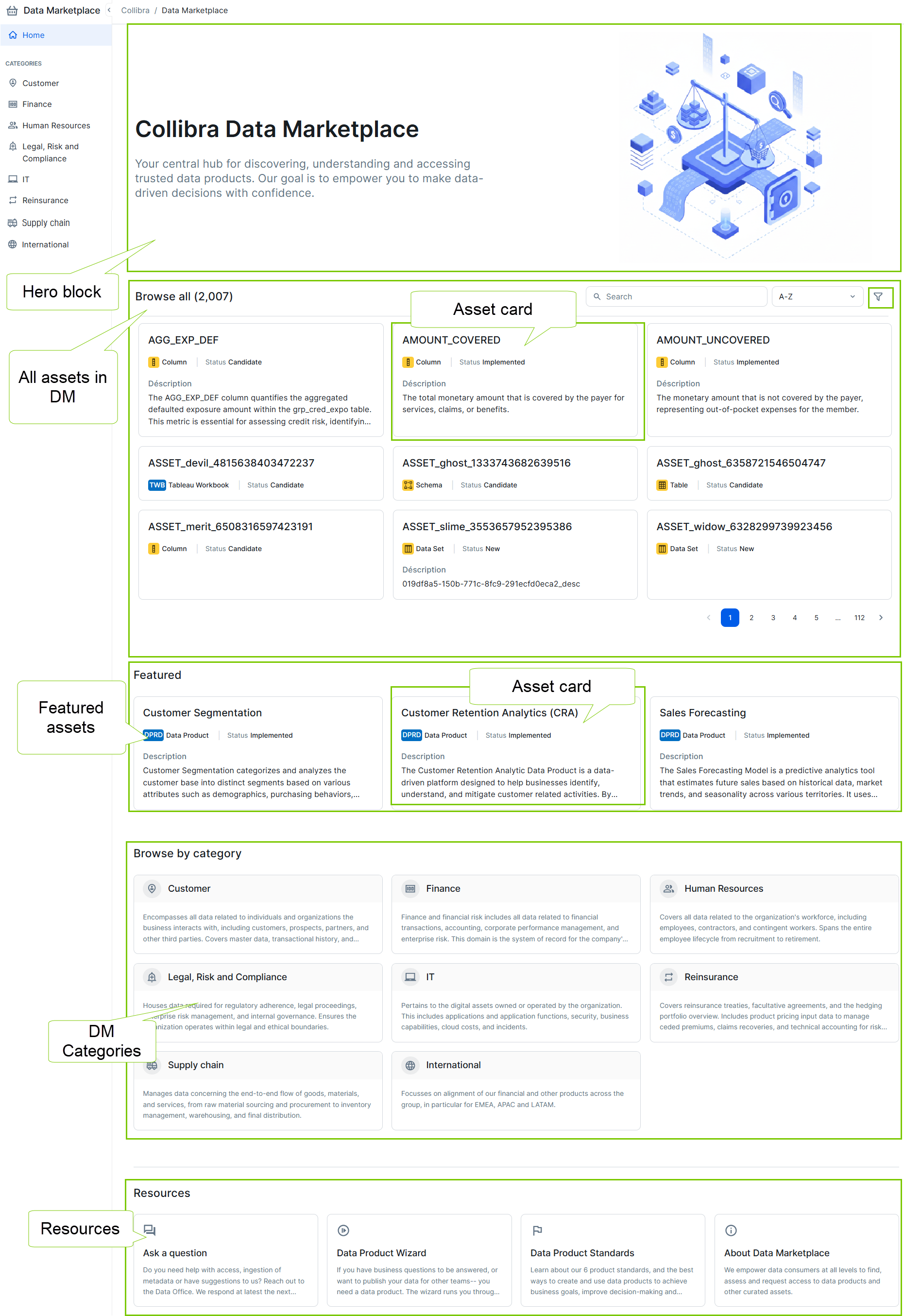
The Data Marketplace landing page is the page that opens when a user clicks Data Marketplace in the Application menu. It can consist of a Hero block, the defined Data Marketplace categories, featured assets, and useful resources.
Prerequisites
- You have the SysAdmin global role.
- You have a global role with the Product Rights > System administration global permission.
Steps
-
On the main toolbar, click
 →
→
 Settings.
The Settings page opens. - Go to Data Marketplace > Landing page.
The Landing page page opens. - In the Hero section tab, in Main content, define the Hero title and Subtitle.
If you don't add a title here, the title "Welcome to Data Marketplace" is added to the landing page.
If you don't add a Subtitle here, the subtitle "Your central hub for discovering, understanding and accessing trusted data products, Our goal is to empower you to make data-driven decisions with confidence." is added to the landing page. - If you want to show an image, perform the following steps:
- Switch the Enable hero image option on.
- Click Upload a file to select the image you want to include or drag and drop the image file into the Hero image field.
You can upload JPG, JPEG, PNG, or SVG files that are 5 MB or less.Tip To remove an image, first click the Delete icon next to the image and click Save. Then select a new image and click Save again.
- In Alt text, add the text that can be read by screen readers and is used for short descriptions.
- In Layouts, define the location in relation to the title and subtitle. The hero image can be added to the left or right from the title and subtitle.
- Click Save to keep your changes.
- In the Featured assets tab, define the featured assets for Data Marketplace.
- Click Add asset.
- From the Asset drop-down list, search for and select the required asset.
- Click Add.
You can add up to 20 featured assets.
- Click Save to keep your changes.
- In the Resources section tab, enable the section and define the resources you want to link to from Data Marketplace.
A resource can be a link to an internal or external website that provides helpful information or an action that starts a global workflow. If a workflow is disabled or no longer exists, an error icon is shown in the resource card.- Switch the Enabled option on.
- Click Add card.
- Enter the card details.
Field Description Title Click the icon in front of the title to change the icon. This icon is shown on the landing page.
Enter the title of the resource. This title is shown on the landing page.Description Add a description for the resource. This description is shown in the landing page. Action type Define whether the resource is a link or a workflow.
- If you select Open a URL, add the full URL by adding https:// or the relative path by adding /.
- If you select Start a global workflow, select the required workflow from the Workflow drop-down list.
- Click Save.
Each resource is added as a card. You can add up to 4 resources.
- Click Save to keep your changes.
Define the content for Data Marketplace asset cards