Create an SAP Signavio connection to an Edge or Collibra Cloud site
To integrate SAP Signavio assets, you first need to prepare Edge.
Ensure that you have completed all the prerequisites in your SAP Signavio and Collibra environments. Once you have created a connection, you can then proceed with metadata ingestion.
Do you use a vault?
|
You can use a vault to add your data source information to your Edge site connection. Check the connection property table below to see which information is available for your vault. Vaults are not available for Collibra Cloud sites. |

No vault

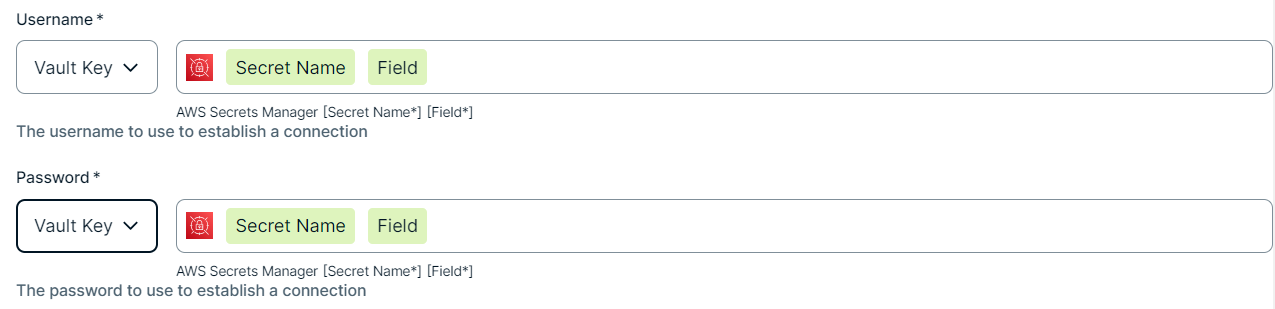
AWS Secrets Manager

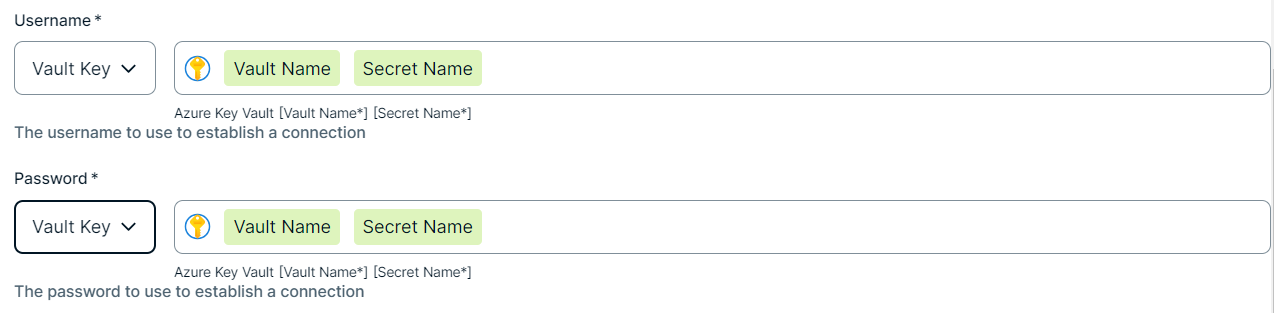
Azure Key Vault
CyberArk Vault
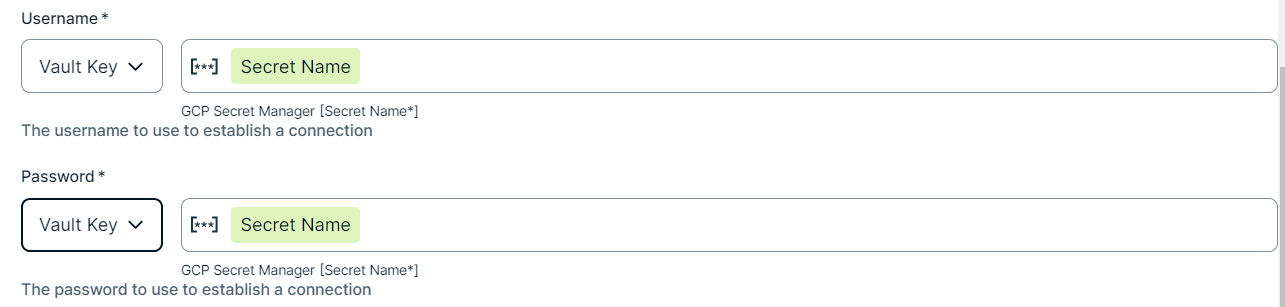
Google Secret Manager

HashiCorp Vault
|
|
|
|
||
|
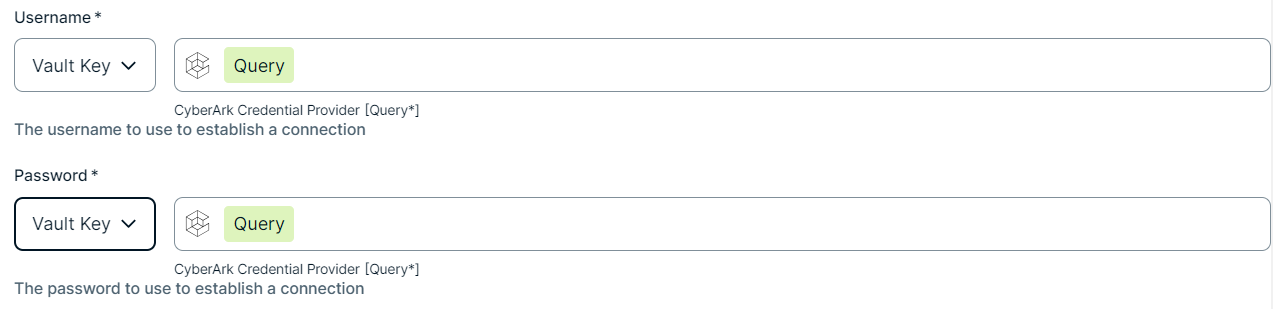
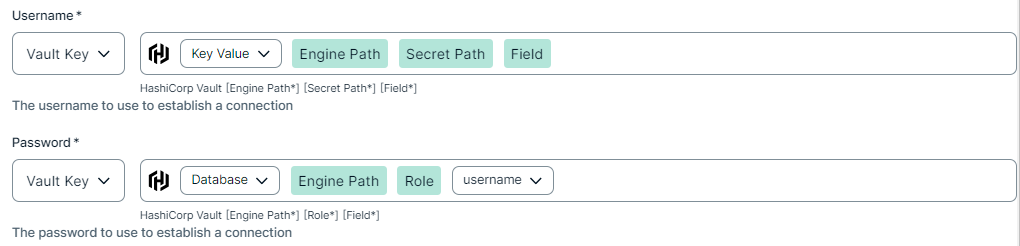
How to use your vault...
To use your vault, do the following:
To use your vault, do the following:
To use your vault, do the following:
To use your vault, do the following:
To use your vault, do the following:
|
||
Prerequisites
In your Collibra environment
- To use the SAP Signavio integration, you need Edge 2026.03.84 or newer.
-
You
- You have added a vault to your Edge site.Note Vaults are not supported on Collibra Cloud sites.
- If your data source connection requires a file from your vault, the file must be encoded into Base64 and stored as a regular secret in your vault.
- You have a global role that has the Manage connections and capabilities global permission, for example, Edge integration engineer.
In your SAP Signavio environment
-
API access in SAP Signavio requires setting up technical user accounts. Ensure that you have a valid and active SAP Signavio account to set up the SAP Signavio connection in Collibra. For more information on access and licensing, go to the SAP Signavio documentation.
Steps
- Open a site.
-
On the main toolbar, click
 →
→
 Settings.
The Settings page opens. -
In the tab pane, click Edge.
The Sites tab opens and shows a table with an overview of your sites. - In the table, click the name of the site whose status is Healthy.
The site page opens.
-
On the main toolbar, click
- In the Connections section, click Create connection.
The Create connection page appears. - Select the SAP Signavio connection to connect to SAP Signavio.
- Enter the required information.
Field Description Required Available for vaults? Name The name of the Edge or Collibra Cloud site connection for SAP Signavio.
 Yes
Yes No
No
Description The description of the connection.
No
No
SAP Signavio URL The base URL of your SAP Signavio instance. For example:
api.<region>.signavio.cloud.sap.For information on how to find the base URL in SAP Signavio, go to the SAP Signavio documentation.
Yes No
Vault The vault where you store your data source values. No
No
Username The email address of the SAP Signavio user to be used for basic authentication.
Yes
Yes
Password The password of the SAP Signavio user to be used for basic authentication.
Yes
Yes
Workspace ID Optionally, specify the Workspace ID of your SAP Signavio workspace.
This is only required if you have multiple workspaces. In that case, the Workspace ID helps identify the correct workspace from which to extract metadata.
For information on how to find the workspace tenant ID in SAP Signavio, go to the SAP Signavio documentation.
No Yes
- Click Create.
The connection is added to the Edge or Collibra Cloud site.
You can now add the SAP Signavio capability to an Edge or Collibra Cloud site.