Create an SAP S/4HANA connection to an Edge or Collibra Cloud site
To integrate SAP S/4HANA assets, you first need to prepare Edge. The integration communicates with your SAP S/4HANA system using the Remote Function Call (RFC) protocol.
Ensure that you have completed all the prerequisites in your SAP S/4HANA and Collibra environments. Once you have created a connection, you can then proceed with metadata ingestion.
Do you use a vault?
|
You can use a vault to add your data source information to your Edge site connection. Check the connection property table below to see which information is available for your vault. Vaults are not available for Collibra Cloud sites. |

No vault

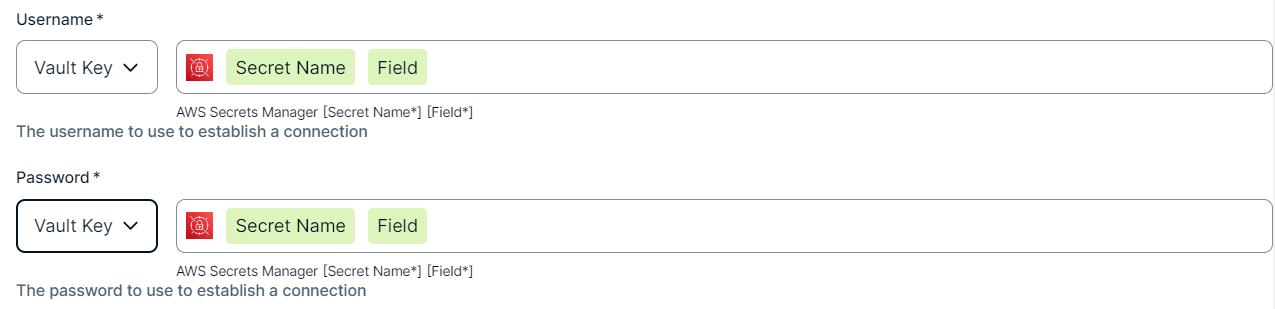
AWS Secrets Manager

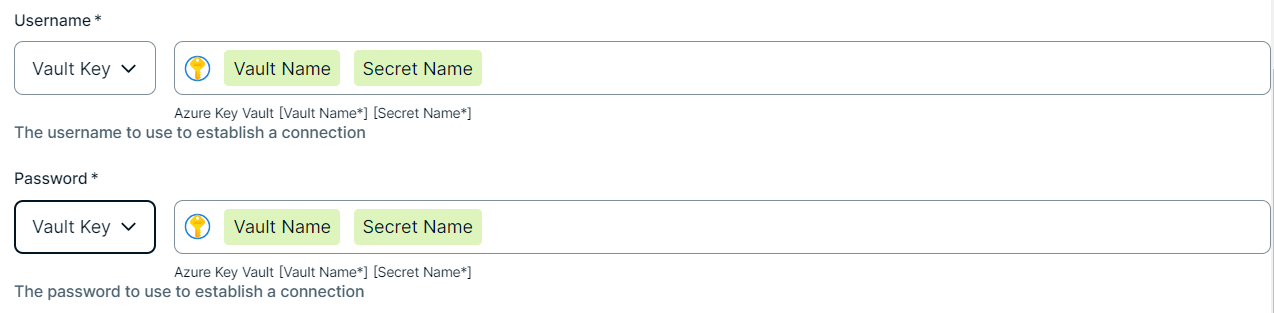
Azure Key Vault

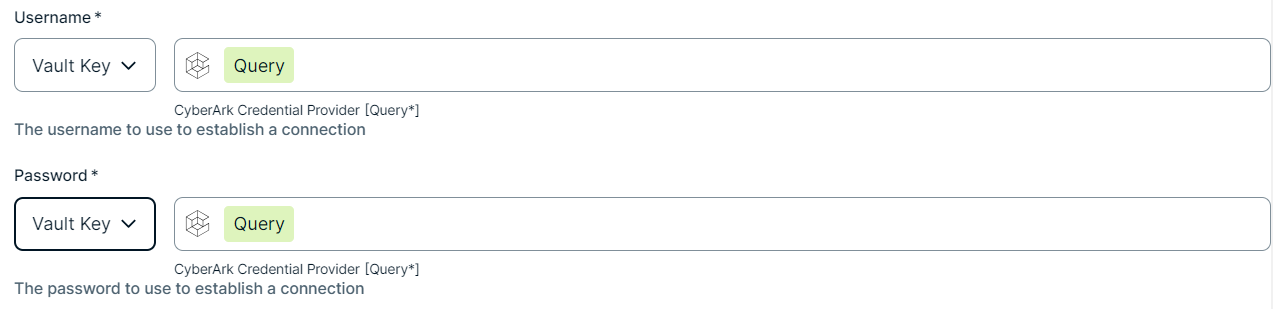
CyberArk Vault

Google Secret Manager

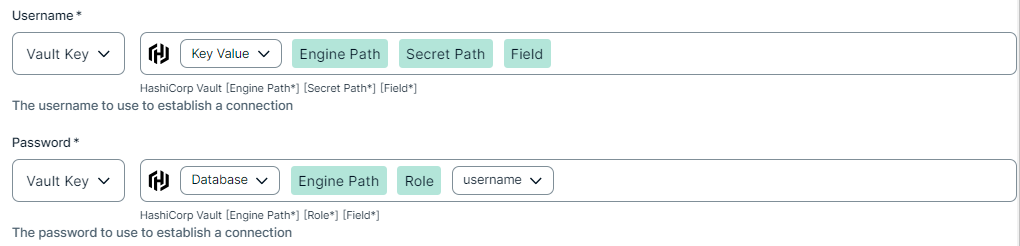
HashiCorp Vault
|
|
|
|
||
|
How to use your vault...
To use your vault, do the following:
To use your vault, do the following:
To use your vault, do the following:
To use your vault, do the following:
To use your vault, do the following:
|
||
Prerequisites
In your Collibra environment
-
To use the SAP S/4HANA integration, you must have Collibra Platform 2026.07 or newer, and either:
- Edge 2026.6.35 or newer
- Edge 2026.3.126 or newer
- You have downloaded the JDBC driver for the SAP ERP JAR file. To download the driver, go to the Driver for S/4HANA integration listing on Collibra Marketplace.
-
You
- You have added a vault to your Edge site.Note Vaults are not supported on Collibra Cloud sites.
- If your data source connection requires a file from your vault, the file must be encoded into Base64 and stored as a regular secret in your vault.
- You have a global role that has the Manage connections and capabilities global permission, for example, Edge integration engineer.
In your SAP S/4HANA environment
- The SAP Java Connector files (
sapjco3.jarandlibsapjco3.so) are available to upload. - You have a running SAP S/4HANA system.
- An SAP user with the authorizations that the SAP S/4HANA driver needs to call its function modules and read table data. Go to the Set up SAP S/4HANA documentation for the full list of required authorizations.
Steps
- Open a site.
-
On the main toolbar, click
 →
 Settings.
The Settings page opens. -
In the tab pane, click Edge.
The Sites tab opens and shows a table with an overview of your sites. - In the table, click the name of the site whose status is Healthy.
The site page opens.
-
On the main toolbar, click
- In the Connections section, click Create connection.
The Create connection page appears. - Select the SAP S/4HANA connection to connect to SAP S/4HANA.
- Enter the required information.
Field Description Required Available for vaults? Name The name of the Edge or Collibra Cloud site connection for SAP S/4HANA.
 Yes
 No
Description The description of the connection.
No
No
Vault The vault where you store your data source values. No
No
Driver jar Upload the SAP ERP JAR file from the JDBC driver you downloaded. To download the driver, go to the Driver for S/4HANA integration listing on Collibra Marketplace. Yes
No Driver class name The fully qualified name of the JDBC driver: cdata.jdbc.saperp.SAPERPDriver. This is available by default. Yes
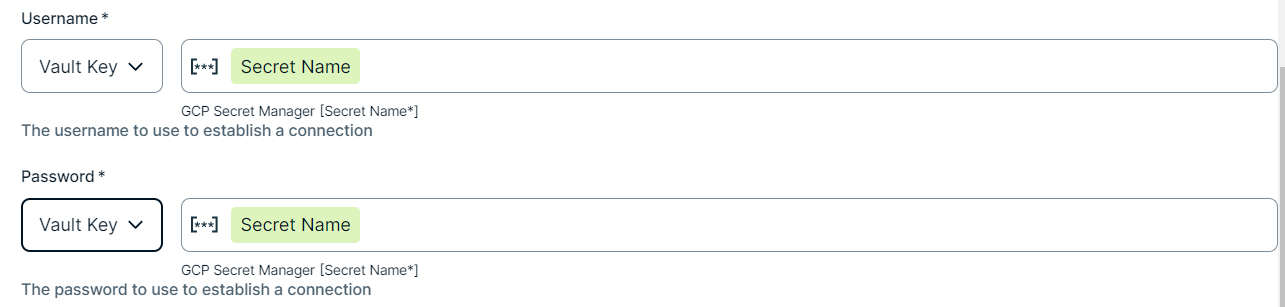
No Username The username of the SAP S/4HANA user to be used for basic authentication.
Yes
Yes
Password The password of the SAP S/4HANA user to be used for basic authentication.
Yes
Yes
SAP Java Connector The SAP Java Connector JAR file
sapjco3.jarrequired by the SAP S/4HANA driver. Click Upload to upload the JAR file.How to download the SAP Java Connector files in SAPThe SAP S/4HANA connection requires the SAP Java Connector (JCo) files
sapjco3.jarand the native librarylibsapjco3.so. SAP provides these files. Edge runs on Red Hat Linux, so you can download the Linux on x86_64 64bit version.To download the SAP Java Connector files:
- Go to the SAP Software Center. You will need your SAP credentials to log in.
- Click the Support Packages & Patches tab.
- Find SAP JCo in one of the following ways:
- In By Alphabetical Index (A-Z), click J, and then click the SAP JCO entry.
- In By Category, click SAP Connectors, and then click SAP JCO.
- Select the listed SAP JCO version.
- In the platform dropdown list, select Linux on x86_64 64bit.
- Download the package, for example
sapjco31P_13-70004517.zip. - Extract the archive. It contains
sapjco3.jarandlibsapjco3.so.
Yes
No SAP Java Connector native library The SAP Java Connector native library libsapjco3.sorequired by the SAP S/4HANA driver.Click Upload to upload the Shared Object file.
How to download the SAP Java Connector files in SAPThe SAP S/4HANA connection requires the SAP Java Connector (JCo) files
sapjco3.jarand the native librarylibsapjco3.so. SAP provides these files. Edge runs on Red Hat Linux, so you can download the Linux on x86_64 64bit version.To download the SAP Java Connector files:
- Go to the SAP Software Center. You will need your SAP credentials to log in.
- Click the Support Packages & Patches tab.
- Find SAP JCo in one of the following ways:
- In By Alphabetical Index (A-Z), click J, and then click the SAP JCO entry.
- In By Category, click SAP Connectors, and then click SAP JCO.
- Select the listed SAP JCO version.
- In the platform dropdown list, select Linux on x86_64 64bit.
- Download the package, for example
sapjco31P_13-70004517.zip. - Extract the archive. It contains
sapjco3.jarandlibsapjco3.so.
Yes
No Connection string Enter the JDBC connection string.
- You can either:
- Include all parameters inline, for example
jdbc:saperp:ConnectionType=JCo;Host=saps4hana1.example.net;SystemNumber=02;Client=101 - Or, provide the base
jdbc:saperp:for SAP S/4HANA and add the parameters as individual properties in the Property field.
- Include all parameters inline, for example
To also profile, classify, and request sample data, add the following parameters to the connection string above:
TableMode=All: This makes all table types, including views, visible to the driver. By default, only transparent tables are visible. Additionally, this setting doesn't affect the table filtering configured in the integration settings; metadata ingestion uses the table filtering mode specified there.Other='CustomizedDefaultCatalogName=S4HANA;CustomizedDefaultSchemaName=S4HANA;': This matches the profiling, classification, and sampling results to the Database and Schema assets created during SAP S/4HANA ingestion. Without this parameter, the driver uses its default Database and Schema names, which don't match the asset names that the integration created during ingestion.- By default, classification and sampling use the first N rows returned by the data source. Profiling processes all rows by default. To limit profiling to a specific number of rows, add
MaxRows=<number>to the connection string, for exampleMaxRows=1000. Like theTableModeparameter, theMaxRowsparameter only affects profiling and not metadata ingestion.
Example
jdbc:saperp:ConnectionType=JCo;Host=saps4hana1.example.net;SystemNumber=02;Client=101;Other='CustomizedDefaultCatalogName=S4HANA;CustomizedDefaultSchemaName=S4HANA;';MaxRows=1000;TableMode=All Yes
Yes
Property If you entered only the base
jdbc:saperp:in the Connection string field, add the connection parameters in the Property field as a Name and Value pair. For example:- Name:
ConnectionType; Value:JCo - Name:
Host; Value:saps4hana1.example.net - Name:
SystemNumber; Value:02 - Name:
Client; Value:101
No Yes
- Click Create.
The connection is added to the Edge or Collibra Cloud site.
You can now add the SAP S/4HANA capability to an Edge or Collibra Cloud site.