How an asset is created determines whether or not you need to manually start the asset lifecyle.
| The asset was created | Result |
|---|---|
|
Via the Register AI use case button with default behavior. For more information, go to Configure the behavior of the Register AI use case button. |
The asset lifecycle starts automatically when the AI Use Case asset is created. |
| Via the Register AI use case button configured for a custom workflow. | You need to manually start the asset lifecycle. |
| Via import. | You need to manually start the asset lifecycle. |
| Via the global Create button. | The asset lifecycle starts automatically when the AI Use Case asset is created. |
Prerequisites
- The Activate Lifecycle tracker option is selected in the Lifecycle tab of the asset type's global assignment.
- You have a global role with the Product Rights > Assessmentsglobal permission. The following out-of-the-box global roles have this permission:
- AI Business User
- AI Governance Admin
- AI Producer
- You have a resource role with the following resource permissions, for the community or domain in which the asset is stored:
- Asset > Update Status
- Asset > Responsibilities > Add
Steps
- Open the relevant asset page.
- Click Start lifecycle.
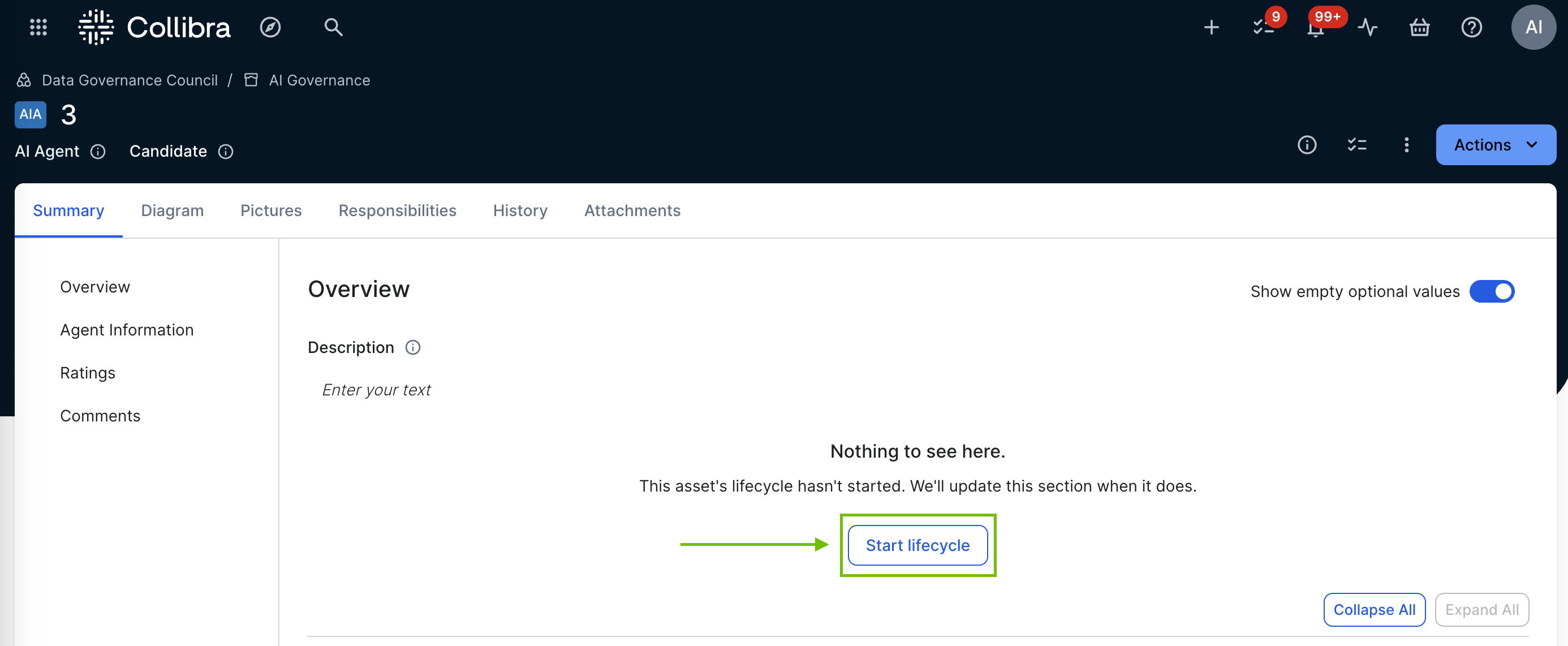
The Start lifecycle for <name> dialog box appears. - Click Start.
The Lifecycle tracker is shown on the asset page and populated with the relevant lifecycle activities.