The Register AI use case button is shown in the AI Command Center registry.
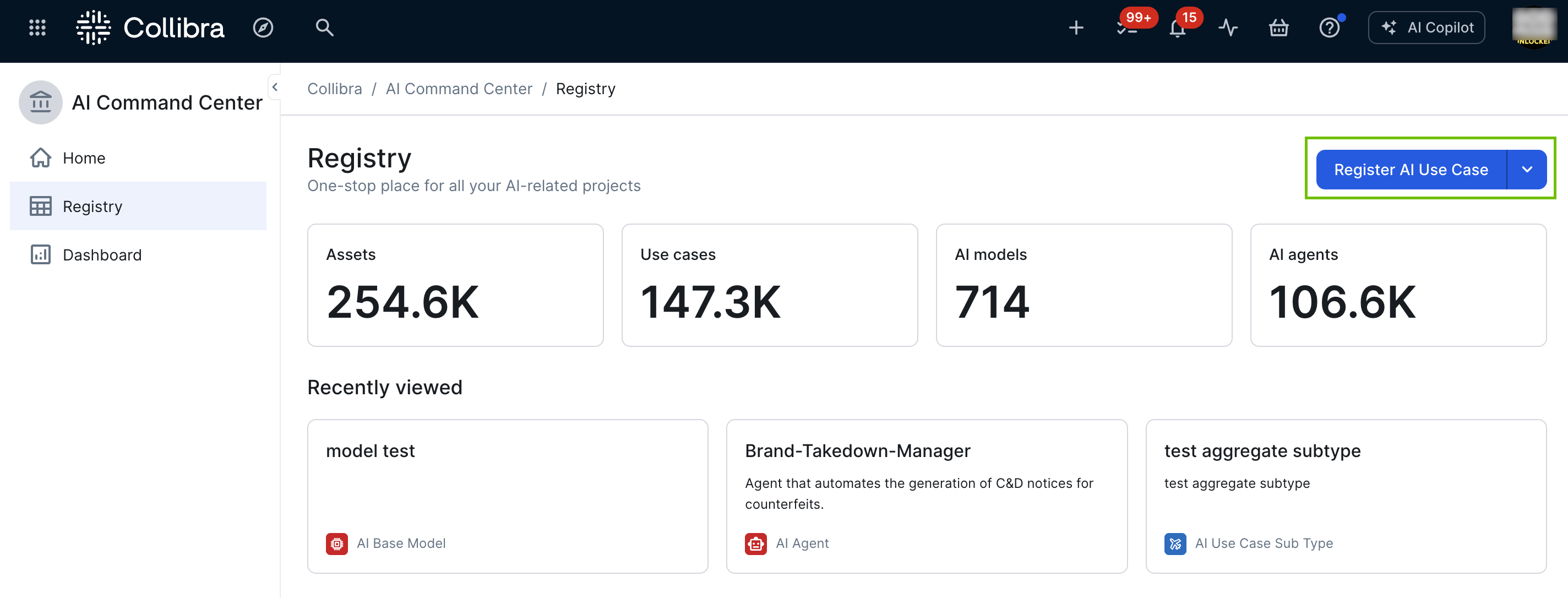
| Button behavior options | Description |
|---|---|
| Register AI use case (default) |
Clicking the button takes you to the registry, where the registration form opens if you have the required permissions. |
| Custom workflow |
Clicking the button starts a workflow. You can select any enabled workflow in your Collibra environment. The button label changes to reflect the start label of the selected workflow. With this option, no asset is created (unless AI Use Case asset creation is part of your workflow logic). If your workflow creates an AI Use Case asset, ensure that the workflow includes a step to assign an Owner to the asset. Without this step, the asset is created without an Owner. As such, there is no asset for which:
Important
|
Requirements and permissions
- You have a global role with the Product Rights > System administration global permission. The out-of-the-box AI Governance Admin global role has this permission.
Steps
-
Open the AI Command Center settings for editing:
-
On the main toolbar, click
 →
→
 Settings.
The Settings page opens. - On the AI Command Center tile, click Customizations.
The AI Command Center Customizations page opens.
-
On the main toolbar, click
- Under the Primary action button header, do one of the following:
- Select Register AI use case (default)
- Select Custom workflow, and then select the workflow that you want to start when the Register AI use case button is clicked.
- Click Save.