You can conduct assessments on the assets within your Collibra Data Intelligence Cloud environment. Typically, you would onboard an asset and then conduct an assessment on the asset. However, you can also conduct an assessment before onboarding an asset. This can be useful in guiding the onboarding process.
This topic describes how to conduct an assessment both with and without a specific asset.
Note
The Governance checkbox in the template used in an assessment determines which button (Complete or Submit) is shown when conducting an assessment.
- The Complete button is shown if the Governance checkbox is not selected.
- The Submit button is shown if the Governance checkbox is selected. When you submit an assessment, an Assessment Review asset is created in your Collibra environment.
Requirements and permissions
- You have a global role that has the Assessments global permission.
- For submitting an assessment for approval:
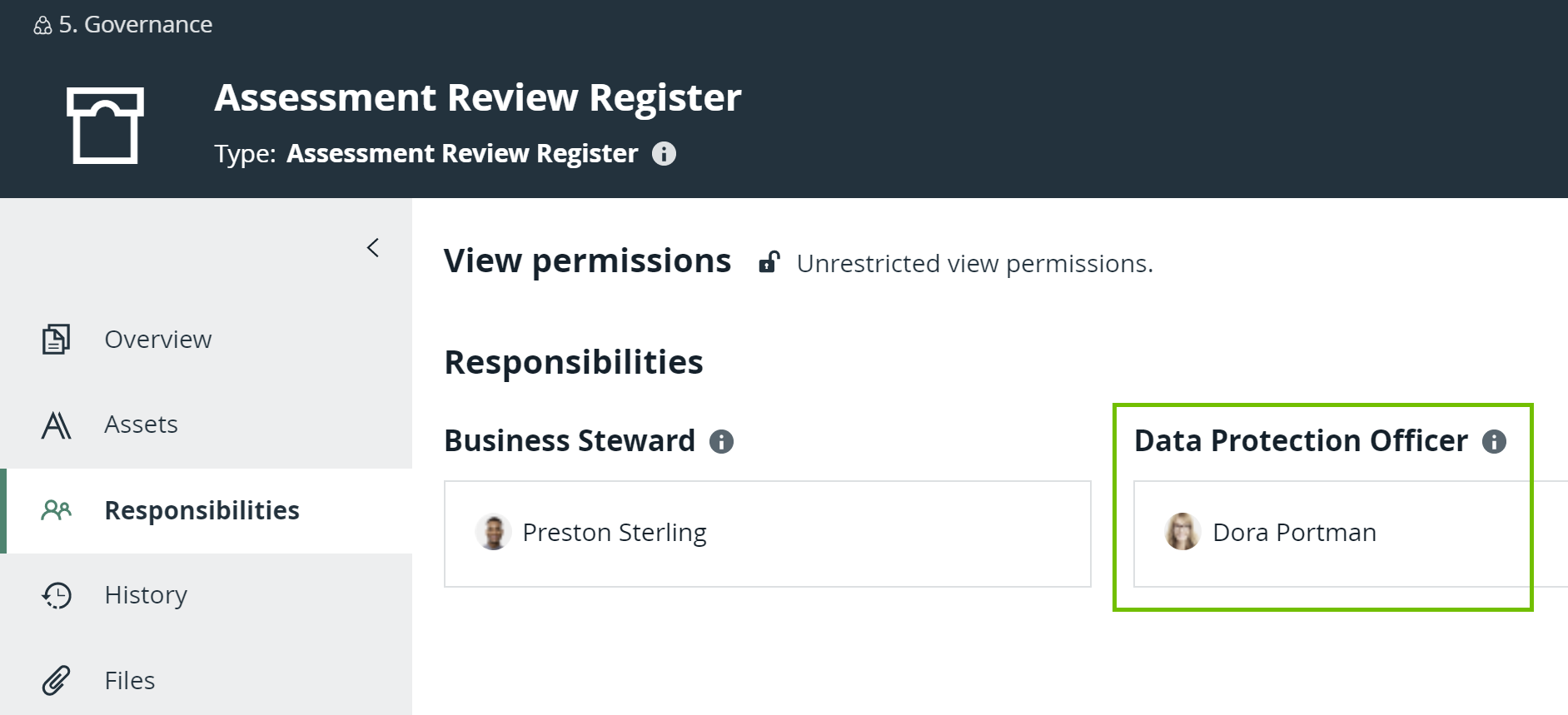
You have a global role that has the Policy Manager global permission, because an Assessment Review asset is created when you submit an assessment.The Business Steward role is assigned to the domain that you will select when submitting the assessment. You are assigned a responsibility with the resource role that has the Asset > Add and Attribute > Add resource permissions on the domain or its community.
Data Protection Officer is the resource role that has the required resource permissions. Dora Portman is the user who will submit the assessment. Assessment Review Register is the domain that she will select when submitting the assessment.
Steps
- Open Assessments.
- Enter the required information.
Field Description Select Template Select the template that you want to use for your assessment.
Tip This field contains a list of published templates.
To conduct an assessment with a specific asset: Select <asset type> Select the asset that you want to assess.
Tip This field contains assets of a specified asset type. If an asset type has not been specified for the selected template, this field is empty.To conduct an assessment without a specific asset: <asset type> not yet available Select this checkbox. Describe what you want to assess Enter a description of what you want to assess. - Click Start.
- Respond to the assessment questions.
- On the Properties tab, set the assessment permissions:
- In the View Permissions subsection, select one of the following options:
- Everyone: The assessment will be visible to everyone.
- Only Owner and Assignees: The assessment will be visible to only you and the assignees that you select in the Assignees field.
- In the Edit Permissions subsection, in the Assignees field, select the names of the users to whom you want to provide the ability to view or edit the assessment.
Tip For more information about the permissions that the assignees have, go to Assessment permission details.
- In the View Permissions subsection, select one of the following options:
- Perform one of the following steps:
- Click Save draft.
-
Click Complete, and then, in the Complete assessment dialog box, click Confirm.
The status of the assessment shows Completed. Click Submit.
Then, in the Submit assessment dialog box, select the domain in which you want the Assessment Review asset to be created, and then click Submit.Tip In the Domain field on the Submit asssessment dialog box, only the domains of the Assessment Review Register domain type are shown.
The status of the assessment shows Submitted, and the View submission button is shown to enable you to view the Assessment Review asset.