Data Catalog asset pages
The asset pages in Data Catalog provide information about assets. The information depends on the asset type and the asset type's assignment.
Catalog experience is a setting that improves the user experience of the Data Catalog asset pages. The improvements include:
- Custom tabs that correspond to the page you are working on.
- A streamlined title bar showing general information.
- Quicker and easier navigation that requires less scrolling.
The Catalog experience setting is enabled by default. If required, you can disable it.
Page layout
Click an icon to see information about a specific Data Catalog asset page.
|
Catalog experience |
Tab page |

| Number | Section | Description |
|---|---|---|

|
Breadcrumbs |
The breadcrumbs of the current |

|
Asset type representation |
The icon or abbreviation of the Tip You can edit how an asset type is represented. |

|
Asset name |
The name of the |
|
|
Certification |
Indication whether the data set is certified or not. |
|
|
Asset type |
The name of the asset type, for example Schema or Data Set. |
|
|
Status |
The asset status, for example Approved. |
|
|
Collaborative features |
The collaborative features of assets, which consists of the following: |
|
|
Articulation score |
The articulation score of the asset. Note If there are no articulation score rules assigned to the asset, the asset page does not show an articulation score. |
|
|
Add to Data Basket |
Button to add the data set to a data basket. |
|
|
Actions menu |
Button to start workflows and perform other actions. |

|
Tab pane |
A collapsible pane that allows you to navigate to other pages of the |
|
Summary
|
The Summary tab page contains a read-only, shortened description of the asset, the related business assets
Tip In the Summary tab page, only the first line of the description is visible. To view the full description, open the Details tab page. |
|
|
Details
|
The Details tab page contains information about the attributes from the Summary tab page and the attributes or relations that the user adds to the asset. It also contains tags and comments. |
|
|
Data elements
|
The
|
|
|
Sample data
|
The Sample data tab page shows the sample data of the related data elements |
|
|
|
Editor |
The currently selected page of the tab pane. Tip If you want to copy and paste text from other sources into a text field, we recommend that you click |
|
|
Preview |
The Preview panel offers a quick overview of the asset. The content depends on the asset's type. For example, it may contain the following fields:
|

 : Link to the
  :
Link to the
:
Link to the  , and then paste the text into the
| Number | Section | Description |
|---|---|---|
|
|
Breadcrumbs |
The breadcrumbs of the current |
|
|
Asset type representation |
The icon or abbreviation of the Tip You can edit how an asset type is represented. |
|
|
Asset name |
The name of the |
|
|
Asset ratings |
The ratings of the asset. |
|
Asset type |
The name of the asset type, for example Schema or Data Set. |
|
|
Status |
The asset status, for example Approved. |
|
|
Resource toolbar |
Additional actions, such as editing the |
|
|
|
Add to Data Basket |
Button to add the data set to a data basket. |
|
|
Tab pane |
A collapsible pane that allows you to navigate to other pages of the |
|
Details
|
The Details tab page contains all the attributes, relations and complex relations that have been defined for the asset and whose type was added to the relevant assignment. If a certain attribute type has been assigned as mandatory for this asset type, this attribute is shown in the asset's Details tab page, even if no attribute value has been defined yet. |
|
|
Data Profiling
|
The section on the Details page containing the information about the data profiling of the Column, Table or Data Set. | |
|
Sample Data
|
The section on the Details page containing a number of examples of the contents in the Column, Table or Data Set, if sample data exists and the user has access to it. |
|
|
Tags
|
The section on the Details page containing the tags that were assigned to this asset. |
|
|
Ratings
|
The section on the Details page containing the ratings of the asset. |
|
|
Comments
|
The section on the Details page containing the comments of users. |
|

|
Editor |
The currently selected page of the tab pane. Tip If you want to copy and paste text from other sources into a text field, we recommend that you click |
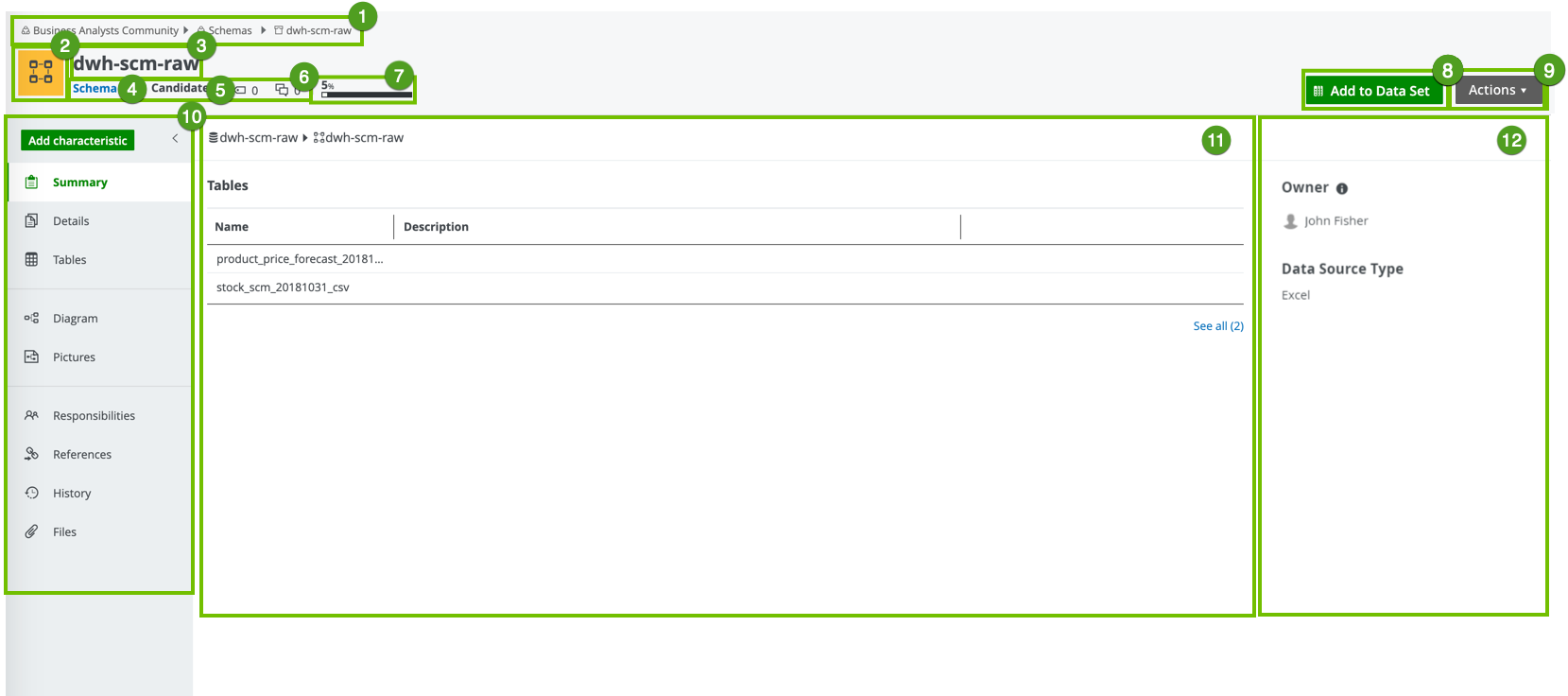
| Number | Section | Description |
|---|---|---|
|
|
Breadcrumbs |
The breadcrumbs of the current |
|
|
Asset type representation |
The icon or abbreviation of the Tip You can edit how an asset type is represented. |
|
|
Asset name |
The name of the |
|
|
Asset type |
The name of the asset type, for example Schema or Data Set. |
|
|
Status |
The asset status, for example Approved. |
|
|
Collaborative features |
The collaborative features of assets, which consists of the following: |
|
|
Articulation score |
The articulation score of the asset. Note If there are no articulation score rules assigned to the asset, the asset page does not show an articulation score. |
|
|
Add to Data Set |
|
|
|
Actions menu |
Button to start workflows and perform other actions. |
|
|
Tab pane |
A collapsible pane that allows you to navigate to other pages of the |
|
Summary
|
The Summary tab page contains a read-only, shortened description of the asset, the related business assets
and
the sample data of a limited number of Tip In the Summary tab page, only the first line of the description is visible. To view the full description, open the Details tab page. |
|
|
Details
|
The Details tab page contains information about the attributes from the Summary tab page and the attributes or relations that the user adds to the asset. It also contains tags and comments. |
|
|
Tables
|
The
|
|
|
|
Editor |
The currently selected page of the tab pane. Tip If you want to copy and paste text from other sources into a text field, we recommend that you click |
|
|
Preview |
The Preview panel offers a quick overview of the asset. The content depends on the asset's type. For example, it may contain the following fields:
|
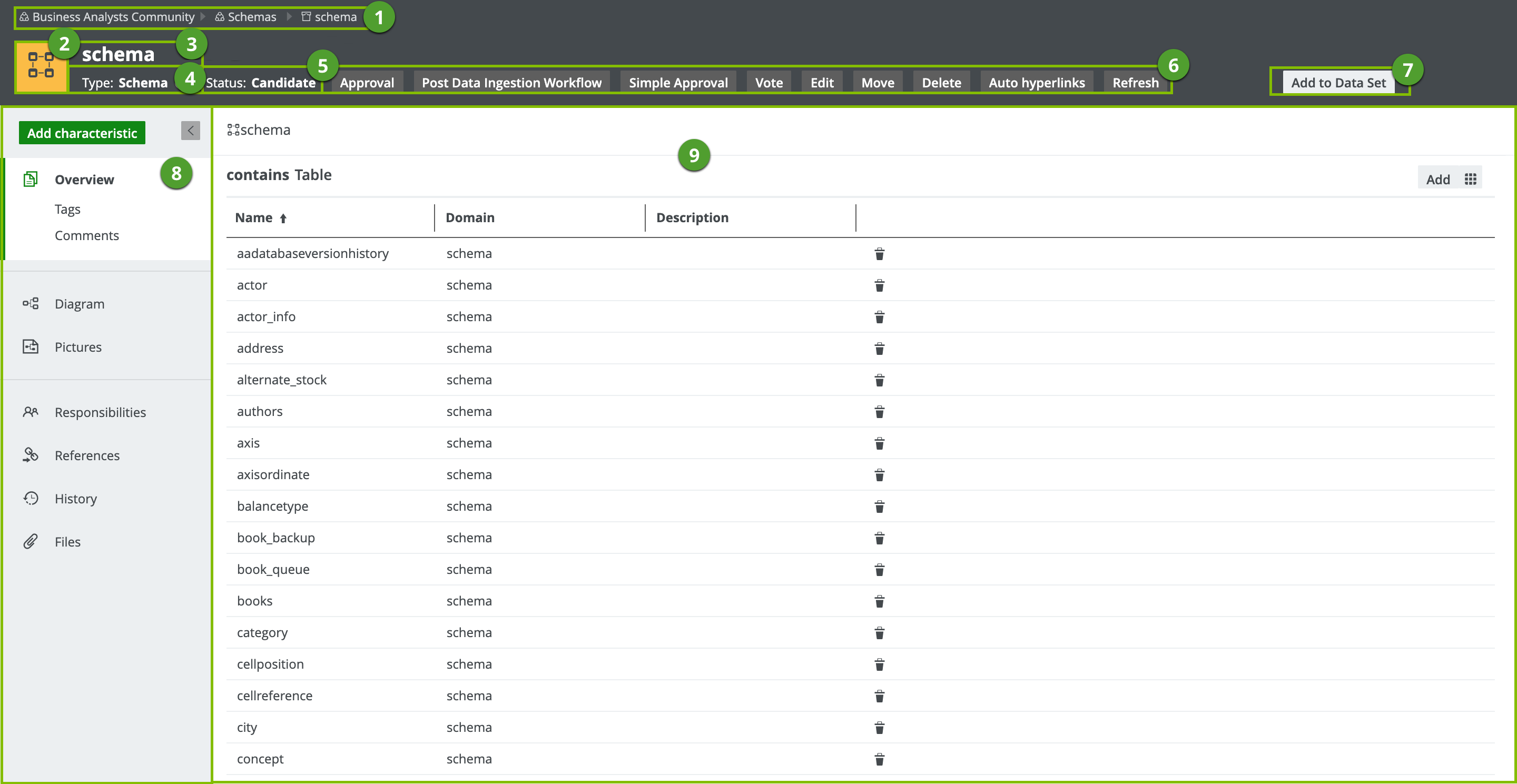
| Number | Section | Description |
|---|---|---|
|
|
Breadcrumbs |
The breadcrumbs of the current |
|
|
Asset type representation |
The icon or abbreviation of the Tip You can edit how an asset type is represented. |
|
|
Asset name |
The name of the |

|
Asset type |
The name of the asset type, for example Schema or Data Set. |

|
Status |
The asset status, for example Approved. |

|
Resource toolbar |
Additional actions, such as editing the |
|
|
Add to Data Set |
|
|
|
Tab pane |
A collapsible pane that allows you to navigate to other pages of the |
|
Overview
|
The Overview tab page contains all the attributes, relations and complex relations that have been defined for the asset and whose type was added to the relevant assignment. If a certain attribute type has been assigned as mandatory for this asset type, this attribute is shown in the asset's Overview tab, even if no attribute value has been defined yet. |
|
|
Tags
|
The section on the Details page containing the tags that were assigned to this asset. |
|
|
Comments
|
The section on the Details page containing the comments of users. |
|

|
Editor |
The currently selected page of the tab pane. Tip If you want to copy and paste text from other sources into a text field, we recommend that you click |
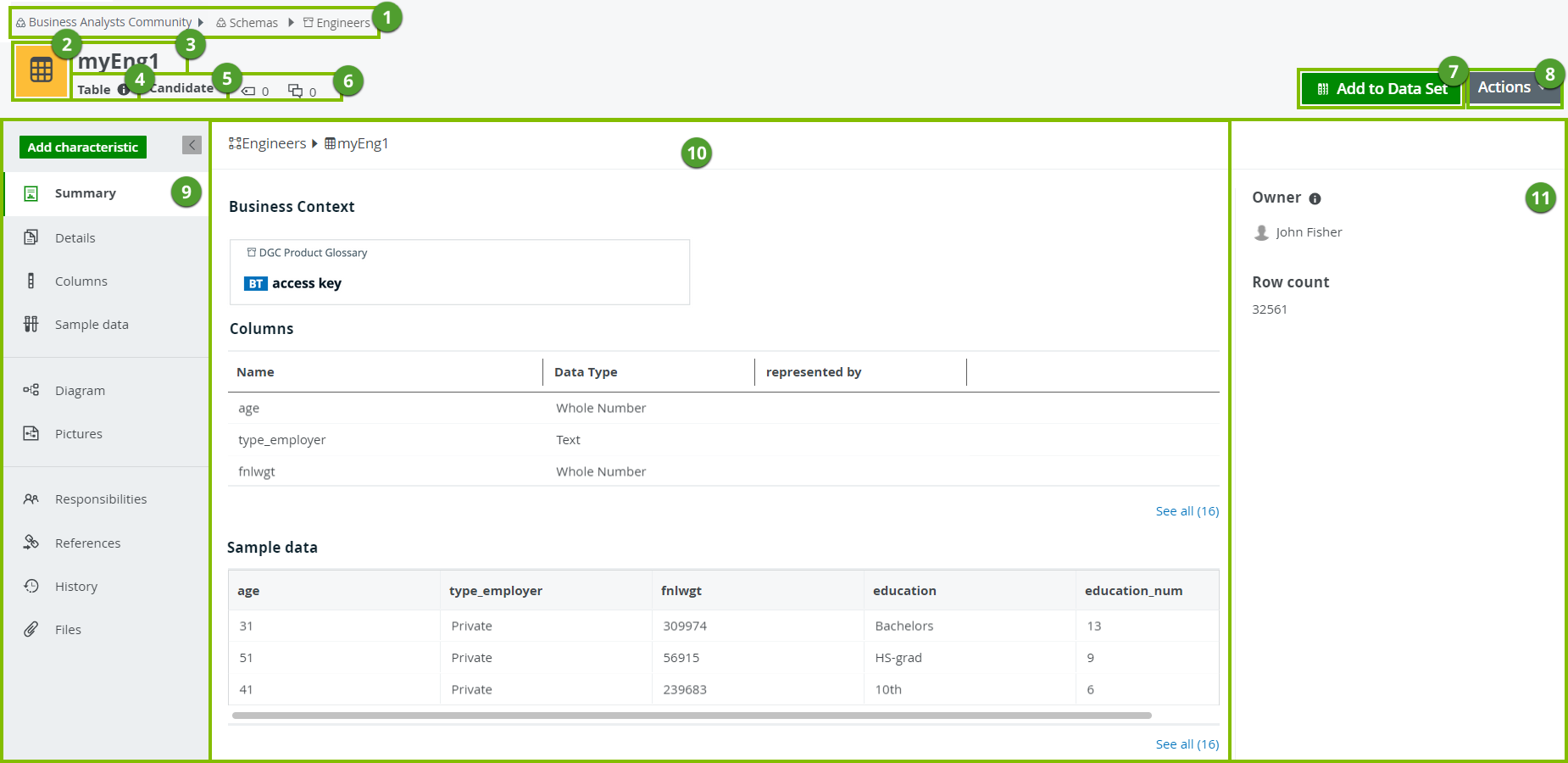
| Number | Section | Description |
|---|---|---|
|
|
Breadcrumbs |
The breadcrumbs of the current |
|
|
Asset type representation |
The icon or abbreviation of the Tip You can edit how an asset type is represented. |
|
|
Asset name |
The name of the |
|
|
Asset type |
The name of the asset type, for example Schema or Data Set. |
|
|
Status |
The asset status, for example Approved. |
|
|
Collaborative features |
The collaborative features of assets, which consists of the following: |
|
|
Add to Data Set |
Button to add the asset to a data set. |
|
|
Actions menu |
Button to start workflows and perform other actions. |
|
|
Tab pane |
A collapsible pane that allows you to navigate to other pages of the |
|
Summary
|
The Summary tab page contains a read-only, shortened description of the asset, the related business assets
Tip In the Summary tab page, only the first line of the description is visible. To view the full description, open the Details tab page. Note
The Privacy Context section makes it easier to understand the privacy and security controls linked to the data. The section displays the Data Categories connected to the table via the following relations:
|
|
|
Details
|
The Details tab page contains information about the attributes from the Summary tab page and the attributes or relations that the user adds to the asset. It also contains tags and comments. |
|
|
Columns
|
The
|
|
|
Sample data
|
The Sample data tab page shows the sample data of the related data elements, if sample data exists and the user has access to it. |
|
|
|
Editor |
The currently selected page of the tab pane. Tip If you want to copy and paste text from other sources into a text field, we recommend that you click |
|
|
Preview |
The Preview panel offers a quick overview of the asset. The content depends on the asset's type. For example, it may contain the following fields:
|
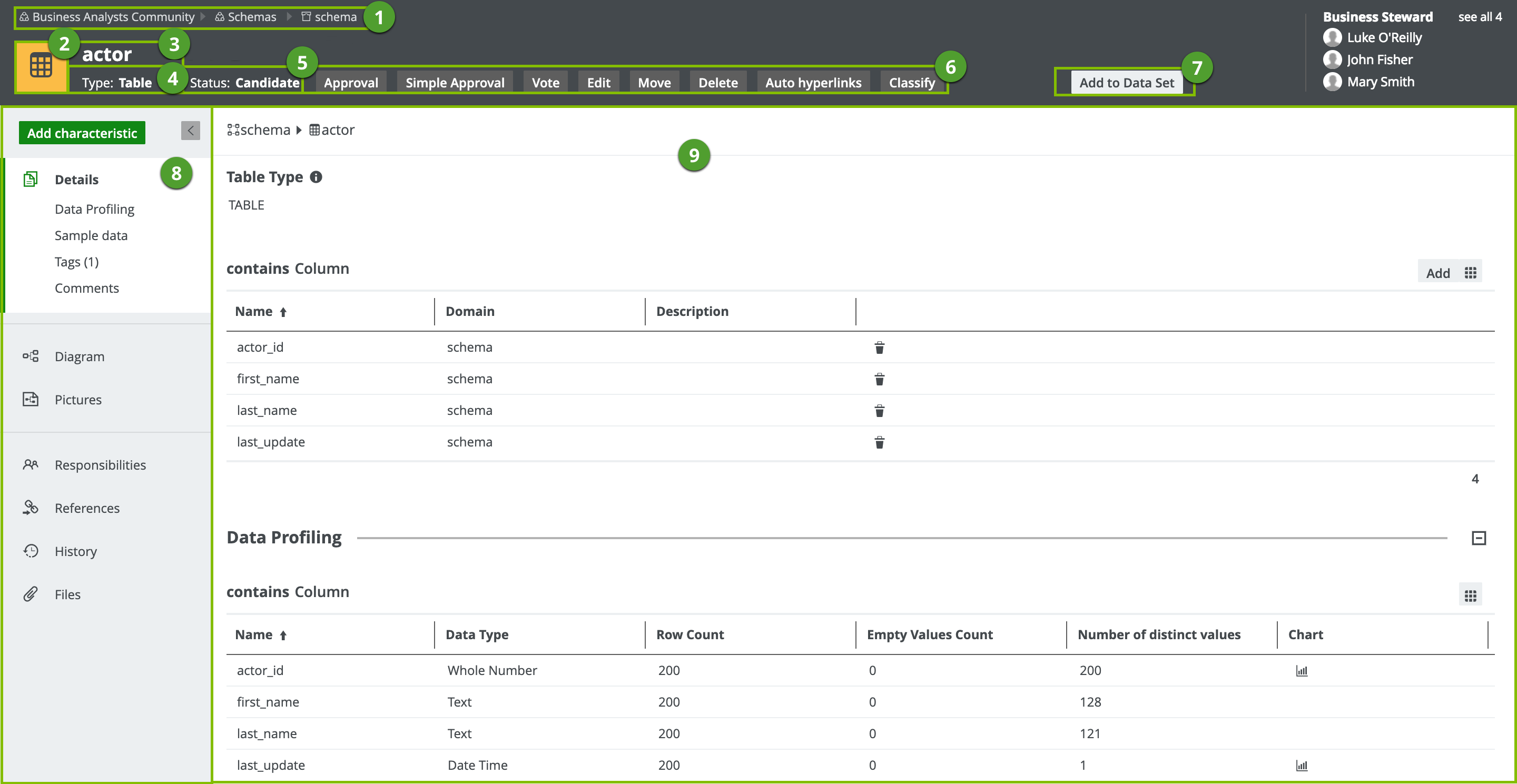
| Number | Section | Description |
|---|---|---|
|
|
Breadcrumbs |
The breadcrumbs of the current |
|
|
Asset type representation |
The icon or abbreviation of the Tip You can edit how an asset type is represented. |
|
|
Asset name |
The name of the |
|
|
Asset type |
The name of the asset type, for example Schema or Data Set. |
|
|
Status |
The asset status, for example Approved. |
|
|
Resource toolbar |
Additional actions, such as editing the |
|
|
Add to Data Set |
|
|
|
Tab pane |
A collapsible pane that allows you to navigate to other pages of the |
|
Details
|
The Details tab page contains all the attributes, relations and complex relations that have been defined for the asset and whose type was added to the relevant assignment. If a certain attribute type has been assigned as mandatory for this asset type, this attribute is shown in the asset's Details tab page, even if no attribute value has been defined yet. |
|
|
Data Profiling
|
The section on the Details page containing the information about the data profiling of the Column, Table or Data Set. | |
|
Sample Data
|
The section on the Details page containing a number of examples of the contents in the Column, Table or Data Set, if sample data exists and the user has access to it. |
|
|
Tags
|
The section on the Details page containing the tags that were assigned to this asset. |
|
|
Comments
|
The section on the Details page containing the comments of users. |
|
|
|
Editor |
The currently selected page of the tab pane. Tip If you want to copy and paste text from other sources into a text field, we recommend that you click |

| Number | Section | Description |
|---|---|---|
|
|
Breadcrumbs |
The breadcrumbs of the current |
|
|
Asset type representation |
The icon or abbreviation of the Tip You can edit how an asset type is represented. |
|
|
Asset name |
The name of the |
|
|
Asset type |
The name of the asset type, for example Schema or Data Set. |
|
|
Status |
The asset status, for example Approved. |
|
|
Collaborative features |
The collaborative features of assets, which consists of the following: |
|
|
Add to Data Set |
|
|
|
Actions menu |
Button to start workflows and perform other actions. |
|
|
Tab pane |
A collapsible pane that allows you to navigate to other pages of the |
|
Summary
|
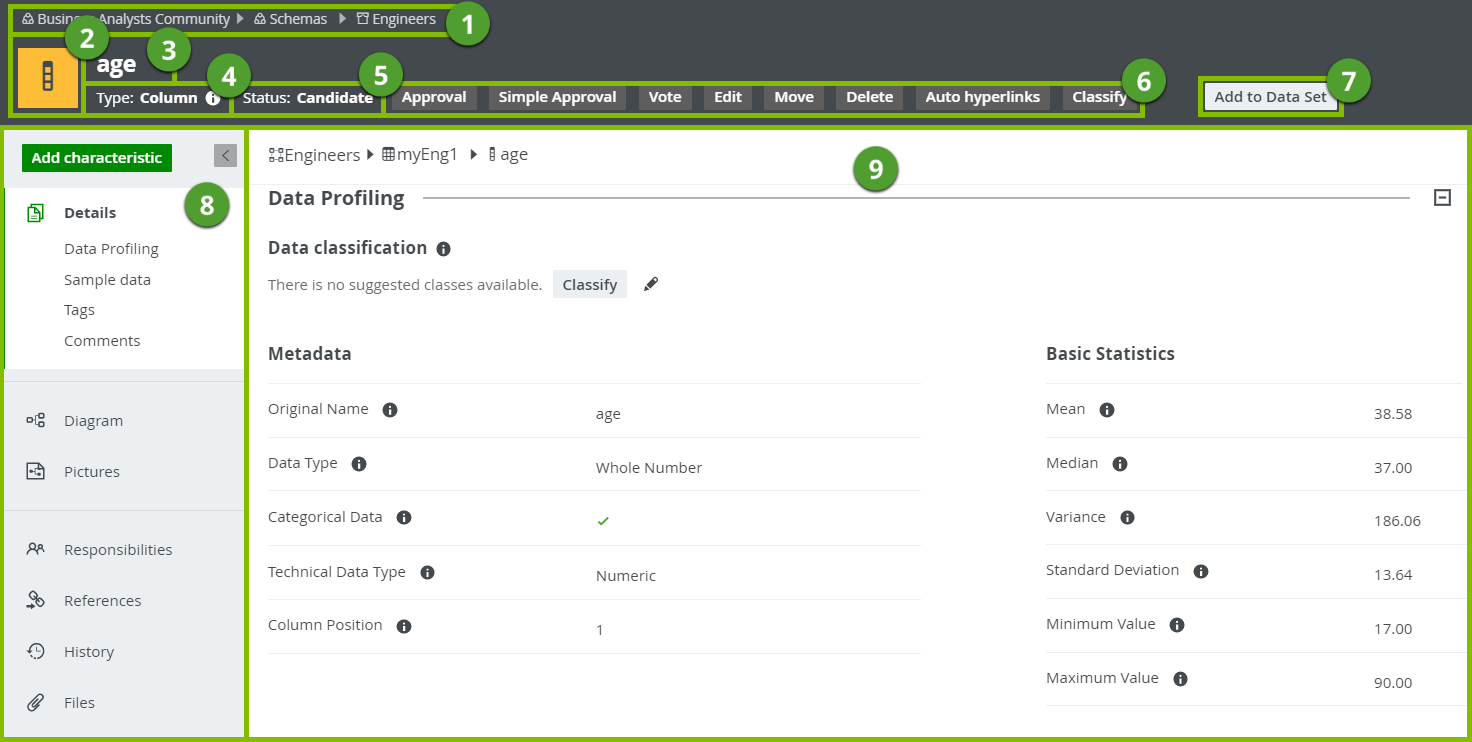
The Summary tab page contains a short, read-only overview with some sample data. Tip You can also quickly see whether the column contains personal information |
|
|
Details
|
The Details tab page contains information about the attributes or relations of the asset. It also contains tags and comments. |
|
|
Data profiling
|
The Data profiling tab page contains the data classification of the column, and statistics and graphics to give the user a first idea what the registered data is about. |
|
|
|
Editor |
The currently selected page of the tab pane. Tip If you want to copy and paste text from other sources into a text field, we recommend that you click |
|
|
Preview |
The Preview panel offers a quick overview of the asset. The content depends on the asset's type. For example, it may contain the following fields:
|
 or not
  .
.
| Number | Section | Description |
|---|---|---|
|
|
Breadcrumbs |
The breadcrumbs of the current |
|
|
Asset type representation |
The icon or abbreviation of the Tip You can edit how an asset type is represented. |
|
|
Asset name |
The name of the |
|
|
Asset type |
The name of the asset type, for example Schema or Data Set. |
|
|
Status |
The asset status, for example Approved. |
|
|
Resource toolbar |
Additional actions, such as editing the |
|
|
Add to Data Set |
|
|
|
Tab pane |
A collapsible pane that allows you to navigate to other pages of the |
|
Details
|
The Details tab page contains all the attributes, relations and complex relations that have been defined for the asset and whose type was added to the relevant assignment. If a certain attribute type has been assigned as mandatory for this asset type, this attribute is shown in the asset's Details tab page, even if no attribute value has been defined yet. |
|
|
Data Profiling
|
The section on the Details page containing the information about the data profiling of the Column, Table or Data Set. | |
|
Sample Data
|
The section on the Details page containing a number of examples of the contents in the Column, Table or Data Set, if sample data exists and the user has access to it. |
|
|
Tags
|
The section on the Details page containing the tags that were assigned to this asset. |
|
|
Comments
|
The section on the Details page containing the comments of users. |
|
|
|
Editor |
The currently selected page of the tab pane. Tip If you want to copy and paste text from other sources into a text field, we recommend that you click |

|
Number |
Section |
Description |
|---|---|---|
|
|
Breadcrumbs |
The breadcrumbs of the current |
|
|
Asset type representation |
The icon or abbreviation of the Tip You can edit how an asset type is represented. |
|
|
Asset name |
The name of the |
|
|
Asset type |
The name of the asset type, for example Schema or Data Set. |
|
|
Status |
The asset status, for example Approved. |
|
|
Collaborative features |
The collaborative features of assets, which consists of the following: |
|
|
Actions menu |
Button to start workflows and perform other actions. |
|
|
Tab pane |
A collapsible pane that allows you to navigate to other pages of the |
|
|
Editor |
The currently selected page of the tab pane. Tip If you want to copy and paste text from other sources into a text field, we recommend that you click |

|
Number |
Section |
Description |
|---|---|---|
|
|
Breadcrumbs |
The breadcrumbs of the current |
|
|
Asset type representation |
The icon or abbreviation of the Tip You can edit how an asset type is represented. |
|
|
Asset name |
The name of the |
|
|
Asset type |
The name of the asset type, for example Schema or Data Set. |
|
|
Status |
The asset status, for example Approved. |
|
|
Resource toolbar |
Additional actions, such as editing the |
|
|
Tab pane |
A collapsible pane that allows you to navigate to other pages of the |
|
|
Editor |
The currently selected page of the tab pane. Tip If you want to copy and paste text from other sources into a text field, we recommend that you click |
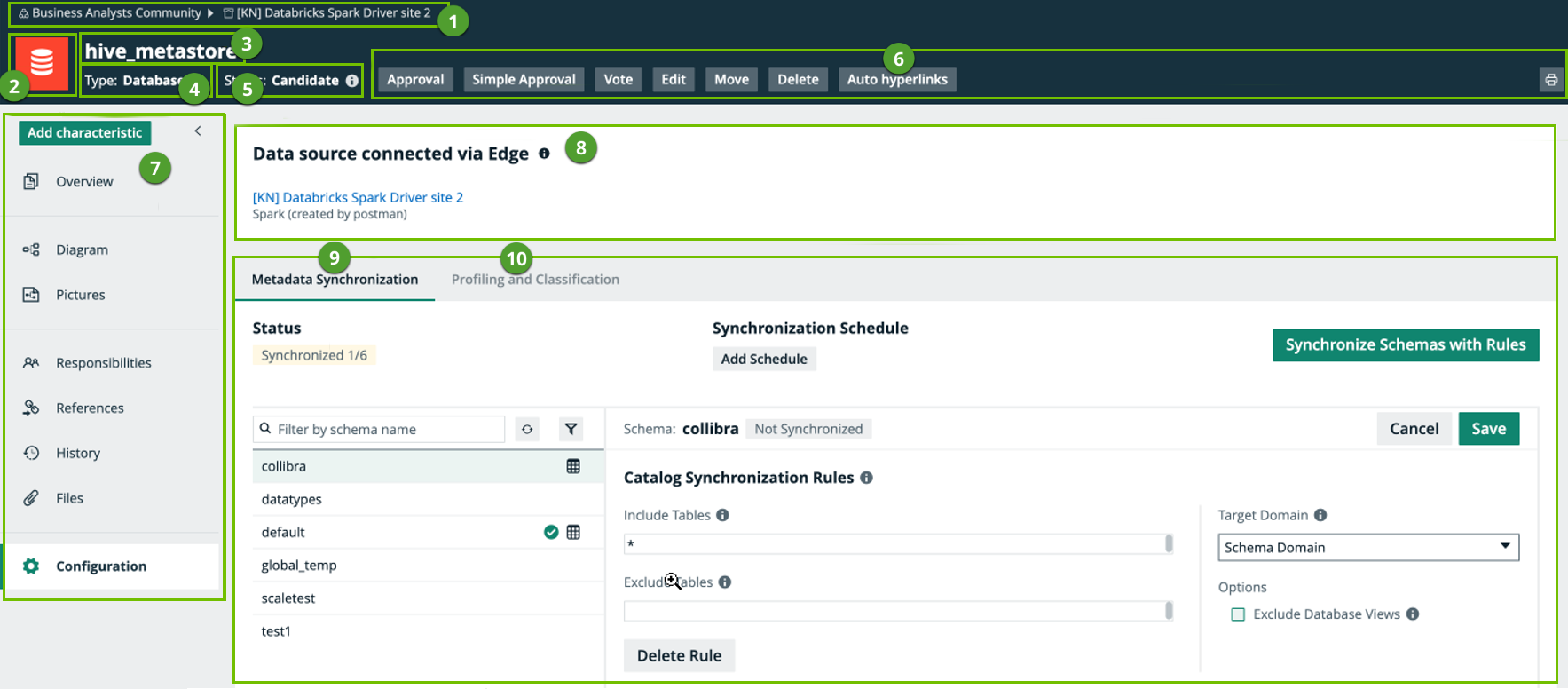
The Configuration tab page is only available if you use Edge. The tab page shows the JDBC connection and the available options, like synchronization and profiling.

|
Number |
Section |
Description |
|---|---|---|
|
|
Breadcrumbs |
The breadcrumbs of the current |
|
|
Asset type representation |
The icon or abbreviation of the Tip You can edit how an asset type is represented. |
|
|
Asset name |
The name of the |
|
|
Asset type |
The name of the asset type, for example Schema or Data Set. |
|
|
Status |
The asset status, for example Approved. |
|
|
Collaborative features |
The collaborative features of assets, which consists of the following: |
|
|
Actions menu |
Button to start workflows and perform other actions. |
|
|
Tab pane |
A collapsible pane that allows you to navigate to other pages of the The currently selected pane is the Configuration pane. |
|
|
Connection details |
The name of the JDBC connection. |
|
|
Metadata Synchronization |
A tab page that shows the overview of all schemas in the database that you can synchronize and the status of the synchronization process. |
|
|
Quality extraction | A tab page that allows you to synchronize Collibra Data Quality & Observability user-defined rules, metrics, and dimensions into Collibra Data Catalog for the selected schemas. |
|
|
Profiling and Classification | A tab page that:
|
The Configuration tab page is only available if you use Edge. The tab page shows the JDBC connection and the available options, like synchronization and profiling.
|
Number |
Section |
Description |
|---|---|---|
|
|
Breadcrumbs |
The breadcrumbs of the current |
|
|
Asset type representation |
The icon or abbreviation of the Tip You can edit how an asset type is represented. |
|
|
Asset name |
The name of the |
|
|
Asset type |
The name of the asset type, for example Schema or Data Set. |
|
|
Status |
The asset status, for example Approved. |
|
|
Resource toolbar |
Additional actions, such as editing the |
|
|
Tab pane |
A collapsible pane that allows you to navigate to other pages of the
The currently selected pane is the Configuration pane. |
|
|
Connection details |
The name of the JDBC connection. |
|
|
Metadata Synchronization |
A tab page that shows the overview of all schemas in the database that you can synchronize and the status of the synchronization process. |
|
|
Profiling and Classification | A tab page that:
|
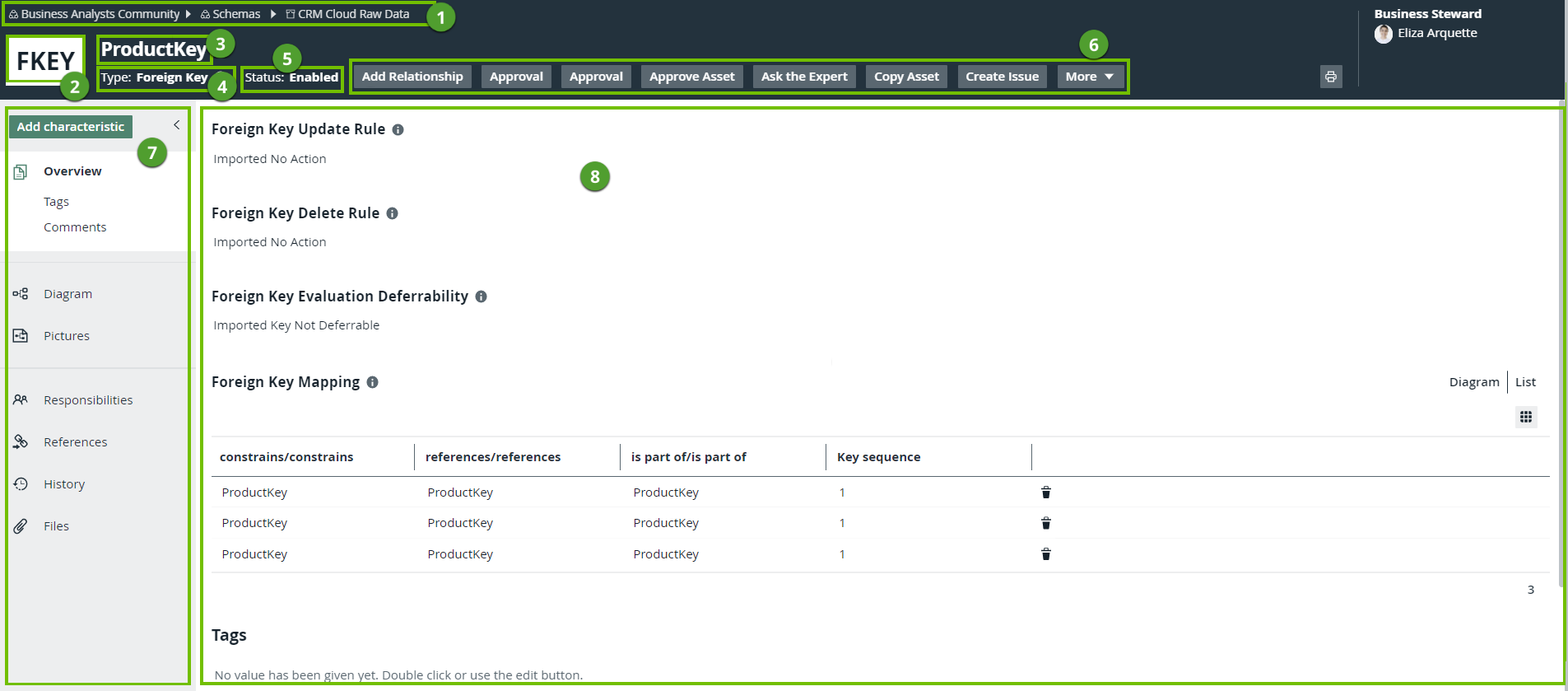
On a Foreign key asset page, you can find the details of the foreign key and define what has to happen if there are changes to the foreign key.

| Number | Section | Description |
|---|---|---|
|
|
Breadcrumbs |
The breadcrumbs of the current |
|
|
Asset type representation |
The icon or abbreviation of the Tip You can edit how an asset type is represented. |
|
|
Asset name |
The name of the |
|
|
Asset type |
The name of the asset type, for example Schema or Data Set. |
|
|
Status |
The asset status, for example Approved. |
|
|
Collaborative features |
The collaborative features of assets, which consists of the following: |
|
|
Actions menu |
Button to start workflows and perform other actions. |

|
Tab pane |
A collapsible pane that allows you to navigate to other pages of the |
|
|
Editor |
The currently selected page of the tab pane. Tip If you want to copy and paste text from other sources into a text field, we recommend that you click Tip Do not change any of the ingested data of a foreign key as this can cause errors when you refresh the database. The Overview contains the following sections:
|

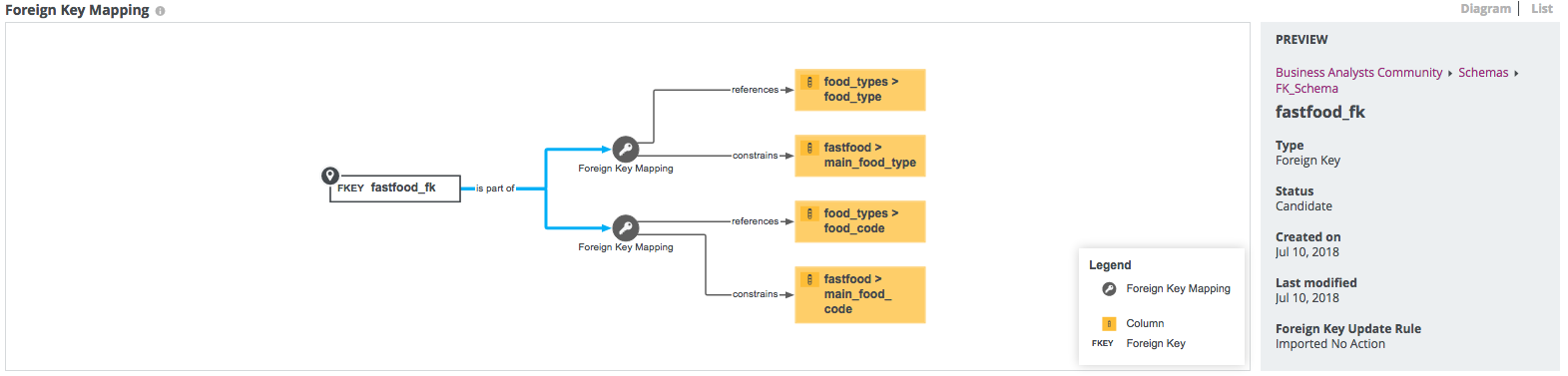
On a Foreign key asset page, you can find the details of the foreign key and define what has to happen if there are changes to the foreign key.
| Number | Section | Description |
|---|---|---|
|
|
Breadcrumbs |
The breadcrumbs of the current |
|
|
Asset type representation |
The icon or abbreviation of the Tip You can edit how an asset type is represented. |
|
|
Asset name |
The name of the |
|
|
Asset type |
The name of the asset type, for example Schema or Data Set. |
|
|
Status |
The asset status, for example Approved. |
|
|
Resource toolbar |
Additional actions, such as editing the |
|
|
Tab pane |
A collapsible pane that allows you to navigate to other pages of the |
|
|
Editor |
The currently selected page of the tab pane. Tip If you want to copy and paste text from other sources into a text field, we recommend that you click Tip Do not change any of the ingested data of a foreign key as this can cause errors when you refresh the database. The Overview contains the following sections:
|
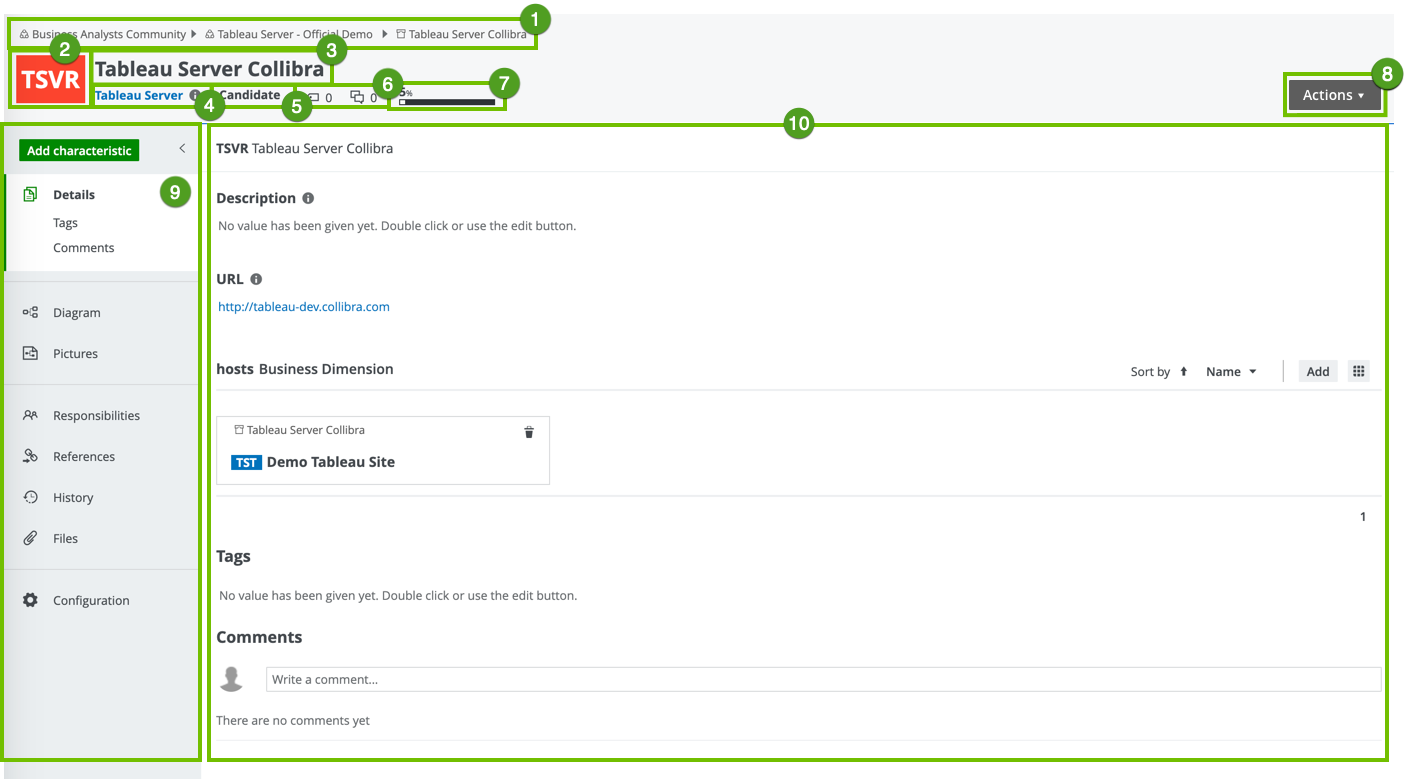
| Number | Section | Description |
|---|---|---|
|
|
Breadcrumbs |
The breadcrumbs of the current |
|
|
Asset type representation |
The icon or abbreviation of the Tip You can edit how an asset type is represented. |
|
|
Asset name |
The name of the |
|
|
Asset type |
The name of the asset type, for example Schema or Data Set. |
|
|
Status |
The asset status, for example Approved. |
|
|
Collaborative features |
The collaborative features of assets, which consists of the following: |
|
|
Articulation score |
The articulation score of the asset.If there are no articulation score rules assigned to the asset, the asset page does not show an articulation score. |
|
|
Actions menu |
Button to start workflows and perform other actions. |
|
|
Tab pane |
A collapsible pane that allows you to navigate to other pages of the |
|
|
Editor |
The currently selected page, in this case the Details tab page, which contains information about the attributes or relations that the user adds to the asset. It also contains tags and comments. |
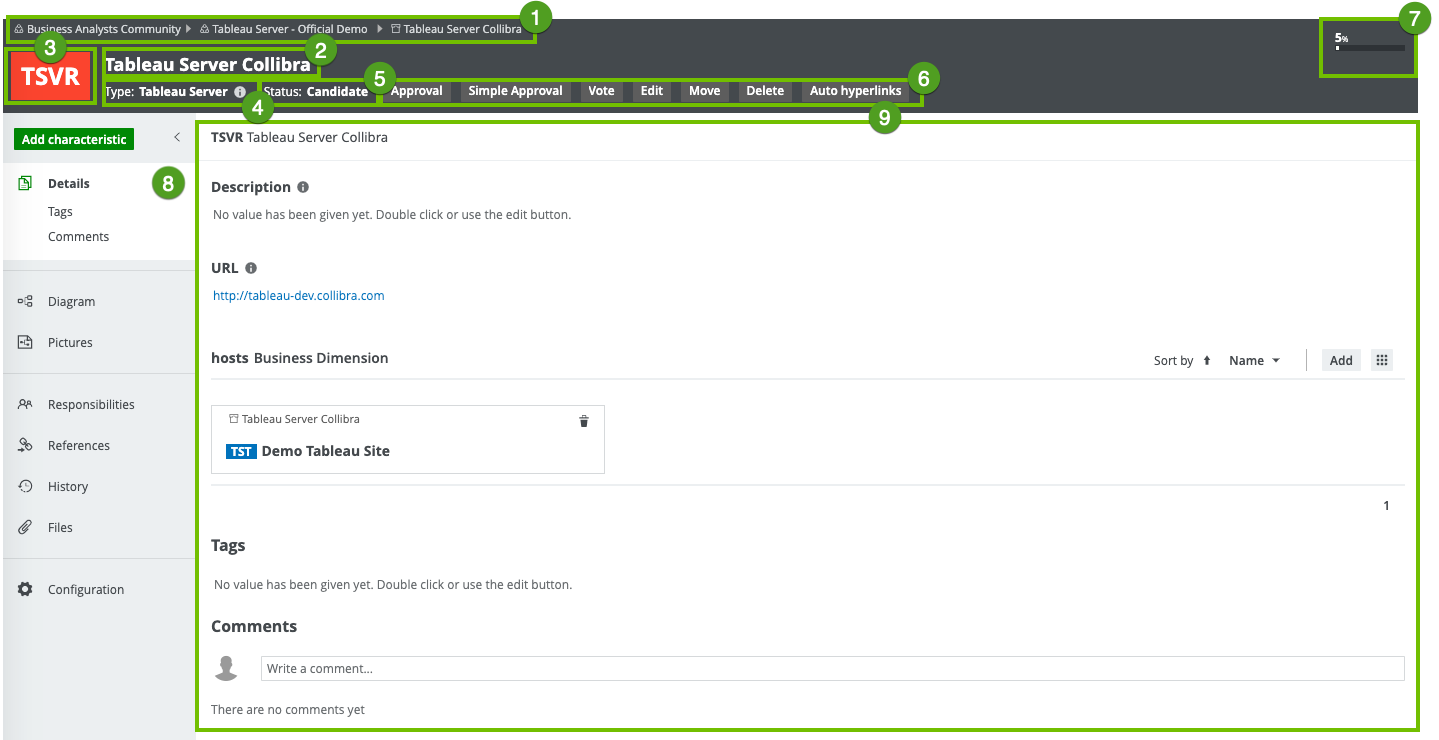
| Number | Section | Description |
|---|---|---|
|
|
Breadcrumbs |
The breadcrumbs of the current |
|
|
Asset type representation |
The icon or abbreviation of the Tip You can edit how an asset type is represented. |
|
|
Asset name |
The name of the |
|
|
Asset type |
The name of the asset type, for example Schema or Data Set. |
|
|
Status |
The asset status, for example Approved. |
|
|
Resource toolbar | Additional actions, such as editing the |
|
|
Articulation score |
The articulation score of the asset.If there are no articulation score rules assigned to the asset, the asset page does not show an articulation score. |
|
|
Tab pane |
A collapsible pane that allows you to navigate to other pages of the |
|
|
Editor |
The currently selected page, in this case the Details tab page, which contains information about the attributes or relations that the user adds to the asset. It also contains tags and comments. |
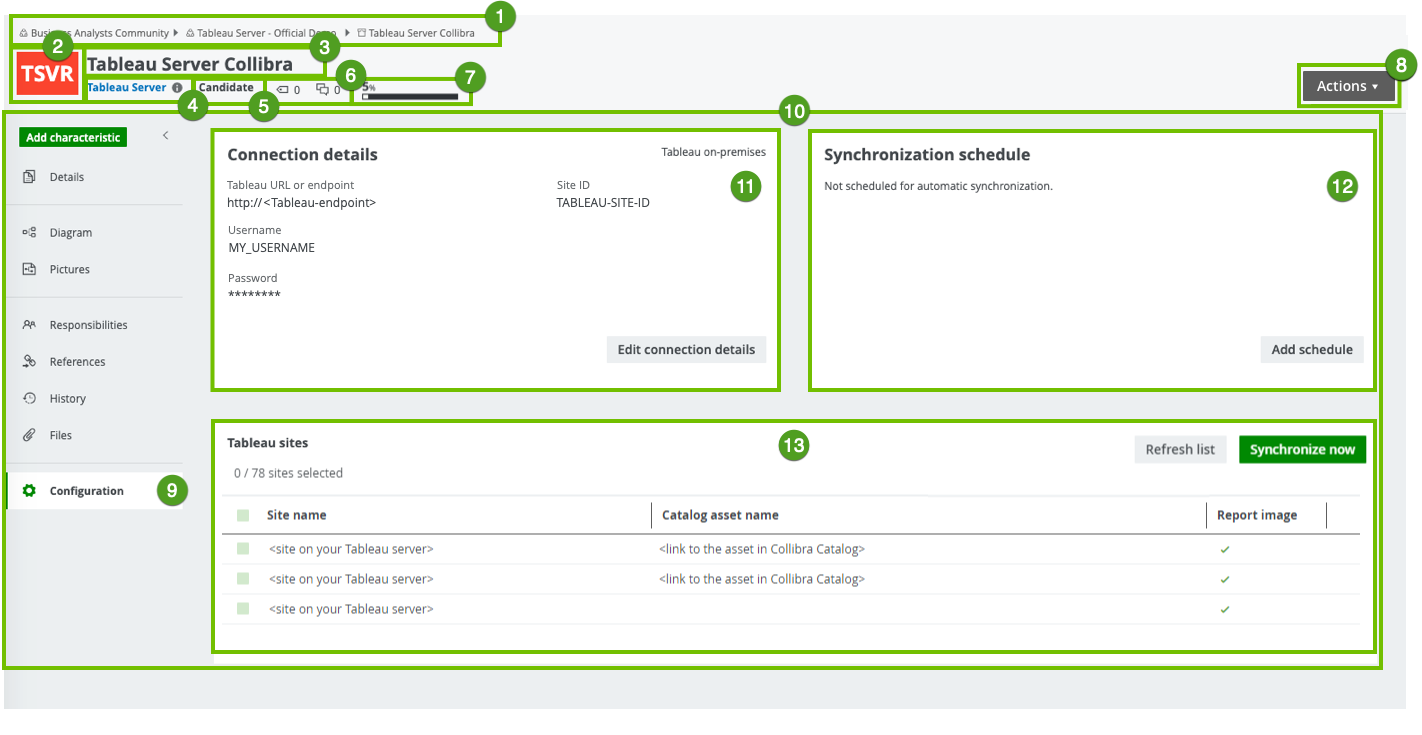
| Number | Section | Description |
|---|---|---|
|
|
Breadcrumbs |
The breadcrumbs of the current |
|
|
Asset type representation |
The icon or abbreviation of the Tip You can edit how an asset type is represented. |
|
|
Asset name |
The name of the |
|
|
Asset type |
The name of the asset type, for example Schema or Data Set. |
|
|
Status |
The asset status, for example Approved. |
|
|
Collaborative features |
The collaborative features of assets, which consists of the following: |
|
|
Articulation score |
The articulation score of the asset.If there are no articulation score rules assigned to the asset, the asset page does not show an articulation score. |
|
|
Actions menu |
Button to start workflows and perform other actions. |
|
|
Tab pane |
A collapsible pane that allows you to navigate to other pages of the |
|
|
Editor |
The currently selected page, in this case the Configuration page, which contains the Connection details section, the Synchronization section and Tableau sites found on server section of the Tableau Server asset. |
|
|
Connection details | The connection details to Tableau and a button to edit them. |

|
Synchronization |
A basic explanation about the synchronization schedule and the buttons to add, edit and remove a schedule. |

|
Tableau sites | The list of sites on the Tableau server, as well as buttons to show the sites and to synchronize manually. |
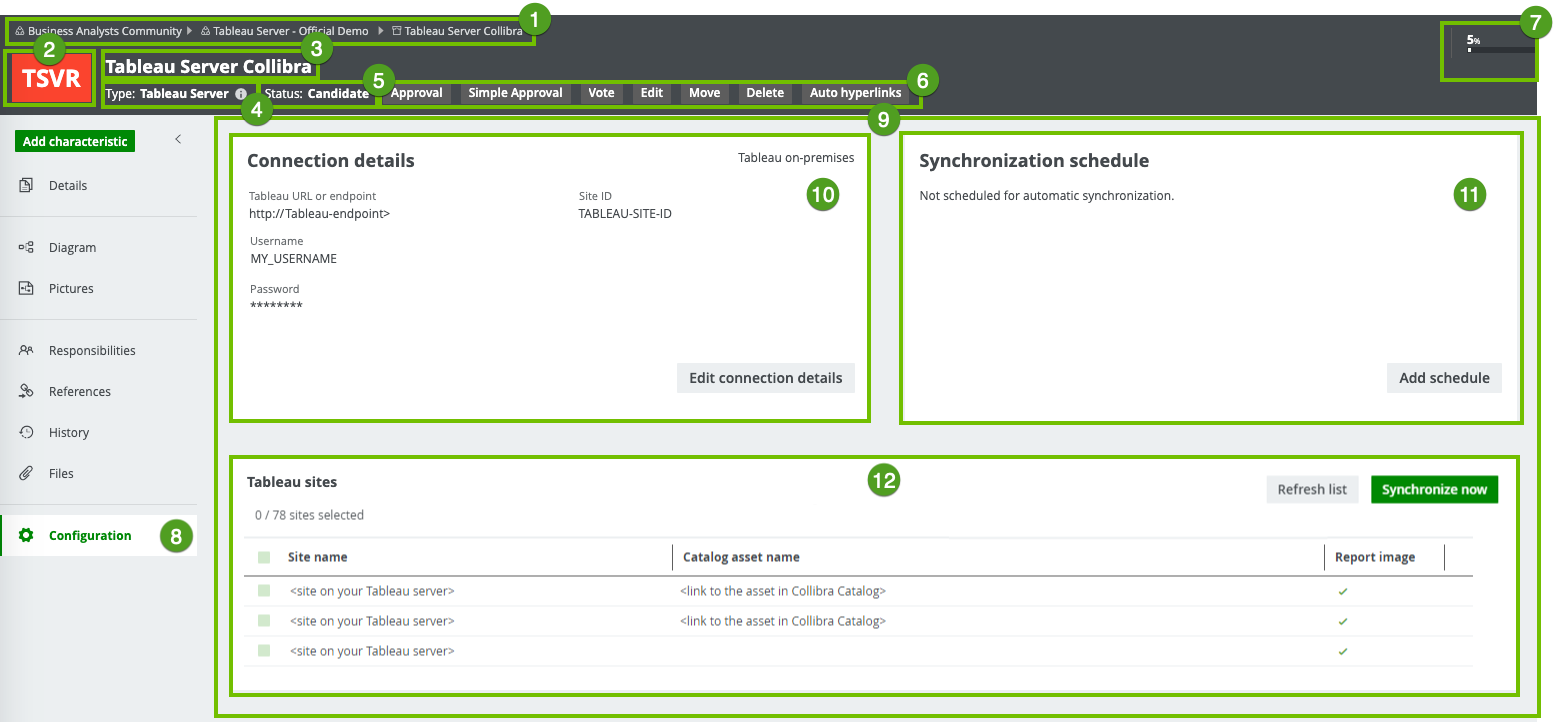
| Number | Section | Description |
|---|---|---|
|
|
Breadcrumbs |
The breadcrumbs of the current |
|
|
Asset type representation |
The icon or abbreviation of the Tip You can edit how an asset type is represented. |
|
|
Asset name |
The name of the |
|
|
Asset type |
The name of the asset type, for example Schema or Data Set. |
|
|
Status |
The asset status, for example Approved. |
|
|
Resource toolbar | Additional actions, such as editing the |
|
|
Articulation score |
The articulation score of the asset. Note If there are no articulation score rules assigned to the asset, the asset page does not show an articulation score. |
|
|
Tab pane |
A collapsible pane that allows you to navigate to other pages of the |
|
|
Editor |
The currently selected page, in this case the Configuration page, which contains the Connection details section, the Synchronization section and Tableau sites found on server section of the Tableau Server asset. |
|
|
Connection details
|
The connection details to Tableau and a button to edit them. |
|
|
Synchronization
|
A basic explanation about the synchronization schedule and the buttons to add, edit and remove a schedule. |
|
|
Tableau sites
|
The list of sites on the Tableau server, as well as buttons to show the sites and to synchronize manually. |

| Number | Section | Description |
|---|---|---|
|
|
Breadcrumbs | The breadcrumbs of the current |
|
|
Asset type representation |
The icon or abbreviation of the Tip You can edit how an asset type is represented. |
|
|
Asset name | The name of the |
|
|
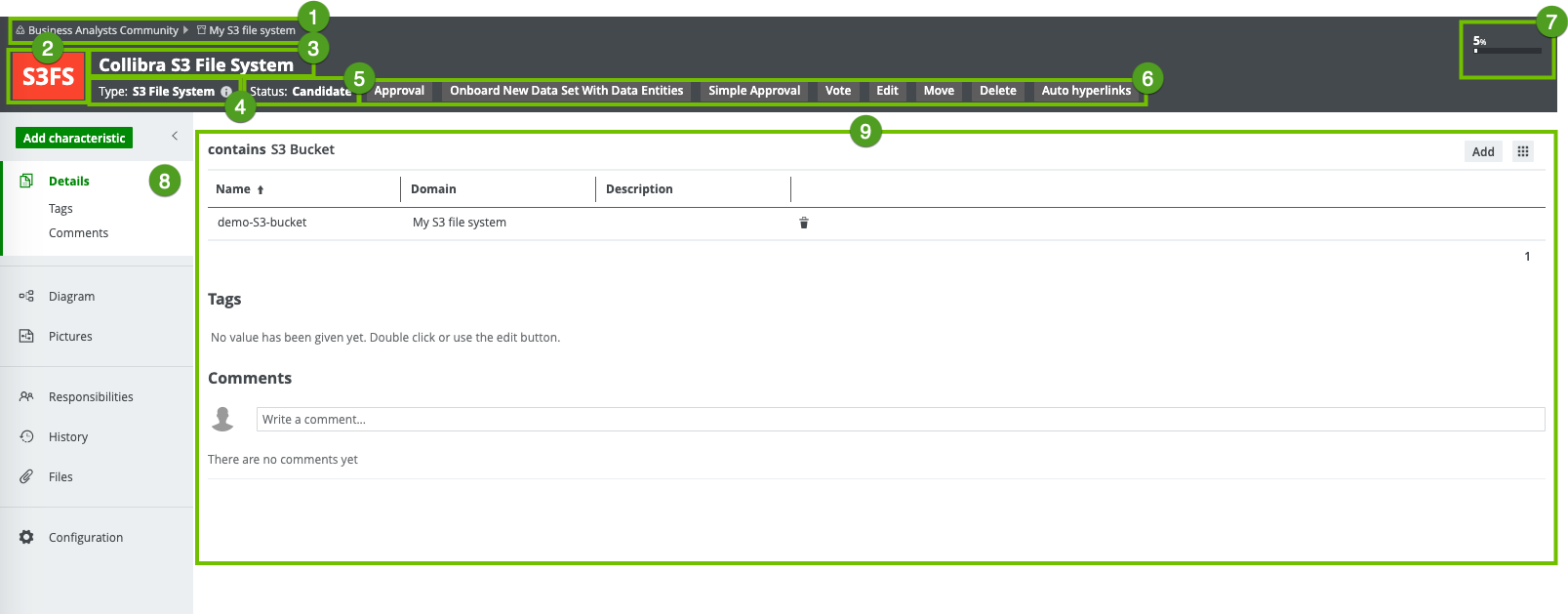
Asset type |
The name of the asset type, for example S3 File System. |
|
|
Status |
The asset status, for example Approved. |
|
|
Collaborative features |
The collaborative features of assets, which consists of the following: |
|
|
Articulation score |
The articulation score of the asset.If there are no articulation score rules assigned to the asset, the asset page does not show an articulation score. |
|
|
Actions menu |
Menu containing specific actions such as starting a workflow. |
|
|
Tab pane |
A collapsible pane that allows you to navigate to other pages of the |
|
|
Editor |
The currently selected page, in this case the Details page, which contains all the attributes If a certain attribute type has been assigned as mandatory for this asset type, this attribute is shown in the asset's Details tab, even if no attribute value has been defined yet. Tip If you want to copy and paste text from other sources into a text field, we recommend that you click |
| Number | Section | Description |
|---|---|---|
|
|
Breadcrumbs |
The breadcrumbs of the current |
|
|
Asset type representation |
The icon or abbreviation of the Tip You can edit how an asset type is represented. |
|
|
Asset name |
The name of the |
|
|
Asset type |
The name of the asset type, for example Schema or Data Set. |
|
|
Status |
The asset status, for example Approved. |
|
|
Resource toolbar | Additional actions, such as editing the |
|
|
Articulation score |
The articulation score of the asset.If there are no articulation score rules assigned to the asset, the asset page does not show an articulation score. |
|
|
Tab pane |
A collapsible pane that allows you to navigate to other pages of the |
|
|
Editor |
The currently selected page, in this case the Details tab page, which contains information about the attributes or relations that the user adds to the asset. It also contains tags and comments. |

| Number | Section | Description |
|---|---|---|
|
|
Breadcrumbs | The breadcrumbs of the current |
|
|
Asset type representation |
The icon or abbreviation of the Tip You can edit how an asset type is represented. |
|
|
Asset name | The name of the |
|
|
Asset type |
The name of the asset type, for example S3 File System. |
|
|
Status |
The asset status, for example Approved. |
|
|
Collaborative features |
The collaborative features of assets, which consists of the following: |
|
|
Articulation score |
The articulation score of the asset.If there are no articulation score rules assigned to the asset, the asset page does not show an articulation score. |
|
|
Actions menu |
Menu containing specific actions such as starting a workflow. |
|
|
Tab pane |
A collapsible pane that allows you to navigate to other pages of the |
|
|
Editor |
The currently selected page, in this case the Configuration page, which contains the Connection details section, the Synchronization section and Crawlers section of the S3 File System asset. |
|
|
Connection details
|
The connection details to Amazon S3 and a button to edit them. |
|
|
Synchronization
|
A basic explanation about the synchronization schedule and the buttons to add, edit and remove a schedule. |
|
|
Crawlers
|
The list of crawlers of this S3 File System asset and buttons to create a new crawler or manually start synchronizing. |

| Number | Section | Description |
|---|---|---|
|
|
Breadcrumbs |
The breadcrumbs of the current |
|
|
Asset type representation |
The icon or abbreviation of the Tip You can edit how an asset type is represented. |
|
|
Asset name |
The name of the |
|
|
Asset type |
The name of the asset type, for example Schema or Data Set. |
|
|
Status |
The asset status, for example Approved. |
|
|
Resource toolbar | Additional actions, such as editing the |
|
|
Articulation score |
The articulation score of the asset. Note If there are no articulation score rules assigned to the asset, the asset page does not show an articulation score. |
|
|
Tab pane |
A collapsible pane that allows you to navigate to other pages of the |
|
|
Editor |
The currently selected page, in this case the Configuration page, which contains the Connection details section, the Synchronization section and Crawlers section of the S3 File System asset. |
|
|
Connection details
|
The connection details to Amazon S3 and a button to edit them. |
|
|
Synchronization
|
A basic explanation about the synchronization schedule and the buttons to add, edit and remove a schedule. |
|
|
Crawlers
|
The list of crawlers of this S3 File System asset and buttons to create a new crawler or manually start synchronizing. |

| Number | Section | Description |
|---|---|---|
|
|
Breadcrumbs |
The breadcrumbs of the current |
|
|
Asset type representation |
The icon or abbreviation of the Tip You can edit how an asset type is represented. |
|
|
Asset name |
The name of the |
|
|
Asset type |
The name of the Power BI asset type. |
|
|
Status |
The asset status, for example Approved. |
|
|
Collaborative features |
The collaborative features of assets, which consists of the following: |
|
|
Add to Data Basket |
Button to add the data set to a data basket. |
|
|
Actions menu |
Button to start workflows and perform other actions. |
|
|
Tab pane |
A collapsible pane that allows you to navigate to other pages of the Note You only see the Technical lineage tab if you have ingested Power BI metadata (cloud-only feature) and you have the Data Catalog and Technical lineage global permissions. |
|
|
Editor |
The currently selected page of the tab pane. Tip If you want to copy and paste text from other sources into a text field, we recommend that you click |
For more information, see the Power BI documentation.

| Number | Section | Description |
|---|---|---|
|
|
Breadcrumbs |
The breadcrumbs of the current |
|
|
Asset type representation |
The icon or abbreviation of the Tip You can edit how an asset type is represented. |
|
|
Asset name |
The name of the |
|
|
Asset type |
The name of the Power BI asset type. |
|
|
Status |
The asset status, for example Approved. |
|
|
Collaborative features |
The collaborative features of assets, which consists of the following: |
|
|
Add to Data Basket |
Button to add the data set to a data basket. |
|
|
Actions menu |
Button to start workflows and perform other actions. |
|
|
Tab pane |
A collapsible pane that allows you to navigate to other pages of the Note You only see the Technical lineage tab if you have ingested Power BI metadata (cloud-only feature) and you have the Data Catalog and Technical lineage global permissions. |
|
|
Editor |
The currently selected page of the tab pane. Tip If you want to copy and paste text from other sources into a text field, we recommend that you click |
For more information, see the Power BI documentation.
| Number | Section | Description |
|---|---|---|
|
|
Breadcrumbs |
The breadcrumbs of the current |
|
|
Asset type representation |
The icon or abbreviation of the Tip You can edit how an asset type is represented. |
|
|
Asset name |
The name of the |
|
|
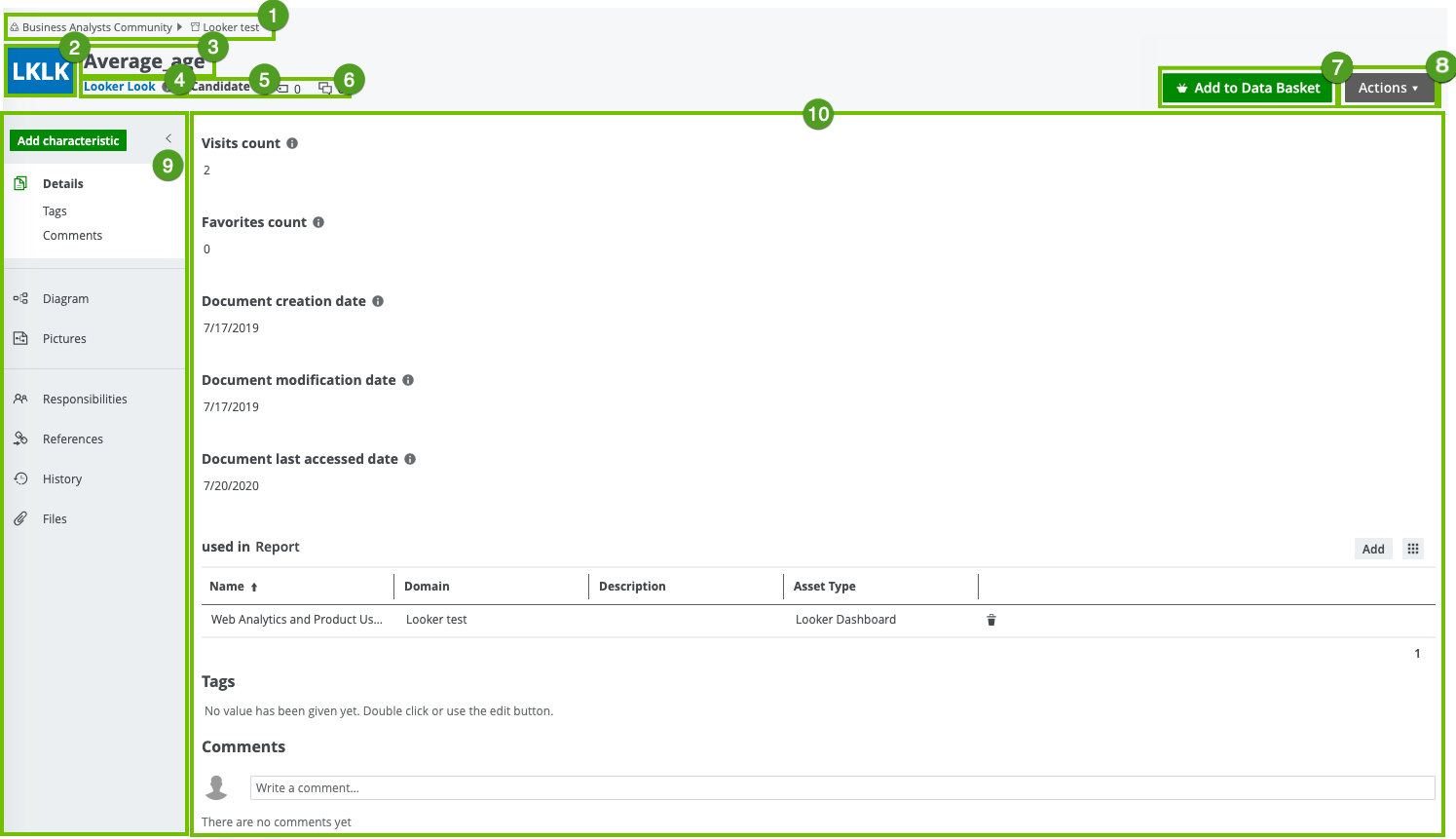
Asset type |
The name of the Looker asset type. Tip Make sure to understand the Looker terminology and how it maps with Data Catalog asset types. |
|
|
Status |
The asset status, for example Approved. |
|
|
Collaborative features |
The collaborative features of assets, which consists of the following: |
|
|
Add to Data Basket |
Button to add the data set to a data basket. |
|
|
Actions menu |
Button to start workflows and perform other actions. |
|
|
Tab pane |
A collapsible pane that allows you to navigate to other pages of the Note You only see the Technical lineage tab if you have ingested Looker metadata (cloud-only feature) and you have the Data Catalog and Technical lineage global permissions. |
|
|
Editor |
The currently selected page of the tab pane. Tip If you want to copy and paste text from other sources into a text field, we recommend that you click |
For more information, see the Looker documentation.

| Number | Section | Description |
|---|---|---|
|
|
Breadcrumbs |
The breadcrumbs of the current |
|
|
Asset type representation |
The icon or abbreviation of the Tip You can edit how an asset type is represented. |
|
|
Asset name |
The name of the |
|
|
Asset type |
The name of the Looker asset type. Tip Make sure to understand the Looker terminology and how it maps with Data Catalog asset types. |
|
|
Status |
The asset status, for example Approved. |
|
|
Collaborative features |
The collaborative features of assets, which consists of the following: |
|
|
Add to Data Basket |
Button to add the data set to a data basket. |
|
|
Actions menu |
Button to start workflows and perform other actions. |
|
|
Tab pane |
A collapsible pane that allows you to navigate to other pages of the Note You only see the Technical lineage tab if you have ingested Looker metadata (cloud-only feature) and you have the Data Catalog and Technical lineage global permissions. |
|
|
Editor |
The currently selected page of the tab pane. Tip If you want to copy and paste text from other sources into a text field, we recommend that you click |
For more information, see the Looker documentation.