After Data Marketplace is enabled, Data Marketplace is ready for use based on the out-of-the-box configuration. This includes the Data Marketplace scope, filter tabs, filters, actions, landing page data, and search suggestions. Optionally, administrators can optimize the Data Marketplace experience.
Data Marketplace scope
By default, Data Marketplace finds assets of the following asset types with any status, anywhere in the organization.
- Data Set
- Report
- Table
- Column
- Database View
- BI Data Set, BI Report
- Power BI Tile, Power BI Data Model, Power BI Dashboard, Power BI Report
- Tableau Dashboard, Tableau View, Tableau Story, Tableau Workbook, Tableau Worksheet
Administrators can configure the Data Marketplace scope.
Filter tabs
Data Marketplace shows the search results in tab pages called filter tabs.
Filter tabs allow you to apply a filter based on an asset type or on a set of filters that are frequently used.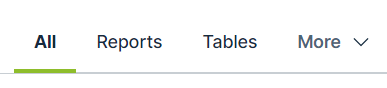
By default, Data Marketplace provides the following filter tabs:
| Filter tab name | Description |
|---|---|
| All | No filter is applied. All search results in the Data Marketplace scope to which you have View permissions are listed. |
| Tables | Only assets of the type Table or an out-of-the-box child asset type of Table are listed in the search results. |
| Data Sets | Only assets of the type Data Set or an out-of-the-box child asset type of Data Set are listed in the search results. |
| Reports | Only assets of the type Report or an out-of-the-box child asset type of Report are listed in the search results. |
Administrators can configure the available filter tabs.
Filters
By default, Data Marketplace provides the filters in the table below.
Note Some of these filters rely on relation path indexing.
If your Collibra environment does not use one or more of the indexed relations, the out-of-the-box relation-filters do not work.
| Filter name | Description | Uses relations |
|---|---|---|
|
Business Asset |
Business Asset refers to the business assets that are related to the data, such as Tip For a detailed narrative on the differences between business terms, data domains and data concepts, see Conceptual data layer versus the Business Glossary. |
Yes |
|
Certified |
This filter limits your search results to data that has been certified, meaning approved, endorsed or guaranteed. Tip For complete information on certifying reports, see Trusted Business Reporting. |
No |
|
Data Domain refers to a high-level conceptual category to which the data belongs, such as Assets of this type:
Important To benefit from this, your data structure must follow the Data Stewardship metamodel. See Conceptual data layer. |
Yes | |
|
Data Concept refers to the lower-level conceptual category to which the data belongs, such as Assets of this type:
Important To benefit from this, your data structure must follow the Data Stewardship metamodel. See Conceptual data layer. |
Yes | |
|
Source System refers to the technology asset that stores the data, like HR Cloud. Via this filter, you can limit the search results to assets that exist in specified systems. |
Yes | |
|
Data source limits the search results to assets that exist in specified data sources. |
Yes | |
| Rating is a colleague’s perception of the data’s usefulness and quality. | No | |
|
Tag is a label that adds extra context to an asset. |
No | |
| Status refers to which governance process stage the asset is in, like Approved or Candidate. | No | |
|
Asset Type refers to the kind of data you are looking for, like data set, report, or table. |
No |
Administrators can configure the filters. They can, for example, make the Organization filter visible, which allows to refine the search results based on the communities and domains in the Data Marketplace scope.
Actions
Data Marketplace provides following actions to the data consumers. The following actions are always available in the asset preview:
| Action name | Description | |
|---|---|---|

|
Share | This action allows data consumers to get a link to the asset preview. |

|
Go to Asset Details | This action allows data consumers to open the asset page of the asset. |

Administrators can make more actions (workflows) available in various places in Data Marketplace and can make the shopping basket available from the asset preview.
Landing page options
The landing page consists of multiple sections.
- By default, the Data Marketplace landing page shows Recent searches, Recent data visits, and What's New. Administrators can make Popular Data, Recent Data Visits, and Recommended Data available instead.
- Administrators can also change the introduction text and add quick links to the landing page.
Search suggestions
By default, no search suggestions are provided when data consumers start entering search terms. Administrators can enable search suggestions.