Configure the Data Marketplace landing page
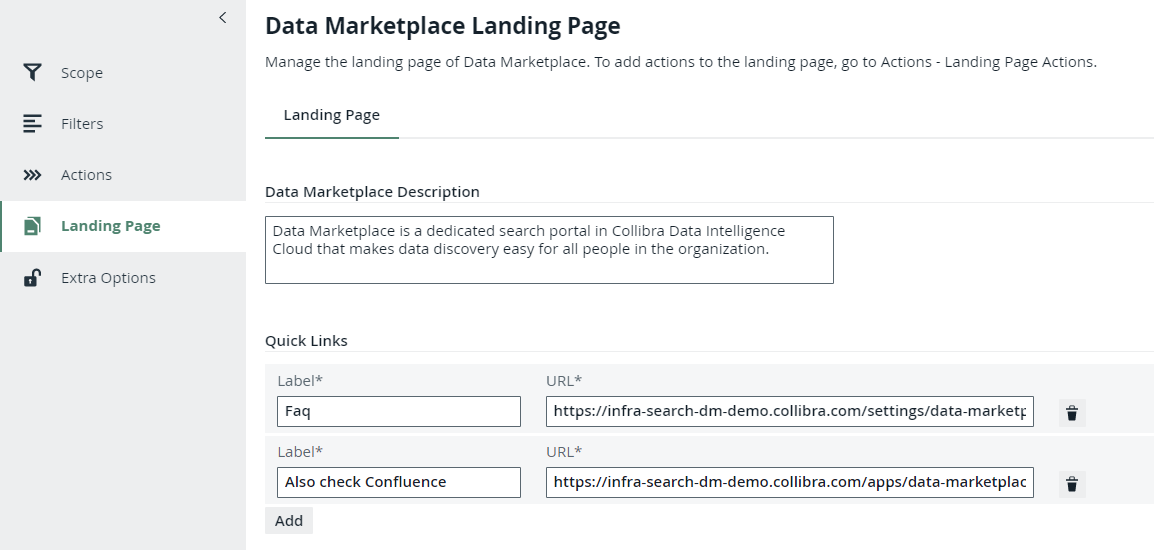
As an administrator, you can optimize the landing page. You can configure the quick links, introduction text, actions, and define whether discovery data must be available.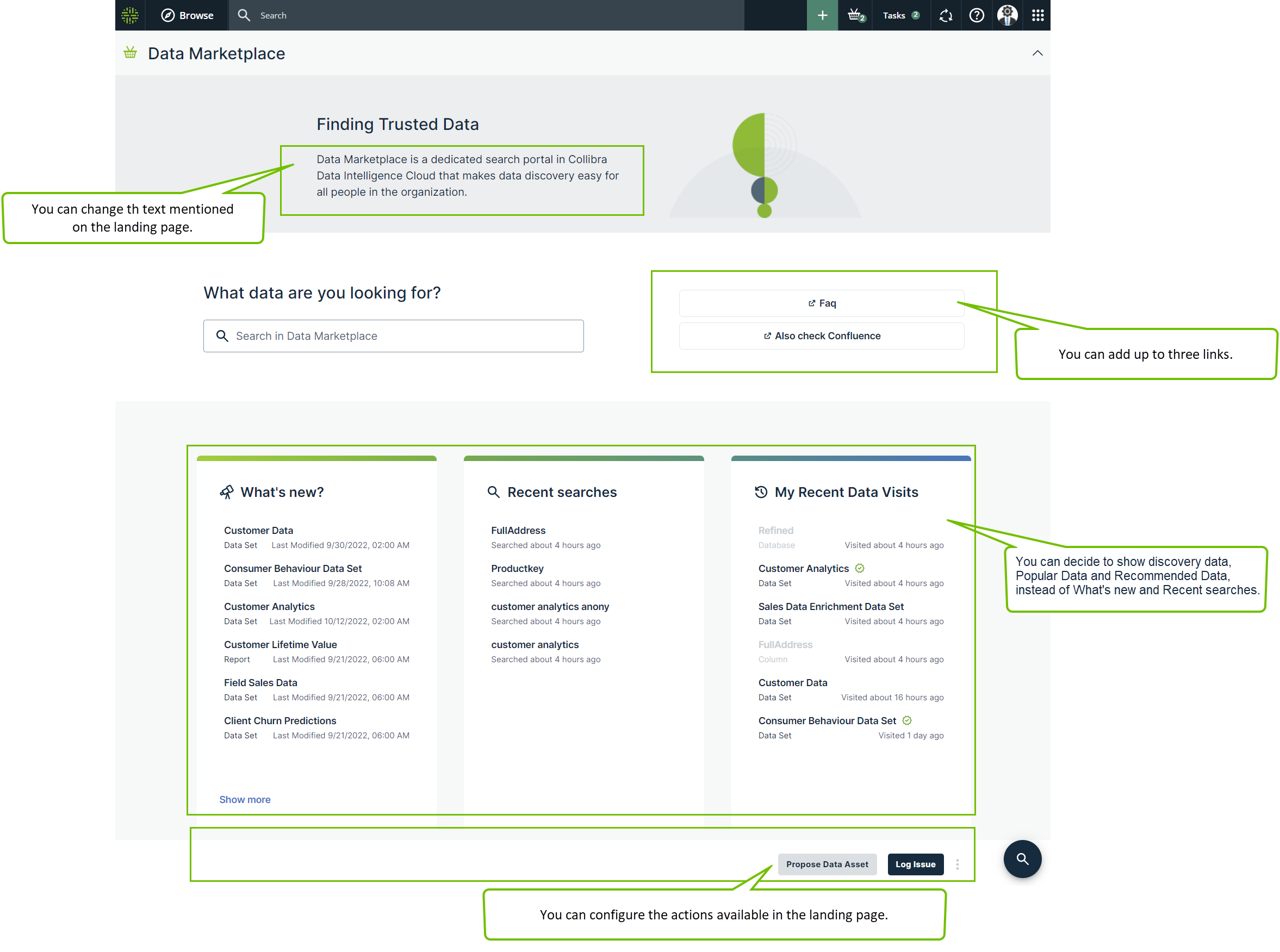
Before you begin
Required permissions
You are an administrator in Data Marketplace.Steps
-
On the main menu, click
 , and then click
 Settings.
The Settings page opens. - To change the introduction text or add links:
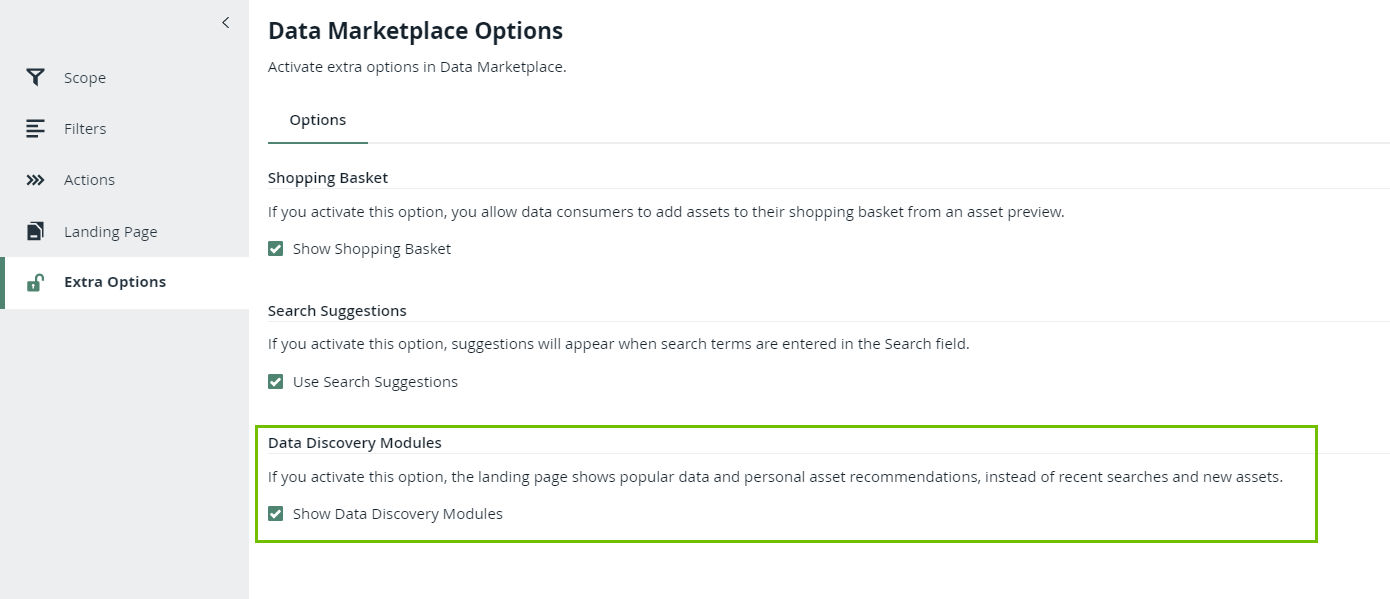
- To show Popular Data, Recent Data Visits, and Recommended Data instead of Recent searches, Recent data visits, and What's New on the landing page:
- In the Data Marketplace section, click Extra Options.
- Select the check box Show Data Discovery Modules.
- Click Save.
NoteSetting "Collect Application Usage Data" has an impact on the availability of popular and recommended data. This setting is enabled by default. Because this setting is not accessible in cloud environments, create a support ticket should you want to change this setting.
- To add specific actions to the landing page, go to Make actions available in Data Marketplace.