Troubleshooting Data Marketplace
For an overview of the limitations and guidelines, go to Data Marketplace limitations and guidelines.
1 You don't find the asset you are looking for
The possible reasons are:
- The asset you are looking for is not part of the Data Marketplace scope (status, asset type, organization)
- You don’t have the required permissions to access the asset.
2 You see fewer or more search results in the All filter tab compared to other out-of-the-box filter tabs
The out-of-the-box filter tabs Tables, Data Sets and Reports are not impacted by the Data Marketplace scope configuration.
This means that it is possible fewer or more search results appear in the All filter tab compared to other out-of-the-box filter tabs.
Administrators can configure the available filter tabs.
3 You don't see your recent searches or recently visited assets
Your recent searches and recently visited assets information is stored in your browser's local storage.
This means that when you use another browser or another machine to search in Data Marketplace, the recent searches and recently visited assets information is not available.
4 New data consumers don't receive discovery data
Issue: New data consumers don't see Popular Data and Recommended Data in their landing page.
Reason: The recommended data engine compares the browsing history of the current user with the history of other users. If there is no history, there are no recommendations at that point in time.
Solution: Recommendations and popular data will be provided after one day.
5 You don't see a specific filter in the Filters pane
The possible reasons are:
- The search reindexing is still running. The filter may appear once reindexing is completed.
- The filter may be set to invisible.
- The filter may not apply to your search results or not contain any values based on your search results.
6 You cannot edit the filter tabs
Issue: When you open the Edit Tabs tab page, you do not have any options to change the filter tabs.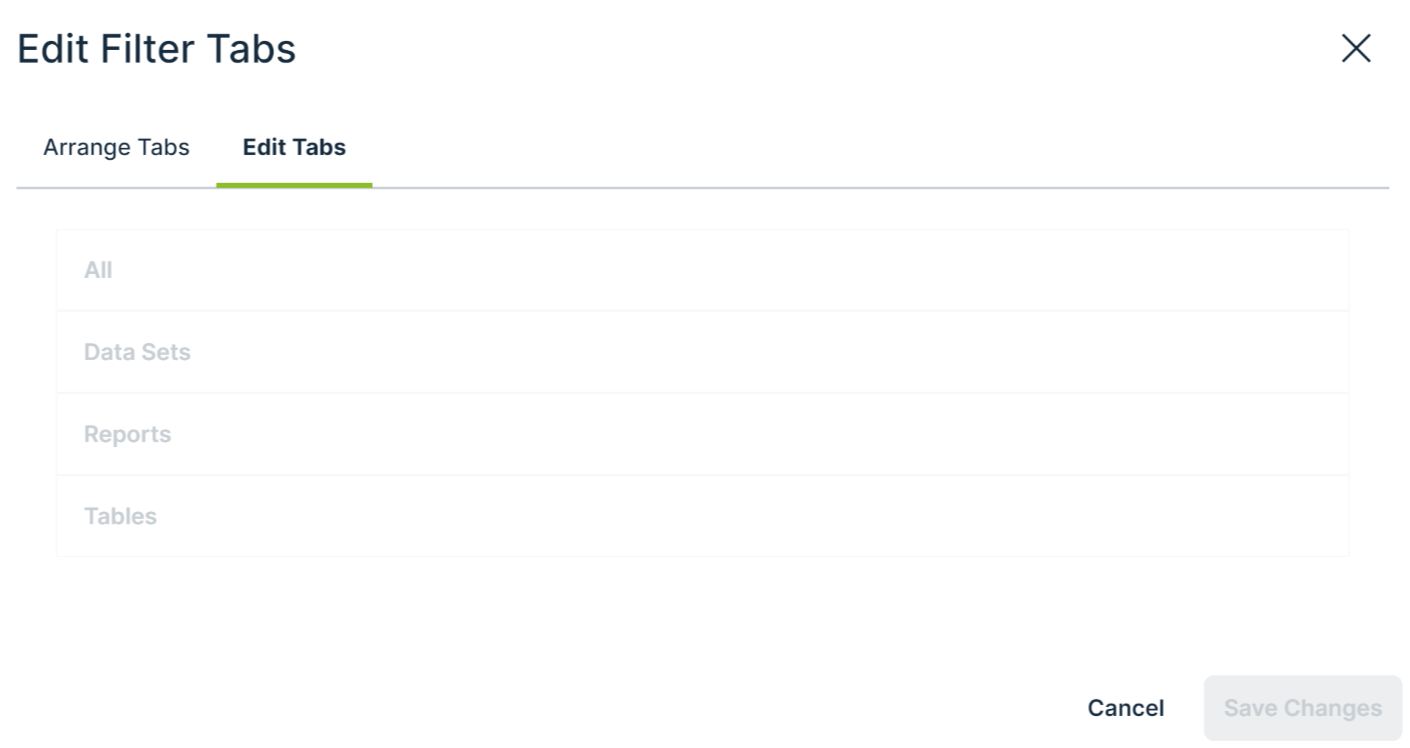
Reason: You can't rename or delete the out-of-the-box filter tabs.
Solution: You can hide the out-of-the-box filter tabs via the Arrange Tabs tab page. For more information, go to Configure the filter tabs in Data Marketplace.
7 You don't see the actions (workflows) in the asset preview after they were enabled in the Data Marketplace settings
Actions are based on workflows and their configuration. Workflows can be configured to only be available for certain asset types or users, and they can be paused. If you do not see a specific action, the workflow configuration may give you an indication on the reason.
8 You don't know where the actions you selected are displayed
Actions can be made available in Data Marketplace:
- At the bottom of the Data Marketplacelanding page.
These are the actions the administrators selected in the Landing Page Actions tab page. - In the Need help? section if the search did not return any results.
These are the actions the administrators selected in the No Search Results Actions tab page. - At the bottom of an asset preview.
These are the actions the administrators defined in the Main Asset Preview Actions tab page. - In the Actions tab page in an asset preview.
These are the actions the administrators selected in the All Asset Preview Actions tab page.
9 The workflow does not start
Workflows that start other workflows will not open the follow-up task automatically in Data Marketplace. You can still access the task from the Tasks indicator in the top bar.10 You don't find assets based on relations that end with a specific attribute
Issue: You have created a relation-based index that ends with an asset type attribute so data consumers can search for the attribute and find specific related asset types. You now add the attribute to an asset type's assignment because it was not there before.
You expect that this asset type is taken into account when Data Marketplace searches based on the relations, but the search does not seem to work.
Reason: When you add an attribute to an asset type and you want to apply an existing relation-based index, you need to reindex the relations.
11 You get an error message when you activate the Data Discovery Modules option
Issue: In the Data Marketplace settings, the extra option Data Discovery Modules has been selected. You expect that the landing page shows Popular Data, Recent Data Visits, and Recommended Data, but you receive the following message instead: We are not able to show most visited assets because usage data is not available.
Reason: The setting "Collect Application Usage Data" has an impact on the availability of popular and recommended data. This setting is enabled by default in most environments and is not accessible in Cloud environments.
If you receive this message, create a support ticket to change the "Collect Application Usage Data" setting.
12 You get an error message when you want to add, update or delete a relation index
Issue: When you add, update or delete a relation index, you receive one of the following messages: Maximum number of supported trails is 4, but relation path has 5. Maximum number of facets is 20, but current configuration has 21.
Reason: You might have requested the creation of custom relation-based filters before release 2022.11. With release 2022.11, you can manage these yourself and validations have been added.
Solution: It is best to recreate the custom made relation-based filters via the user interface. You can reset your environment to the default out-of-the-box relation indexes (used in relation-based search and filters) via the Reset to default button.
13 How can you test relations-based search?
Go to How does relation-based search work? for information.