Asset Grid layout
When you have an operational Asset Grid, you can customize the layout to your liking.
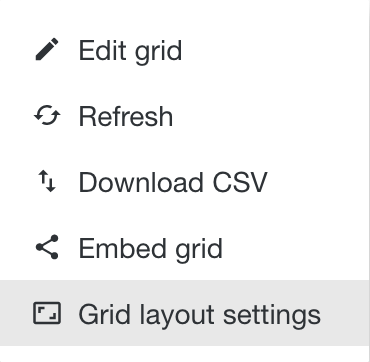
To edit the layout, click  above the grid to the right and select Grid layout settings.
When you enable the layout settings, a row appears between the search boxes and the grid.

|
Setting |
Description |
|---|---|
| Preset |
A list of predefined grid layout settings. You can start from one of the presets to further customize your layout:
When you change a preset, the preset is marked as "custom". |
| Related Grids | Grids are considered related if they are part of the same grid group. Select a grid group to switch from one grid to another within this grid group. |
| Hovering |
The way of highlighting in the grid when hovering your mouse over the grid:
|
| Align Row Header | The vertical alignment of the row header of the grid. For large rows, it is possible that the row header is not visible. With this alignment, you can ensure that the header is always visible. |
| Cell items limit |
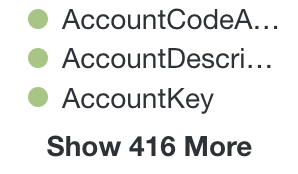
The maximum number of elements that are shown per cell. If the value is 0, all elements are shown. If there are more elements than the set limit, you see the first elements and an extra option to show all elements.
|
| Header columns width | The width of the column header. This only applies to the first two columns of the grid. |
| Header row height | The height of the row header. This only applies to the first row of the grid. |
| Grid columns width | The width of the grid columns. |
| Grid rows height | The height of the grid cells. |
| Hide empty rows |
The option to hide empty rows. If this option is selected, only rows that have a value in at least one column are shown. |
|
Hide empty columns |
The option to hide empty columns. If this option is selected, only columns that have a value in at least one row are shown. |
You can hide the layout settings by clicking  to the right of the layout settings.