Configuring Data Marketplace
After Data Marketplace is activated, Data Marketplace is ready for use based on the out-of-the-box experience.
Optionally, Data Marketplace administrators can optimize the Data Marketplace experience.
| Step | Description | |
|---|---|---|
| 1 | Check that colleagues have the required permissions | Check that colleagues have the required permissions to use or configure Data Marketplace. |
| 2 | If needed, change the Data Marketplace scope |
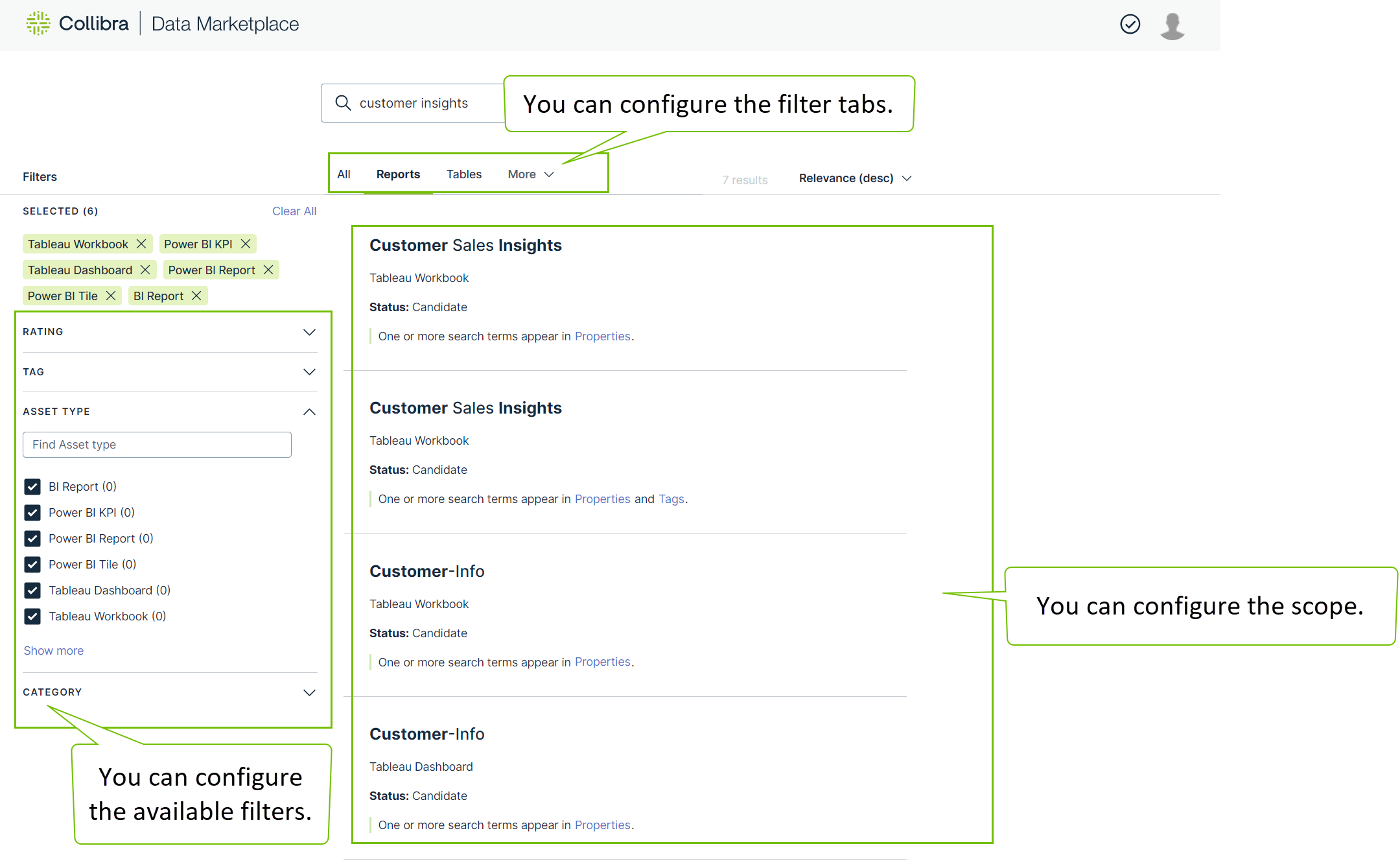
By default, Data Marketplace finds assets of specific Data Catalog asset types, with any status, anywhere in your organizations. |
| 3 | If needed, make actions available in Data Marketplace |
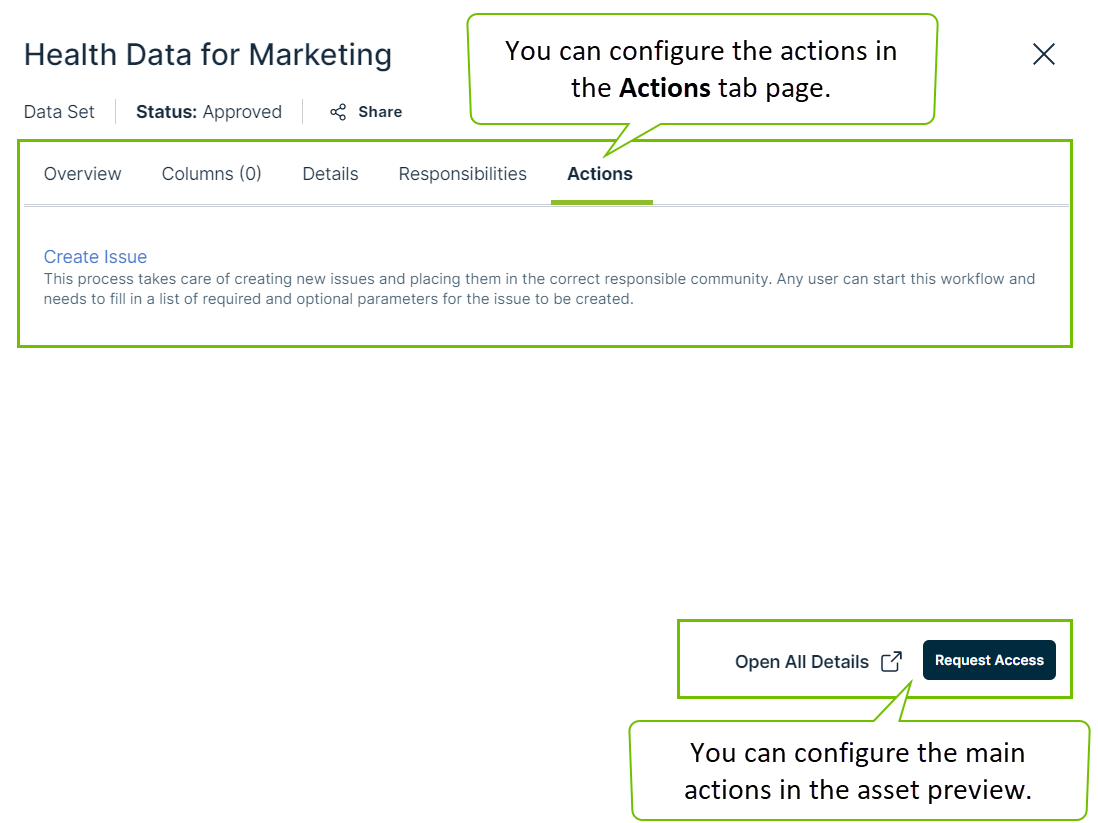
By default, an asset can be shared with a colleague and opened in Collibra from the asset preview. |
| 4 | If needed, configure the filters in Data Marketplace |
By default, all out-of-the-box filters that apply to the search results are available to data consumers. |
| 5 | If needed, configure the filter tabs in Data Marketplace |
By default, all out-of-the-box filter tabs are available in the search results. |
| 6 | If needed, optimize the search index |
The Collibra search index settings have an impact on the Data Marketplace experience. You can use these settings to further optimize the experience. Note that changing these settings has an impact on Collibra as a whole, not only on Data Marketplace. For information on the Data Marketplace-specific settings such as Search over relations, see Enable Data Marketplace in your environment. |
-
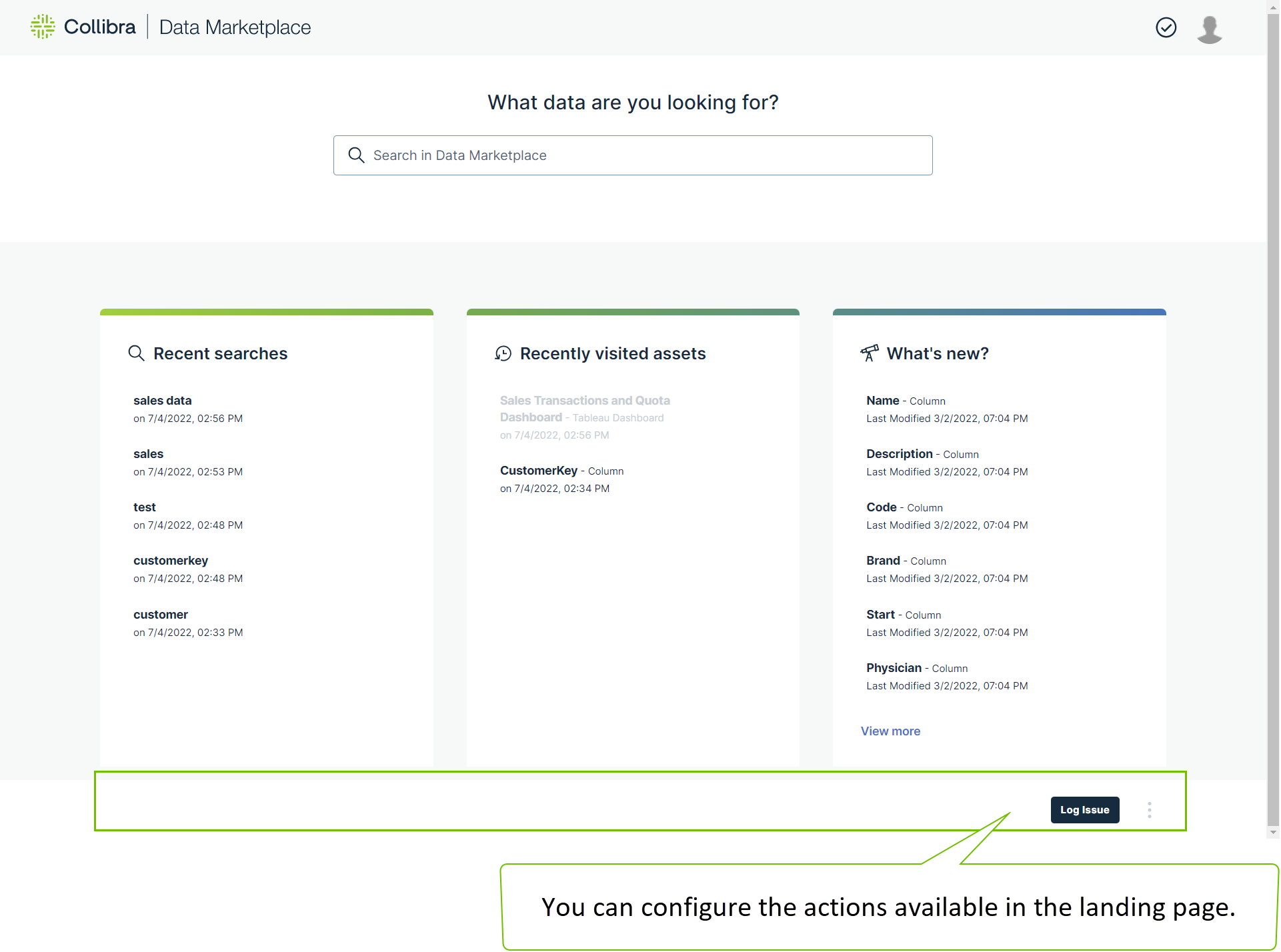
You can configure the actions available in the landing page.
-
You can configure the filter tabs, filters and the scope of Data Marketplace.
-
You can configure the actions available in the asset preview.
-
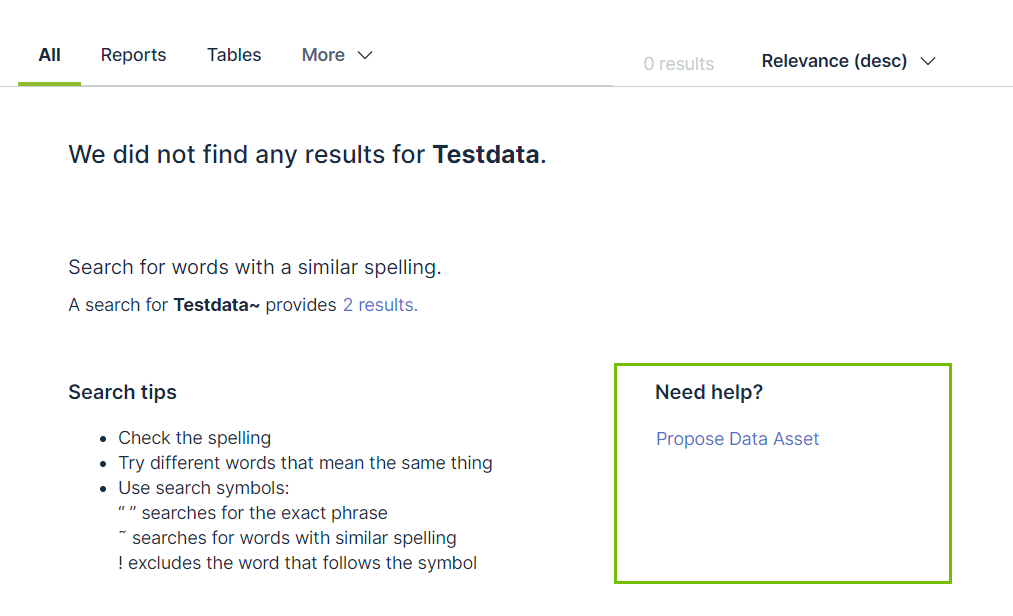
You can configure the actions available in the No search results page.