Technical lineage viewer
The technical lineage viewer shows the technical lineage and allows you to edit the view. You can access the technical lineage viewer via the Technical lineage tab on Column and Table asset pages and BI assets of the same level.
Tip For more information about the technical lineage for Looker or Power BI, we highly advise you to read the dedicated sections in the user guide.
Technical lineage tab
You can only see the Technical lineage tab on a Column or Table asset page when you have the following prerequisites:
- Catalog Experience is enabled in Collibra Console.
- You have a global role with the Catalog global permission, for example Catalog Author.
- You have a global role with the Technical lineage global permission.
Technical lineage viewer
|
No |
Name | Description |
|---|---|---|

|
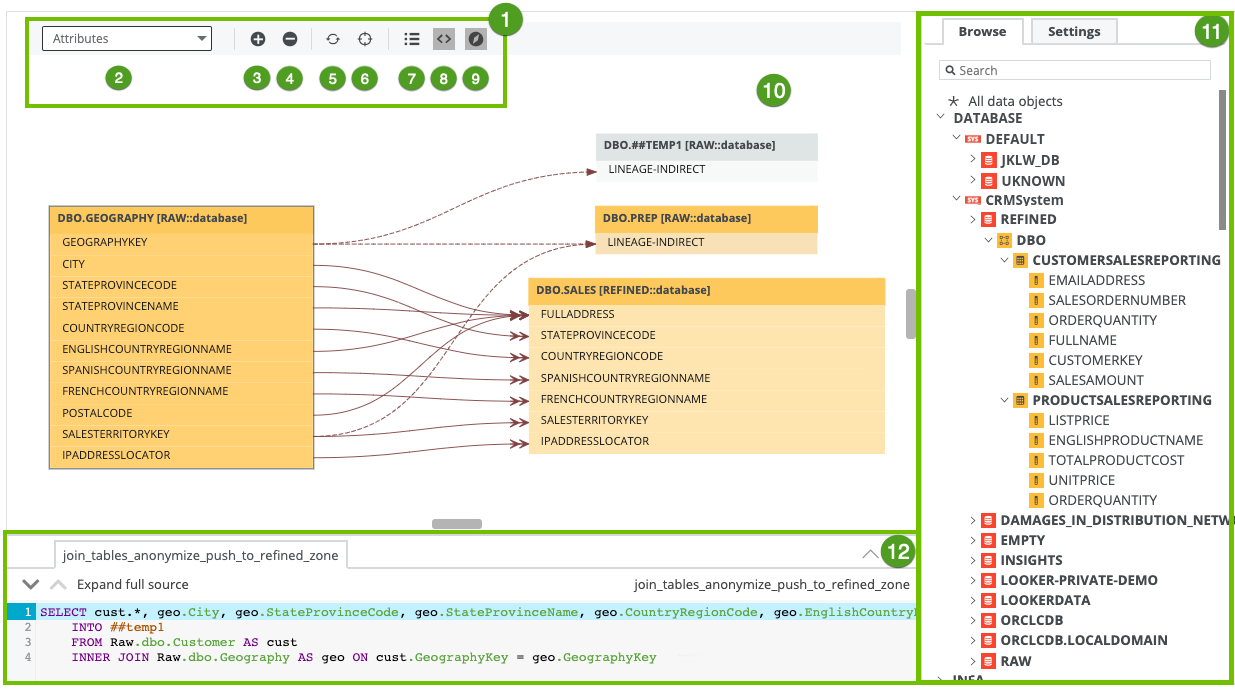
Toolbar |
The toolbar to work with technical lineage. The toolbar helps you to edit basic settings that apply to the entire lineage. |
|
|
|
|

|
|
Button to zoom in on the technical lineage. |

|
|
Button to zoom out on the technical lineage. |

|
|
Button to refresh the technical lineage. This discards all the changes that you made to the technical lineage and restores it to the initial state. |

|
|
Button to reposition the technical lineage to the starting position. |

|
|
Button to show or hide the legend panel. |

|
|
Button to show or hide the source code pane. |

|

|
Button to show or hide the Browse and Settings tab panes. |
|
|
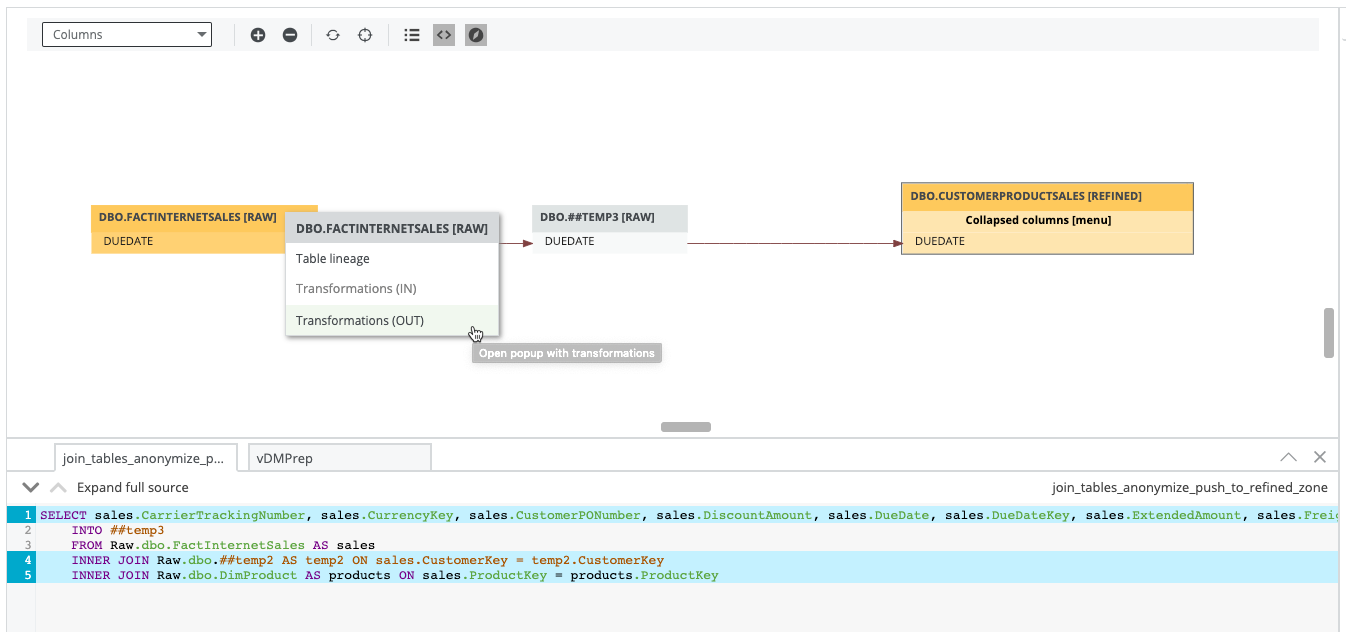
The actual visualization of the traceability of the current data object, according to your selection in the Browse tab pane. If you select a specific column in a table with multiple columns, you can click Collapsed columns [menu] to show all other columns, collapse all columns or only show selected columns in the same table.
Tip Data objects that are stitched to assets in Data Catalog have a yellow background. Other data objects that the lineage harvester collected from your data source, but are not stitched and therefore are not assets in Data Catalog, have a gray background. |
|
|
|
Tab panes |
Tab panes that contain useful tools to browse through your technical lineage or determine which content is visualized in the technical lineage. |
|
Browse tab pane
|
This pane can be used to search for specific data objects or show statistics on the amount of tables and views in use. More information. |
|
|
Settings tab pane
|
This pane can be used to search for transformation code, edit the visualization of the technical lineage, see the status of the source code, check the stitching results or export your technical lineage to PDF, PNG or CSV. More information. |
|
|
|
The source code pane shows the source code of specific data objects. It can be used to easily find issues in the data flow. The source code pane is shown when you click
|