Technical lineage Sources tab page
When you create a configuration file and run the full-sync command in the lineage harvester, your data sources are uploaded to the Collibra Data Lineage server to be analyzed and processed. The Sources tab page shows the transformation details or source code that was analyzed and the results of this analysis.
You can access the Sources tab page by clicking Show status on the Settings tab pane.

|
No |
Name | Description |
|---|---|---|

|
Summary per data source |
A summary per data source. You can also select data sources to filter the results. |
|
Selected
|
Checkboxes to filter on a data source in the transformations table. If you select none, the transformations table contains all transformations. |
|
|
Source ID
|
The ID of your data source. You entered this ID in the configuration file. |
|
|
Scanner type
|
The type of scanner that is used to scan the queries in your data source. |
|
|
Success rate
|
The success rate of the data source analysis on the Collibra Data Lineage server. The success rate indicates how complete your technical lineage is. Important The success rate of a technical lineage gives a good indication of the processing success. A success rate less than 100%, however, does not mean processing was unsuccessful. A parsing error, for example, which negatively affects the success rate, does not always negatively affect the completeness of the lineage. |
|
|
Done
|
The amount of queries that were scanned and analyzed. |
|
|
Parsing Error
|
The amount of parsing errors. |
|
|
Analyze Error
|
The amount of analysis errors. |
|
|
Last sync time
|
The last time the data source was uploaded to the Collibra Data Lineage server, for analysis and processing. | |
|
|
Search tools | Tools to help you search for specific source code fragments. |
|
Full-text search
|
A search field to find specific queries in the log files. Type what you are looking for and press Enter. |
|
|
Filter by
|
A drop-down list to filter the source codes based on their status code. |
|
|
|
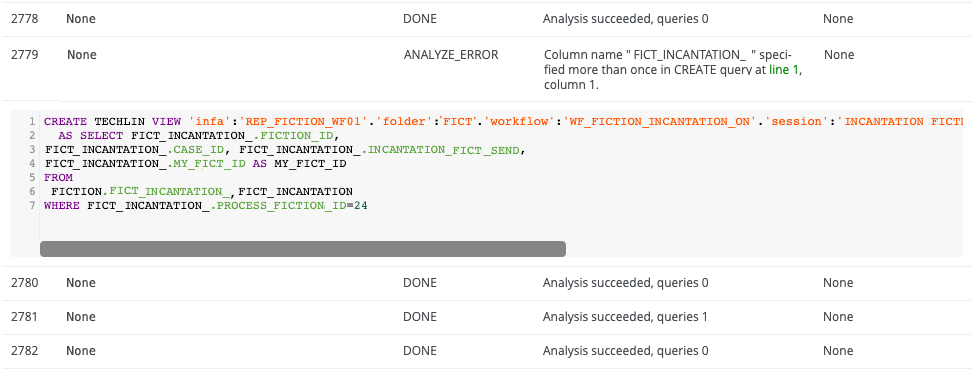
Transformations table |
The table that contains details of the transformations and source code (fragments). You can filter the rows in the table by selecting data sources in the data source table and by using the search tools. Tip If you click a source code fragment, you can see the log file attached to it. |
|
ID
|
The ID of the source code fragments or transformation details, which are assigned in chronological order. | |
|
Name
|
The name of the specific source code fragment or transformation detail. You can also see the source code fragment name in the source code pane in the technical lineage graph. |
|
|
Status code
|
The status of the analysis. A source code fragment or transformation detail can have one of the following status codes:
|
|
|
Status description
|
The description of the status code that provides more information about the analysis and shows how many queries were processed. |
|
|
Group name
|
The name of the package or procedure to which the source code fragment or transformation details belongs. |
|
|
|
Show lineage |
Button to go back to the technical lineage graph. |


Analysis results
If you click one of the rows in the Transformations table, a file with the analysis results attached to the source code or transformation details opens. You can use these files to easily find errors in the source code or transformation details of your data source.