Register a data source using your own driver
You can register a database as a data source using one of your own drivers.
Tip You can also do this with a Collibra-provided JDBC driver.
This operation should only be executed by your database administrator.Prerequisites
- You have a global role with the Catalog global permission, for example Catalog Author.
- You have set up the JDBC driver of your source data, for example MySQL.
- You have configured one or more Jobservers in Collibra Console. If there is no available Jobserver, the Register data source actions will be grayed out in the global create menu of Collibra Data Intelligence Cloud.
- If you are using a Collibra Data Intelligence Cloud environment with an on-premises Jobserver, both must have the same installer version. You can find the installer version of your Collibra Data Intelligence Cloud environment at the bottom of the sign-in window of its Collibra Console, for example 5.7.11-58
- You have a resource role with the following resource permissions on the Schema community:
- Asset > add
- Attribute > add
- Domain > add
- Attachment > add
- You have the permissions to retrieve the metadata of the following database components through the JDBC Driver Database Metadata methods:
- Schemas
- Tables
- Columns
- Primary keys
- Foreign keys
- For the list of supported databases and versions, consult the Databases supported versions section.
- For the JDBC connection details of the various databases, consult the JDBC connection details section.
Steps
-
In the main menu, click
 , then
 Catalog.
The Catalog Home opens. - In the main menu, click the
Create (
 ) button.
The Create dialog box appears. - In the Register data source dialog box, click
- If there is no JDBC driver available, add and configure the driver of your preference.
- In the Register data source dialog box, enter the required information.
Field Description Process on The jobserver used for ingesting.
Schema name This name is used in Collibra as schema asset and must therefore be unique.
Schema description The description of the schema. This is used as description of the schema asset. Data owner The owner of the registered data in Collibra. - Click Next.
- Enter the database connection properties.
Option Description JDBC driver version
The JDBC driver to connect to your database.
Connect via
The jobserver used for ingesting.
Database Name of the database.
Host
Hostname to access the database.
Port
Port to access the database.
<Configuration properties>
The connection properties as defined in your JDBC driver.
Label Description
Hostname The name of your device.
Port The port number.
Database The name of your database.
Schema The name of your schema.
Label
Description
URL (hostname:port) Address of the used database. Use the format hostname:port.
Principal The Kerberos principal identity.
Schema
The name of your schema.
Label
Description
URL (hostname:port) Address of the used database. Use the format hostname:port.
Schema
The name of your schema.
Label
Description
Hostname The name of your device.
Port The port number.
Database
The name of your database.
Schema
The name of your schema.
Label
Description
Hostname The name of your device.
Port The port number.
Database
The name of your database.
Schema
The name of your schema.
Label
Description
URL (hostname:port) Address of the used database. Use the format hostname:port.
Schema
The name of your schema.
Label
Description
Hostname The name of your device.
Port The port number.
Database
The name of your database.
Schema
The name of your schema.
Label
Description
Hostname The name of your device.
Port The port number.
Database
The name of your database.
Label
Description
Hostname The name of your device.
Port The port number.
SID
The Oracle System ID, which identifies a database on a system.
Schema
The name of your schema.
Label
Description
Hostname The name of your device.
Port The port number.
Database
The name of your database.
Schema
The name of your schema.
Label
Description
Hostname The name of your device.
Port The port number.
Database
The name of your database.
Schema
The name of your schema.
If you want to use Kerberos authentication, you also need the following connection properties.
Label
Description
Principal The Kerberos principal identity.
Kerberos realm
The Kerberos realm name.
Login context name
The login context name that is used as the index to the configuration.
Jaas file name
The name of the Jaas file.
Kerberos configuration file
The configuration file containing specific properties for Kerberos authentication.
If you want to use NTLM authentication, you also need the following connection properties.
Label
Description
Security
The security that enables the authentication
Authentication scheme
The used authentication scheme, which is NTLM.
If you want to use CyberArk authentication, you need the following connection properties.
Label Description
Keystore file The name of the keystore file. The keystore must contain the client key and client certificate or certificate chain.
If
defaultTruststoreis set tofalse, the keystore has to contain the trusted CA certificate needed to validate the server certificate offered by CyberArk.The value must have the following format:
file://<keystore-file name.jks>.Example
file://cyberark-keystore.jksKeystore password
The password required to open the keystore.
Default truststore
The indication of the default truststore. The default value is set to
False.False: The certificate is validated through the keystoreFile property.True: The certificate is validated through the default truststore from the Java JRE. This is recommended when CyberArk is set up to offer a server certificate that can be validated by a public CA (certification authority).
CyberArk address The host and port number through which the CyberArk server is accessible. The format of the address is
hostname:port.Example
my.cyberark.com:5502CyberArk application ID
The application ID as defined in CyberArk.
This ID should be provided by your network or system administrator.
CyberArk query The CyberArk query.
This query should be provided by your network or system administrator.
Store credentials
Select this option to store the credentials to access the database. With a schema refresh, you can clear this option again.
Username Username to access the database.
Note This field is ignored if your data source usesPassword Corresponding password to access the database.
Note This field is ignored if your data source usesSchedule data refresh
Enable or disable a schedule to automatically refresh the data registration. Cron pattern Schedule of the data refresh as a Quartz Cron pattern.
Warning If you create an invalid Cron pattern, Collibra Data Intelligence Cloud stops responding.
Time zone The time zone of the database. Note If Collibra cannot connect to the database, you cannot continue the data source registration wizard. - Click Next.
-
Select the data profiling options.
Option Description Store Data Profile
Option to perform data profiling on the registered data.
Note If you have not added the QueryPassthrough connection property to your Teradata driver, it is disabled by default. However, if you enable Store Data Profile for Teradata, QueryPassthrough is enabled automatically. If you have added the QueryPassthrough connection property to your driver, the value that you specified is used.Detect advanced data types Option to detect advanced data types in the data source.
Store Sample Data
Option to extract sample data from the registered data.
Tables excluded from registration
Database tables that will not be ingested.
Note- If required, you can exclude multiple tables. To do this, pressEnterafter typing a value and then type the next.
- You can use an asterisk (
*) as wildcard to select multiple tables. For example, if you want to exclude the tables that all start with act_, you can enteract_*. - The table names are case sensitive.
- You can add or remove tables from this list by refreshing the schema.
- The Table assets that are created after ingestion have anattribute typecalled Table Type that defines the type of table that is declared in the data source. For example, TABLE, VIEW,...
- Click Create.
This information varies depending on your data source type and authentication method.
Data source type | Authentication method |
What's next?
The data source is registered and the data is automatically ingested. The ingestion of data is executed in a job. You can see this job in the list of activities.
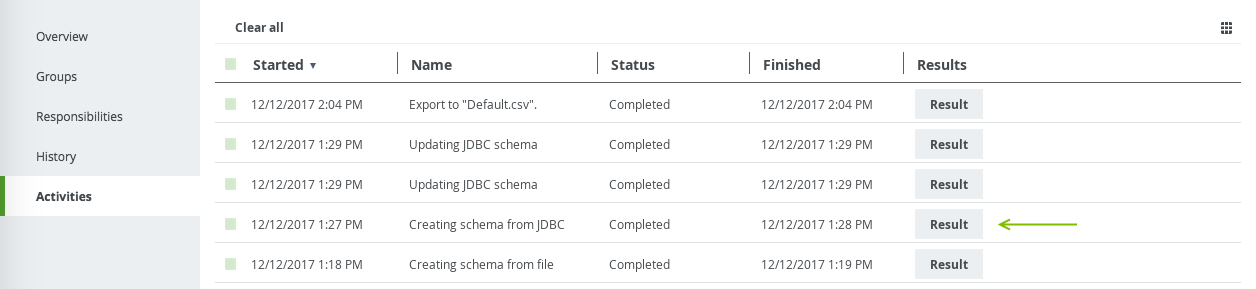
Click the Result button to open the data profiling results.
- If the database contains foreign keys, they will be registered as new assets of the Foreign Key asset type. Assets of this type contain the complex relation, which is the link between all column assets that are part of the foreign key definition.
However, the complex relation is not created if a column is part of a table that is added to the list of Tables excluded from registration. - If you exclude a table during the schema refresh, the corresponding table, column assets and foreign key mapping will be deleted.