Activities
An activity is a process that Collibra runs in the background. While the process is running, you can use Collibra as usual. Activities are, for example, importing and exporting assets, or registering a data source and profiling data.
Activities lists
Activities shows a list of the most recent or ongoing activities in Collibra Data Intelligence Cloud. Every time you start a new activity, it is shown in the Activities list.
Activities lists show more information about activities, for example the creation date and the status.
There are two types of Activities lists:
- The Activities list in the main menu: A limited list with only the most recent and ongoing activities.
- The Activities list on your profile page: A list of all activities that you ever started.
Activities list in the main menu
Activities list in the main menu only shows the most recent and ongoing activities. You can open the Activities list in the main menu by clicking  . If there are activities still running, the wheel is spinning.

Click Show more to go to the Activities list on your profile page.
Activities list on your profile page
The Activities list on your profile page contains a table with all activities. It also shows more information about each activity, for example the creation date, name, status, start, finish and result.
You can open the Activities list by clicking Show more in the Activities list on the main menu or by opening your profile page and clicking the Activities tab.
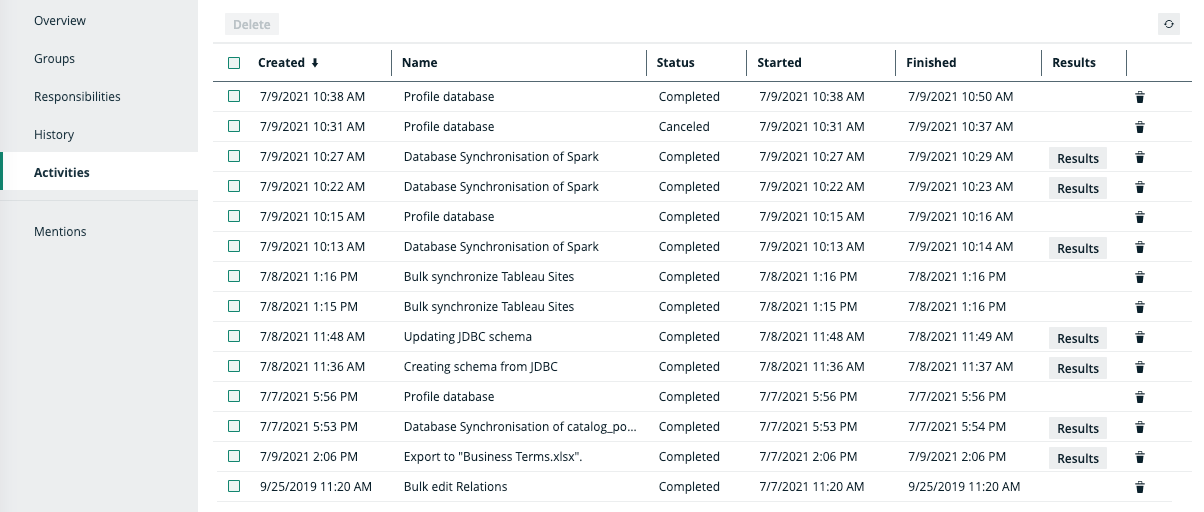
| Column | Description |
|---|---|
| Created | The date and time that you triggered the activity. |
| Name | The name of the activity. |
| Status |
The status of the activity. The following statuses can be shown:
|
| Started | The date and time that the activity started. |
| Finished | The date and time that the activity finished. |
| Results |
If available, a button to see the result of the activity. Depending on the activity, the result can be different. Example If you exported assets and click Results in the Activities list, you download the export results. If you registered a data source in Data Catalog, a dialog box shows more information about the registration job. |
| <Column to delete an activity> | A button ( ) to delete the activity. ) to delete the activity. |