View and edit workflow definition settings
The workflow definition settings are additional parameters that help you manage the workflow behavior and accessibility inside Collibra Data Intelligence Cloud.
When you decide how to configure your Collibra workflows, consider that the workflow events mechanism is not designed for mass import. Avoid triggering workflows as a result of an import operation because it has the potential of impacting the performance of your environment. If you must use workflows after importing large amounts of data, you should:
- Configure all script tasks to run asynchronously to prevent slowing down the import.
- Keep the number of start events to a minimum.
- Restrict the scope of the workflow as much as possible.
You must have the Sysadmin global role or a global role that has at least the Workflow Administration global permission to access this page:
The steps in this procedure are different for the classic and refreshed navigation.
-
In the main menu, click
 , then
  Settings.
The Collibra settings page appears. -
In the main menu, click Settings.The System page appears.
- Click Workflows.
The workflows settings appear on the Definitions tab page. - Select a workflow to view the definition settings.
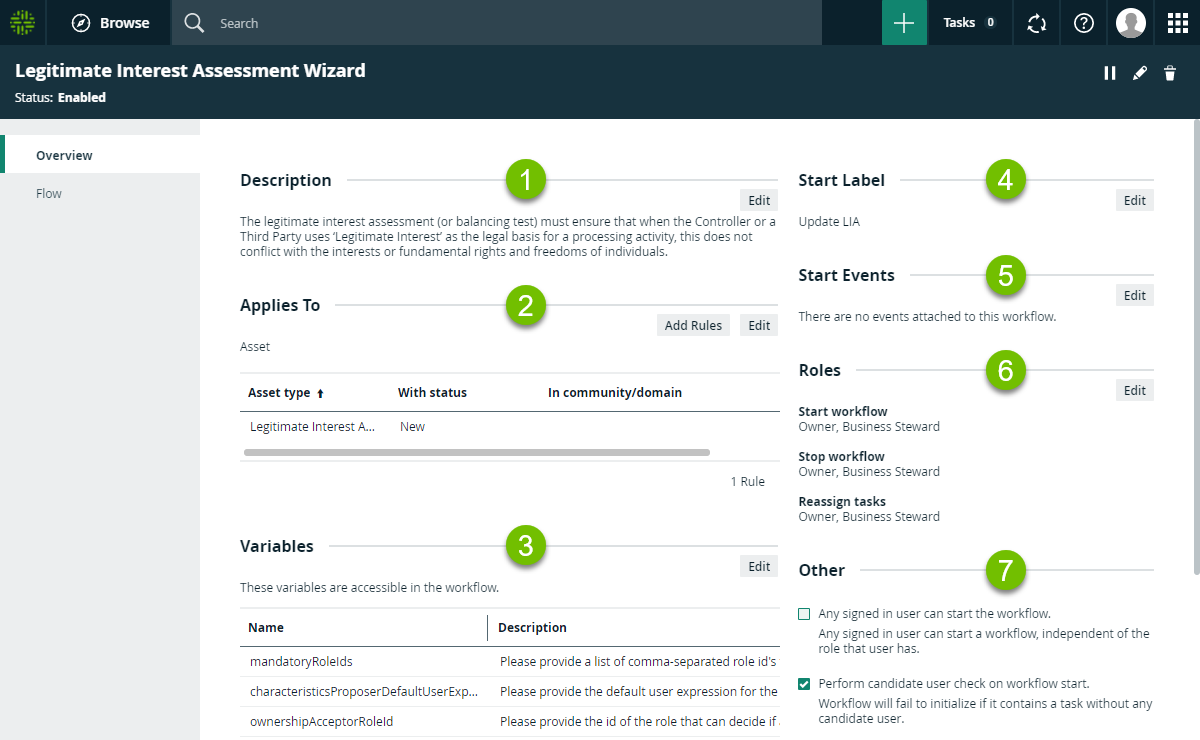
Description
The description is a brief overview of the workflow. You can edit the description by:
- Changing the diagram process properties.
- Editing the workflow XML directly in Collibra Data Intelligence Cloud
Applies To
This section defines the scope of the worflow: the type of resource the workflow applies to and optional restriction rules. The scope also determines where the workflow can be started from.
Click  to change the scope to any of the following:
- Asset
- Community
- Domain
- Global
Note
When you change the scope, the rules are removed.
A global workflow is not restricted to any particular resource and can be added to dashboards.
After defining a resource the workflow applies to, you can add restriction rules to fine tune the scope of the workflow.
- Click Add.
A dialog box appears.

Note The available options depend on the selected scope.
- Select the Type.
Tip Select Asset to associate the workflow with all asset types.
- Select an optional domain or community the resource belongs to.
- Select an optional status of the resource the workflow applies to.
- Click Save.
The restriction is added to the list. The workflow is restricted to the resources that meet the listed conditions.
Note The restrictions use the logical
ORfunction.
Variables
These are configuration variables, a list of process variables that you can edit here.
Click to edit the variables.
Note You can only edit configuration variables that have the Writable property set to true (default).
Note If you redeploy a workflow, the configured variables remain the same. If you delete a workflow and then deploy it again, the variables revert to the default values.
Start Label
The to edit the label.
Start Event
A to edit the start event list.
Combine the Start Event with Applies To settings to refine when the workflow is triggered.
Roles
The roles define the permissions to manage the workflow. For example, if a certain tasks must be urgently executed but the responsible person is on sick leave, a user with the defined role can reassign that task to somebody else.
You can enter roles for starting and stopping workflows or reassigning workflow user tasks. The roles you can enter depend on the Applies To settings:
- If the scope is Global, you can only specify global roles in these fields.
- In all other cases, only resource roles are allowed.
Note When specifying resource roles, only users that have the role for the specific resource can start and stop the workflow or reassign tasks.
Click to edit the roles:
- Start Workflow: The button with the start label is available to users with these roles.
- Stop Workflow: The option to cancel the workflow is available to users with these roles.
- Reassign Tasks: The option to reassign the task is available to users with these roles.
Note
Other
The section contains additional settings that determine who can start the workflow, how the workflow behaves in relation to the resource it applies to and if the workflow can be started from the global Create button.
| Setting | Description |
|---|---|
| Any guest user can start the workflow. |
Indicates if guest users can start the workflow. If selected, users who are not signed in can start the workflow. When guest users start a workflow, some basic information, such as first name, last name and email address, is requested of them. That information can then be used to contact the user again, if needed. Note This check box overrides any roles that are specified in the Roles section. If you select this check box, you cannot select the Any signed in user can start the workflow check box. |
| Any signed in user can start the workflow. |
Indicates that any user who is signed in can start the workflow. Note This check box overrides any roles that are specified in the Roles section. If you select this check box, you cannot select the Any guest user can start the workflow check box. |
| Perform candidate user check on workflow start. |
Checks if all workflow user tasks have a candidate user expression that can be resolved to at least one Collibra Data Intelligence Cloud user. If the check fails, you see an error message when the workflow starts. |
|
This workflow can only run once at the same time on a specific resource. |
Determines if you can start a workflow multiple times, simultaneously for the same resource. If selected the workflow can only be started once for a given resource. If any user tries to start the same workflow for the same resource, an error message is displayed. However, users can still start the same workflow for a different resource or another workflow for the same resource |
|
If Lock resource is also selected, no other workflow can start on the same resource while this workflow is running neither can this workflow start if any other workflow is running on the same resource. |
|
| Show in global create. | Only valid for workflows where the scope is set to Global, allows users to start the workflow from the global Create button. |