Screen elements in the user interface
The Collibra Data Intelligence Cloud user interface contains a number of common elements that appear throughout the product.
You can navigate through Collibra Data Intelligence Cloud using your mouse or keyboard. For more information, see Accessibility.
Refreshed navigation
You can now use a new, refreshed navigation. It is disabled by default but you can enable it in Collibra Console. The improvements include:
- The top navigation is centered around the current application.
- The application menu in the upper right corner gives you access to the applications the global view and the settings.
- The Home button points to your default dashboard.
- Dashboards are now organized in tabs instead of a view selector.
- The Search box is takes a more prominent part of the menu bar.
- The search results are now automatically filtered by the current domain or community if you search with a domain or community page open.
Warning When you enable refreshed navigation, you lose your UI customizations such as color scheme and logo. For more information about customizing the UI with refreshed navigation, see the Collibra Developer portal.
Page layout
Use these options to see the classic or the refreshed navigation:
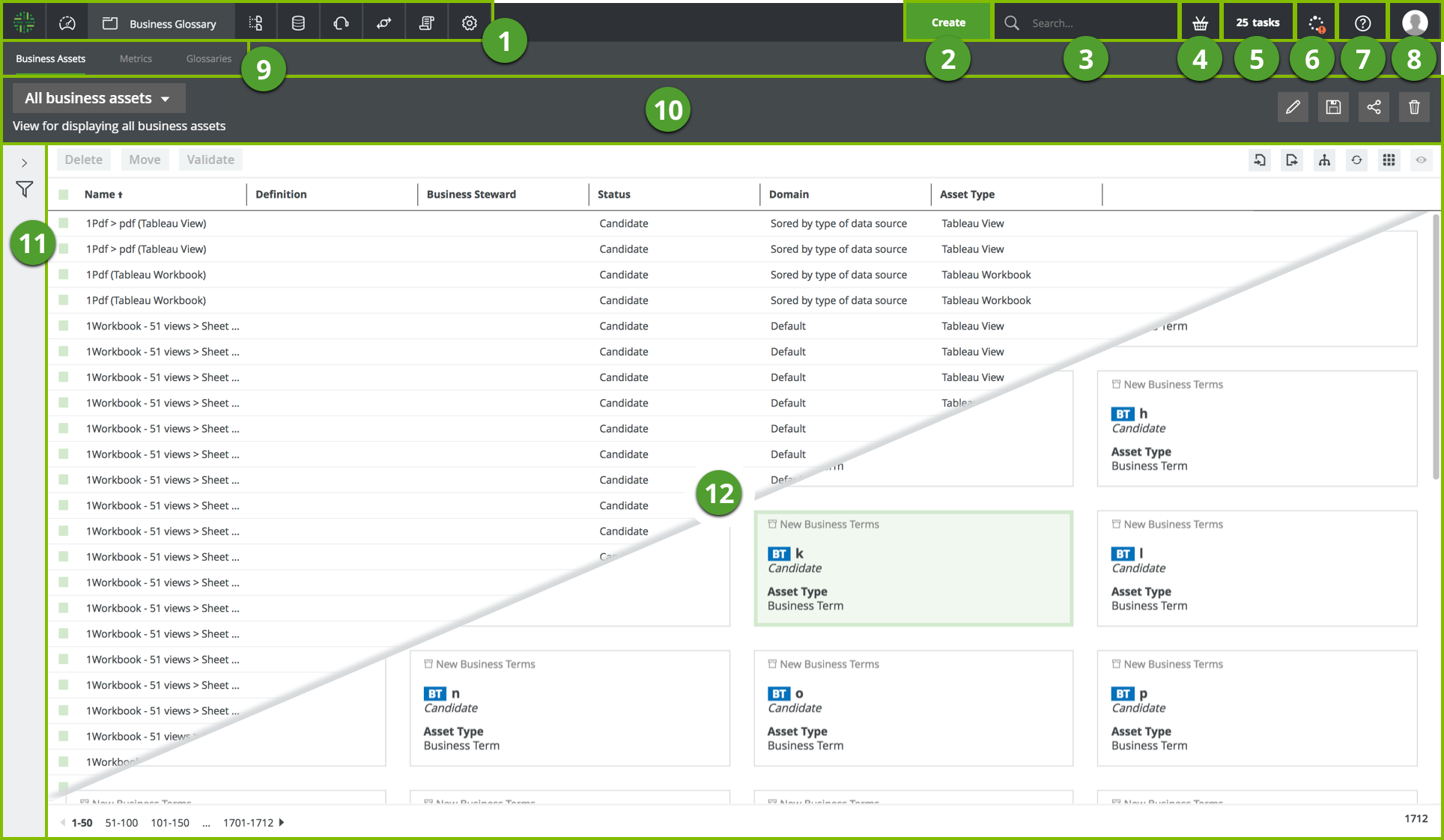
| No. | Element name | Description |
|---|---|---|

|
Main menu |
Provides access to the following:
|

|
Create button | Enables you to create any resource from any location. |

|
Search field | Enables you to search for any resource in the database. |

|
Shopping basket | Enables you to request access to data sets and reports. |

|
Tasks indicator | Indicates how many tasks are awaiting your attention and enables you to view and manage those tasks from a list. |

|
Activities tracker |
Enables you to check Collibra activity. It keeps a history of all the jobs you started. Different states of the tracker:
|

|
Info |
Provides access to the product documentation, to Collibra Product Resource Center and University and to the Collibra support portal. Note If you have the Sysadmin role, you also have direct link to the API documentation. |

|
Profile checker | Enables you to view and modify your profile, sign out, and report a problem. |

|
Submenu | Provides access to the subpages of the submenu items. |

|
View bar | Enables you to select and manage views. |

|
|
|

|
Table or set of tiles |
Displays relevant resources in a structured way. For more information, see: |
 Dashboards
 Glossary
 Reference Data
 Catalog
 Data Helpdesk
 Stewardship
 Policy manager
 Settings
 : One or more jobs are currently running.
 : Displays the number of jobs that have been successfully completed.
 : Indicates that one or more jobs have errors and could not be completed.
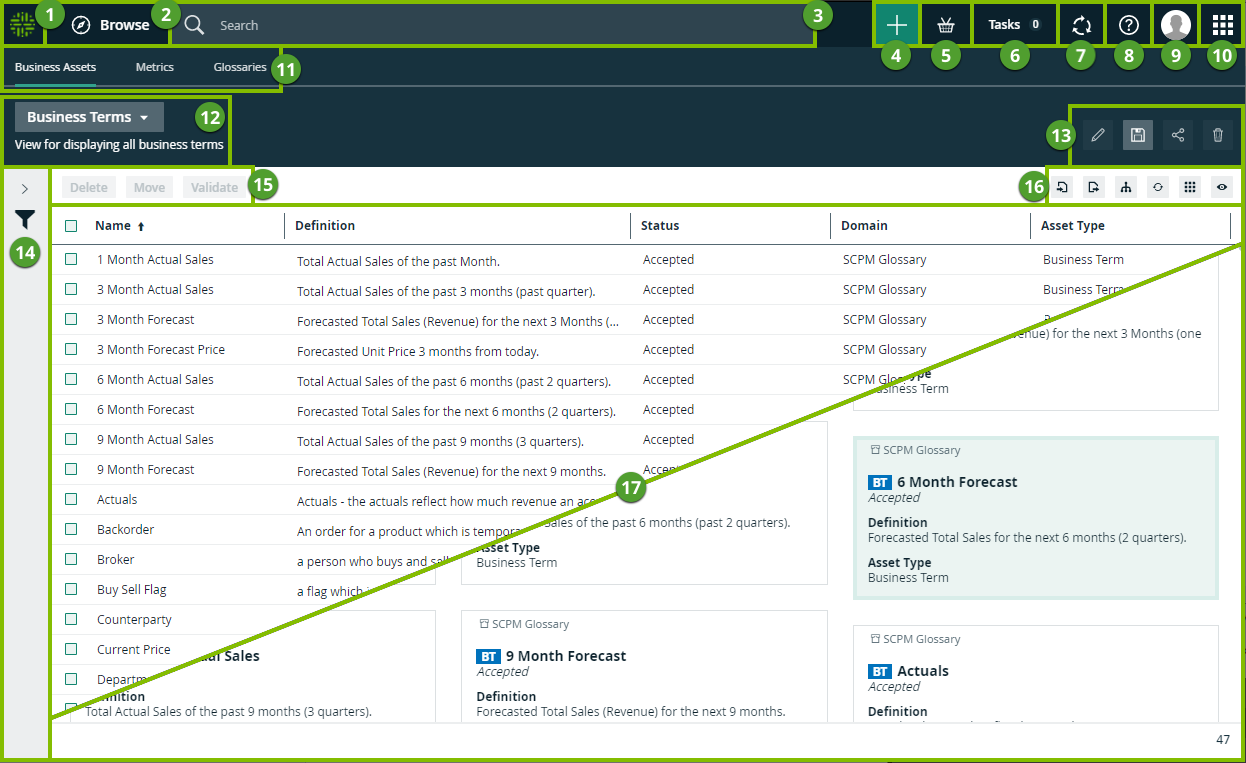
| No. | Element name | Description |
|---|---|---|
|
|
Home button |
Open your default dashboard. |
|
|
Navigation browser |
Open the navigation browser. |
|
|
Search field | Search for any resource in Collibra. |
|
|
 button button |
Create any resource from any location. |
|
|
Shopping basket | Request access to data sets and reports. |
|
|
Tasks indicator | See how many workflow tasks are awaiting your attention and manage those tasks from a the My tasks page. |
|
|
Activities tracker |
Check Collibra activities and see the history of all the jobs you started. |
|
|
Info |
Get access to the product documentation, to Collibra Product Resource Center and University and to the Collibra support portal. Note If you have the Sysadmin role, you also have direct link to the API documentation. |
|
|
Avatar | View and modify your profile, sign out, and report a problem. |
|
|
Application menu |
Open another application:
|
|
|
Submenu |
Open one of the subpages of the current application. |
|
|
View selector |
|

|
View toolbar |
Manage the current view. |

|
Filter pane |
Filter the resources in the view. |

|
Action toolbar |
Perform actions on the assets that you selected in the view or start a workflow. |

|
Content toolbar |
Manage the resources in the current view. |

|
Table or set of tiles |
See the resources in the current view in a table or as tiles. |
 Global view: See all assets in a single view.