My Tasks page
The interface is different when the task sidebar option is enabled.
The following image shows the different parts of the Tasks page:
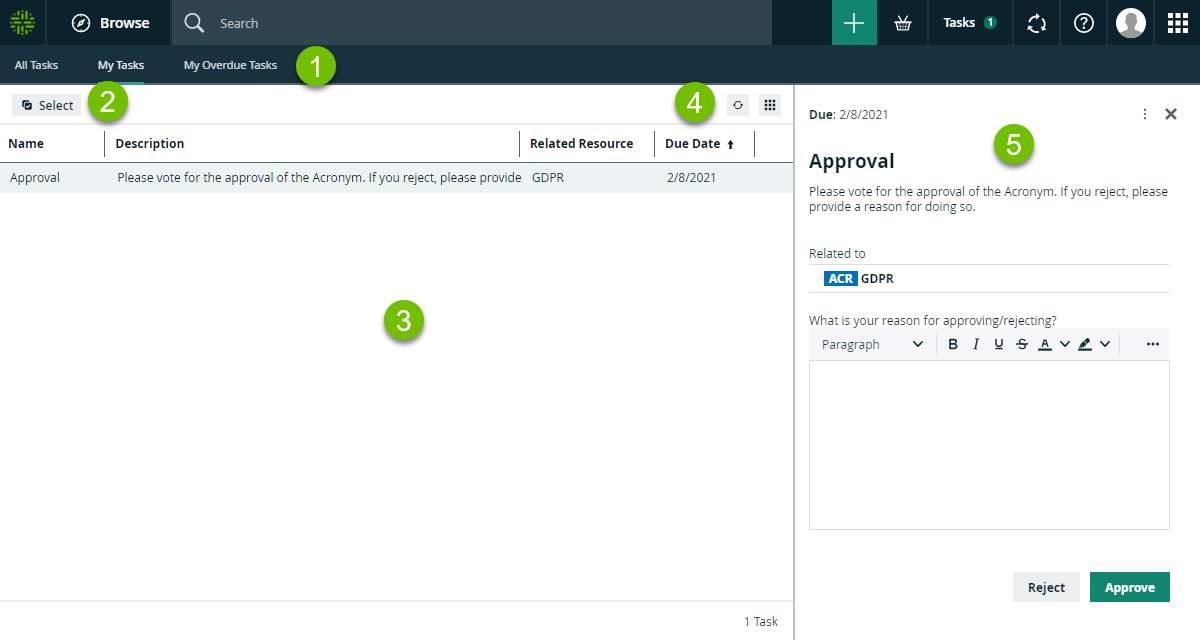
| Element |
Name |
Description |
|---|---|---|

|
Tasks submenu |
Contains the following pages:
|

|
Select button |
Allows you to select one or multiple tasks for bulk operations. |

|
Tasks table |
Shows a list of tasks. |

|
Table menu |
Contains refresh and display options for tasks table. |

|
Sidebar |
Contains all the elements that allow you to complete the task. |
| No. | Description |
|---|---|
|
|
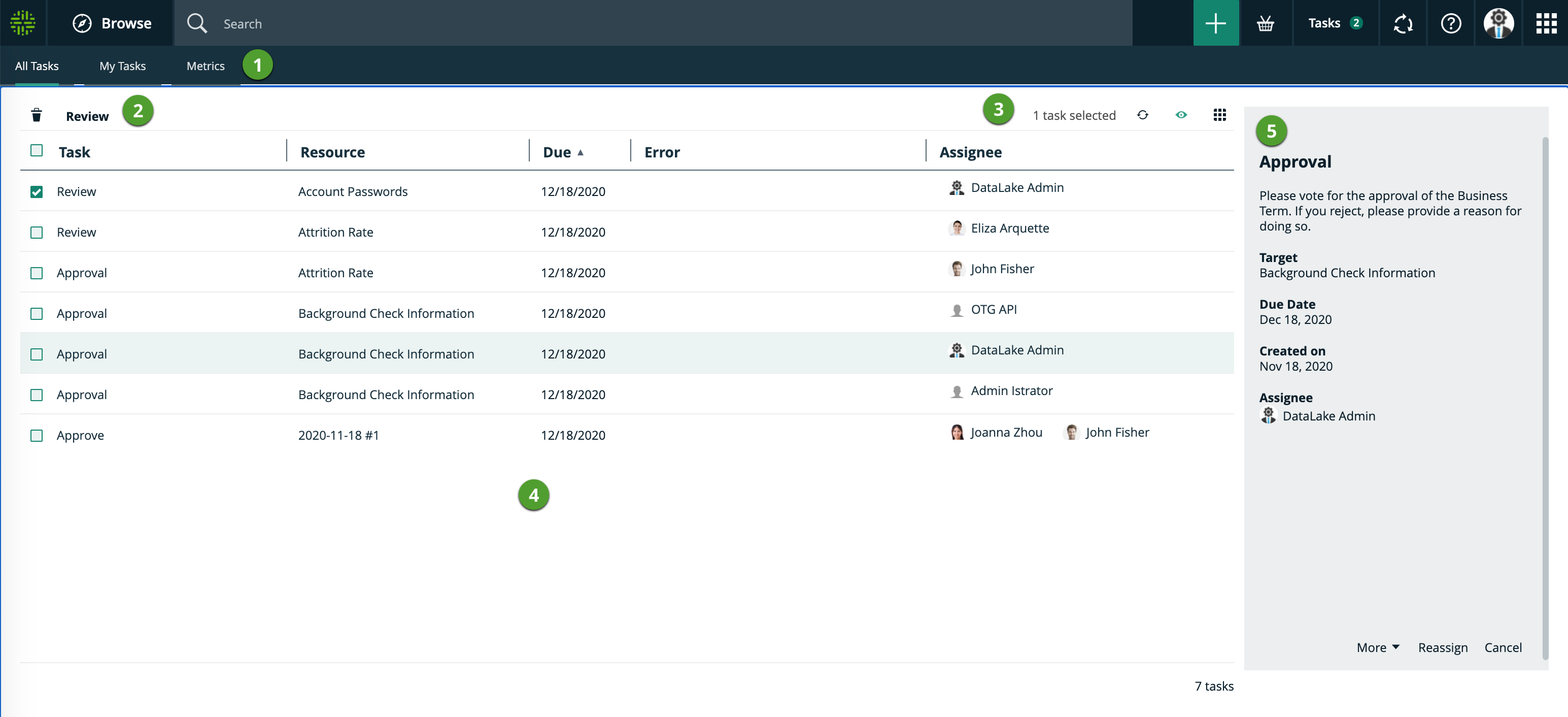
The tasks submenu Contains the following pages:
|
|
|
Workflow cancel ( These buttons are only shown if one or more task check boxes have been selected in the table. |
|
|
Table menu Contains information about how many tasks you selected and buttons to modify the table. |
|
|
Tasks table Shows the list of tasks. |
|
|
Preview pane Contains information about the selected task. Provides buttons at the bottom to complete the selected task. |
 ) and completion buttons