Generate the dashboard reports you configured in Collibra Data Intelligence Cloud Settings
After creating the reporting data layer, you can configure the dashboard reports.
Prerequisites
You have:
- The Insights global role, to be able to view a report in Collibra Data Intelligence Cloud.
- Created the reporting data layer
- A license for Tableau Desktop 2018.3.
- A Tableau Server or Tableau Online account.
Steps
- Download the report templates from Collibra Marketplace
- Install the SQL views associated with the Tableau workbook files
- Publish the workbook files to your Tableau Server or Online account and configure a database extract refresh schedule event
- Configure the reporting options in Collibra Settings
- Add a dashboard in Collibra and configure the Collibra Insights widget
Step 1: Download the report templates from Collibra Marketplace
- Go to Collibra Marketplace.
- Download the following three report template packages:
- Process Register Report Template
- Privacy and Risk Readiness Report Template
- Data Maturity Report Template
- Extract the ZIP files on your local computer.
Folders with the names of the ZIP files are created. Each folder contains a SQL file and a TWBX file.
Step 2: Install the SQL views associated with the Tableau workbook files
- If this is the first time you are installing the SQL views, you have to carry out this step for each of the Tableau workbook files.
-
If you have previously installed the SQL views, but are now installing a new version of a report, you have to install the new SQL view, if one was provided with the new report.
- In the AWS main menu, expand the Services page, and then select Athena.
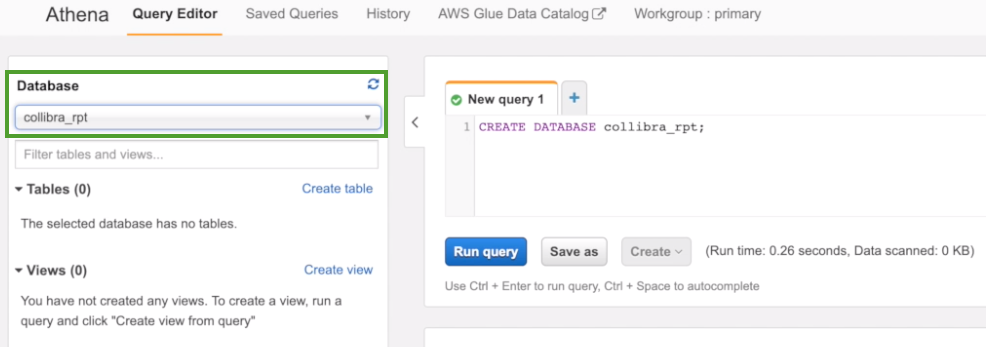
- In the Database drop-down menu, select the relevant database.
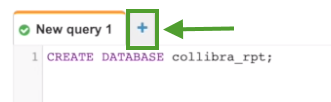
- Click the + button, to add another query.
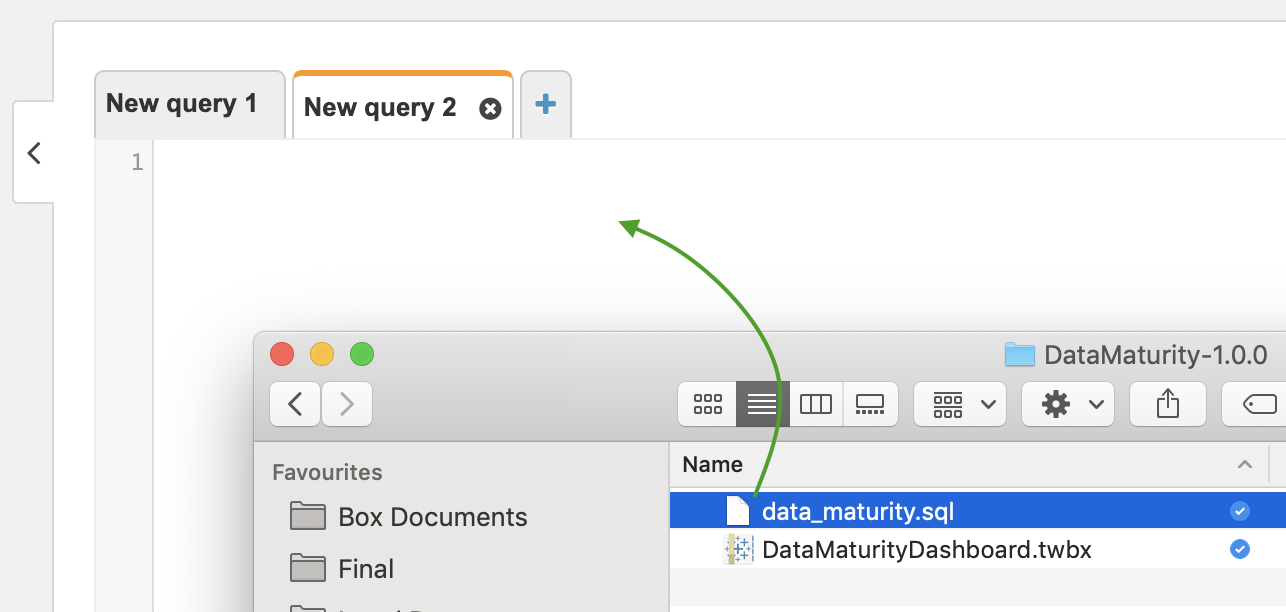
- In one of the report template package ZIP files you downloaded from Collibra Marketplace, drag and drop the SQL file into a new query tab.
The code appears in the query tab.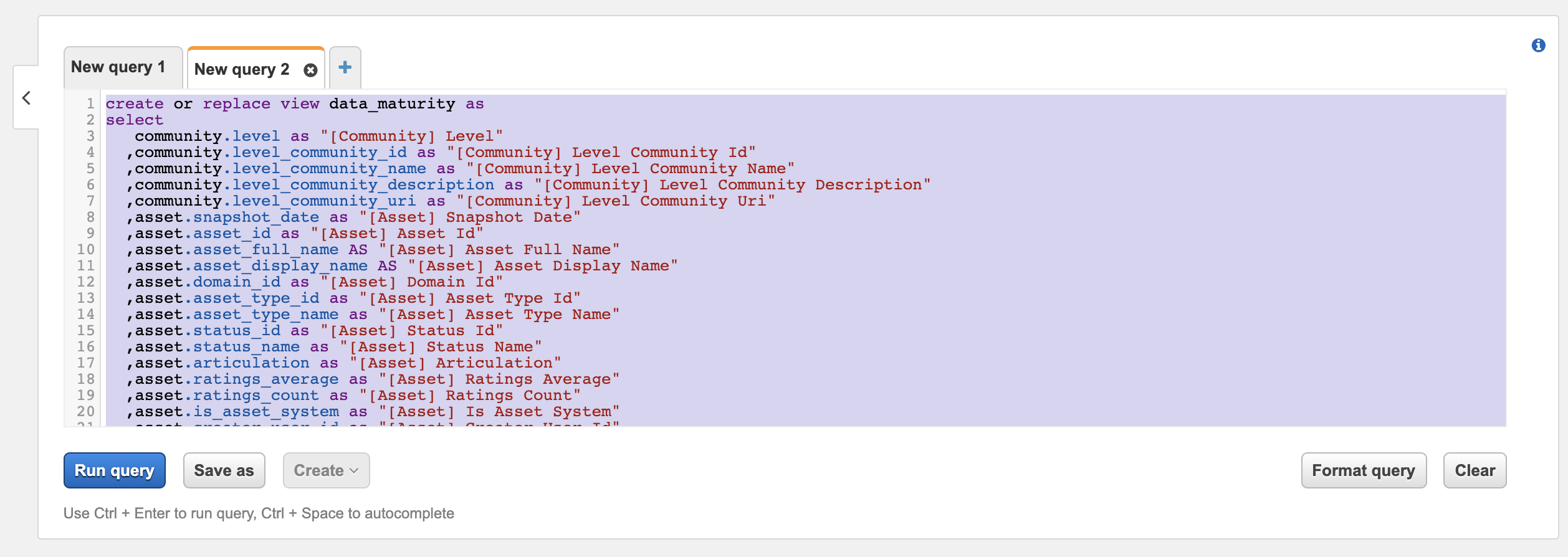
- Click Run query.
- Repeat steps 3-5 for the SQL files in the other two report template packages.
Step 3: Publish the workbook files to your Tableau Server or Online account and configure a refresh schedule event
- On your hard drive, go to the folder of one of the report templates you downloaded from Collibra Marketplace, for example DataMaturity.
- Open the Tableau Workbook file, in this example DataMaturityDashboard.twbx.
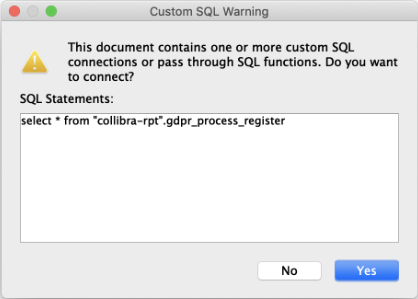
- If the following warning appears, click Yes.
- Do one of the following:
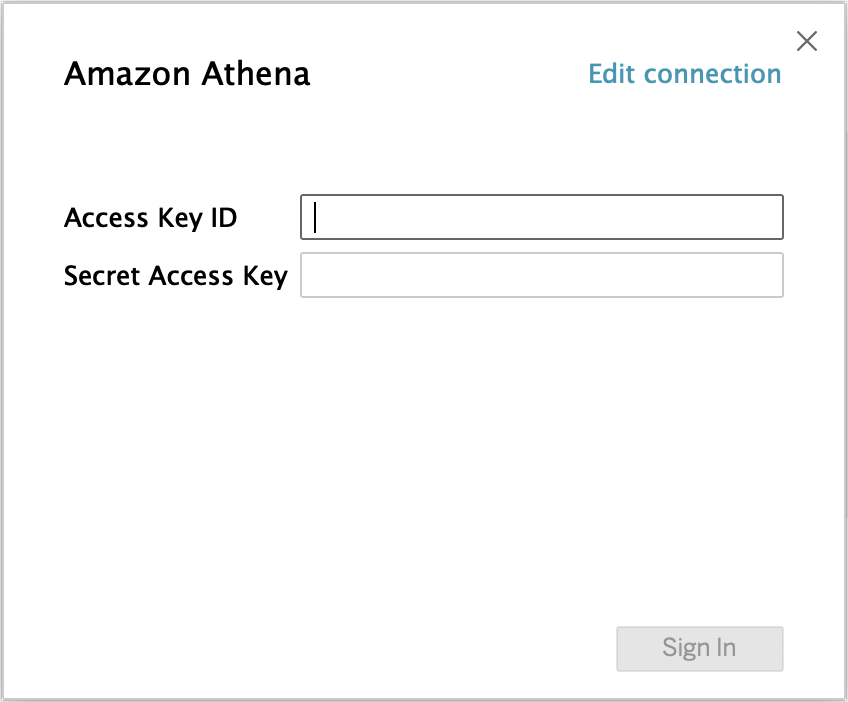
- If the following dialog box appears, click Edit connection.
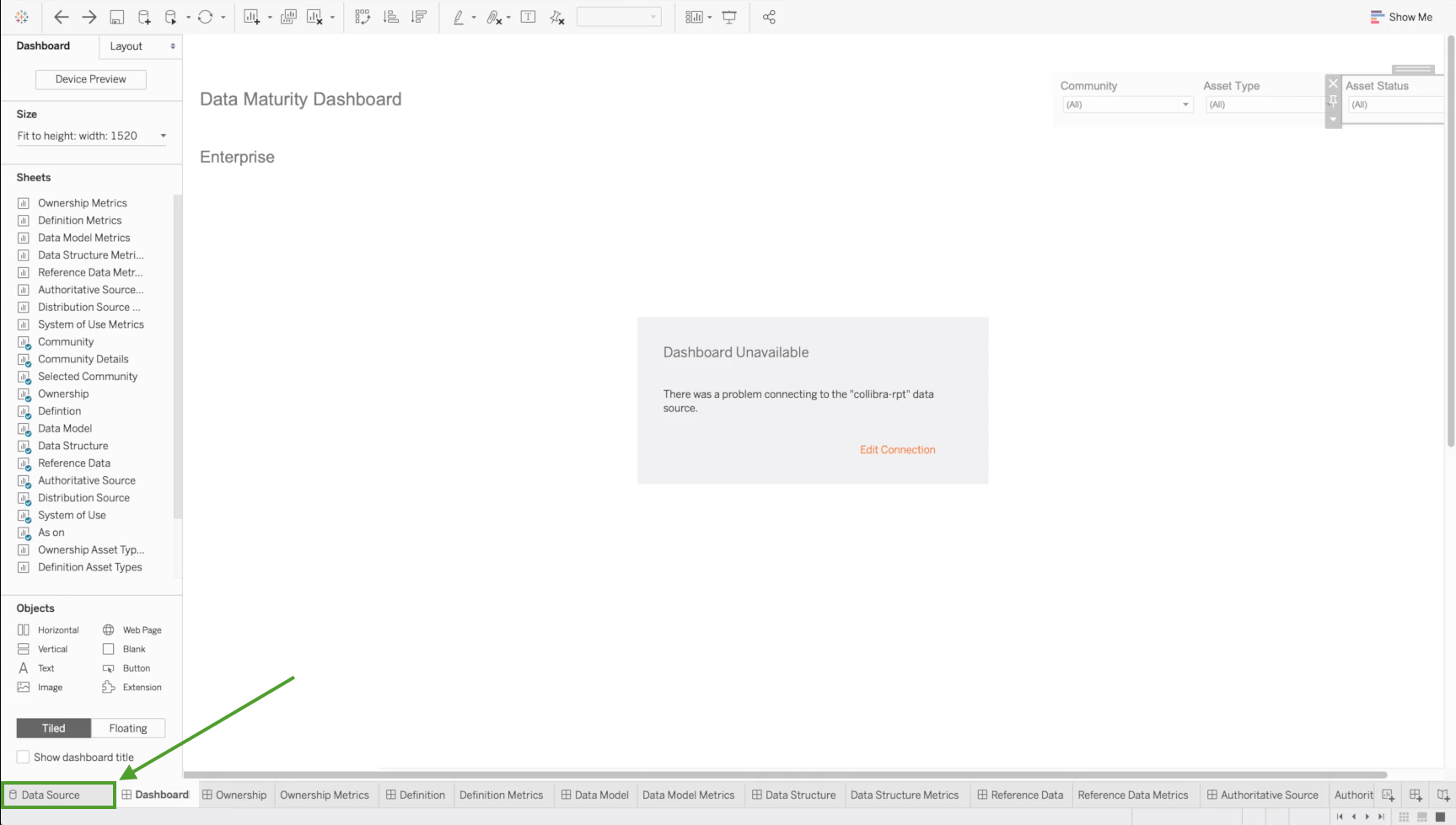
- If, instead, the Tableau dashboard is shown, click the Data Source tab in the lower-left corner of the page.
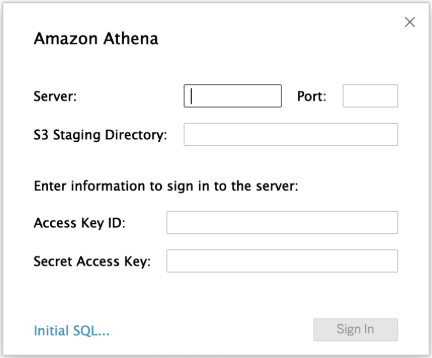
- If the following dialog box appears, click Edit connection.
- Enter the information specific to your AWS server.
- Click Sign in.Note If you receive an error at this point, it could be that the data source "collibra_rpt" is not configured. In this case, you should edit the connection details to point to the data source you've created.
- In the upper-right corner of the page, select an Extract connection.

- In the lower-left corner of the page, click the Dashboard tab.
- In the Save As dialog box, enter a name for the database extract file.
- Click Save.
The extract file is saved and a database extract is cached. This can take several minutes to complete. - When the dashboard is loaded, click
 or File > Save, to save the database extract.
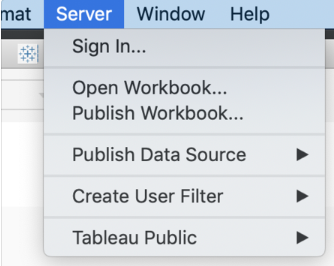
 - In the main menu, click Server and then click Sign In.
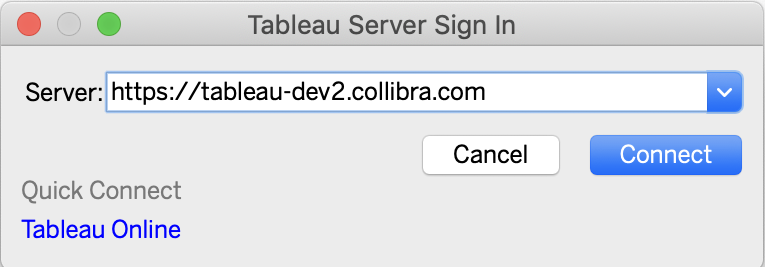
- In the Tableau Server Sign in dialog box, click Connect.
- Enter your Tableau sign in credentials.
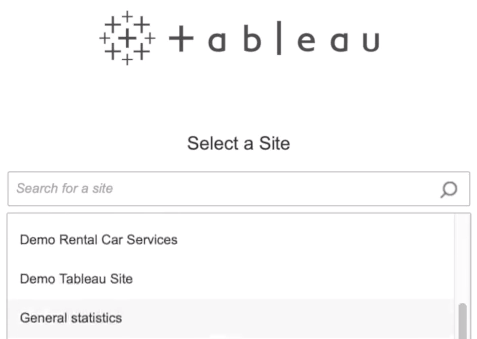
- Select the site to which you want to publish the Tableau workbook.
- Click Server and then select Publish Workbook.
The following dialog box appears.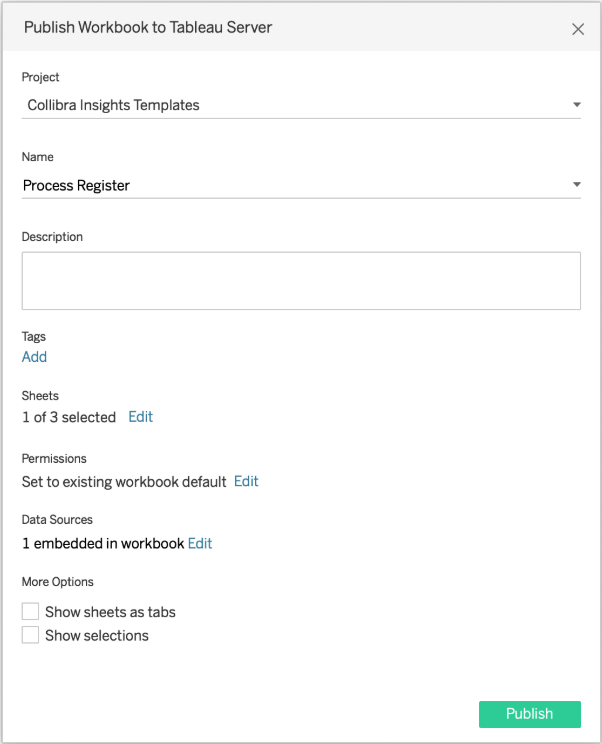
- Enter the required information.
The following fields are of interest for this task:Property Description Project The project to which you want to publish. Name The name of the workbook.
Refresh Schedule (Full Extract)
The frequency with which the currently cached database extract is purged, and a new extract is cached.
Tip We recommend that you schedule a daily refresh.
Sheets
Allows you to specify which sheets to include in the publication. You can hide sheets if you want to publish a dashboard without showing all the worksheets that were used to create it.
Tip To avoid clutter, we recommend that you click Edit and then click Only Dashboards.
Data Sources
Determines:
- Whether the data is embedded in the workbook or published separately.
- How users authenticate with data sources.
Tip We strongly recommend the following settings. Click Edit and then:- In the Publish Type drop-down menu, select Embedded in workbook.
This enables users to view the report without having to authenticate themselves every time. - In the Authentication drop-down menu, select Allow refresh access.
This automatically refreshes the extract of the database. The frequency with which the cache is refreshed is determined by the value you enter in the Refresh Schedule field.
More options
Additional publication options. The "Include external files" determines whether or not external files are included in the publication.
Note Only the DataMaturityDashboard.twbx file refers to external files. The Include external files option will not be available for the other Tableau workbook files.
Tip Ensure that the Include external files is selected, so that the images we've included with the Tableau workbook files are included in the publication.
- Click Publish.
The report is published to your Tableau Server or Online account.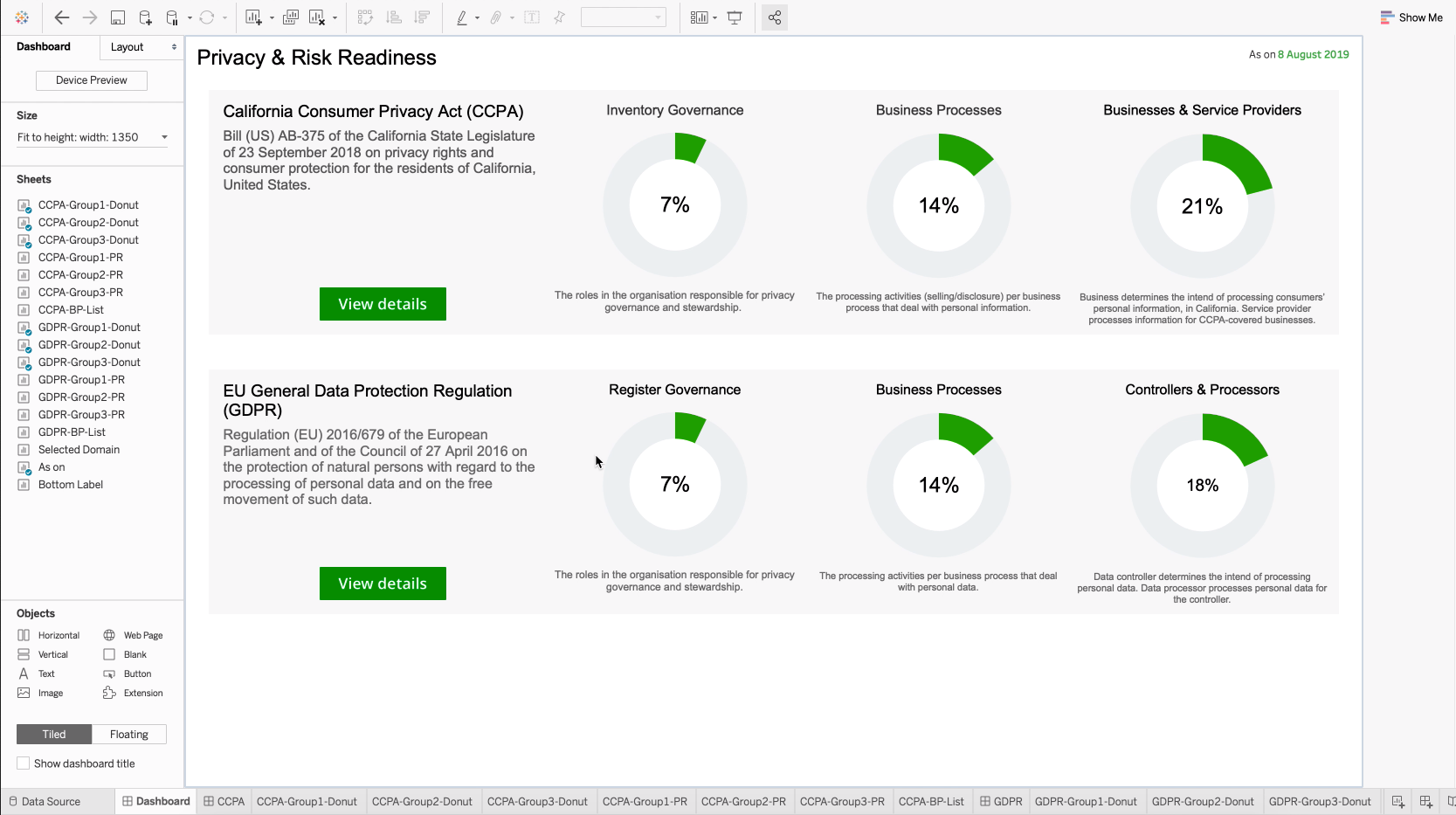 Tip In the Refresh Schedules tab, you can see the refresh schedule event you configured.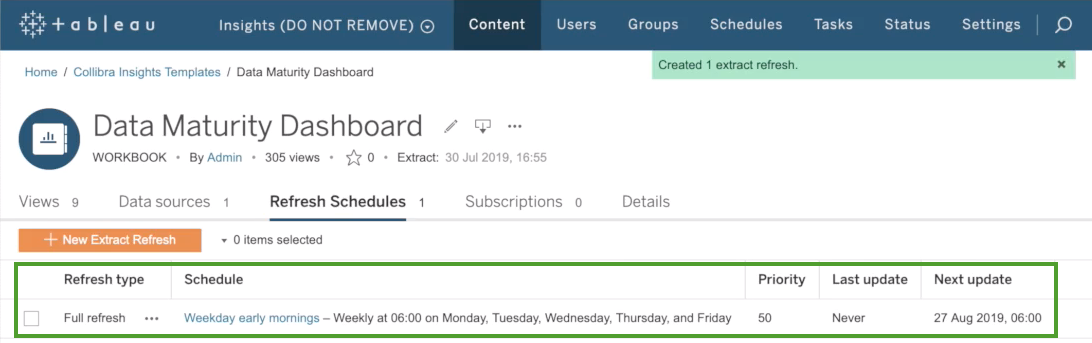
Step 4: Configure the reporting options in Collibra Settings
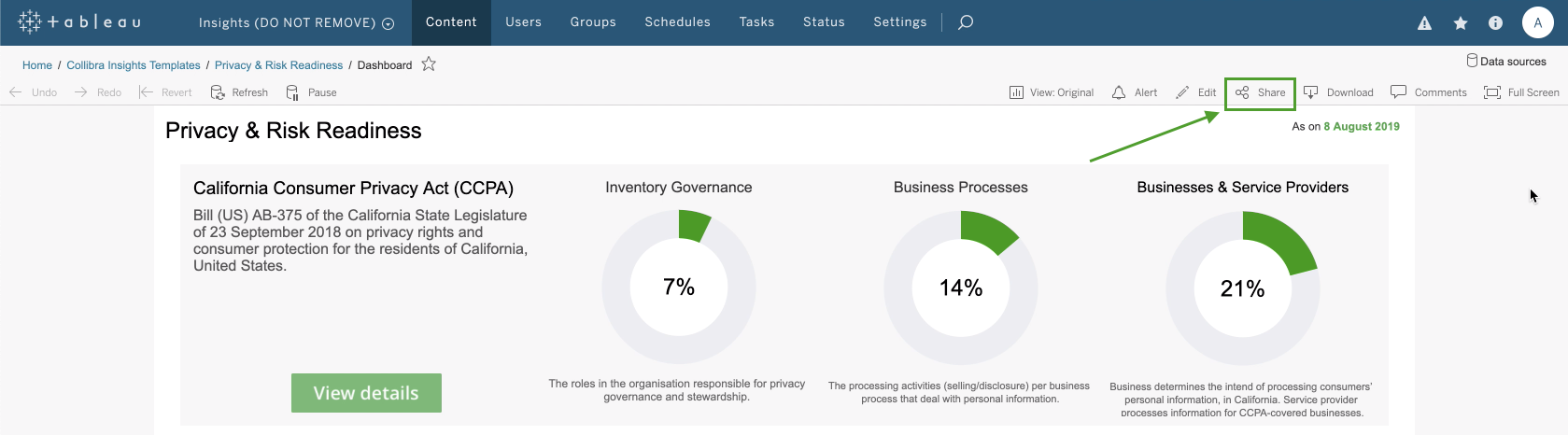
- On the Workbooks tab in Tableau, click one of the workbook files, for example Privacy & Risk Readiness.
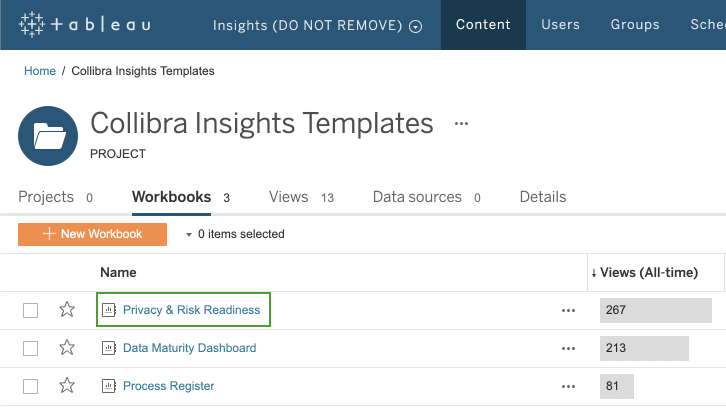
- Click Dashboard.
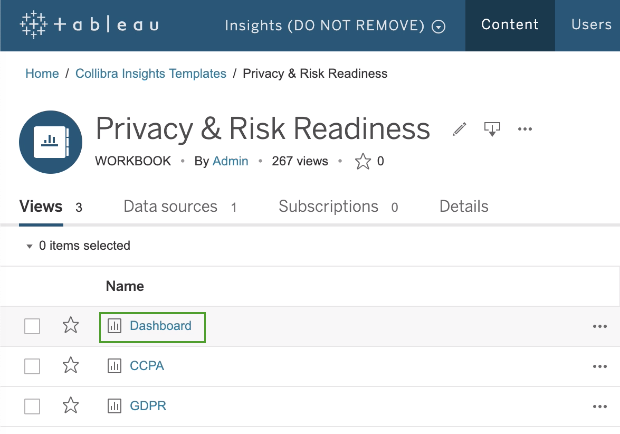
- Click Share.
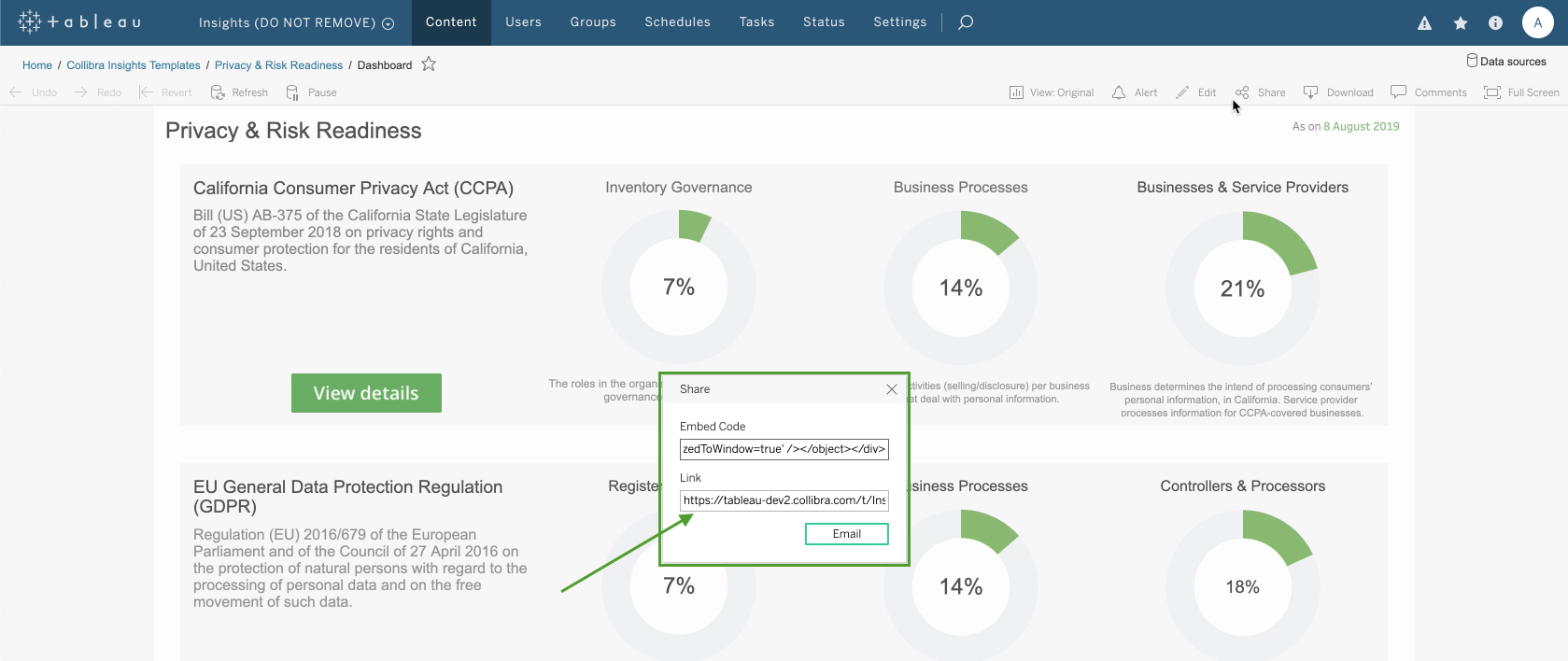
- In the Share dialog box, copy the URL in the Link field.
-
Open Collibra Console with a user profile that has at least the ADMIN role.
Collibra Console opens with the Infrastructure page. -
In the tab pane, click
the Data Governance Center service of a Collibra environment.
The details of the DGC service are shown. - Click Configuration.
- Click Edit configuration.
- Scroll down the list of configuration options and click Reporting.
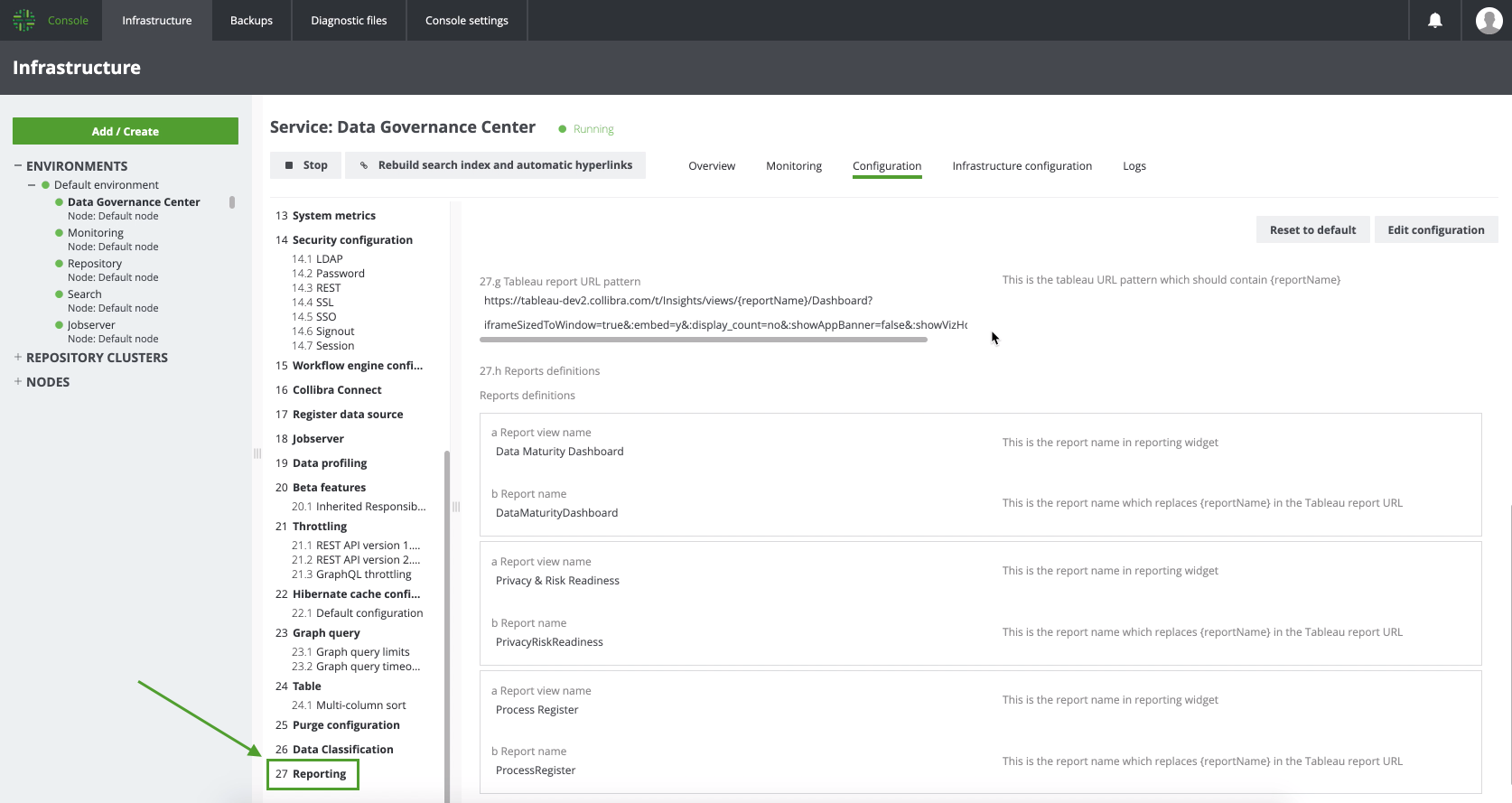
- In field Tableau report URL pattern, paste the URL that you copied from the Link field in Tableau.

- In the URL, replace the actual report name (such as DataMaturityDashboard) by {reportName}, for example:
https://tableau-dev2.<your-Collibra-Data-Intelligence-Cloud-environment-URL>/t/Insights/views/{reportName}/iframeSizedToWindow=true&... - Under Reports definitions, click Add.Note You have to carry out this step for all three reports.
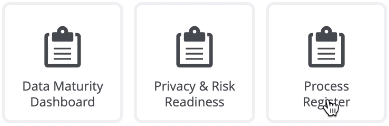
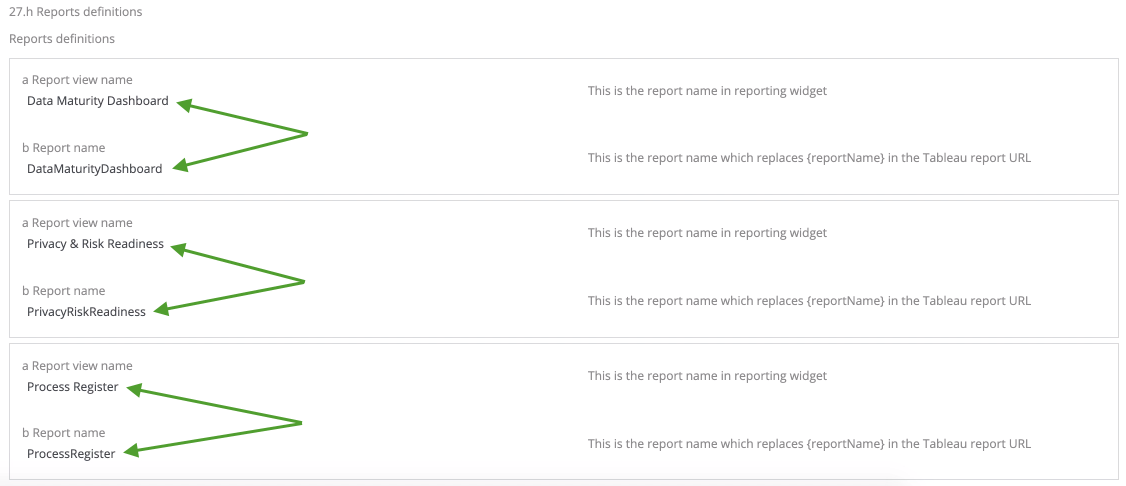
- In field a Report view name, enter the name of a report, as you want it to appear on the report button in the Collibra Insights widget, for example:
- Data Maturity Dashboard
- Privacy & Risk Readiness
- Process Register
- ln field b Report name, enter the report name, for example:
- DataMaturityDashboard
- PrivacyRiskReadiness
- ProcessRegister
Tip Use the name as it appears in the URL of the Tableau report, for example "DataMaturityDashboard".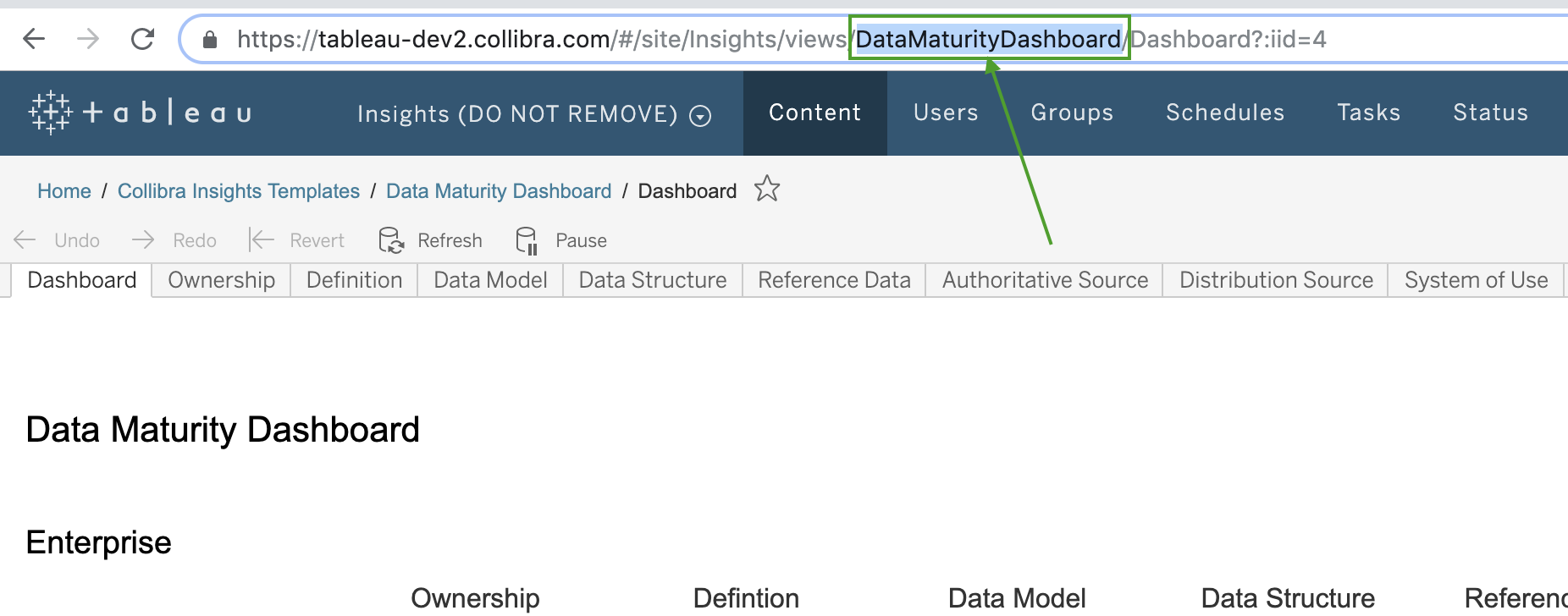
The settings in Console should look similar to the following example image:

- Click Add, and then add the report definitions for the remaining two reports.
- In field a Report view name, enter the name of a report, as you want it to appear on the report button in the Collibra Insights widget, for example:
- Click Save all.
Step 5: Add a dashboard in Collibra and configure the Collibra Insights widget
Tip To facilitate the viewing of each report, we recommend that you add and configure a separate dashboard for each report. To do so, you have to complete this step for each report.
- In the Collibra main menu, click
 → Dashboards.
 - In the view bar, click
 → Add Dashboard.
 - Enter the required information.
Property Description Name The name of your new dashboard. Description A description of the dashboard (optional).
Layout The number of columns in the layout of the dashboard.
Tip Ensure that 1 column is selected.
Always visible in the toolbar. Option to always show the dashboard in the toolbar. - Click Save.
- In the view bar, click → Edit widgets.
- Find the Collibra Insights widget and drag it onto the dashboard.

The three reports that you configured in Collibra Settings are shown: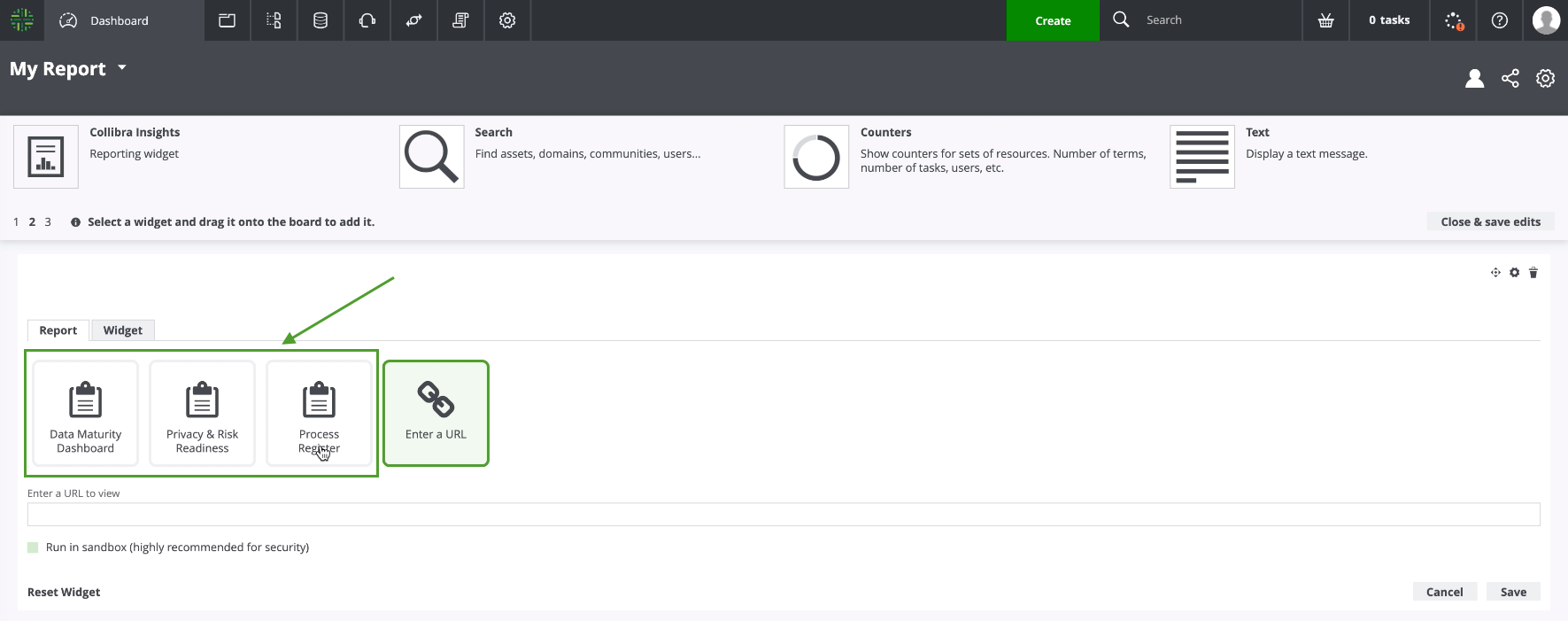
- Select the report you want to show on the dashboard.
- Click Save.
The report is shown on the dashboard you created.
What's next?
Optionally, you can: