Create the reporting data layer
Before configuring the dashboard reports, you have to create the reporting data layer.
Prerequisites
You have:
- A license for Collibra Insights.
- Collibra Data Intelligence Cloud 5.7 or newer.
- Software for working with Parquet files.Note In this example procedure, we use Amazon Web Server (AWS), with S3 bucket storage and AWS Athena query service; however, you can use alternative software.
Steps
- Download a data snapshot from your Collibra environment
- Upload the data to an S3 bucket
- Download the reporting data layer from Collibra Marketplace
- Create the reporting data layer model in AWS Athena
Step 1: Download a data snapshot from your Collibra DGC environment
- Enter the following URL in your browser:
<your-DGC-environment-URL>/rest/2.0/reporting/insights/download?snapshotDate=<snapshot_date>&format=zip, where <snapshot date> is the date from which you want the data, formatted as YYYY-MM-DD, for example "2019-07-23".
A ZIP file of the data from your Collibra environment, for the specified date, is downloaded to your hard disk. - Extract the ZIP files on your local computer.
A folder with the name of the ZIP file is created.
Step 2: Upload the data to an S3 bucket
Note This only needs to be done once for the collection Tableau workbook files. After that, you only need to carry out this step If the data layer model changes.
- Sign in to your AWS account.
- In the main menu, expand the Services page, and then select S3.
- In the Buckets tab, click Create bucket.
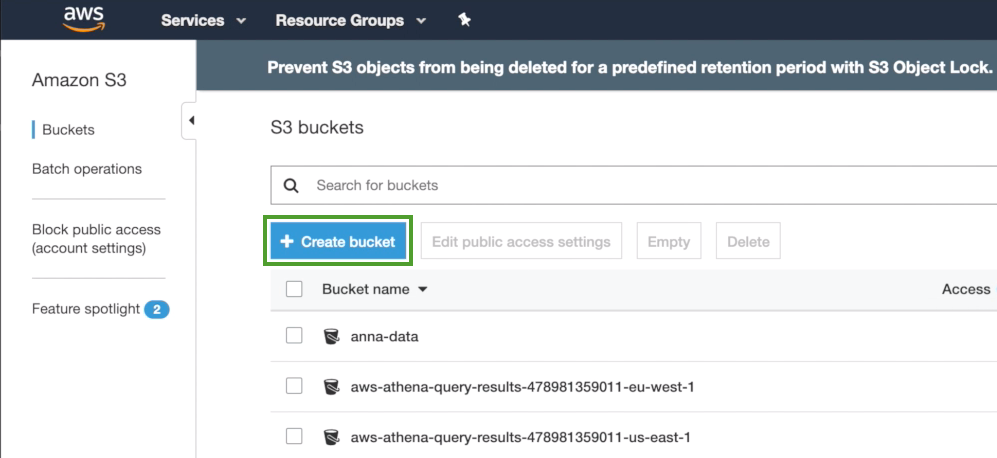
The Create bucket dialog box appears. - In the Bucket name field, enter a name for the bucket you are creating, for example "collibra-insights".
- Click Next.
- Click Next, to bypass the configuration options.
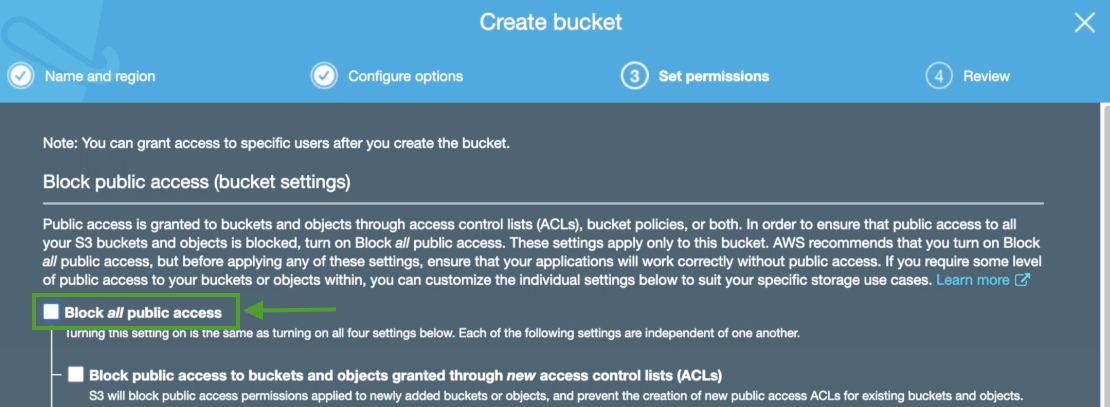
- Clear the Block all public access check box, to allow access to Tableau.
- Click Next.
- Click Create bucket.
The bucket is created. - In the Buckets tab, search for your newly created bucket, and then click on it.
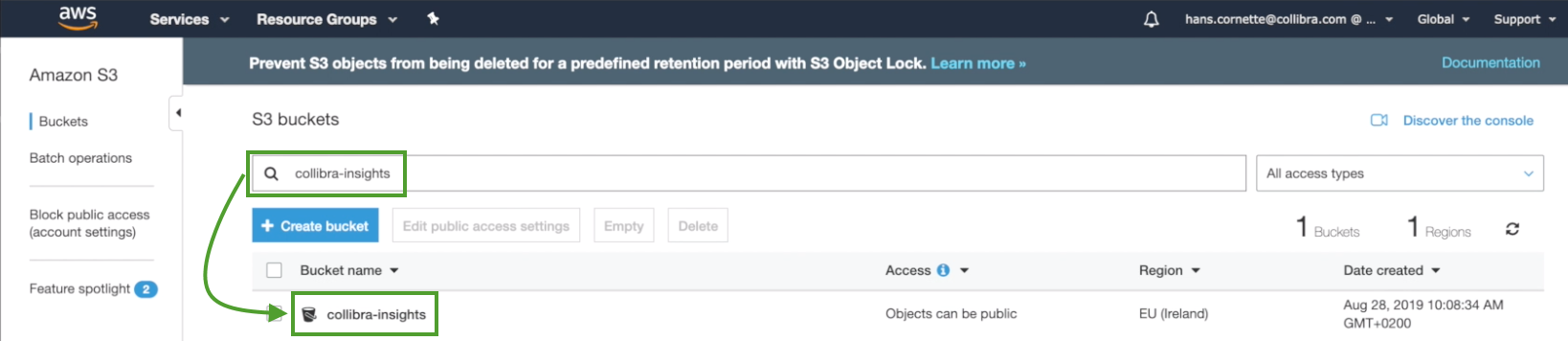
The bucket details page opens. - Click Upload, to upload the data you downloaded from your Collibra environment.
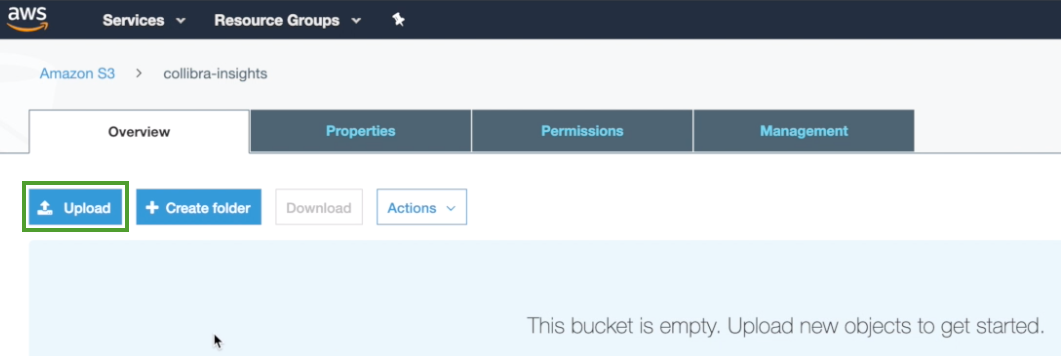
The Upload dialog box appears. - Click Add files, or drag and drop into the dialog box all of the folders in the ZIP file you downloaded from your Collibra environment.
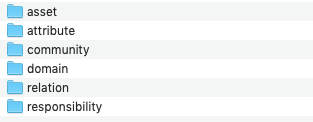
The folders appear in the Upload dialog box. - Click Upload.
The folders are added to the newly created bucket.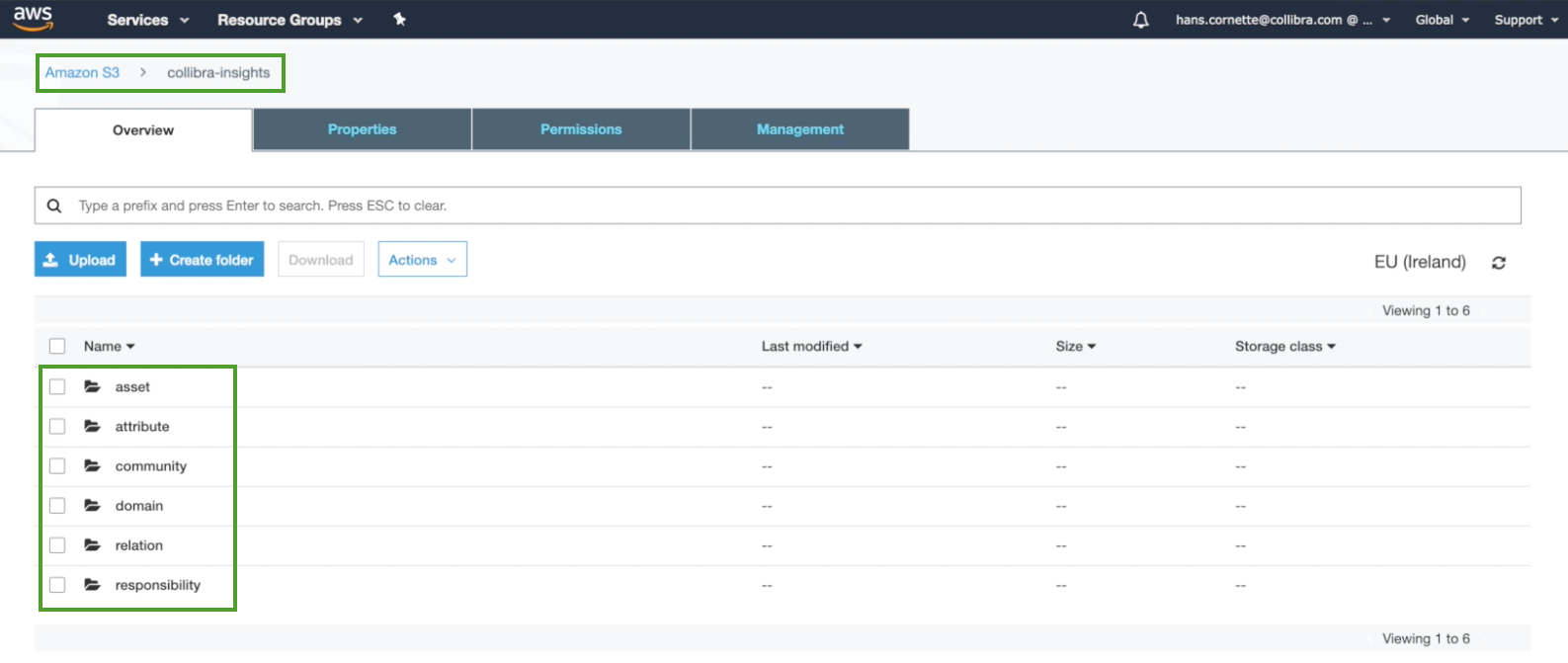
Step 3: Download the reporting data layer from Collibra Marketplace
- Go to Collibra Marketplace.
- Download the Reporting Data Layer package.
A ZIP file is downloaded to your hard disk. -
Extract the ZIP file on your local computer.
A folder with the name of the ZIP file is created.
Step 4: Create the reporting data layer model in AWS Athena
- In the AWS main menu, expand the Services page, and then select Athena.
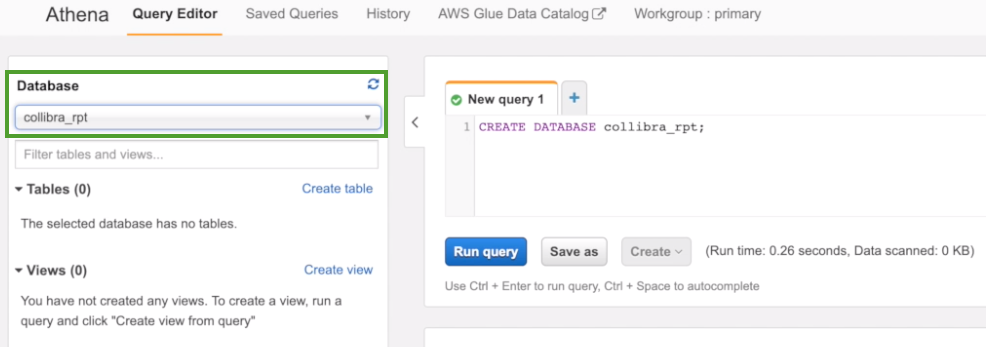
- In the New query tab, enter CREATE DATABASE <name-of-the-database>;.
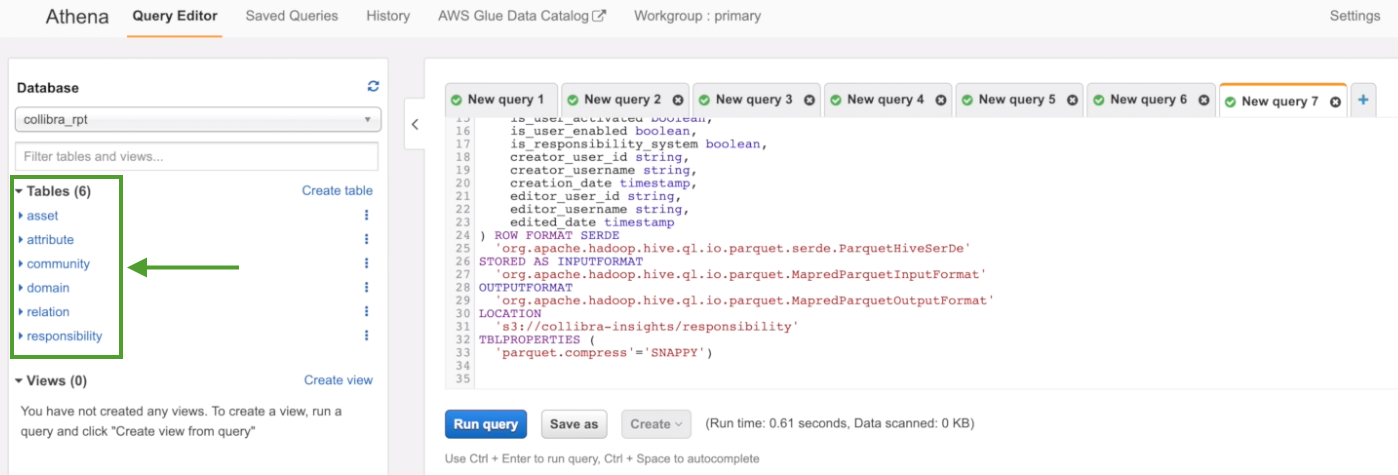
As shown in the following example image, we have created a database named "collibra_rpt".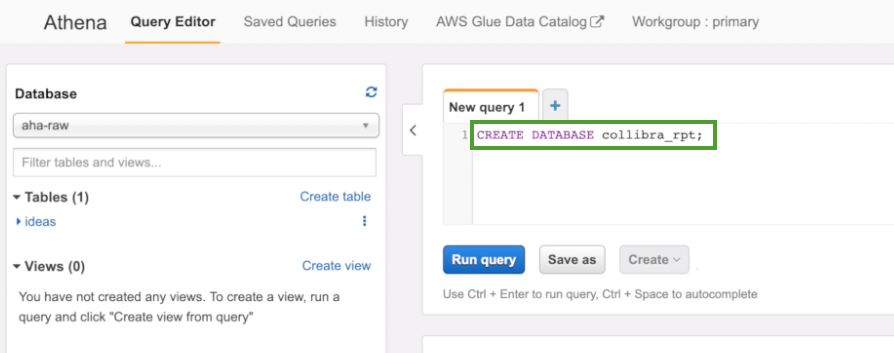
- Click Run query.
- In the Database drop-down menu, select the database you created.
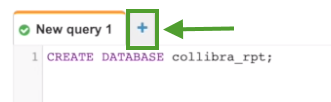
- Click the + button, to add another query.
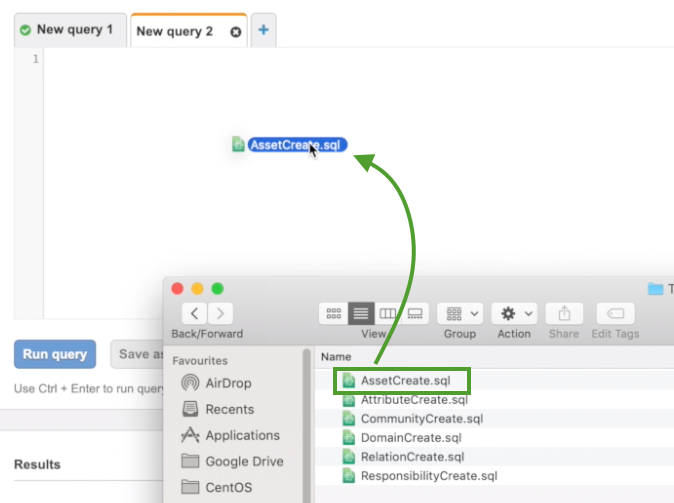
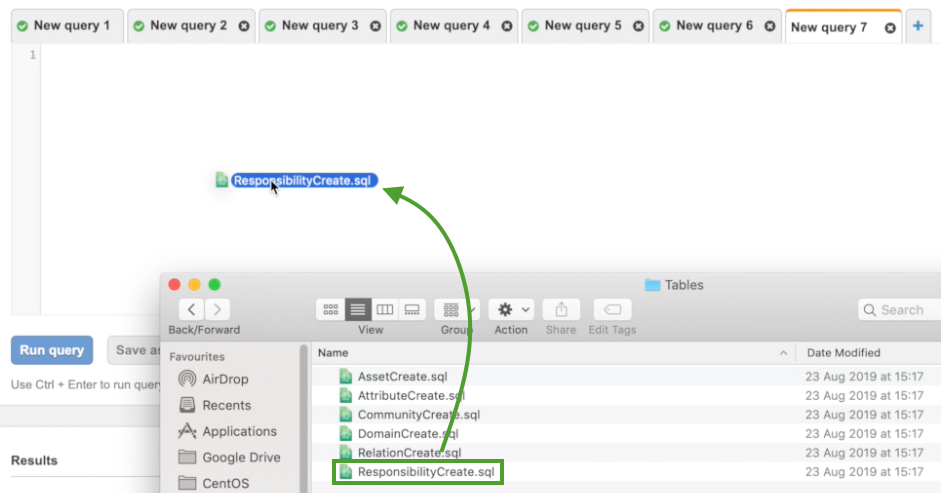
- In the Reporting Data Layer ZIP file you downloaded from Collibra Marketplace, drag and drop the first SQL file into a new query tab.
The code appears in the query tab.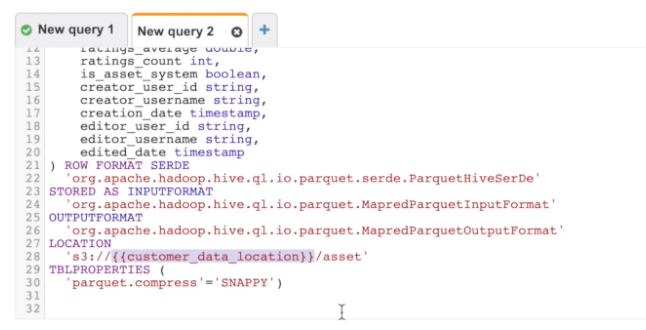
- Edit the location to the recently created bucket.
In this example, we replaced "{{customer_data_location}}" with collibra-insights.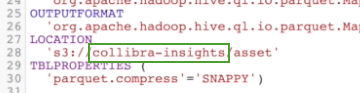
- Click Run query.
- Repeat steps 5-8 for each of the SQL files in the reporting data layer ZIP file.
When you're done, all table definitions are shown and the reporting data layer is fully configured.