Working with tiles
In tile display mode, each tile represents one asset. The tiles have some common features and actions.
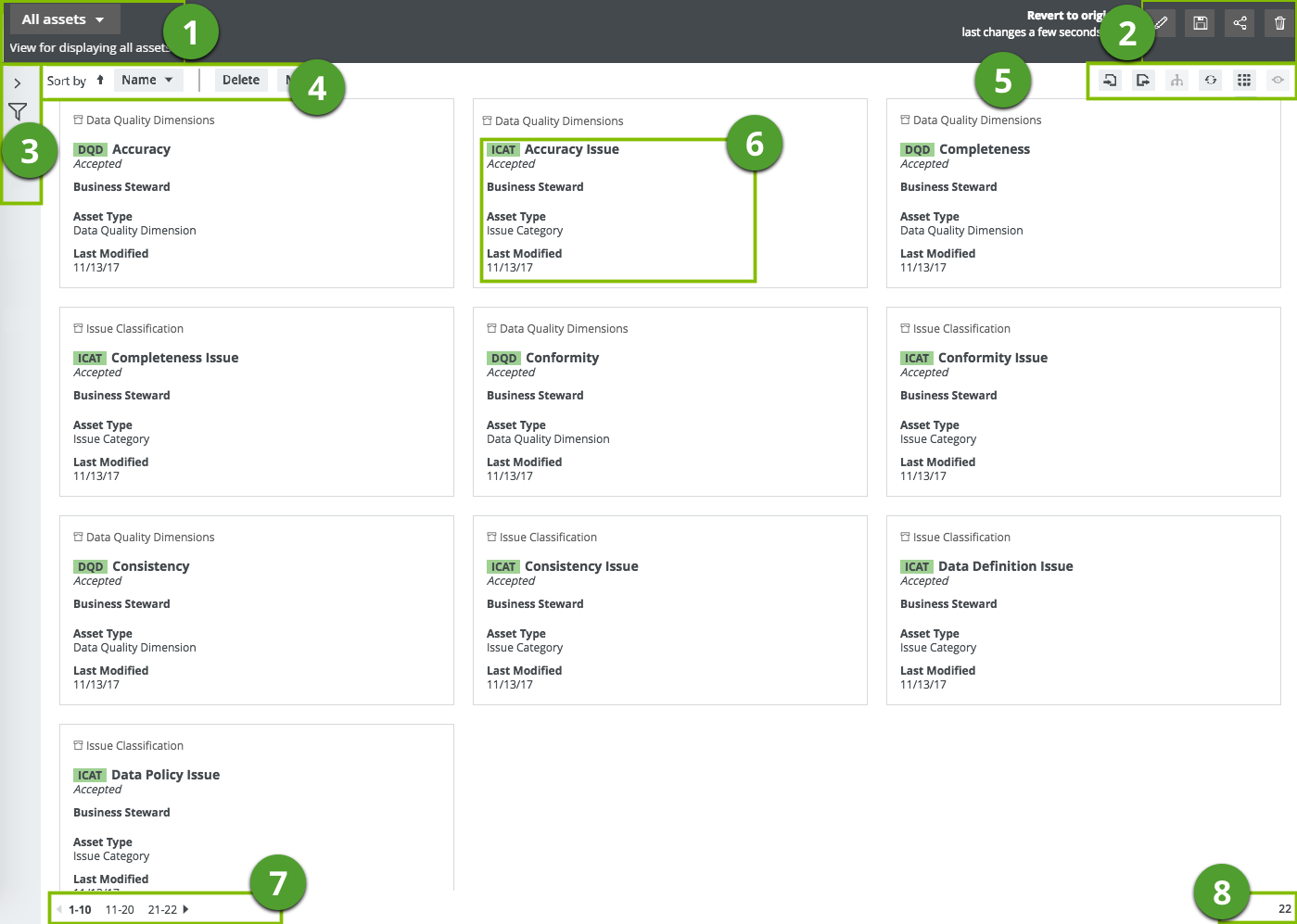
| No. | Element name | Description |
|---|---|---|
| 1 | View selector | The view selector shows the name and description of the current view, and allows you to choose another view. |
| 2 | View bar | The view bar contains buttons to save, edit, share and delete the current view. |
| 3 | Asset filter | You can use an Asset filters to limit the number of tiles that are displayed. |
| 4 | Tiles action menu |
The tiles action menu with a selection counter and buttons that enable you to:
|
| 5 | Tiles menu |
The Tiles content toolbar contains buttons for actions that you can perform on the set of tiles. |
| 6 | Fields and values |
Fields and values of the asset. You can customize a set of tiles by adding, moving and removing fields and selecting the number of tiles that are displayed per page. |
| 7 | Pages |
The tiles pages. This section appears if there are more tiles than you are displaying on one page. You can: |
| 8 | Counter |
The total number of tiles. If a set of tiles contains more than 10 000 tiles, the counter displays 10 000 +. Click it to see the exact count. |