About weighted Data Quality scores
Weighted Data Quality scores let you reflect how important each data quality monitor is when Collibra calculates the data quality score for an asset. Instead of treating every monitor equally, you assign monitors to a weight tier. A failing monitor in a high-weight tier lowers the score more than a failing monitor in a low-weight tier, so the score better reflects the issues that matter most to your organization.
How weighted scores are calculated
Every monitor belongs to one of three weight tiers. Each tier has a multiplier that controls how the monitor impacts the total score.
| Weight tier | Default multiplier |
|---|---|
| High | 3 |
| Medium | 2 |
| Low | 1 |
Your administrator can change these multipliers to any value from 1 to 100. Collibra calculates the weighted score as the ratio of weighted passing monitors to weighted active monitors:
Weighted score = round ((weight × passing monitors) ÷ (weight × active monitors) × 100)
Consider a job run with the following monitor results:
- 2 High-priority monitors: 1 passing, 1 failing.
- 3 Medium-priority monitors: 3 passing.
- 4 Low-priority monitors: 3 passing, 1 failing. A fifth Low-priority monitor is suppressed and is not counted.
In this scenario, the weighted values are:
- Weighted passing monitors: (1 × 3) + (3 × 2) + (3 × 1) = 12.
- Weighted active monitors: (2 × 3) + (3 × 2) + (4 × 1) = 16.
- Weighted score: round (12 ÷ 16 × 100) = 75.
How weights are assigned
Every monitor type has a default weight tier. Your administrator can configure the default weight for all monitor types.
When score weighting is enabled:
- Adaptive monitors default to a Low weight.
- Custom Rules default to a Medium weight.
- Template rules default to a Medium weight.
- All job scores are recalculated automatically using the new weighted formula.
When you change a monitor's weight tier
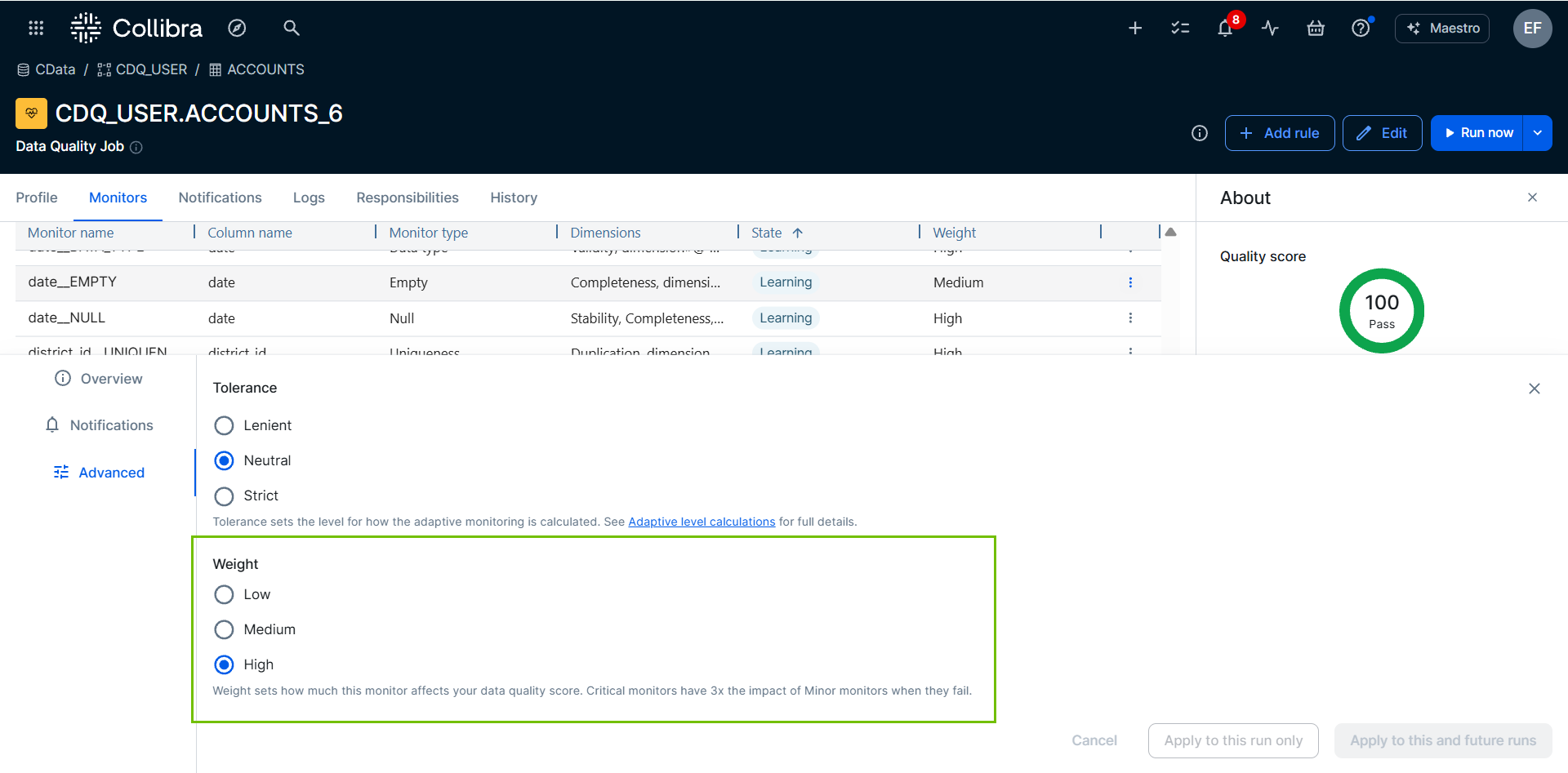
After score weighting is enabled, you can override the default weight tier for an individual adaptive rule or custom rule.
Changing the weight tier for a single monitor recalculates the score automatically upon saving. You don't need to run the job to see the new calculations.
- Changing a custom rule monitor weight tier recalculates the score on all the job runs the monitor is part of.
- Changing an adaptive rule monitor weight tier recalculates the score on the current job run only when you click Apply to this run only. The score is recalculated for the current and future runs when you click Apply to this and future runs.
The change applies only to the selected monitor and does not affect the default weight tier used by other monitors of the same type.
Weighted tiers can be changed on the following pages:
- The Monitors tab in the Job Details page.
- The Settings tab of the Template library.
- The Settings tab of the Rule workbench.
View weighted score insights
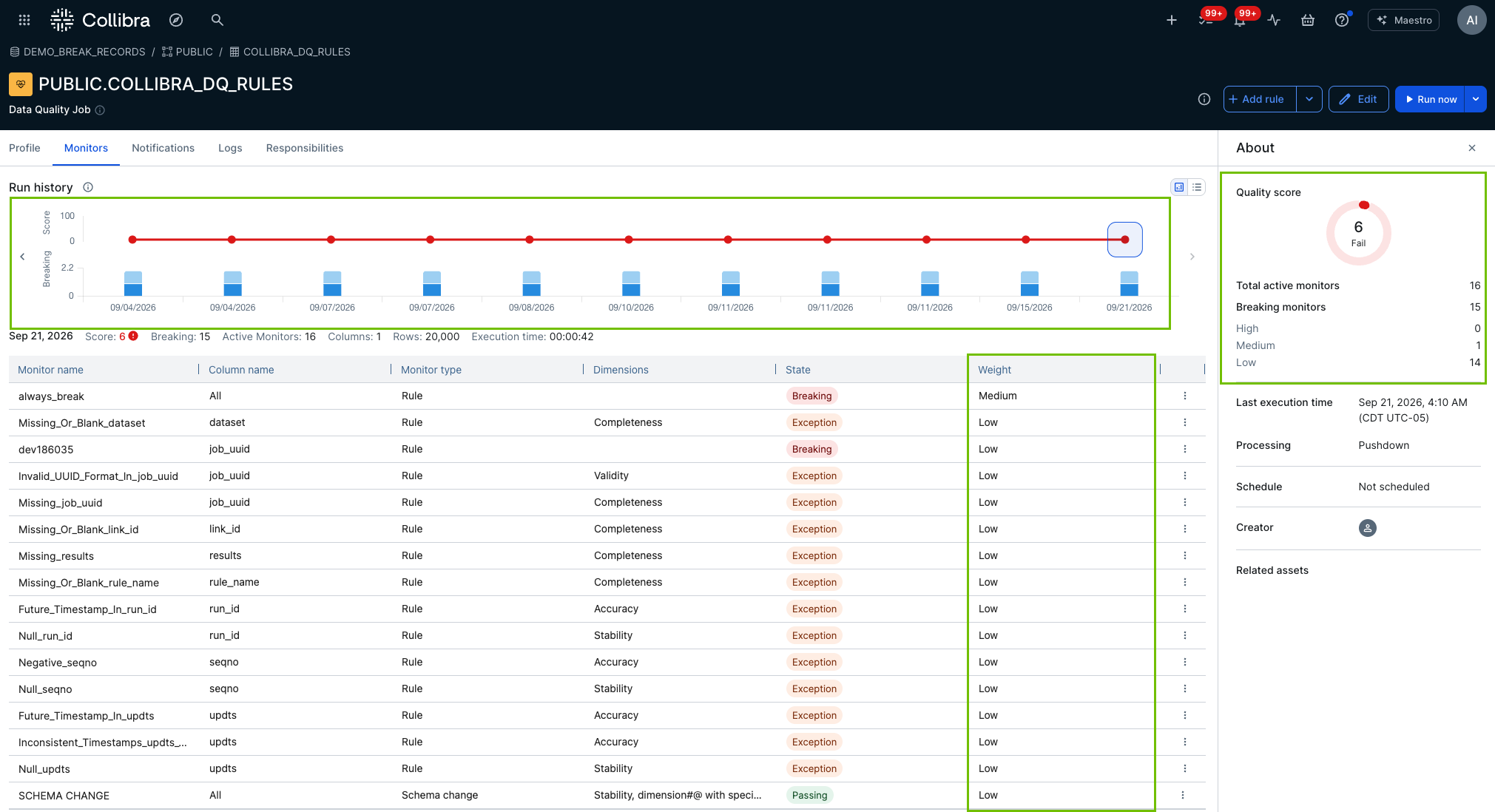
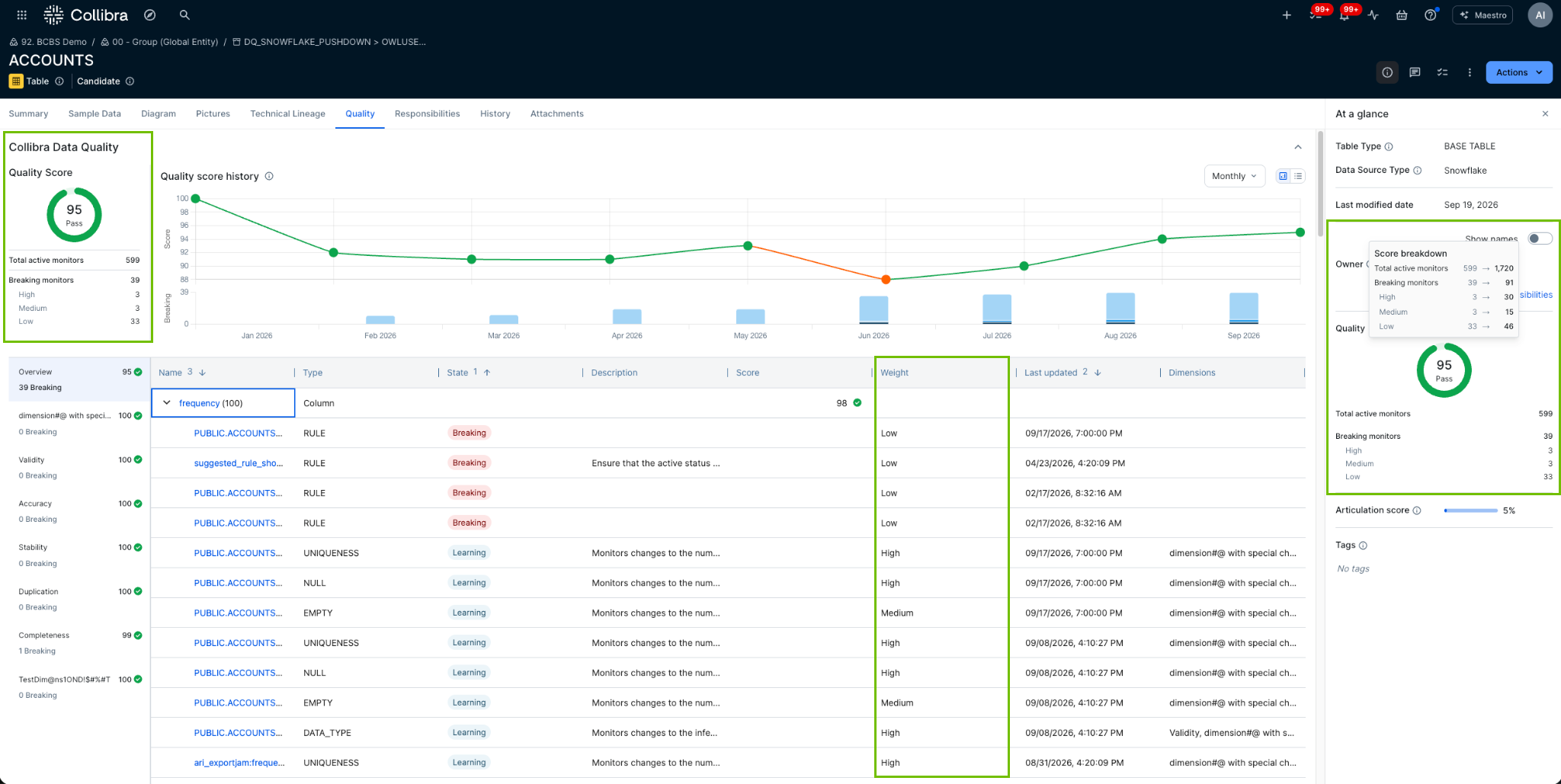
The pages that display weighted score insights show your quality score as the weighted score and provide monitor breakdowns using raw counts. Weighted scores can be viewed on the following pages:
- The Monitors tab in the Job Details page.
- The asset's Quality tab.
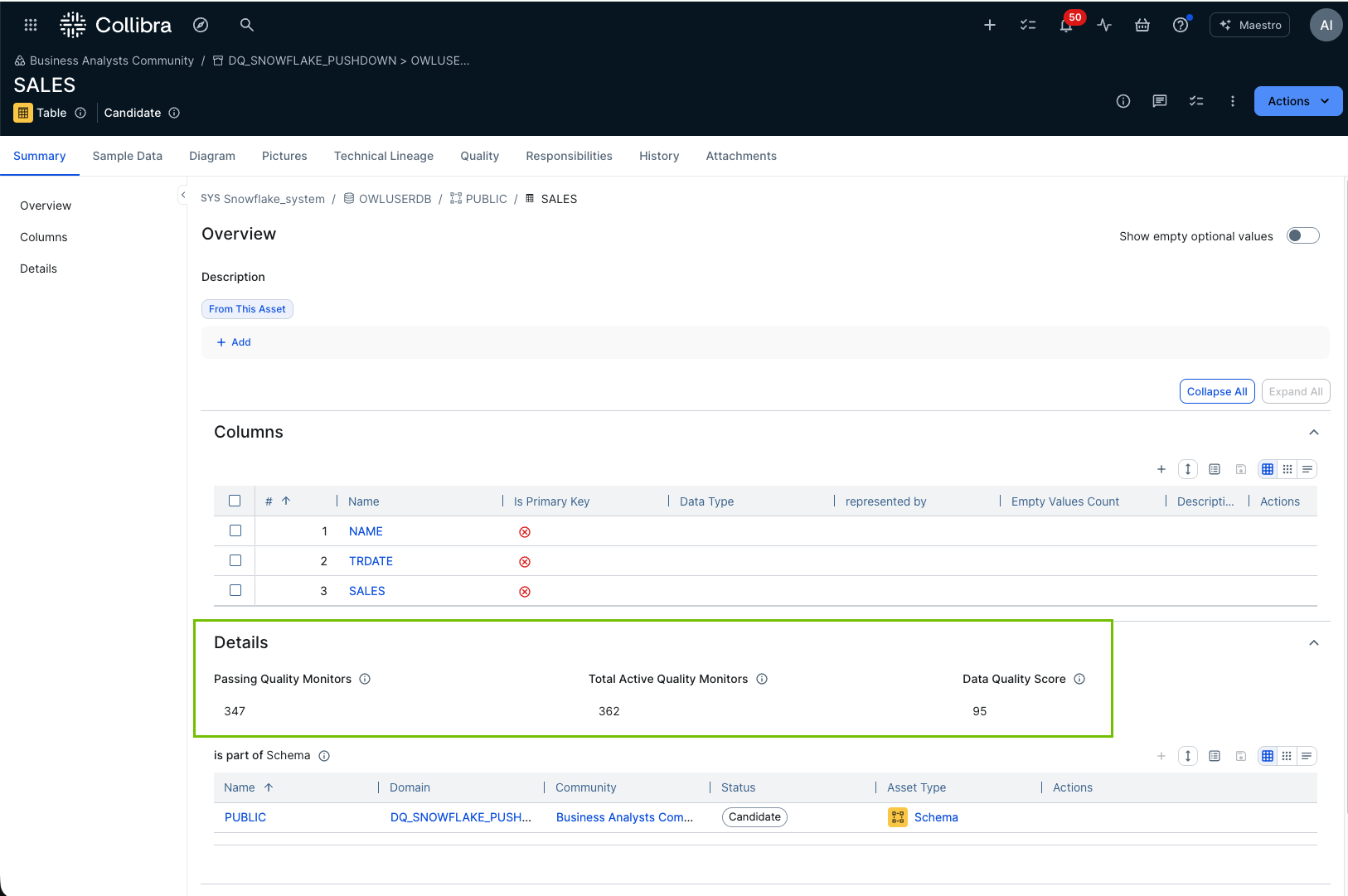
- The asset's Summary tab - the Passing Quality Monitors and Total Active Quality Monitors use raw counts. The Data Quality score is the weighted score.