Edge site upgrade methods
You can control when and how your Edge sites are upgraded by setting the upgrade mode.
Use one of the following modes to upgrade your Edge site:
- Automatic: Your Edge site automatically upgrades when a new version is available. With Automatic upgrade mode enabled, your Edge sites are always on the latest version.
- Manual: Your Edge site alerts you when a new version is available, and you can review the Software bill of materials and perform security scans before completing the upgrade. When an upgrade is mandatory, your Edge site is in read-only mode until you upgrade the site. We support two versions of Edge at one time, therefore a mandatory upgrade is required every other feature release. Upgrades may become required sooner due to:
- Important security updates.
- Migrations.
- New feature requirements.
- External: A new version of your Edge site is applied through your own tooling, outside of the Automatic or Manual upgrade flow. If you installed your Edge site using a CD tool, you can query the Edge REST API for the versions available to your site, and then upgrade with Helm or your CD tool.
Upgrade types
There are 2 types of upgrades you must be aware of if you have a manually upgraded or Air-gapped Edge site:
- Optional: minor updates which occur between quarterly releases, and include security and minor bug fixes. You can choose to wait or upgrade your Edge site.
- Mandatory: major releases which occur on three times a year, and include new features and enhancements. A mandatory upgrade is required every other Collibra Platform 202x.03, 202x.06, or 202x.10 releases. When a mandatory upgrade becomes available, your site is read-only mode until you upgrade the site to a mandatory version. This is to ensure that all Edge features are appropriately updated and compatible with Collibra Platform. For more information, go to the Compatibility between Edge sites and Collibra Platform
Edge release cadence
Edge major releases coincide with the major monthly Collibra releases, which occur three times a year in March, June, and October. Weekly Edge updates are available for the two most recent major releases. For example, if the latest version is Edge 2026.3, then Edge releases weekly updates to both Edge 2026.3 and Edge 2025.10. Go to the release notes to see details on each weekly update.
Edge site versions use the format: <year>.<month>.<day>-<build>. For example, version 2026.3.7 is the first weekly release after the 2026.3 major release.
Run the following command via the Edge CLI to confirm which version of Edge you have installed:
edgecli site-infoFor more information about Edge release versions and their compatibility with Collibra versions, go to Compatibility between Edge sites and Collibra Platform.
Automatic upgrade mode
The Automatic mode is the default upgrade mode for Edge sites. This means that when a new Edge site version is released, you do not need to initiate the upgrade. The new version is automatically be applied to your Edge site. You only need to take action if the new version includes new software requirements or your installer becomes out-of-date. You can find this information in the release notes. You can also review the compatibility table to see if an Edge site version requires action, such as reinstallation or a Kuberntes upgrade. For how to enable automatic upgrade mode for your Edge sites that use the manual upgrade mode, go to Enable Automatic upgrade for Edge sites.
Note If you created an Edge site prior to the 2023.08 release, your Edge sites have Automatic upgrade enabled.
Manual upgrade mode
The Manual upgrade mode allows you to choose when, and to which version, you want to upgrade your Edge sites. Whenever an Edge site version becomes available, a banner is displayed at the top of the page with an Upgrade Now button. After you select the version to which you want to upgrade your site, you can download the Software Bill of Materials to review and scan before beginning the upgrade.
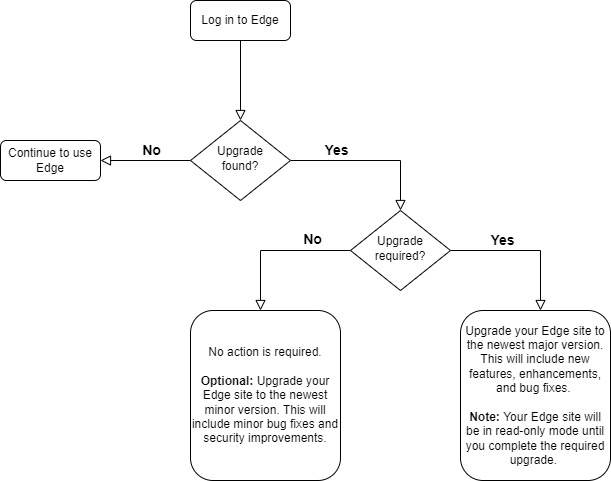
Your Edge site lists whether an upgrade is optional or mandatory. For how to enable manual upgrade mode for your Edge sites that use the automatic upgrade mode, go to Enable Manual upgrade for Edge sites.
External upgrade mode
With External upgrade mode, a new version of your Edge site is applied through your own tooling, outside of the Automatic or Manual upgrade flow. How you upgrade depends on how you installed your Edge site. You don't need to set External upgrade mode manually. It is set automatically when you upgrade externally.
CD tool
If you installed your Edge site using a CD tool, find the version you want to upgrade to by querying the Edge REST API for the versions available to your site: GET /rest/edge/v1/sites/{siteId}/versions. Replace {siteId} with your Edge site ID, and authenticate with your Collibra credentials. Then upgrade with Helm or your CD tool. For more information and an example using Argo CD, go to How to externally upgrade your Edge site.
Software Bill of Materials
A Software Bill of Materials (SBOM) allows you to review the contents of an Edge site version. A SBOM is a list of images included in an Edge site version that your security team may want to perform security scans and evaluations on before your Edge site is upgraded to a new version.
You can retrieve the SBOM through one of the following methods:
- A REST API.
- Location:
<hostname>/edge/api/rest/v2/releaseinfo/<edge version>/bom
- Location:
- Selecting an upgrade version in the Edge platform.
- When you select a version to upgrade your Edge site to, you are provided with a link to download the SBOM, as shown in Enable Manual upgrade mode for Edge sites.
The SBOM is downloaded as a zip file containing JSON files. These are in SPDX and CYCLONEDX formats which you can use as input files for your security scanning tools.
What's next?
- Learn how to enable Manual or Automatic upgrade mode for your Edge sites.
- Learn how to perform your own security scans before upgrading to a new version of Edge if you set up a private docker registry.