The
To access the Stitching tab:
-
At the bottom of the Browse pane, click
 View status.
 - In the Status pane, click the Stitching tab.
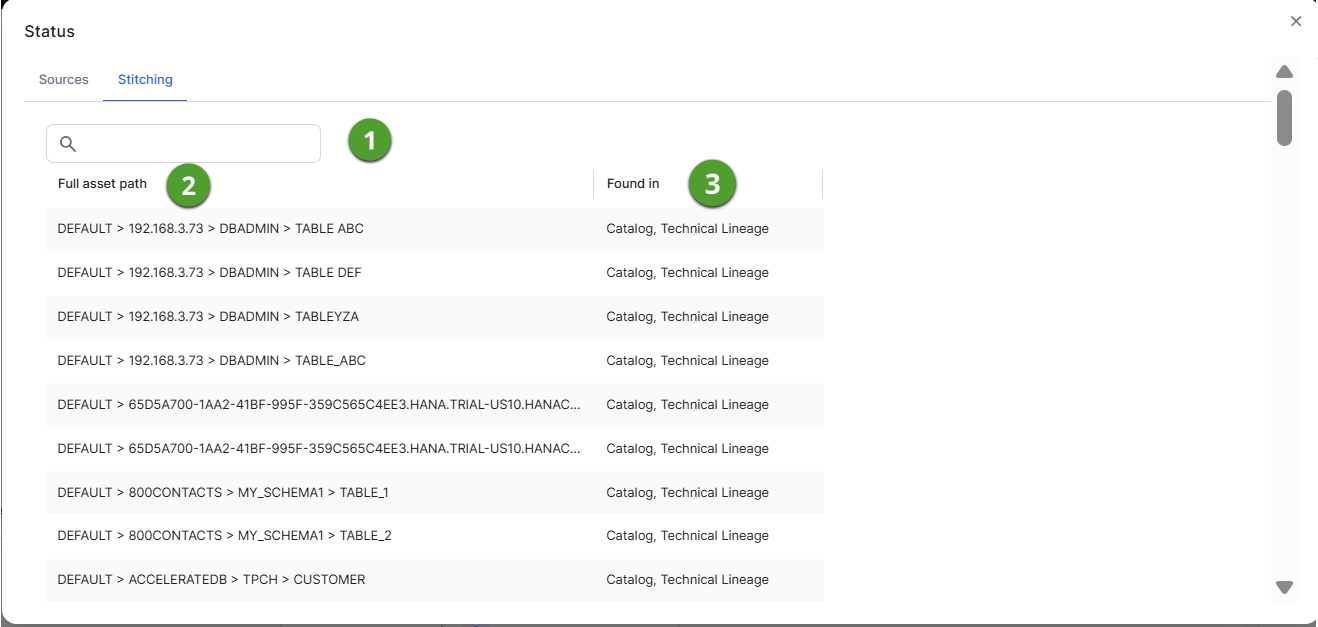
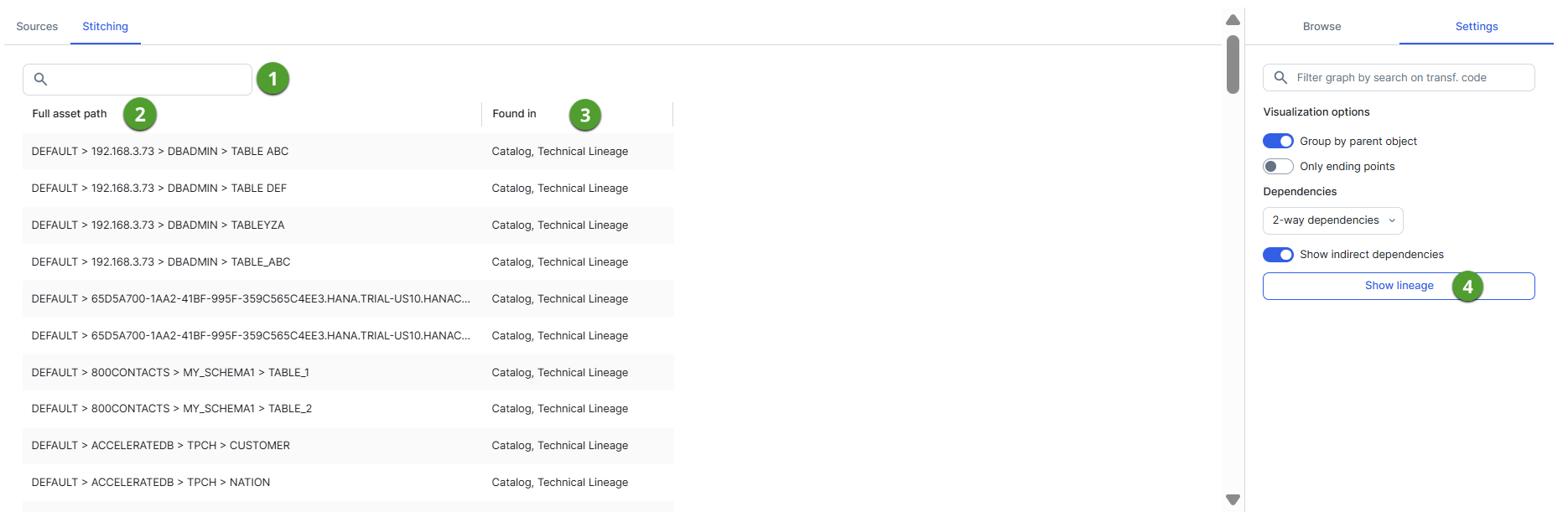
To access the Stitching tab, click Show status on the Settings tab pane.
|
No |
Name | Description |
|---|---|---|

|
Search field |
A search field to find specific assets or data objects. Type what you are looking for and press Enter. |
|
|
Full asset path | The full path to all data objects on Collibra Data Lineage service and all assets in Data Catalog. |
|
|
Found in |
The location where the asset or data object was found. There are three possible locations:
Note In Collibra, full paths are case-sensitive.
|
|
|
Show lineage |
The button to go back to the technical lineage graph. |


