When you create a technical lineage, your data sources are uploaded to Collibra Data Lineage service for analysis and processing. The
You can access the Sources tab pane by clicking the
 View status
button on the Browse pane.
View status
button on the Browse pane.
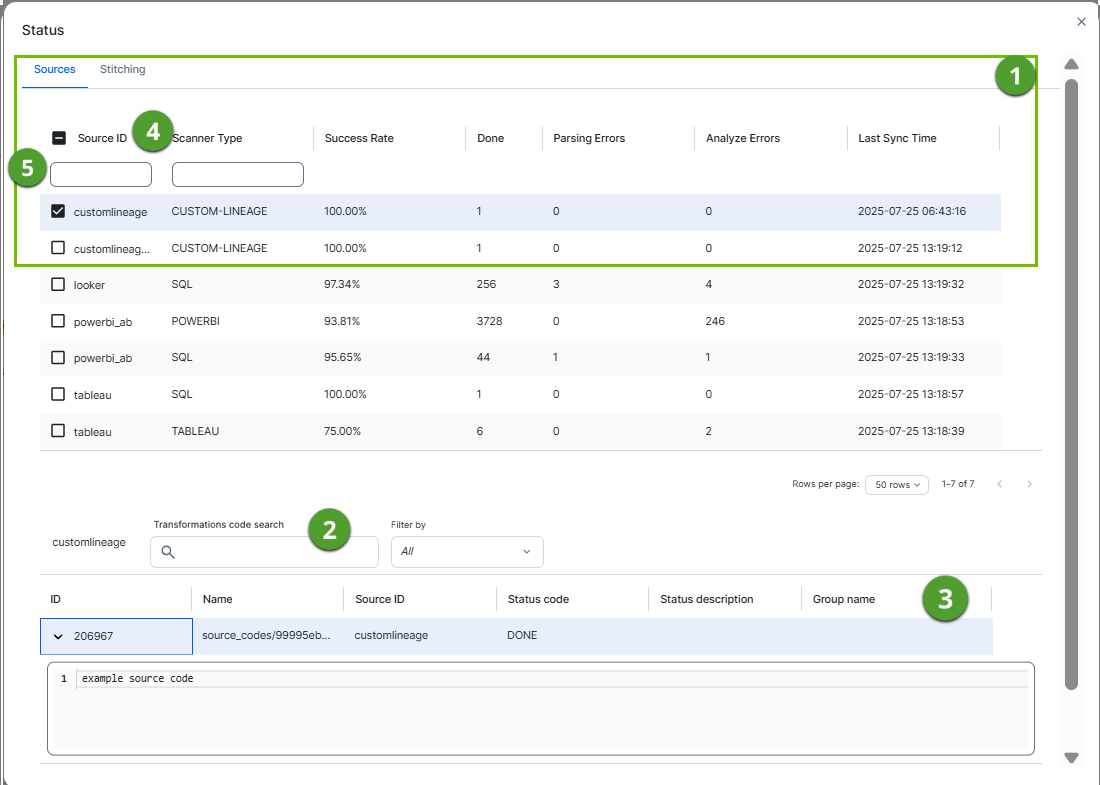
You can access the Sources tab page by clicking Show status on the Settings tab pane.
|
No |
Name | Description |
|---|---|---|

|
A summary per data source. You can also select data sources to filter the results. |
|
|
Selected
|
Checkboxes to filter on a data source in the transformations table. If you select none, the transformations table contains all transformations. |
|
|
Source ID
|
The ID of your data source. You entered this ID in the capability on Edge or in the configuration file if you used the lineage harvester (deprecated). If you use the Incremental ingestion strategy for Databricks Unity Catalog, several source IDs appear for the same data source. For more information, go to Synchronize Databricks Unity Catalog lineage. |
|
|
Scanner Type
|
The type of parser used to analyze the source code and queries in the data source. Note Collibra Data Lineage creates technical lineage for Databricks Unity Catalog or Dataplex by using the custom technical lineage scanner. Therefore, the scanner type is listed as CUSTOM-LINEAGE.
|
|
|
Success Rate
|
The success rate of the data source analysis on the Collibra Data Lineage service instances. The success rate indicates how complete your technical lineage is. Important The success rate of a technical lineage gives a good indication of the processing success. A success rate less than 100%, however, does not mean processing was unsuccessful. A parsing error, for example, which negatively affects the success rate, does not always negatively affect the completeness of the lineage. |
|
|
Done
|
The amount of queries that were scanned and analyzed. |
|
|
|
The amount of parsing errors. |
|
|
|
The amount of analysis errors. |
|
|
Last Sync Time
|
The last time the data source was uploaded to the Collibra Data Lineage service instances, for analysis and processing. The timestamp is displayed in UTC. In a future release, this value will be shown in local time. If the data source has not been successfully synchronized, this field shows — UTC. A timestamp appears after the data source is successfully synchronized. |
|
|
Client Type
|
The method used to upload the data source. The following values can appear:
|
|
|
Client Version
|
The version of the client used to upload the data source. If the version can't be determined, the field shows Unknown. One of the following warning indicators might appear next to the version:
|
|
|
|
Sort by each column | The sorting icons that you can use to sort by each column in ascending or descending order. These columns include Scanner Type, Success Rate, Done, Parsing Errors, Analyze Errors, Last Sync Time, Client Type, and Client Version. |

|
Search |
Use the search box under Source ID to find a specific data source. Use the search box under Scanner Type to find data sources associated with a specific scanner. |
|
|
Transformations table |
The table that contains details of the transformations and source code (fragments). You can filter the rows in the table by selecting data sources in the data source table and by using the search tools. Tip Click > next to the ID to view the source code or transformation details.
Note To export transformation details, use the Export lineage (in preview) admin option when you synchronize the Technical Lineage Admin capability. Make sure to select the Transformations export type.
|
|
ID
|
The ID of the source code fragments or transformation details, which are assigned in chronological order. | |
|
Name
|
The name of the specific source code fragment or transformation detail. You can also see the source code fragment name in the transformations viewer in the technical lineage graph. |
|
|
Source ID
|
The ID of your data source. You entered this ID in the capability on Edge or in the configuration file if you used the lineage harvester. | |
|
Status code
|
The status of the analysis. A source code fragment or transformation detail can have one of the following status codes:
|
|
|
Status description
|
The description of the status code that provides more information about the analysis and shows how many queries were processed. |
|
|
Group name
|
The name of the package or procedure to which the source code fragment or transformation details belongs. |
|
|
|
Search tools | Tools to help you search for specific source code fragments. |
|
Transformations code search
|
A search field to find specific queries in the analysis results. Type what you are looking for and press Enter. |
|
|
Filter by
|
A drop-down list to filter the source codes based on their status code. | |
|
|
Wrap text / Trim text | A toggle button that controls how text is displayed. When enabled, text wraps across multiple lines. When disabled, text is trimmed to a single line. |
 The client version is below the minimum supported version, or the version couldn't be determined. To resolve the warning, upgrade Edge and synchronize the data source again.
 The CLI lineage harvester has reached its end of life. New versions are no longer released. To continue generating technical lineage, use Edge instead.

|
No |
Name | Description |
|---|---|---|
|
|
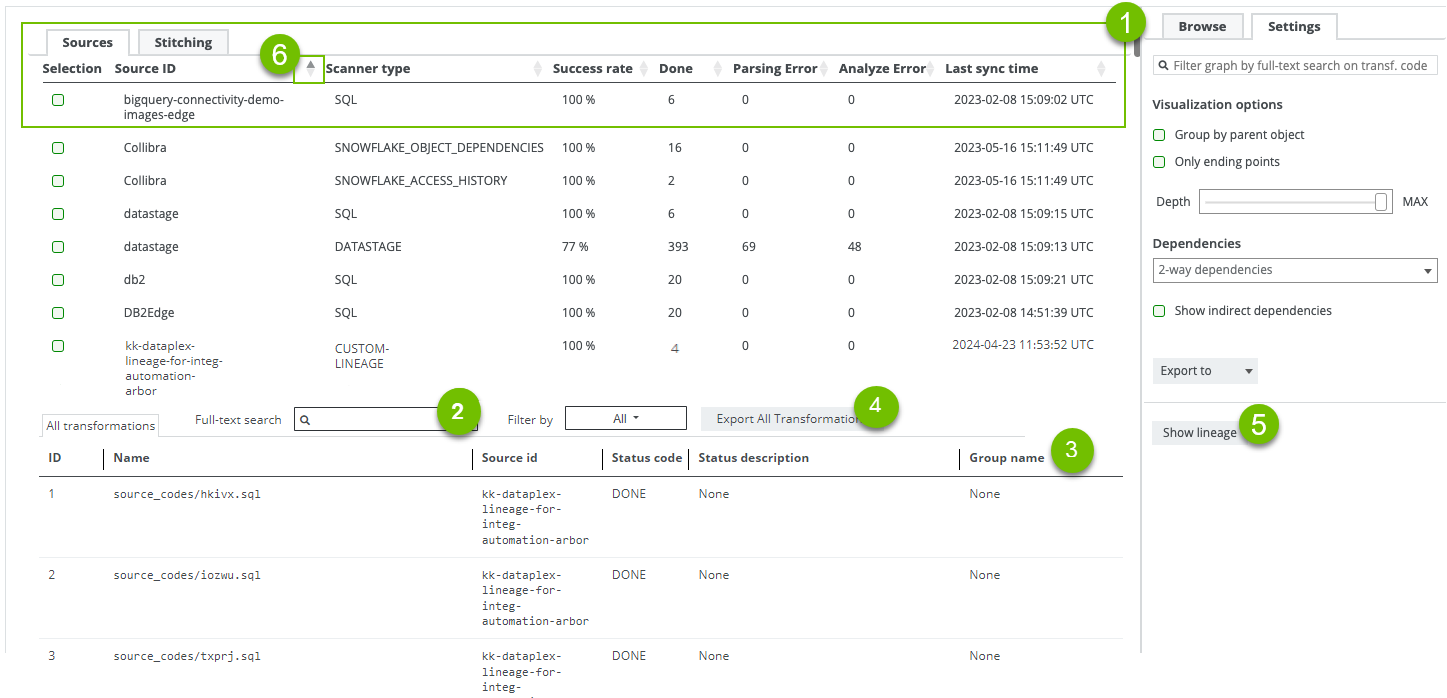
A summary per data source. You can also select data sources to filter the results. |
|
|
Selected
|
Checkboxes to filter on a data source in the transformations table. If you select none, the transformations table contains all transformations. |
|
|
Source ID
|
The ID of your data source. You entered this ID in the capability on Edge or in the configuration file if you used the lineage harvester (deprecated). |
|
|
Scanner Type
|
The type of scanner that is used to scan the queries in your data source. Note Collibra Data Lineage creates technical lineage for Databricks Unity Catalog or Dataplex by using the custom technical lineage scanner. Therefore, the scanner type is listed as CUSTOM-LINEAGE.
|
|
|
Success Rate
|
The success rate of the data source analysis on the Collibra Data Lineage service. The success rate indicates how complete your technical lineage is. Important The success rate of a technical lineage gives a good indication of the processing success. A success rate less than 100%, however, does not mean processing was unsuccessful. A parsing error, for example, which negatively affects the success rate, does not always negatively affect the completeness of the lineage. |
|
|
Done
|
The amount of queries that were scanned and analyzed. |
|
|
|
The amount of parsing errors. |
|
|
|
The amount of analysis errors. |
|
|
Last Sync Time
|
The last time the data source was uploaded to the Collibra Data Lineage service, for analysis and processing. | |
|
|
Search tools | Tools to help you search for specific source code fragments. |
|
Full-text search
|
A search field to find specific queries in the analysis results. Type what you are looking for and press Enter. |
|
|
Filter by
|
A drop-down list to filter the source codes based on their status code. |
|
|
|
Transformations table |
The table that contains details of the transformations and source code (fragments). You can filter the rows in the table by selecting data sources in the data source table and by using the search tools. Tip Click > next to the ID to view the source code or transformation details.
|
|
ID
|
The ID of the source code fragments or transformation details, which are assigned in chronological order. | |
|
Name
|
The name of the specific source code fragment or transformation detail. You can also see the source code fragment name in the source code pane in the technical lineage graph. |
|
|
Source ID
|
The ID of your data source. You entered this ID in the capability on Edge or in the configuration file if you used the lineage harvester. | |
|
Status code
|
The status of the analysis. A source code fragment or transformation detail can have one of the following status codes:
Note For some data sources, a transformation might show the status as DONE even if the Status description reports an analysis error. When part of a SQL statement or procedure cannot be analyzed, the lineage for that specific column or table might fail. However, the rest of the query is still analyzed, and lineage is created.
|
|
|
Status description
|
The description of the status code that provides more information about the analysis and shows how many queries were processed. |
|
|
Group name
|
The name of the package or procedure to which the source code fragment or transformation details belongs. |
|

|
Export Selected Transformations | The button to export transformation details for the selected data sources. When you click this button, you download a ZIP file. The ZIP file contains an errors.csv file that includes the transformation details for the selected data sources. If you do not select any data sources, the transformation details for all listed data sources in the transformations table are exported. |

|
Show lineage | The button to go back to the technical lineage graph. |
|
|
Sort by each column | The sorting icons that you can use to sort by each column in ascending or descending order. These columns include Scanner type, Success rate, Done, Parsing Error, Analyze Error, and Last sync time. |

Analysis results
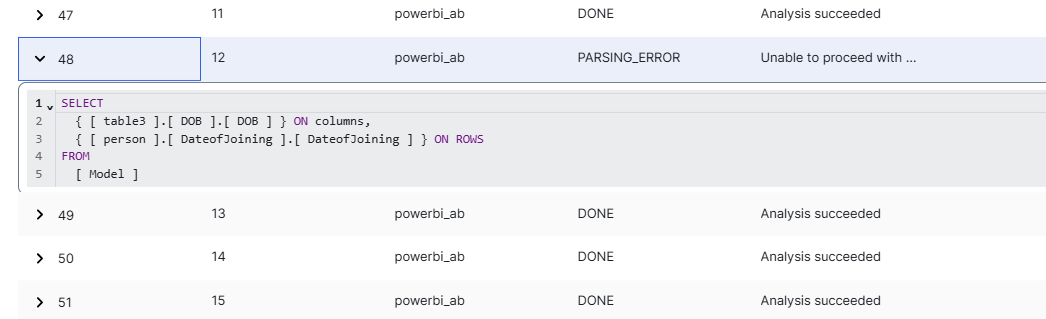
You can click > next to the ID of a row in the Transformations table to open the source code or transformation details. You can use these transformation details to easily find errors.

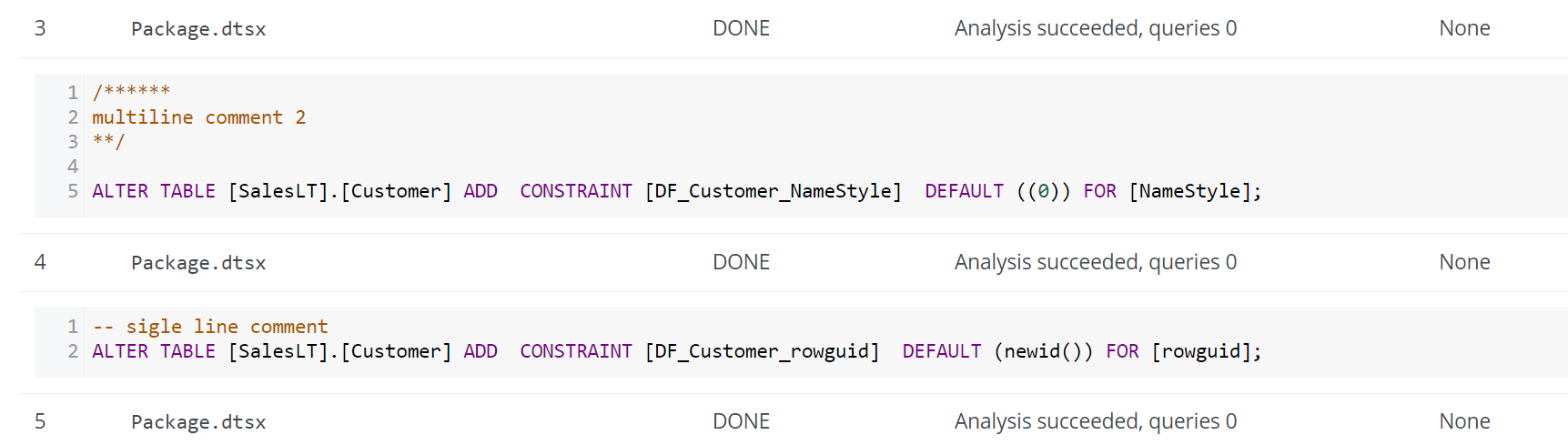
If the metadata that Collibra Data Lineage collects from your data source includes SQL queries, the analysis results might display comments from those SQL queries.
/*select 2 from dual*/;, the comment is counted as a statement. Consequently, the number of queries that are displayed in the Done column under Summary per data source might be greater than the actual number of queries parsed.
For common errors and possible solutions, go to Technical lineage troubleshooting.