Prepare the data source files and store them in the folder that you created when you created the Shared Storage connection.
Prerequisites
You have Informatica PowerCenter version 9.6 or newer.
Steps
-
Export the Informatica objects or repository for which you want to create a technical lineage to the folder.Make sure to export all objects, parameter files, mappings and sessions at the same time.Manually exporting Informatica objects in Informatica PowerCenter 10.0.0.
- Open Informatica PowerCenter Repository Manager.
- Connect to your Informatica repository.
- In the navigation panel, navigate to the workflow that contains the Informatica objects that you want to export.
- Right-click on the workflow and click Dependencies.
- In the Dependencies dialog box, do the following:
- Select Primary/Foreign Key dependencies.
- Select Global Shortcut dependencies.
- In the Object Types selector, select all object types except User-Defined.
- Click OK.
The Dependencies dialog box closes.
A dialog box with all Informatica objects appears. - Select all objects.
- In the toolbar, click
 (Export to XML).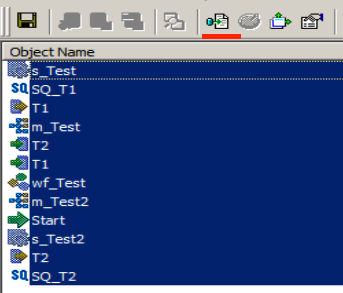
- Save the resulting XML files in your local folder.
Exporting Informatica repository objects in Informatica PowerCenter via command line.- In the Informatica PowerCenter Client or PowerCenter Services bin directories, open pmrep.
- Export Informatica PowerCenter repository objects.
Note Make sure that you export the same Informatica PowerCenter repository objects as during a manual export.
- Save the resulting XML files in your local folder.
Note- If your folder contains previous versions of the parameter files, objects might be duplicated across different file versions. The duplicated objects cause Collibra Data Lineage to ignore some transformations, resulting in missing lineage and error messages. For example, if a parameter file is exported after a column was added to a table, duplicated objects exist if the previous version of the parameter file remains in the folder. To avoid missing lineage, export all objects and parameter files at the same time.
- All XML and parameter files, for example PAR, TXT or PRM files in this folder and its subfolders are taken into account when you create a technical lineage, but Collibra Data Lineage only shows a technical lineage for workflows that have mappings with sources, transformations and targets. Collibra supports the most common Informatica PowerCenter transformations. For more information, see the Informatica PowerCenter documentation.
- When you export a workflow, ensure that all dependencies – meaning referenced folders, mappings, shortcuts, and sessions – are included in the same export file. This applies whether you export the XML file manually or by using the command line. Collibra Data Lineage looks for a
TASKINSTANCEin the workflows (and in worklets in workflows). TheTASKINSTANCEpoints to the sessions, which are dependent on mappings. If aTASKINSTANCEcan’t be found in the workflows or worklets, lineage cannot be extracted. - To create a technical lineage, the following tags must be present in your XML file:
- <REPOSITORY>
- <FOLDER>
- <SOURCE> / <TARGET>
- <SESSION>
- <MAPPING> (that contains one or more <TRANSFORMATION> tags)
- <WORKFLOW> (that contains one or more <TASK> tags)
- If parameters are missing from the parameter files, an UNRESOLVED PARAMETERS analyze error is shown in the analysis results in the Sources tab page. For more information, go to Analyze errors and possible solutions in Technical lineage Sources tab page.
-
In the folder, create a folder named techlin-param and put the parameter files in the techlin-param folder.
Note If you use Collibra Platform 2024.05 or newer, ensure that you use the Edge CLI tool for creating the Shared Storage connection and storing files in the Shared Storage connection folder. Go to the following Create a Shared Storage connection step for detailed instructions. For more information, go to Edge Command Line Interface (CLI).
Add the Technical Lineage for Informatica PowerCenter capability for Shared Storage connections.