The Expression field in an assessment template allows you to specify an expression to define conditions for showing a specific text based on answers or parameters assigned to fields. The expression evaluates the conditions that you define and determines which text to show. For example, you can specify an expression to assign risk levels based on the total score and determine the risk level text to show.
Using an expression, you can dynamically evaluate and present information based on the values obtained from specific fields, allowing for customized text to be shown.
Before you begin
- When specifying an expression, always use IDs instead of display names. For example, if the display name of a text box is Explain and its ID is question1, use question1 in the expression.
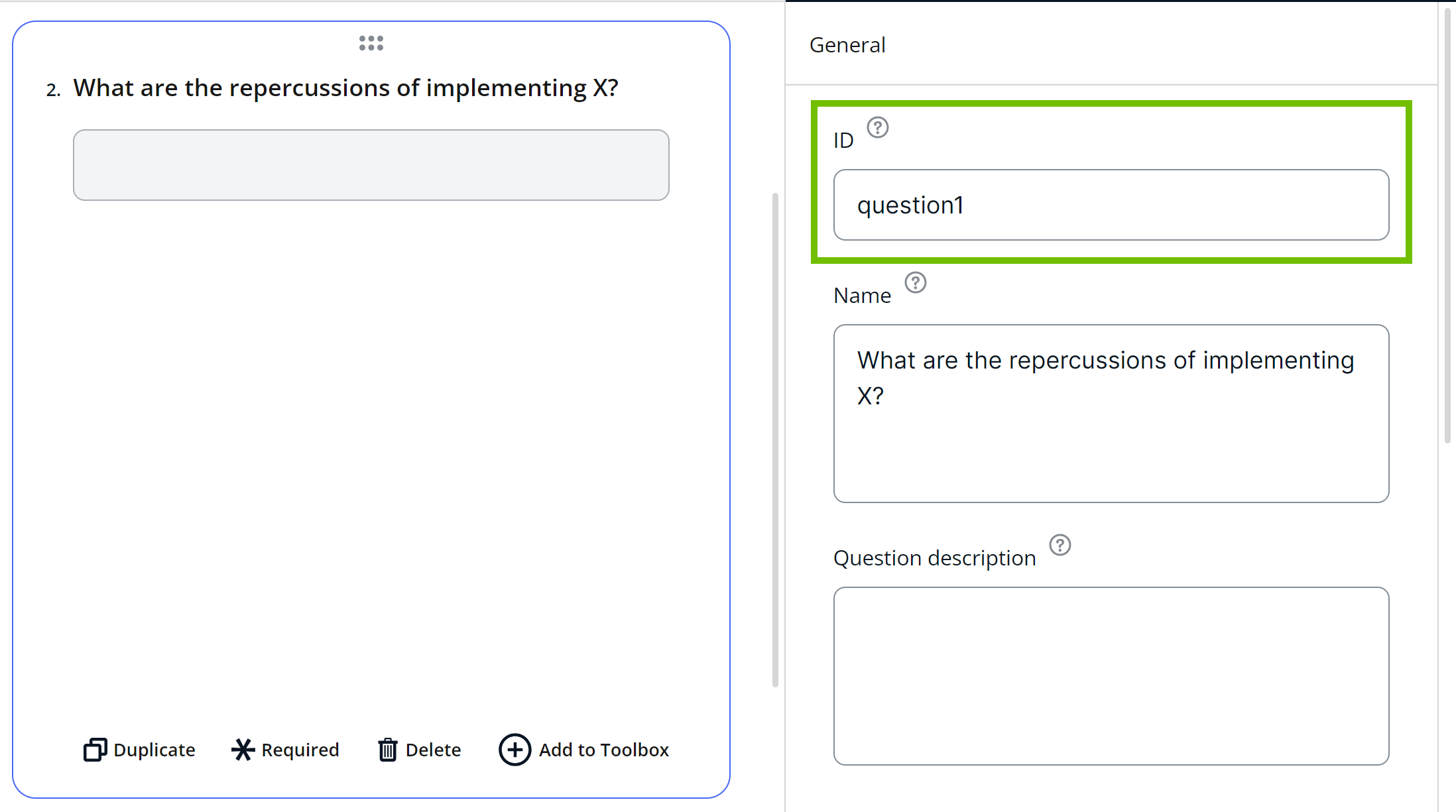
- Similarly, if the display text of a checkbox is Yes and its value is Item 1, use Item 1 in the expression.

- If an expression references a field that is hidden, the field's answer is ignored. If you want the answer of a hidden field to be included in the evaluation, select the Keep answer when hidden checkbox for that field.
Assigning risk levels based on total score
This example shows how to use an Expression field to assign risk levels based on the total score obtained from Yes/No fields in a template. The expression used in the example uses an immediate if (iif) function to determine the risk level.
Suppose that your template contains the following fields:
- A Yes/No field whose ID is Q1 and score is 5.
- A Yes/No field whose ID is Q2 and score is 10.
You want to assign the risk level based on the sum of the scores of Q1 and Q2, as follows:
- If the total score is greater than 10, show High Risk.
- Otherwise, if the total score is greater than 5, show Medium Risk.
- Otherwise, show Low Risk.
Then, you can use the Expression field to provide the following expression:
iif({totalScore} > 10, 'High Risk', iif({totalScore} > 5, 'Medium Risk', 'Low Risk'))
The outer iif function checks if the total score is greater than 10. If true, it returns High Risk. If false, it evaluates the second iif function.
The second iif function checks if the total score is greater than 5. If true, it returns Medium Risk. If false, it returns Low Risk.
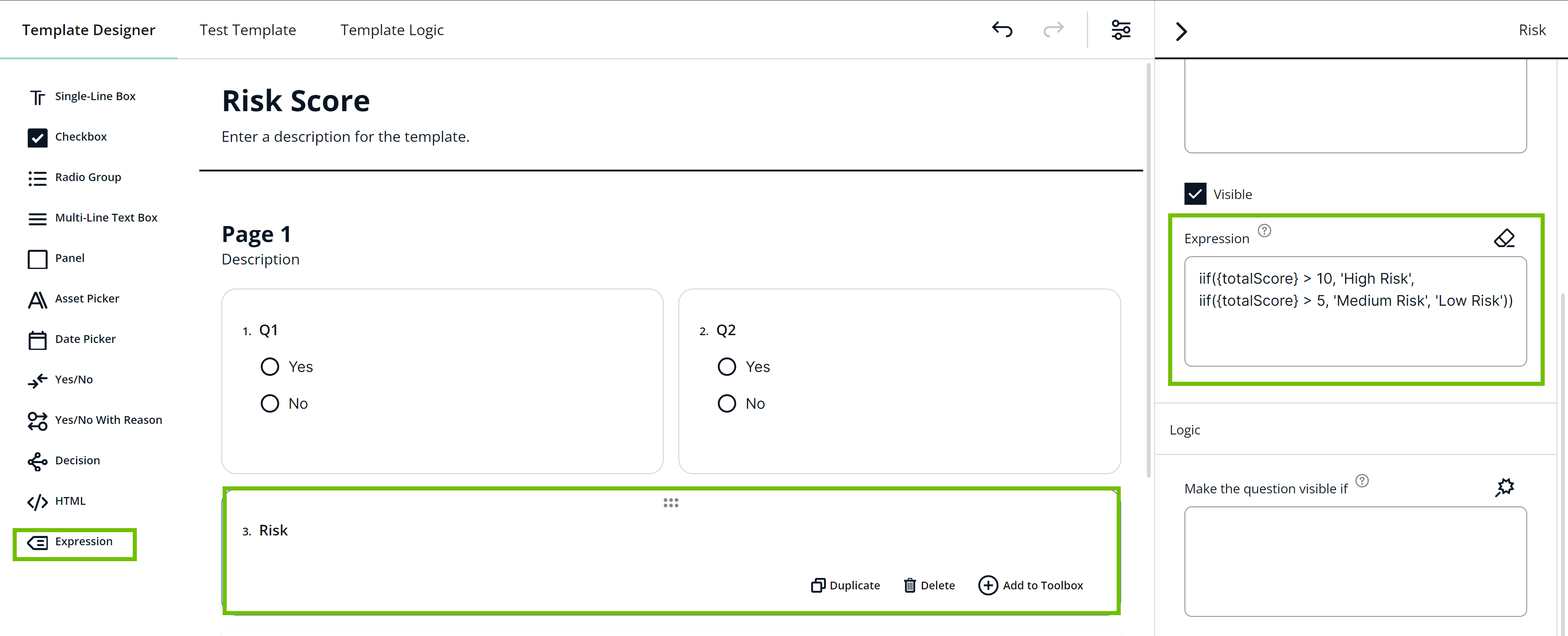
Depending on the combination of answers to fields Q1 and Q2, the Expression field, which is named Risk in this example, shows the corresponding risk level text.
- If Q1 and Q2 have the value Yes, the total score becomes 15. Therefore, the Risk field shows the value High Risk.
- If Q1 has the value Yes and Q2 has the value No, the total score becomes 5. Therefore, the Risk field shows the value Low Risk.
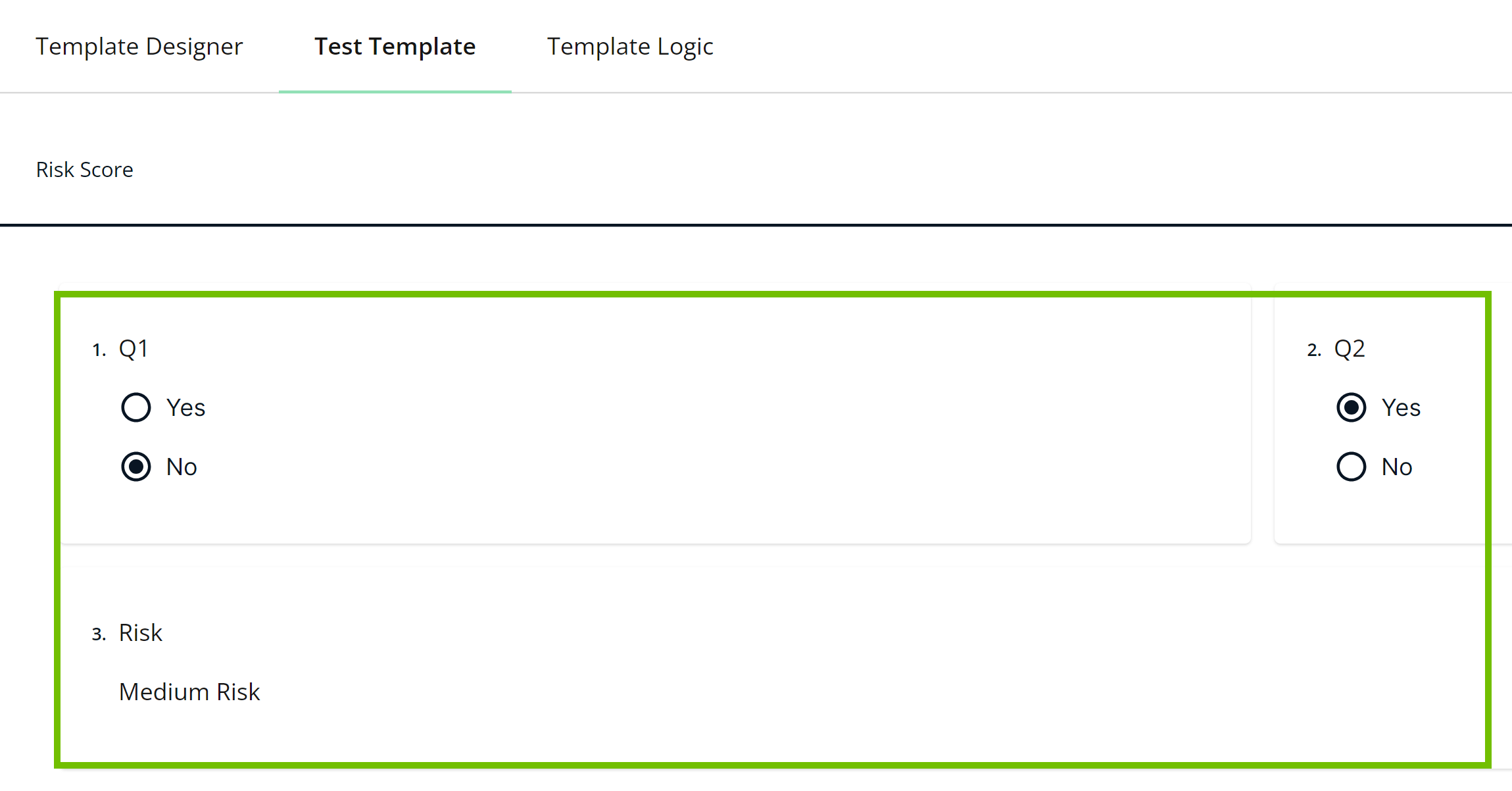
- If Q1 has the value No and Q2 has the value Yes, the total score becomes 10. Therefore, the Risk field shows the value Medium Risk.
- If Q1 and Q2 have the value No, the total score becomes 0. Therefore, the Risk field shows the value Low Risk.
Assigning action levels based on answers
While the previous example uses numeric scores, this example shows how to use an Expression field to assign action levels based on the answers to specific fields in a template. The expression used in the example uses an immediate if (iif) function to determine the action level.
Suppose that your template contains the following fields:
- A text box whose ID is Q1.
- A checkbox whose ID is Q2.
- The value of the Yes text in the checkbox is Item 2.
You want to assign the action level based on the answers to Q1 and Q1, as follows:
- If Q1 contains biometric or social and if Q2 is Yes, show Action Needed.
- Otherwise, show No Action Needed.
Then, you can use the Expression field to enter the following expression:
iif(({q1} contains 'biometric' or {q1} contains 'social') and {q2} contains 'item 2', 'Action Needed', 'No Action Needed')
The iif function checks if Q1 contains "biometric" or "social" and if Q2 is "Yes". If true, it returns Action Needed. If false, it returns No Action Needed.

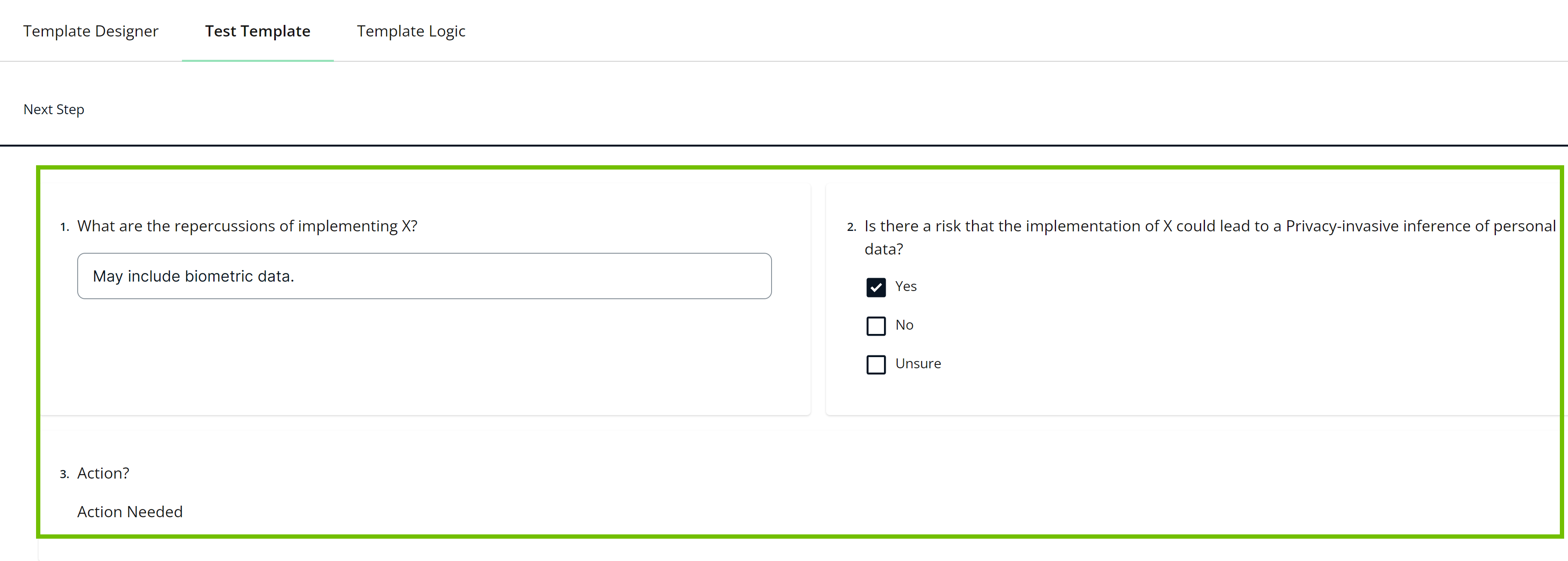
Depending on the combination of answers to fields Q1 and Q2, the Expression field, which is named Action in this example, shows the corresponding action level text.
For more information about syntax rules, including various operands, operators, and functions, go to Expression Syntax.