The Azure ML integration of Collibra Platform uses 1 asset type. The asset type comes out of the box with your software.
Important The functions of Azure ML integration is limited if you do not enable AI Governance. When you enable AI Governance, you can add custom attributes or custom relations to the Azure AI asset.
| Asset type | Description |
|---|---|
| Azure AI Model Version |
A subtype of AI Model Version that represents AI model versions in Microsoft Azure AI. |
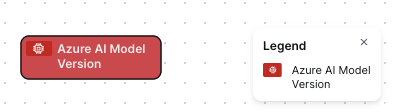
Azure ML diagram view
For information on the data that is integrated from Azure ML, go to Integrated Azure ML data.
Steps
- Open the asset page.
- Click the
Diagram tab.
The diagram is shown in the default diagram view. - Click
 to add a new view.
 - Select the Text option below the diagram view name.
The diagram view text editor is shown. - Copy the code from the Show JSON code section below and paste it in the diagram view text editor.
- Click Save.
- Edit the name and description of the diagram view as needed.
Show JSON code
Copy
{
    "nodes": [
      {
        "id": "Azure AI Model Version",
        "type": {
          "id": "00000000-0000-0000-0000-000000031407"
        }
      }
    ],
    "edges": [],
    "showOverview": false,
    "enableFilters": true,
    "showLabels": true,
    "showFields": true,
    "showLegend": true,
    "showPreview": true,
    "visitStrategy": "directed",
    "layout": "HierarchyLeftRight",
    "maxNodeLabelLength": 50,
    "maxEdgeLabelLength": 30,
    "layoutOptions": {
      "compactGroups": false,
      "componentArrangementPolicy": "topmost",
      "edgeBends": true,
      "edgeBundling": true,
      "edgeToEdgeDistance": 5,
      "minimumLayerDistance": "auto",
      "nodeToEdgeDistance": 5,
      "orthogonalRouting": true,
      "preciseNodeHeightCalculation": true,
      "recursiveGroupLayering": true,
      "separateLayers": true,
      "webWorkers": true,
      "nodePlacer": {
        "barycenterMode": true,
        "breakLongSegments": true,
        "groupCompactionStrategy": "none",
        "nodeCompaction": false,
        "straightenEdges": true
      }
    }
}