For each page or field in an assessment template, you can configure logic, whereby if certain conditions are met, a specified action occurs. You can create, edit, and delete logic conditions using the logic settings on the Template designer tab and the Template logic tab.
Example
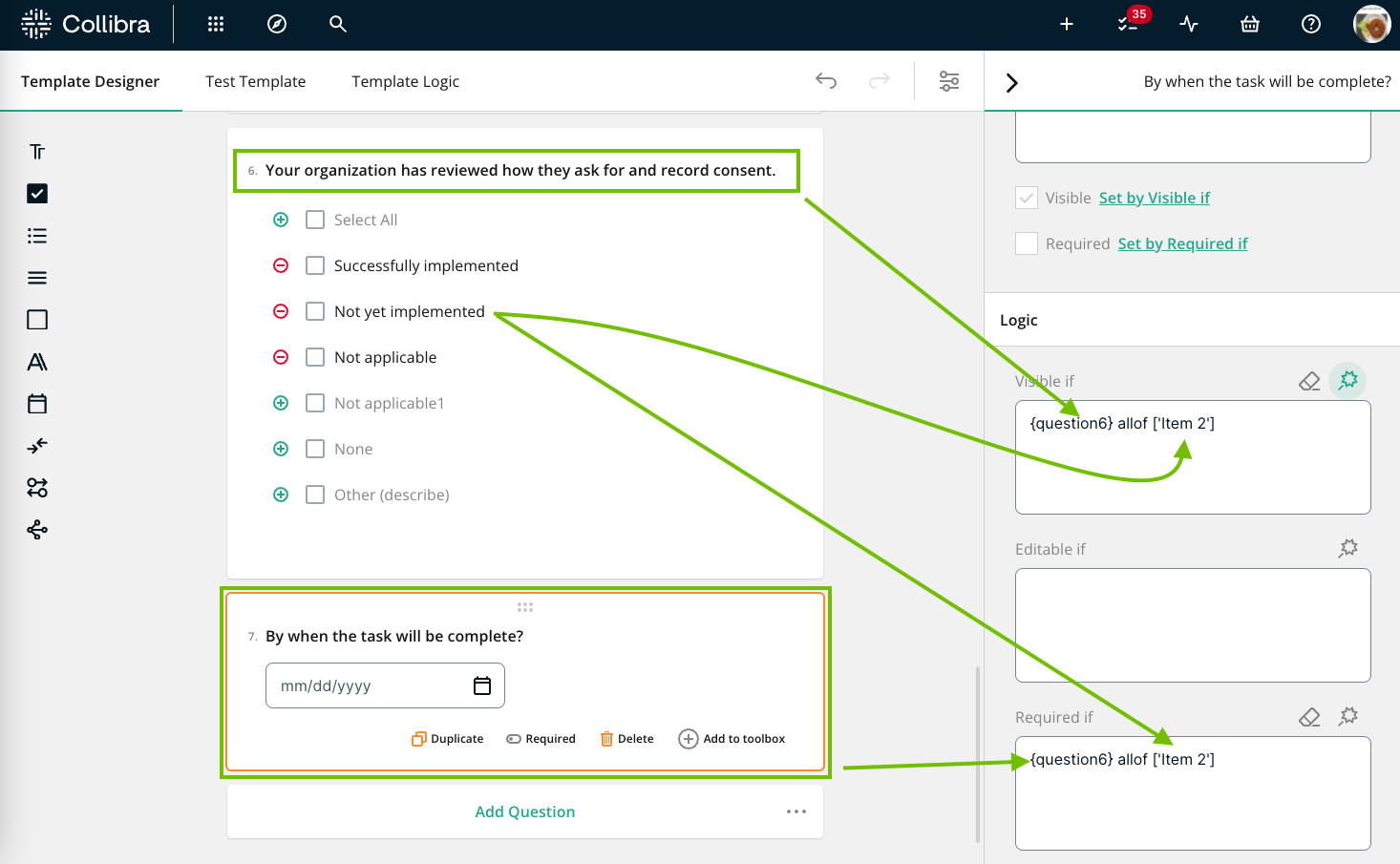
Question 6 in your template, a Checkbox field, asks if your organization has reviewed how they ask for and record consent.
Question 7, a Date Picker field, asks by when the task will be complete. If the answer to Question 6 is "Successfully implemented" or "Not applicable", there is no need to show Question 7.
Therefore, you configure the logic for Question 7 as follows:
- Visible if: If the user responds to Question 6 with "Not yet implemented," Question 7 is shown.
- Required if: Furthermore, if the user responds to Question 6 with "Not yet implemented," Question 7 is a mandatory question.
Good to know
- Any logic that you configure for a given field overrides the Visible and Required settings that you may have set in the sidebar.
- Any logic that you configure on the Template designer tab appears on the Template logic tab, and vice versa.
- If a field is hidden, it is excluded from the logic that determines whether another field or page is visible, editable, or required. If you want the hidden field to be included in the logic, select the Keep answer when hidden checkbox for the field.
- Scores are automatically recalculated when a field is dynamically hidden.