As a data steward, use the features in the Semantic Layer submenu in the Stewardship application to create and manage the semantic layer in the Guided Stewardship operating model.
The semantic layer offers a business-centric view of data and consists of assets such as Data Model, Data Entity, and Data Attribute. These assets can connect the raw physical assets to the Knowledge Graph's business assets, such as Business Term, KPI, and Data Category. For more information on the operating model, go to semantic layer in the Guided Stewardship operating model.
The Semantic Layer submenu is available if Guided Stewardship is active in your environment and you have the required permissions. It gives you access to:
- The Data models page with the semantic model editor.
- The Assistant page, which combines several features to help you govern data and link the Guided Stewardship layers.
Note If the New app experience setting is disabled, the pages are referred to as Semantic Models and Semantic Assistant.
This feature is available only in the latest UI.
About the Data models page
Note If the New app experience setting is disabled, the menu item is called Semantic Models.
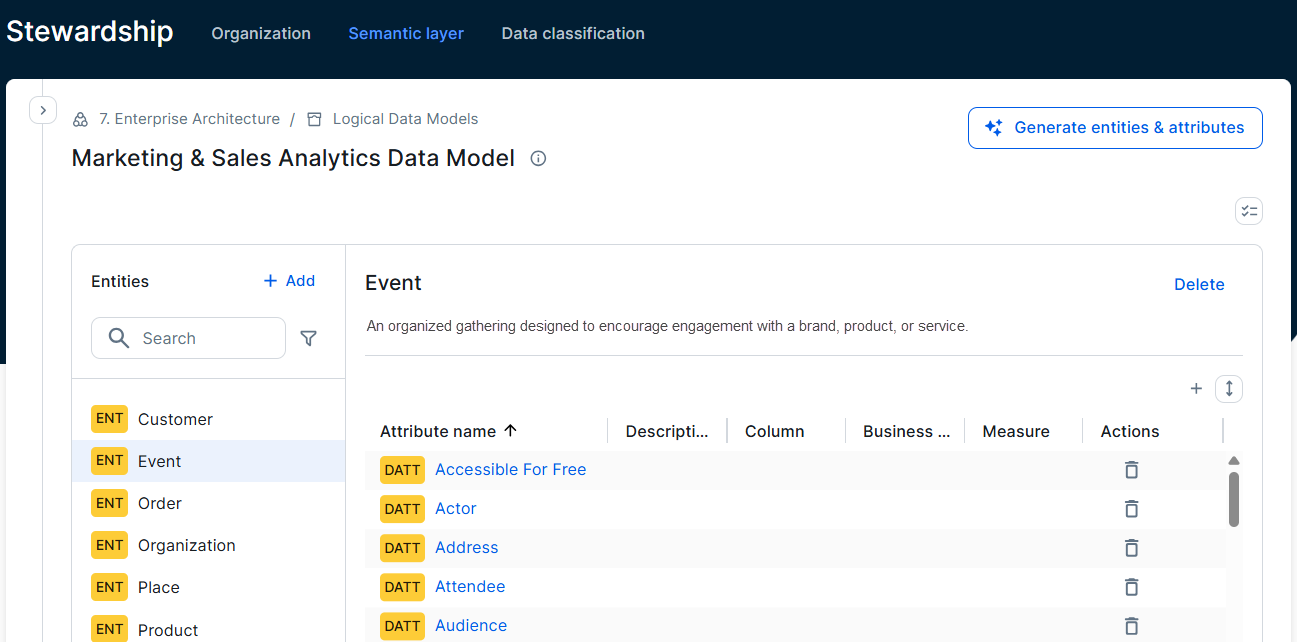
The Data models page gives you an overview of all available data models in your environment. From this page, you can create a new semantic model using the semantic model editor. The editor allows you to create and manage the semantic layer by defining data models, data entities, and data attributes.
The Data models page also shows existing mappings between semantic layer attributes and other assets in the knowledge graph, helping you validate and manage models more efficiently.
Working with data models
Click a data model to show the related data entities and data attributes. For a data model, you can view related tasks and comments, and check the job history of the data model.
Task panel
To check for tasks related to the Data Model asset without leaving the page, open the Task panel by clicking the Tasks icon  .
.
Comments panel
If the new comment experience is enabled, you can open the Comments panel to view comments for the data model without leaving the page by clicking the Comments icon  .
.
Job history panel
To view the job history for the data model and check the input data used in those jobs, open the Job history panel by clicking the History icon  .
.
In the Job history panel:
- A drop-down list shows the last 20 jobs sorted by creation date.
Only the 20 most recent jobs are shown. Older jobs can't be shown. - For each job the start date and the job type, Model generation or Mapping is available.
Jobs that extend the data model are shown as Model generation jobs.
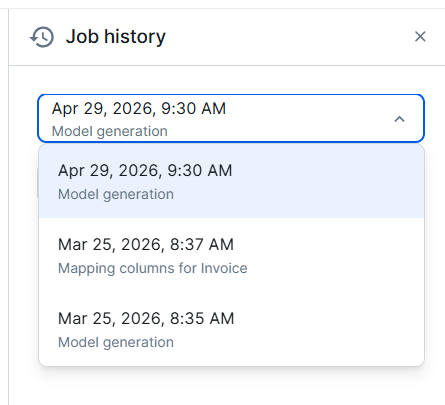
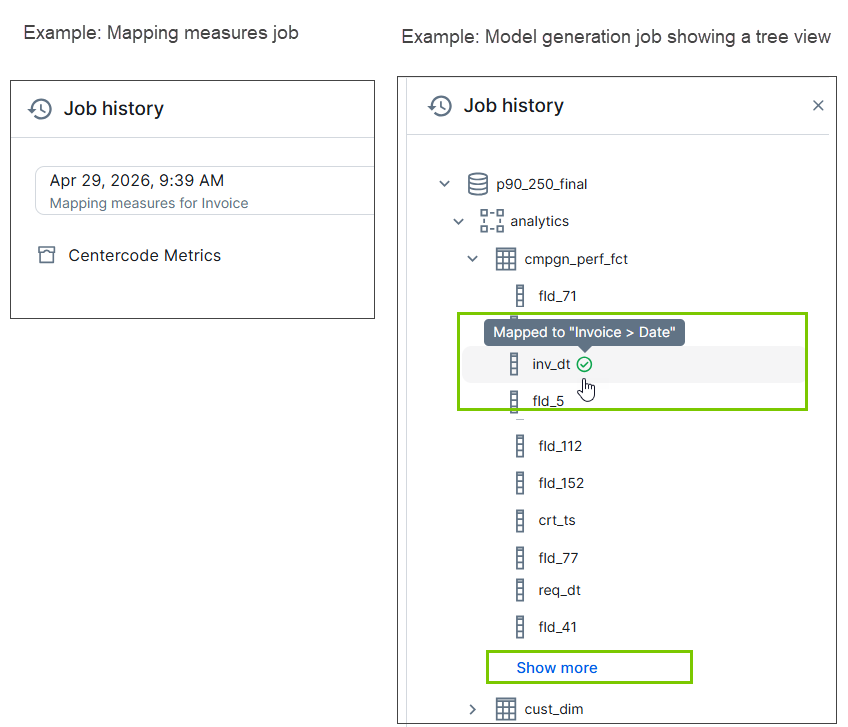
If you select a job, the input data of the job is shown.
If physical data assets are part of the input data, the data is shown in a tree view organized as Database > Schema > Tables > Columns.
- By default, the tree view expands to the Table level.
- For large amounts of input data, a Show more button is available.
- A tree view is shown for jobs that generate or extend a data model or that map columns.
- A check icon next to a Column in the tree view indicates the column is mapped.
Viewing data attributes
For each data attribute in the data model, you get all related details such as their description, the related columns, business assets, and measures. When you click a hyperlinked asset in the data model, the related asset information opens in a Preview panel, allowing you to manage models without leaving the page.
Mapping the semantic layer
Once you have defined the semantic layer, you can enrich it by linking the Data Attribute assets to Business Assets and Measure assets from the Data Models page. You can do this manually.
Although you can also link Column assets to the semantic layer this way, we advise to map the physical and semantic layer from the Semantic Agent page.
About the Assistant page
Note If the New app experience setting is disabled, the menu item is called Semantic Assistant.
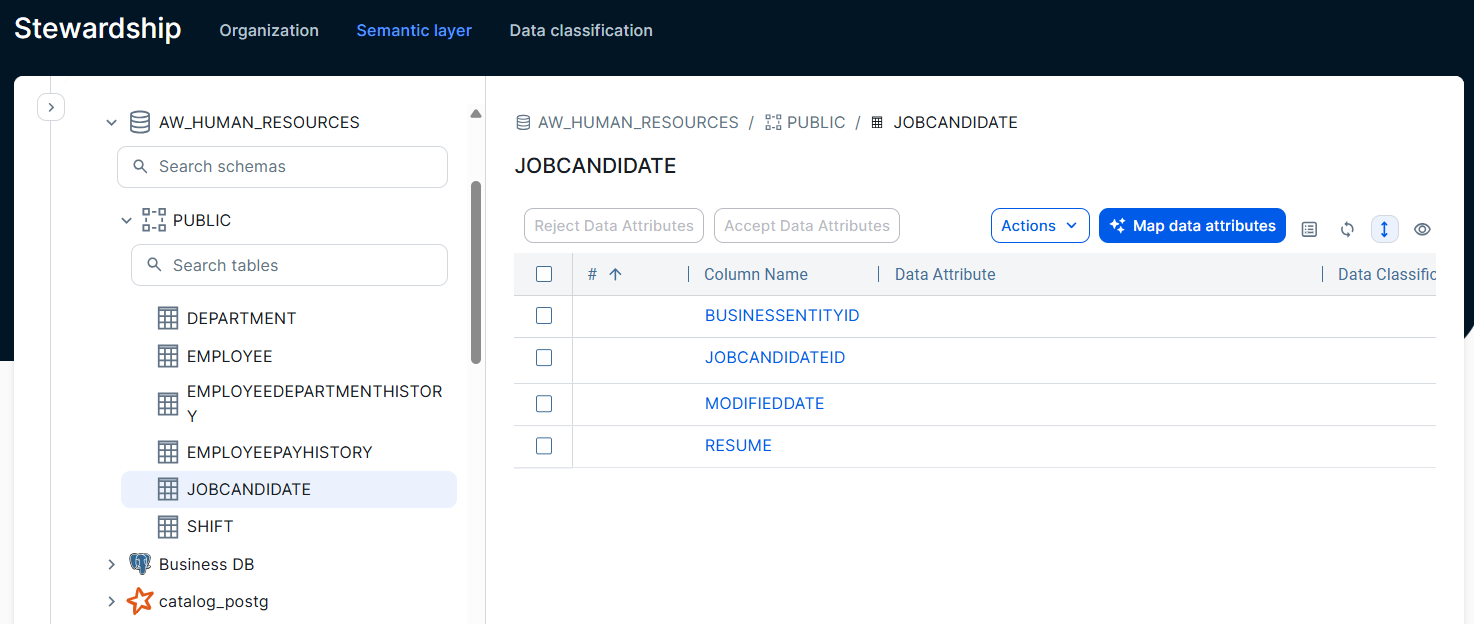
The Assistant page allows you to navigate to a specific Table or View and start several features that help data stewards govern and manage the physical data.
Available features
The available features depend on the active features in your environment and your permissions. They include:
- Creating relations between columns (physical layer) and data attributes (semantic layer) manually.
- Starting data classification for a Table or View.
Navigating and searching
To navigate to the asset you want to manage, manually navigate to the required location in the tree view or use search.
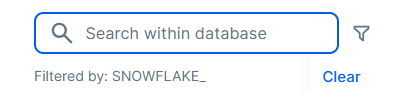
From the top Search field in the tree view, you can search for a Database, Schema, or Table. Search results are shown as a flat list with up to 20 results. Click Show more to load additional results. Each result includes the full path for context. You can also filter your search to specific asset types. If you click a result, the navigation tree opens and shows the related information.
You can further limit your search to a specific Database or Schema by hovering over the item in the tree view and clicking the Search icon. This limited search is indicated below the Search field. Click Clear to remove the limited search.
Database and Schema dashboards
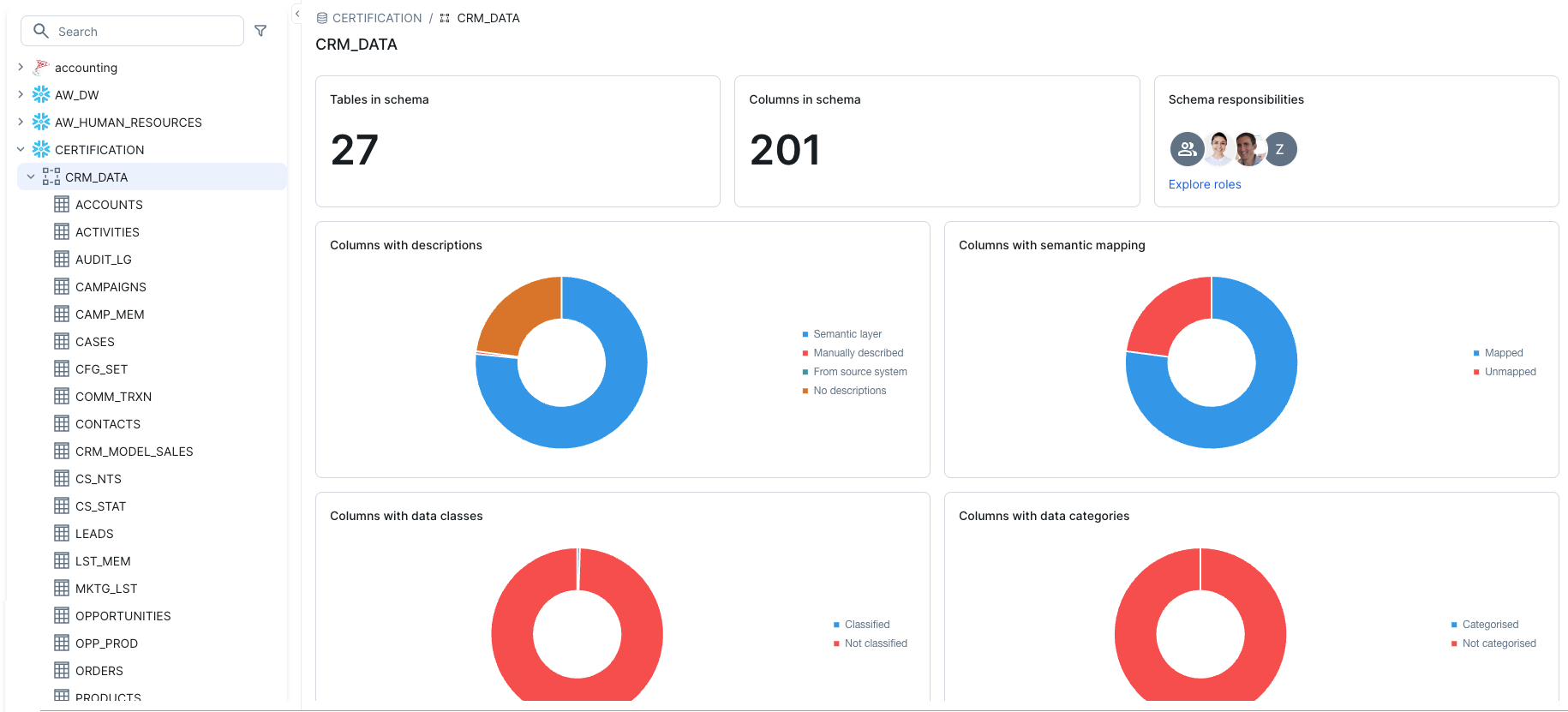
When you select a Database or a Schema, CPSH shows a dashboard with useful statistics.
For Database assets, the dashboard shows:
- Schemas in database
- Shows the total number of Schema assets in the Database.
- Tables in database
- Shows the total number of Table assets in the Database.
- Database responsibilities
- Shows up to 4 responsibilities for the Database asset. The responsibilities are collected in the following order: First key roles defined for the Database asset type layout, then the Owner, then the other responsibilities.
For information on the key roles, go to Asset layout editor.
For Schema assets, the dashboard shows:
- Tables in schema
- Shows the total number of Table assets in the Schema.
- Columns in schema
- Shows the total number of Column assets in the Schema.
- Schema responsibilities
- Shows up to 4 responsibilities for the Database asset. The responsibilities are collected in the following order: First key roles defined for the Database asset type layout, prioritizing the Owner, then the Owner responsibility, then the other responsibilities.
For information on the key roles, go to Asset layout editor. - Columns with descriptions
- Shows the number of Columns with a description and the source of the description.
- If an asset has multiple descriptions, it is counted only once based on the order in which the description availability is checked. The order is: Description through Semantic Layer, then Manually described, and then From source.
- Description from Semantic Layer means that the column has a relation with a Data Attribute that has a description.
- Columns with semantic mapping
- Shows the number of Columns that are related to one or more Data Attributes.
- Available for Database and Schema assets.
- Columns with data classes
- Shows the number of Columns that have been classified.
- Columns with data categories:
- Shows the number of Columns that are related to one or more Data Categories.
- Only direct relations are counted. This means that if a data category is attached to a data attribute, and the data attribute is linked to the column, the column is not considered a column with an assigned data category.
Related topics
- Enable AI features for the semantic layer
- Permissions to use the semantic layer features
- Create the semantic layer
- Mapping the physical layer from the Assistant page
- Mapping the semantic layer from the Data models page
- Creating asset descriptions using Collibra AI
- Guided Stewardship operating model
Helpful resources
Blog post: Introducing Collibra’s semantic agents