Add a technical lineage for Fivetran capability to an Edge or Collibra Cloud site (private preview)
After you enable technical lineage on Edge and have the Fivetran connection available, add a Technical lineage for Fivetran (Preview) capability to the Edge or Collibra Cloud site.
Requirements and permissions
A global role that has the Manage connections and capabilities global permissions, for example Edge integration engineer.
Steps
- Open a site.
-
On the main toolbar, click
 →
→
 Settings.
The Settings page opens. -
In the tab pane, click Edge.
The Sites tab opens and shows a table with an overview of your sites. - In the table, click the name of the site whose status is Healthy.
The site page opens.
-
On the main toolbar, click
- In the Capabilities section, click Add capability and select
Technical lineage for Fivetran (Preview).
The Add capability page appears. - Enter the required information.
Field Description Required? Name
The name of the capability.
 Yes
Yes
Description
The description of the capability.
 No
No
Fivetran connection
The Fivetran connection that you created.
Yes
Source ID
The name of the data source. The name must be unique and cannot contain special characters, for example,
/. Yes
TechLin Admin Connection If you want to use the OAuth authentication type to connect to the Collibra Data Lineage service instances, you have to create a Technical Lineage Admin Edge or Collibra Cloud site connection and select the OAuth authentication type. Then, in this field, you specify the name of the Technical Lineage Admin Edge or Collibra Cloud site connection.
No
Property This section contains the custom parameters you can specify to create technical lineage. Click Add property to add a property.
You can use this field to set the HTTP timeout duration by adding the httpTimeout property:
httpTimeoutName Description Type Encryption Example value httpTimeoutSets the HTTP timeout duration, in seconds. You can enter a value in the range of 1 to 3599. The default value is 15.
Text Not encrypted (plain text) 15 Type Value Type Name Example value Text
Plaintext
httpTimeoutSets the HTTP timeout duration, in seconds. You can enter a value in the range of 1 to 3599. The default value is 15.
15 Warning If you are a Collibra Platform for Government customer, this field is required to connect to a Collibra Data Lineage service instance:Properties for Collibra Platform for Government customersName Description Type Encryption Example value techlinHostThis is the URL of the Collibra Data Lineage service instance to which you want to upload metadata, for example
techlin-europe-west1.collibra.com.Text Not encrypted (plain text) techlin-europe-west1.collibra.com techlinKeyThis is the unique API key to connect to a Collibra Data Lineage service instance.
Specify a unique user key for each Collibra environment. If you're not sure what your user key is, contact your Collibra Collibra Account Team.
Text To be encrypted by Edge management server Value will be stored on Edge Type Value Type Name Value Text
Plaintext
techlinHostThis is the URL of the Collibra Data Lineage service instance to which you want to upload metadata, for example
techlin-europe-west1.collibra.com.Example: techlin-europe-west1.collibra.com Text
Secret
techlinKeyThis is the unique API key to connect to a Collibra Data Lineage service instance.
Specify a unique user key for each Collibra environment. If you're not sure what your user key is, contact your Collibra Collibra Account Team.
<your-techlin-key>  Yes for US government customers.
Save Input Metadata Select the checkbox if you want to save the input metadata extracted from the data source in ZIP files. The files can be useful for troubleshooting. Select this option only on request of Collibra Support. If this option is selected, you can download the files from the Synchronization Result dialog box once the synchronization activity is completed.
No
Source Configuration
The source configuration defines how destination and source system assets are mapped. Data objects collected from Fivetran are stitched to the appropriate System assets in Collibra Data Catalog based on this mapping.
Note Specify this property only when the Collibra system name field is set to True
True False
FalseWhen the Collibra system name field is set to
Specify the following properties in JSON format and enter the content in this field. If you choose to define the source configuration, all of the following properties are required.
Connection definitionsProperty
Description found_destination The Fivetran destination. Specify this property with the Group IDs in Fivetran.
For more information, go to Find your Destination Group ID in the Fivetran documentation.
destinationCollibraSystemNameThe name of the System asset in Collibra Data Catalog.
All metadata from the specified Fivetran data sources is mapped to this system.
foundSourceNameA list of all Fivetran source connections.
You can specify multiple
SourceNameentries and their correspondingsourceCollibraSystemNamevalues in this section.SourceNameThe Fivetran connection name for the source system.
To find the connection names, navigate to your Fivetran destination page, scroll to the Associated Connection section. For more information, go to View destinations in the Fivetran documentation.
sourceCollibraSystemNameThe System asset name in Collibra Data Catalog.
All metadata from the specified Fivetran data sources is mapped to this system.
Example{ "found_destination=ensue_tradition-groupId123": { "destinationCollibraSystemName": "GCP_system", "foundSourceName": [ { "SourceName": "databricks_db_1", "sourceCollibraSystemName": "SOurceSYM_1" } ] }, "found_destination=alpha_spectrum-groupId456": { "destinationCollibraSystemName": "Azure_cluster_A1", "foundSourceName": [ { "SourceName": "oracle_fin_01", "sourceCollibraSystemName": "FinSYS_A" }, { "SourceName": "oracle_fin_02", "sourceCollibraSystemName": "FinSYS_B" }, { "SourceName": "oracle_fin_backup", "sourceCollibraSystemName": "FinSYS_Backup" } ] } } No
Important This setting replaces the deprecated Analyze Only option, which will be removed in a future version of Collibra.
For each of your data sources, you have to specify one of the following values: Load, Analyze, or Sync. Then, when you synchronize your technical lineage, the following process begins:
- Metadata for all data sources is loaded, regardless of the value of this setting for a particular data source.
- Metadata from data sources for which the value of this setting is either Analyze or Sync, is analyzed.
- Metadata from data sources for which the value of this setting is Sync, is synchronized.
Value Description Load Harvest metadata from the data source and upload it to your Collibra environment. This allows you to inspect and, if necessary, edit the harvested metadata before uploading it to the Collibra Data Lineage service instance for analysis.
When the job is done, you can download and review the metadata:
- Open the Activities list.
-
In the row containing the job, click Result.
The Synchronization Results dialog box appears.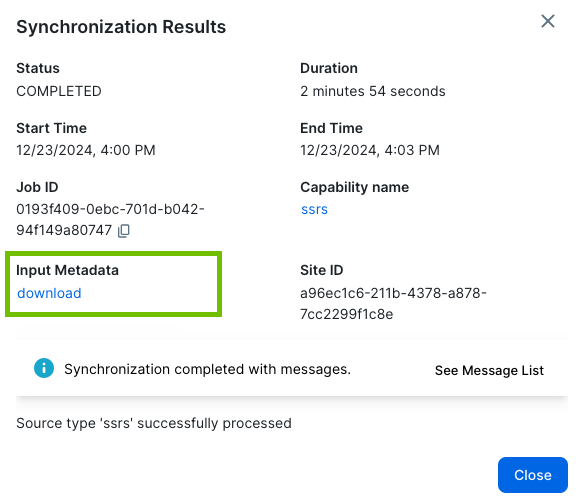
- Click download and save the ZIP file to your hard drive.
Tip The download link resembles the following:
https://integrations.collibra-abc.com/rest/2.0/files/01944f12-7665-7d9c-8bc5-aa426b6a63cc. Take note of the file ID, in this example:01944f12-7665-7d9c-8bc5-aa426b6a63cc. After you inspect the metadata, you can send the ZIP file for analysis by using the "Analyze files" option. Alternatively, you can upload the ZIP file using the POST /files API. In either case, you need to specify the file ID.Analyze Load and analyze the metadata on the Collibra Data Lineage service instance.
Synchronization does not start after analysis; it starts only after either:
- You trigger synchronization of another data source for which you specify Sync in the Processing Level drop-down list.
- You configure the Technical Lineage Admin Edge or Collibra Cloud site capability, and trigger synchronization via the Sync option in the Integration Configuration tab in Data Catalog.
Important If you want to synchronize multiple data sources, we strongly recommend that you select this option in the respective Edge or Collibra Cloud site capabilities for each of your data sources. This allows you to synchronize all data sources in a single job, thereby maximizing efficiency and mitigating the risk of failed synchronization jobs.- For complete information and important considerations, go to Tips for successful lineage synchronization
- For more information about the Sync option in the Technical Lineage Admin Edge or Collibra Cloud site capability, go to Technical lineage admin options.
Sync Load, analyze, and synchronize metadata from all data sources. Synchronization starts – or is queued, if another synchronization job is running – immediately after analysis.
Important If you want to synchronize multiple data sources and you select this option, each data source is processed as a separate job. This is highly inefficient and will likely lead to failed sync jobs. For complete information and important considerations, go to Tips for successful lineage synchronization.
Yes
Logging configuration
Memory (MiB)
JVM arguments
These fields are configuration options that can help when investigating issues with the capability.
Important Use these fields only at the request of Collibra Support. No
Debug
This setting is not valid for this integration. It should be set to false.
No
Log level
Only complete this field on the request of or together with Collibra Support.
No
- Click Save.
The capability is added to the Edge or Collibra Cloud site.
The fields become read-only.


Synchronize technical lineage for Fivetran (private preview).