Gemini Enterprise connects to the Collibra MCP server through a custom MCP server data store configured with OAuth 2.0. Once connected, Gemini can use Collibra's governed metadata tools directly in your conversations, for example to propose a new business term.
Note The Collibra MCP server runs in the Collibra Cloud environment, so this integration is not available for Collibra Platform for Government or Collibra Platform Self-Hosted (CPSH).
Prerequisites
In your Collibra environment
- You need admin privileges in Collibra to register an OAuth application.
In your Google Cloud environment
- You can create data stores in the Google Cloud console.
- You have a Gemini Enterprise application.
Step 1: Register an OAuth application in Collibra
This step requires admin privileges in Collibra. For more information about OAuth applications, see OAuth Applications settings page.
- Go to Settings.
- Click OAuth applications.
- Click New Application.
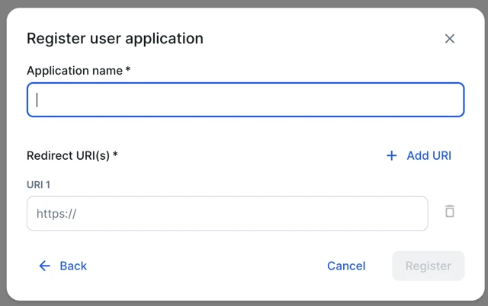
- Click Register user application.
- Enter an application name.
- Enter the redirect URI for Gemini Enterprise:
https://vertexaisearch.cloud.google.com/oauth-redirect - Click Register.
- Copy the Client ID and Client Secret. You need them to configure the data store in Gemini Enterprise.
Step 2: Create a data store in Gemini Enterprise
Gemini Enterprise represents MCP servers and connectors as data stores. Create a data store that points to the Collibra MCP server.
- Go to
https://console.cloud.google.com/gemini-enterprise/data-stores. - Click Create data store.
- Click Custom MCP Server.
- Enter the Collibra MCP server details, replacing
<instance>with your Collibra instance name:Field Value MCP Server URL https://<instance>.collibra.com/rest/mcpAuthorization URL https://<instance>.collibra.com/rest/oauth/v2/authorizeToken URL https://<instance>.collibra.com/rest/oauth/v2/tokenClient ID The Client ID from Step 1. Client Secret The Client Secret from Step 1. Enable PKCE Support Select this option only if you also activated PKCE in the Collibra OAuth application. - Click Verify Auth.
Step 3: Create the connector and enable actions
- Enter a name for the connector and complete any other connector settings.
- Click Create.
- Go to Actions.
- Click Reload custom actions.
Gemini Enterprise lists all the tools that the Collibra MCP server offers. - Select the actions you want your users to be able to use and click Enable.
Step 4: Connect the data store to your Gemini Enterprise application
- Go to
https://console.cloud.google.com/gemini-enterprise/appsand open your Gemini Enterprise application. - Go to Connected data stores.
- Click Add existing data stores.
- Select the data store you created in Step 2 and click Connect.
Use the connection
Each user authenticates with their own Collibra credentials before using the connector.
- In Gemini Enterprise, click Connectors.
- Click Authorize for the Collibra MCP connector.
- Sign in to your Collibra instance.
- Ask Gemini to perform an action in Collibra , for example, propose a new business term.
After you connect
For a full list of available tools, see Collibra MCP tools.