If you encounter missing data or errors after synchronizing technical lineage, use the technical lineage viewer to identify and troubleshoot the issue.
Find errors in the technical lineage viewer
In the technical lineage viewer, open the Sources tab pane to review the processing status of your data sources. To open the pane, click the
 View status
button on the Browse pane. The Transformations table provides details about individual transformations, including parsing and analyze errors.
View status
button on the Browse pane. The Transformations table provides details about individual transformations, including parsing and analyze errors.
Power BI: Harvester report
For Power BI technical lineage, the Transformations table also includes a harvester report that shows errors encountered while collecting metadata from Power BI. You can use the report to investigate why expected data wasn't collected.
For example, the harvester report can show:
- Workspace failures that prevent data collection.
- Conflicting filter configurations that prevent data collection.
Analyze issues and possible solutions
If the analysis results contain errors, the Status code column shows ANALYZE_ERROR and the Name column displays the name of the error. You can find the transformation details by clicking the row.
The following list shows some common issues and errors, along with possible solutions:
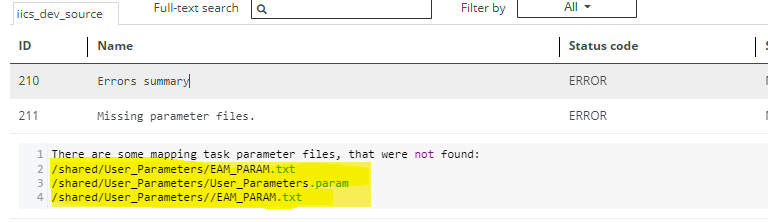
This error occurs when Collibra Data Lineage cannot find the parameter files that are listed in the error message. To resolve this issue:
- Ensure you have the parameter files.
- Take one of the following actions:
- If you use technical lineage via Edge, upload the parameter files to the Parameter Files field when you add the technical lineage for Informatica Intelligent Cloud Services (IICS) capability.
- If you use the lineage harvester, specify the
paramFilesproperty in the configuration file to point to the directory in which your parameter files are stored.
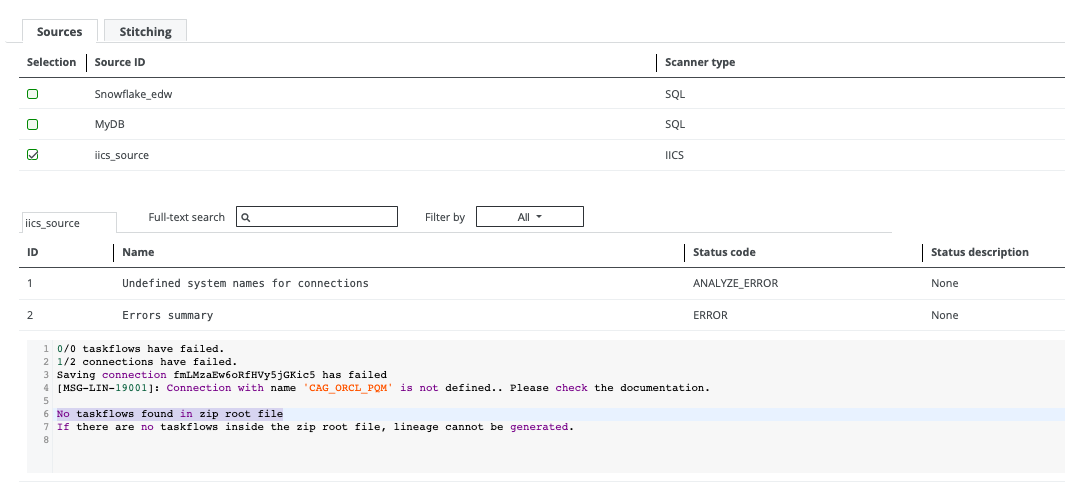
This error occurs when the taskflow type was specified in the objects to be retrieved, but Collibra Data Lineage could not find any taskflows while creating technical lineage for IICS. To resolve this issue, take any of the following actions:
- If you use technical lineage via Edge, verify the paths and types in the Objects field of the technical lineage for Informatica Intelligent Cloud Services (IICS) capability.
- If you use the lineage harvester, verify the paths and types in the
objectsproperty in the configuration file.
Note that the only meaningful types to retrieve are: Taskflow, Workflow, Project and Folder.
This error occurs when the indicated taskflow does not contain any tasks. No lineage is created for the taskflow. No action is required.
For more information about the supported taskflows and unsupported tasks, go to Informatica Intelligent Cloud Services.

This error occurs when the indicated taskflow contains unsupported tasks. No lineage is created for the supported task types. No action is required.
For more information about the supported taskflows and unsupported tasks, go to Informatica Intelligent Cloud Services.

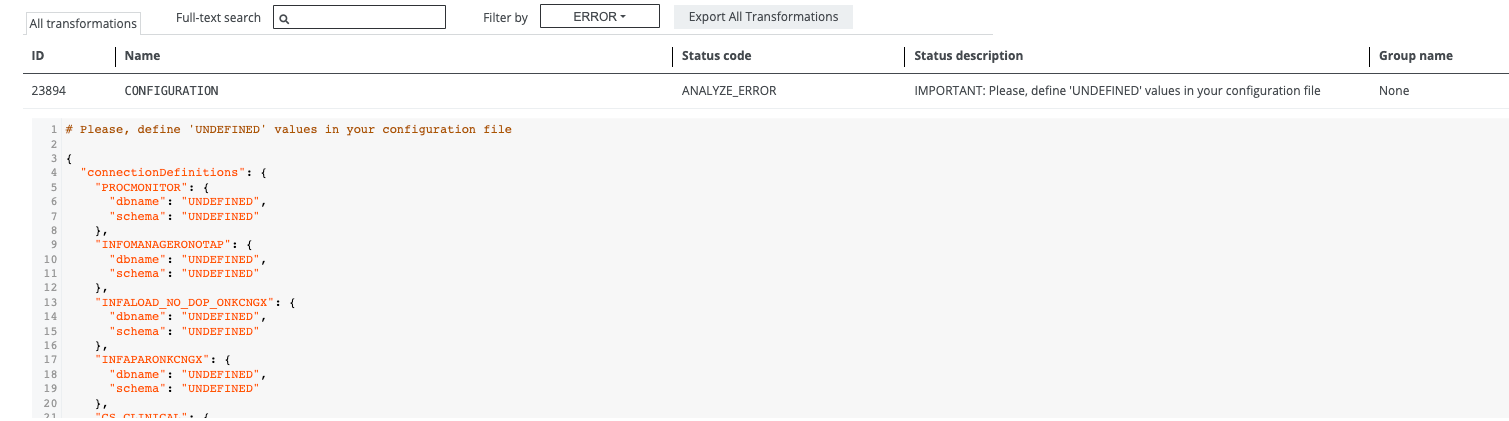
This error occurs in the following scenarios:
- If you use technical lineage via Edge to create technical lineage, certain properties were not specified in the Source Configuration field in the Technical Lineage for Informatica PowerCenter capability.
- If you use the lineage harvester to create technical lineage, certain properties were not specified in the source ID file.
The unspecified properties are marked as UNDEFINED in the transformation details. To resolve this issue, specify the properties.
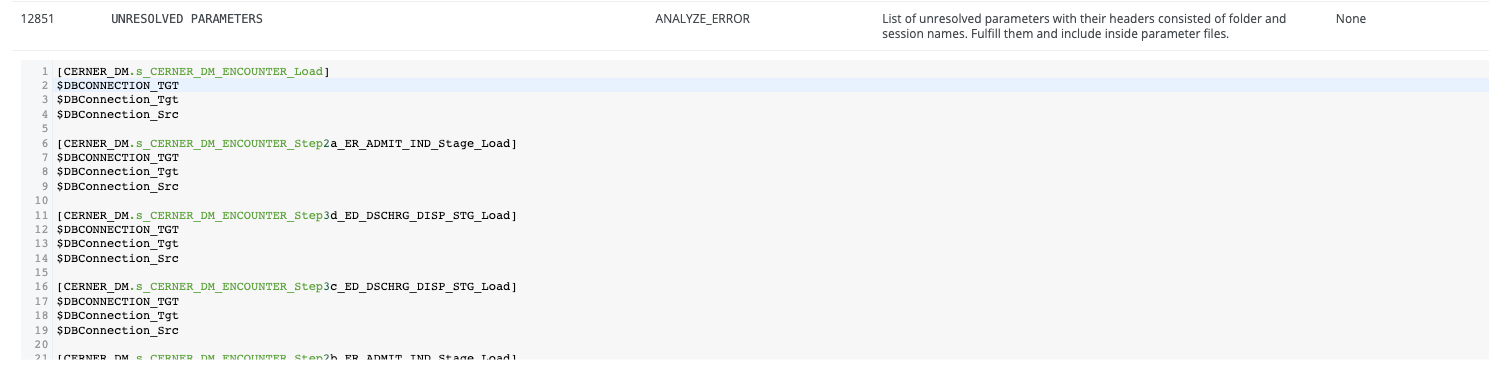
This error occurs when parameters are missing from the parameter files in the external folder. To resolve this issue:
- If you use technical lineage via Edge, export your parameter files and add the files to the Shared Storage connection folder.
- If you use the lineage harvester, export your parameter files and add the files to the external folder. Also ensure that the
pathproperty in the configuration file points to the correct location of the external folder.
Additional troubleshooting resources
For complete troubleshooting information, go to the Collibra Support Portal.
For a list of technical lineage known issues, go to Technical lineage Known Issues in the Collibra Support Portal.
If you encounter issues when creating technical lineage for Databricks Unity Catalog, go to Technical lineage via Edge troubleshooting for Databricks in Collibra Support Portal.