On the synchronization page, you configure one of the admin options and then manually trigger the job.
You can only choose one option at a time. After you click Synchronize to run the job, you can configure another option. You don't have to create a new Edge connection or add another capability.
Prerequisites
- A global role that has the following global permission:
- Catalog, for example Catalog Author
- View Edge connections and capabilities
- A resource role with Configure external system resource permission, for example Owner.
- To use the List sources or Ignore sources option, Your metadata must be refreshed. You can do this by:
- Waiting for the next scheduled synchronization to run.
- Editing the Integration configuration data refresh schedule setting in Collibra Console to refresh sooner. If you edit this setting, you must restart Collibra.
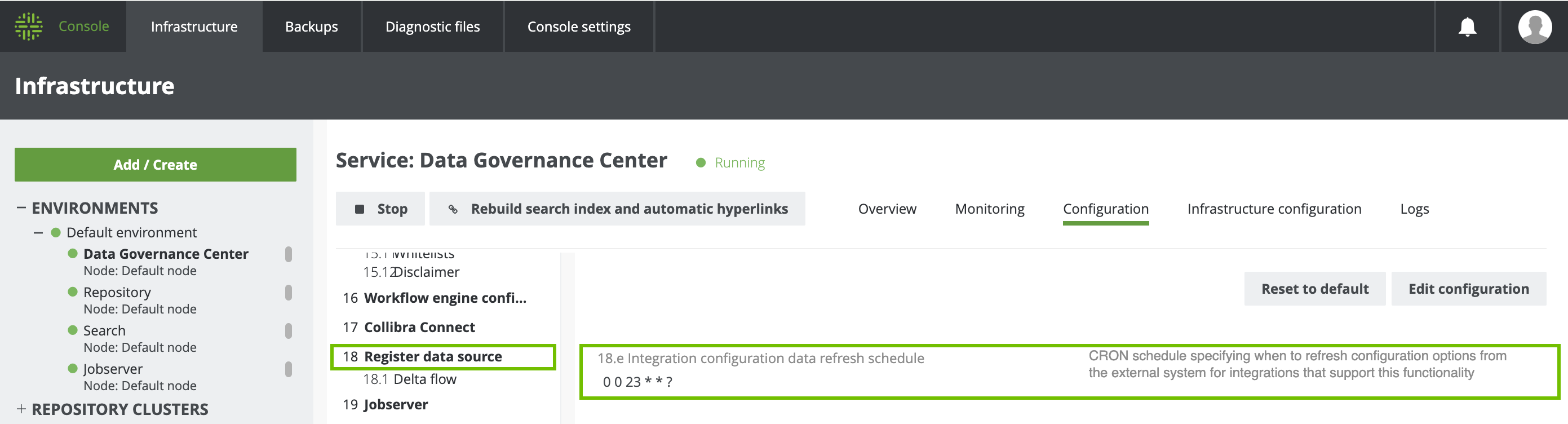
If your metadata is not refreshed, or Collibra is not restarted when required, an error occurs on the Integration Configuration tab when you use the List sources or Ignore sources option.
Steps
-
On the main toolbar, click
 →
→
 Catalog.
The Catalog homepage opens. -
In the tab bar, click
Integrations.
The Integrations page opens. - Click the
Integration Configuration tab.
- In the Integration column, find the technical lineage capability that you created, and click the capability name.
The Integration configuration page for the capability opens. - On the Synchronize Configuration section, click Edit Configuration.
- In the Admin command drop-down list, select the option you want to run.
- Enter the required information.
If you selected... Then... List sources
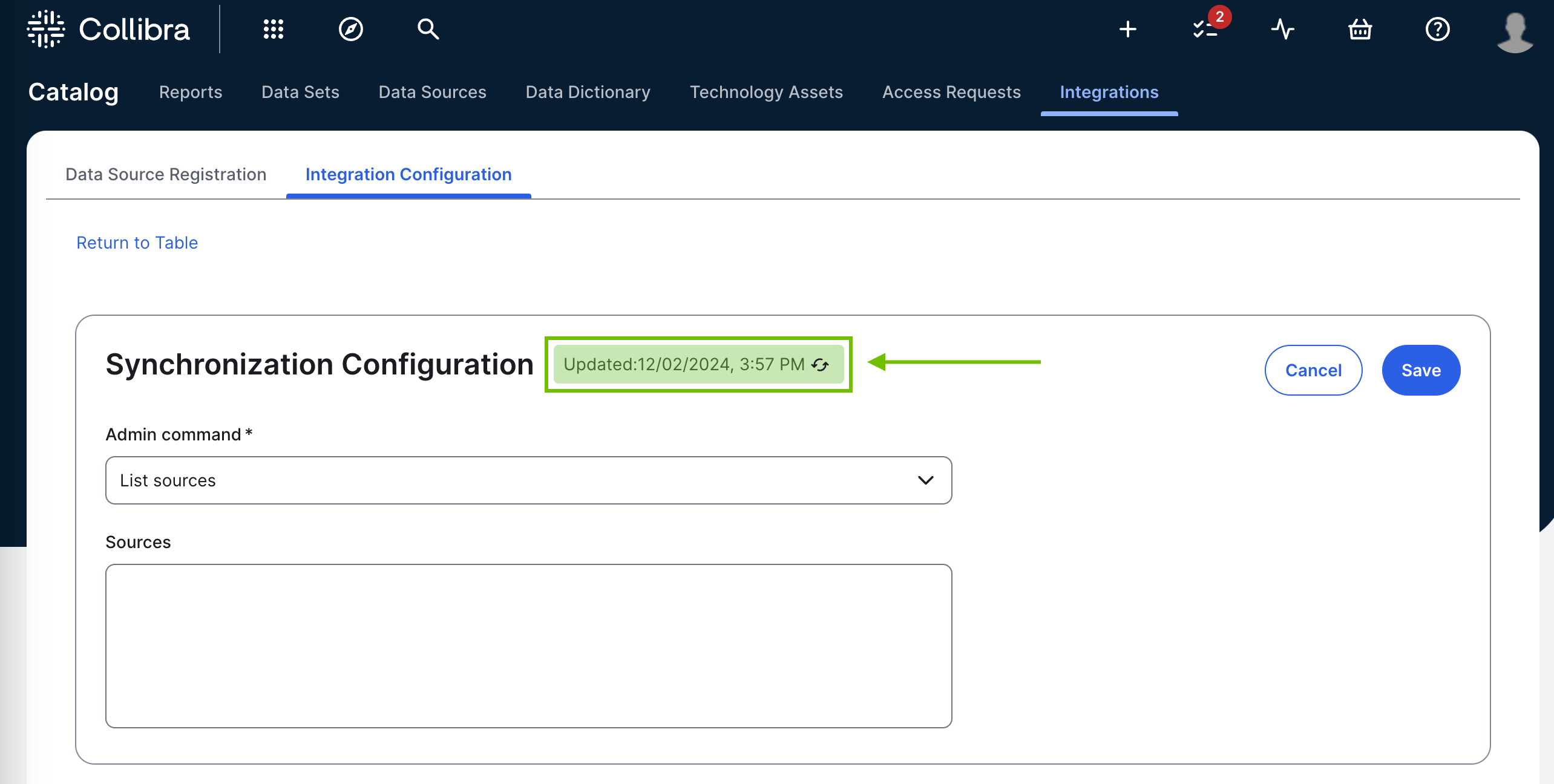
To list sources, click the green Refresh button, as shown in the following image.
You don't need to click Save; it serves no purpose in this context.
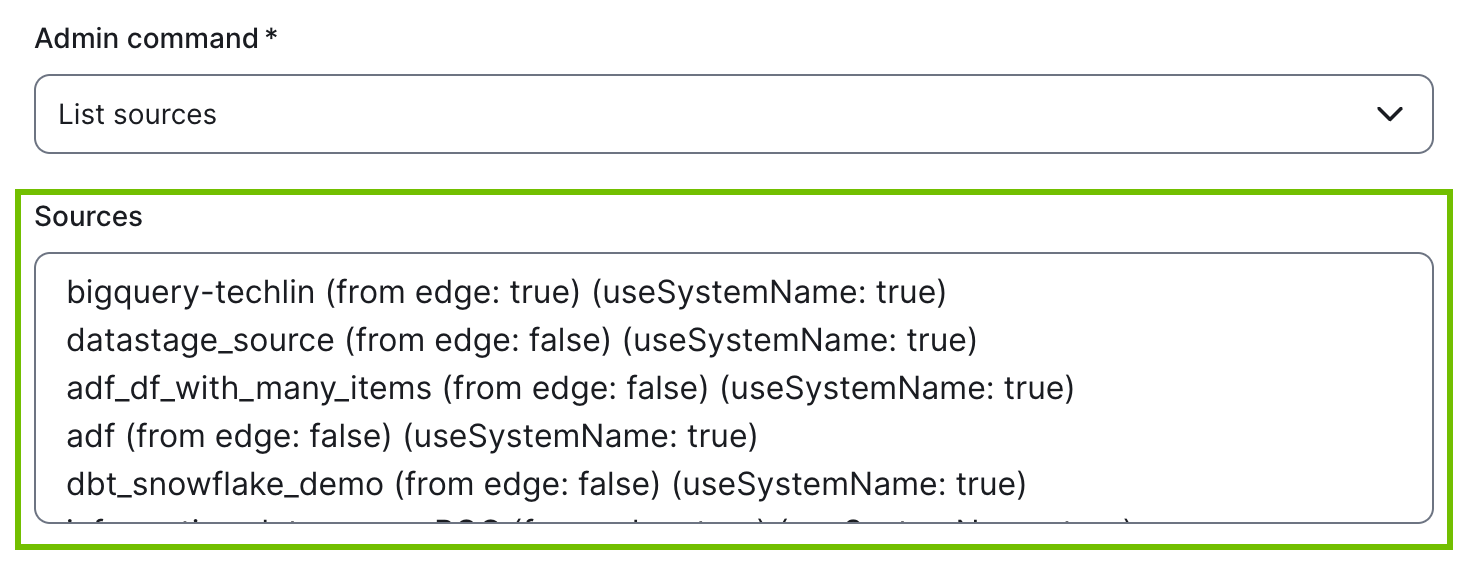
The results are shown in the Sources field.
Ignore sources
To ignore sources:
- For each source that you want to ignore, ensure that the Active checkbox in the respective technical lineage Edge capability is cleared. For more information, go to Delete the technical lineage of a data source on Edge.
- In the Sources drop-down list, select the source or sources you want excluded from the technical lineage.
- Click Save.
- In the Synchronize Configuration section, click Synchronize.
To view confirmation of the ignored source or sources:
- Open the Activities list.
-
In the row containing the job, click Result.
The Synchronization Results dialog box appears.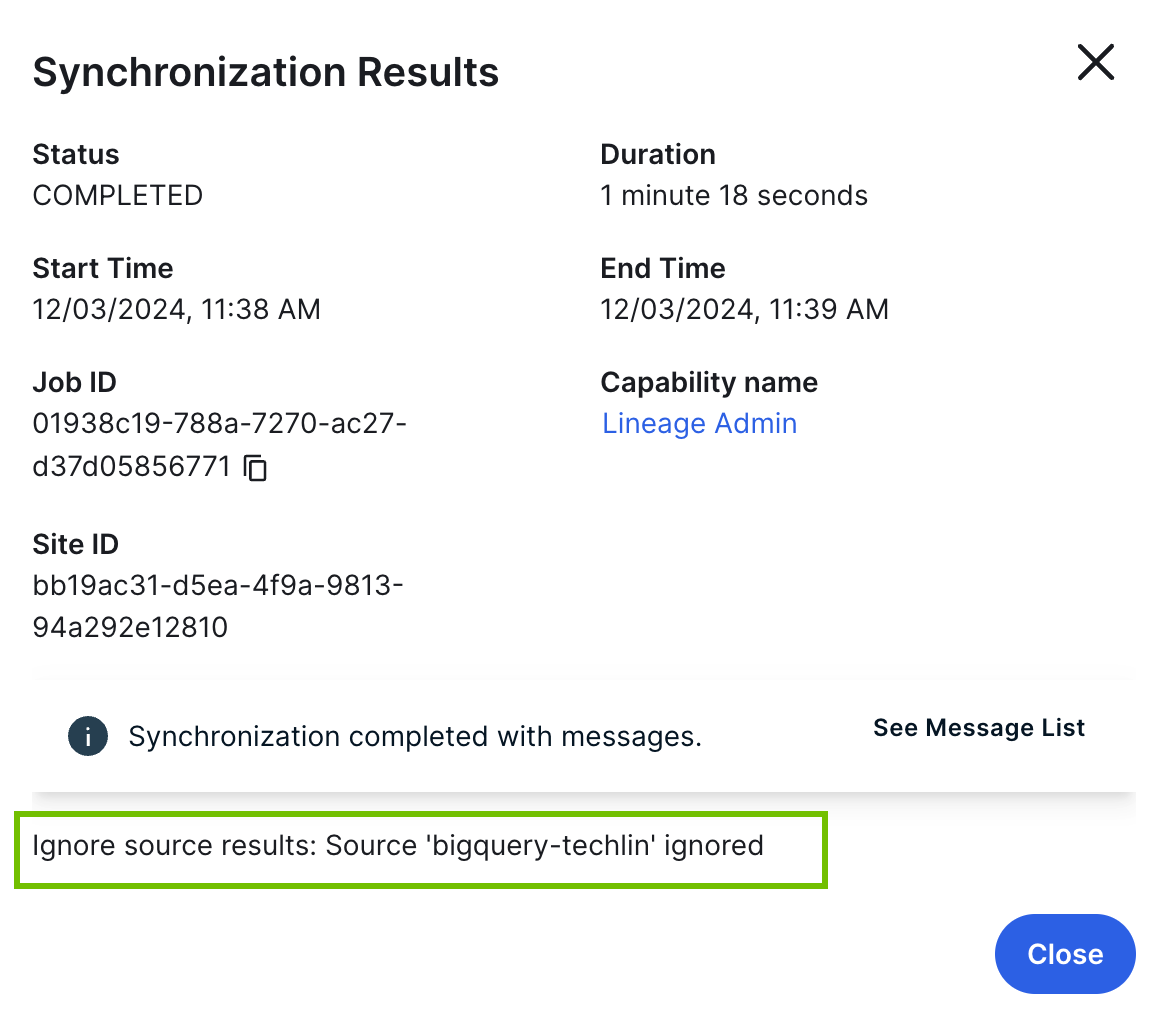
Analyze files
To analyze files:
-
In the File ID field, specify the file ID of the ZIP file on the Collibra Data Lineage service instance that you want analyzed.
Enter only one file ID per field. To specify more than one file, click Add File ID.Tip When using the Load option in the Processing Level setting in your Edge capacity, the job result includes a link to download a ZIP file with the metadata. The link resembles the following:https://integrations.collibra-abc.com/rest/2.0/files/01944f12-7665-7d9c-8bc5-aa426b6a63cc. In this example, the file ID that you have to specify is:01944f12-7665-7d9c-8bc5-aa426b6a63cc. - Click Save.
- In the Synchronize Configuration section, click Synchronize.
To view confirmation of the analyzed files:
- Open the Activities list.
-
In the row containing the job, click Result.
The Synchronization Results dialog box appears.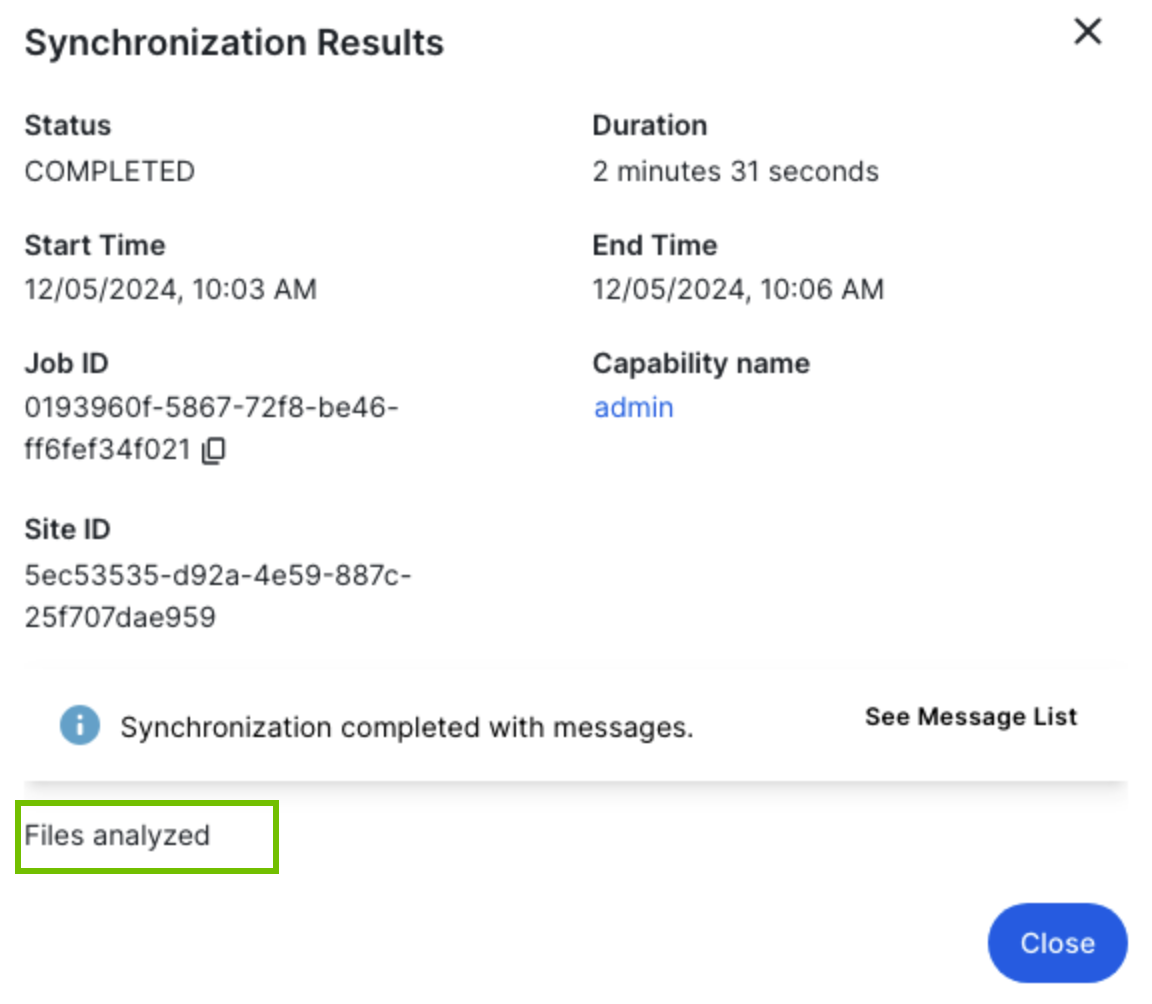
Sync To synchronize technical lineage:
- Click Save.
- Click Synchronize.
A single synchronization job is triggered for all configured data sources.
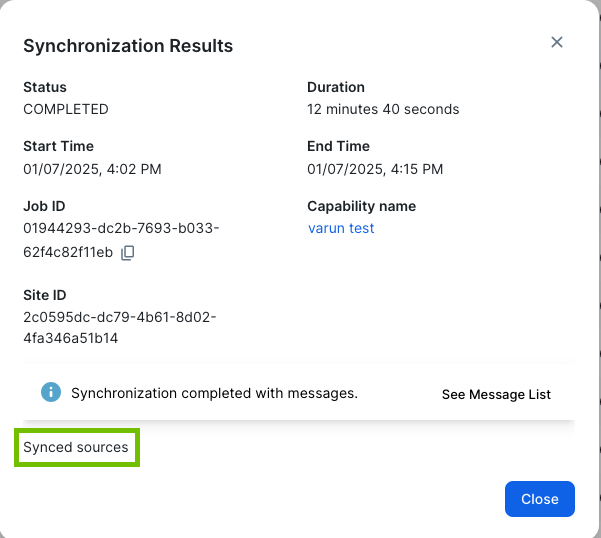
To view the ingestion report:
- Open the Activities list.
- In the row containing the synchronization job, click Result.The synchronization report summary appears.
Export lineage To export lineage:
-
In the Export type drop-down list, select Lineage, Lineage with transformations, or Transformations. For a description of each export type, go to Export lineage.
- In the Source drop-down list, select a single data source or clear the field to include all data sources.
- Click Save.
- Click Synchronize.
To access the ZIP file:
- Open the Activities list.
-
In the row containing the job, click Result.
The Synchronization Results dialog box appears.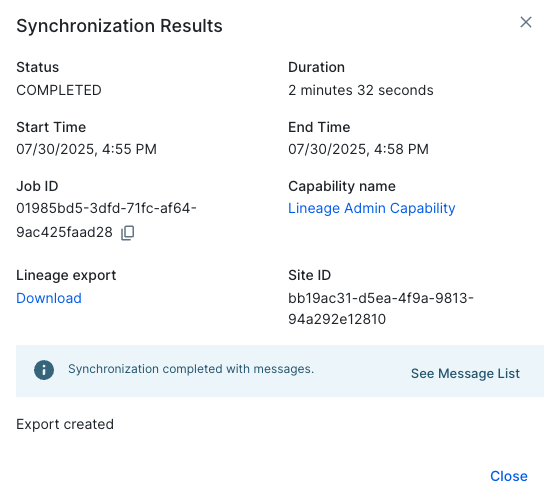
- Click Download.