Stitching is a process that creates relations between data objects from a data source and their corresponding assets in Collibra. Stitching is the bridge between the metadata you ingest as assets in Data Catalog and the technical lineage. When the data sources are scanned, Collibra Data Lineage automatically creates new relations of the type "Data Element targets / sources Data Element":
- Between data objects in your data source and their corresponding assets in Data Catalog, including the asset that you create when preparing the Data Catalog physical data layer.
- If you are integrating a BI tool, between ingested assets from BI sources and Data Catalog assets from registered data sources.
Scenario
In this use case, you'll resolve missing stitching in the technical lineage of a Power BI data source due to mismatching database names.
This use case assumes that you've already created a Power BI technical lineage via Edge, using the latest Collibra UI.
Steps overview
| # | Step | Description |
|---|---|---|
| 1 | Review the requirements for successful stitching. | Key considerations to help ensure successful stitching. |
| 2 | Review the visual indicators in the lineage graph. | Stitching - or missing stitching - is reflected in the color of the nodes. |
| 3 | Examine the different nodes in the lineage graph. |
There are three nodes or groupings of nodes:
|
| 4 | Analyze the missing stitching | Find out what's causing the missing stitching. |
| 5 | Configure database mapping to resolve the mismatching database names | Configure a database mapping section in the Source Configuration field of the Edge capability, to map the technical name of the database to the logical name in Data Catalog. |
1 Requirements for successful stitching
Before running the lineage harvester or Edge ingestion, verify the following requirements to ensure your Data Catalog assets successfully stitch to the data objects in the technical lineage.
 Ensure exact name matching: Stitching requires a case-sensitive, exact match of the full path of data objects in your data source and their corresponding assets in Collibra: System > Database > Schema > Table > Column.
Check system name configuration: The value of the Collibra System Name field must be the same as the full name of the System asset in Data Catalog, which Edge creates automatically when you integrate your BI tool. If this is not correctly defined, the system name defaults to "DEFAULT", which breaks full name matching.
Confirm BI user permissions: If integrating one of the supported BI tools, ensure that the user account used for BI integration (meaning in the BI tool) has sufficient permissions to access external data assets. Insufficient access to the data objects in your data source results in missing stitching.
Review query syntax: If integrating one of the supported BI tools, check your BI reports for unsupported custom SQL, stored procedures (Tableau), or unsupported Power Query M functions (Power BI). These can prevent the external database node from appearing in the graph entirely.
Prepare for database mapping: Be ready to map technical names (such as IP addresses) to logical asset names in Collibra. APIs often return, for example, 111.93.0.181, while the asset is named something like oracle-db. To achieve stitching, you need to map these names in the source configuration file (if using the CLI lineage harvester) or in the Source Configuration field (if using technical lineage via Edge).
Verify column existence: Ensure your tables and views contain columns. Stitching is based on columns; assets without columns cannot be stitched. For any tables or views without columns,
on the Stitching tab page, the Found in column shows that the table or view is found in the technical lineage, but is not found in Data Catalog.
Full path, full name matching
To stitch assets in Data Catalog to data objects collected by the lineage harvester, the Collibra Data Lineage looks at the full path of the assets in Data Catalog and the full path of data objects in your data source. The full names are constructed according to the full path of the data objects in your data source:
system name > database name > schema name > table name > column name
If the full paths match, the Collibra Data Lineage automatically stitches the data objects to the existing assets in Data Catalog. To indicate this, the assets have yellow icons in the technical lineage graph. Note that in Collibra, full paths are case-sensitive.
If the full paths don't match, including for case-sensitivity, Collibra Data Lineage can't stitch them. To indicate this, the data objects have a gray background in your technical lineage graph. If you change the full path, make sure to run the lineage harvester (deprecated) again.
Tip To stitch assets outside of the traditional system > database > schema > table > column hierarchy, you can use Custom technical lineage with the batch-definition option.
You can use the Stitching tab page to find the full path of assets in Data Catalog and data objects that were collected by the lineage harvester. The Stitching tab page also shows an overview of all assets and data objects that are stitched successfully.
2 Visual indicators in the technical lineage graph
Stitching - or missing stitching - is reflected only in the color of the nodes.
A yellow icon indicates stitching. Specifically:
- There is an asset in Collibra with a full name that exactly matches the data object in the technical lineage.
- A relation of the type "Data Element targets / sources Data Element" is created between the asset and the data object, and shown on the asset page.
- In the Stitching tab, the Found In column indicates that the database table was found in both Data Catalog and the technical lineage.

A gray icon indicates a lack of stitching. Specifically:
- There is no asset in Data Catalog with a full name that exactly matches the name of the data object.
- In the Stitching tab, the Found In column indicates that the database table was found only in the technical lineage.

3 The three nodes of the lineage graph
You want to trace the data from your data sources to your reports, and you've already integrated your Power BI data source. Now go to the asset page of your Power BI Data Model asset and click the Technical Lineage tab. There are three nodes or groupings of nodes:
- The external database
- The BI data model
- The BI report
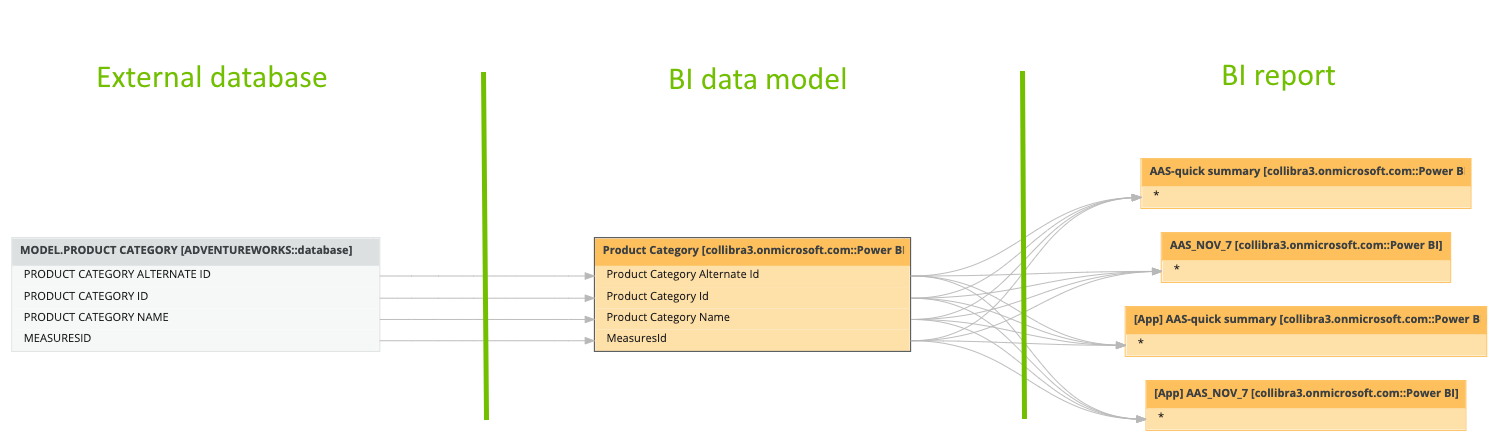
The external database
This node represents the table from the database you used to create the report in your BI tool. This node is a prerequisite for stitching. If it is not shown in the technical lineage, stitching is not possible. The node is shown in the technical lineage as long as:
- You have the required roles and permissions in your BI tool to access the data in your data sources.
- There are no unsupported custom SQL transformations or functions.
- No errors have caused the integration to fail.
The gray background icon indicates that stitching is missing. Specifically, while it's likely that there is a Table asset in Collibra that corresponds with this database table, their full names do not exactly match.
The BI data model
This node represents the dataset that you used to create the report in your BI tool. It is always shown in the technical lineage because it is the target of the database table and the source of the BI report. This node is always stitched because Collibra Data Lineage knows the full name of the dataset in your BI tool, and it creates the corresponding BI Data Model asset with the exact same name. This is referred to as BI stitching.
The BI report
This node (or grouping of nodes) represents the report you created in your BI tool. It is always part of the technical lineage. Like the BI data model node, this node is always stitched because Collibra Data Lineage knows the full name of the report in your BI tool, and it creates the corresponding BI Report asset with the exact same name.
Tip If you're viewing the lineage at the column level, and the attribute that the column represents is not used in the report, there is no arrow leading to the report node in the technical lineage. In that case, right-click on the data model node and click Table lineage to pull back and view the table-level lineage. The BI report node appears and you see which columns, or data attributes, are used in the report.
4 Analyze the missing stitching
Look at the name of the unstitched database table in the following example technical lineage graph: MODEL.PRODUCT CATEGORY [ADVENTUREWORKS::database].
You can identify the following:
- The database name:
ADVENTUREWORKS - The schema name:
MODEL - The table name:
PRODUCT CATEGORY

Now find the table in the Stitching tab:
- Click the Settings tab.
- Click Show status.
- Click the Stitching tab.
The Stitching tab shows a list of all tables that exist in Data Catalog and on the Collibra Data Lineage service instance.
Use the Search field to find the unstitched database table PRODUCT CATEGORY.

In the Found in column, the value "Technical Lineage" confirms that the table was found only in the technical lineage. An exactly matching asset was not identified in Collibra.
Now try to find a likely match. Look for a table that has the same name and the value "Catalog" in the Found in column. The table shown in the following image looks like a match. The schema and table names match exactly; only the database names differ.

This is confirmation of a common issue: the database names don't match. The API returned the database name ADVENTUREWORKS, but the asset in Data Catalog is named aas-model.
5 Configure database mapping to resolve the mismatching database names
- Open the Technical Lineage for Power BI capability you used when integrating Power BI:
- Open a site.
-
On the main toolbar, click
 →
→
 Settings.
The Settings page opens. -
In the tab pane, click Edge.
The Sites tab opens and shows a table with an overview of your sites. - In the table, click the name of the site whose status is Healthy.
The site page opens.
-
On the main toolbar, click
- Open a site.
- In the Capabilities section, click the Technical Lineage for Power BI capability.
The Capability page appears and shows a read-only overview of the capability. - Click Edit.
- In the Source Configuration field, enter the following database mapping section, to map the technical name
ADVENTUREWORKSto the logical nameaas-modelin Data Catalog.{ "found_dbname=adventureworks;found_hostname=*": { "dbname": "aas-model", } }For complete information on configuring the source, including example code, go to Power BI source configuration.
Stitching is achieved:
