Do you use a vault?
|
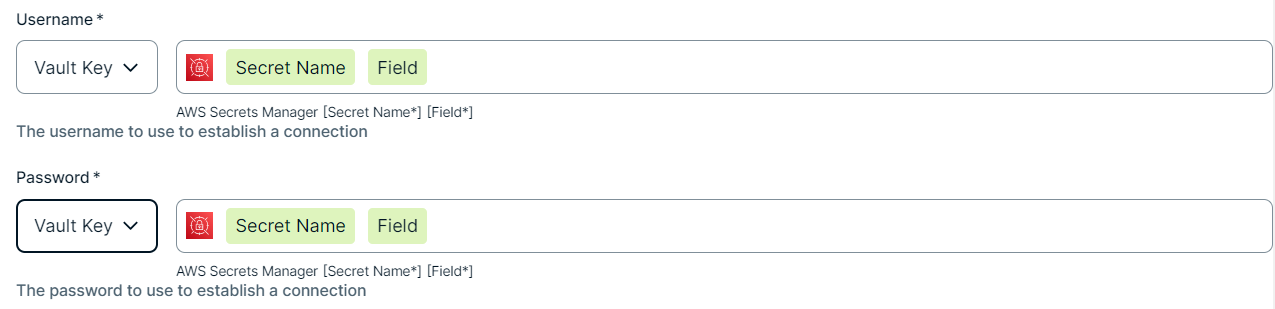
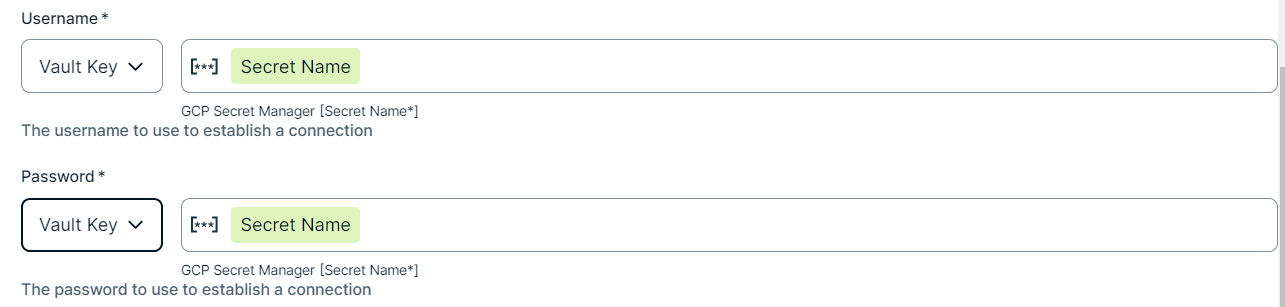
You can use a vault to add your data source information to your Edge site connection. Check the connection property table below to see which information is available for your vault. Vaults are not available for Collibra Cloud sites. |

No vault

AWS Secrets Manager

Azure Key Vault
CyberArk Vault

Google Secret Manager

HashiCorp Vault
|
|
|
|
||
|
How to use your vault...
To use your vault, do the following:
To use your vault, do the following:
To use your vault, do the following:
To use your vault, do the following:
To use your vault, do the following:
|
||
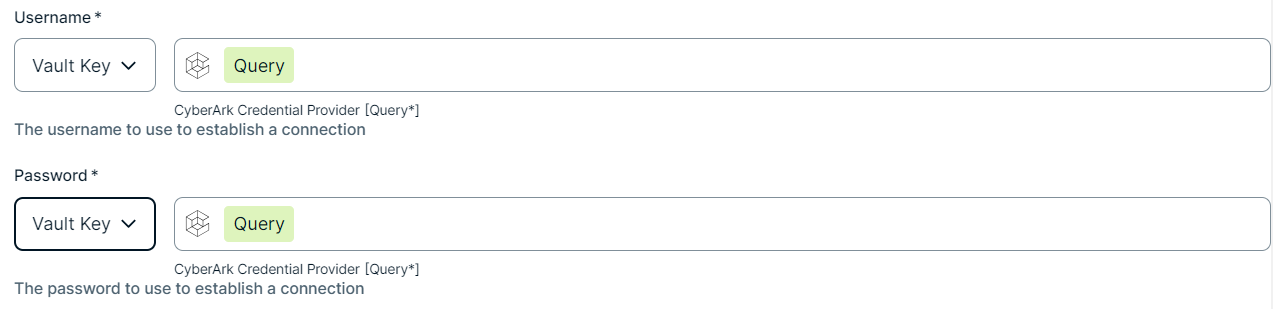
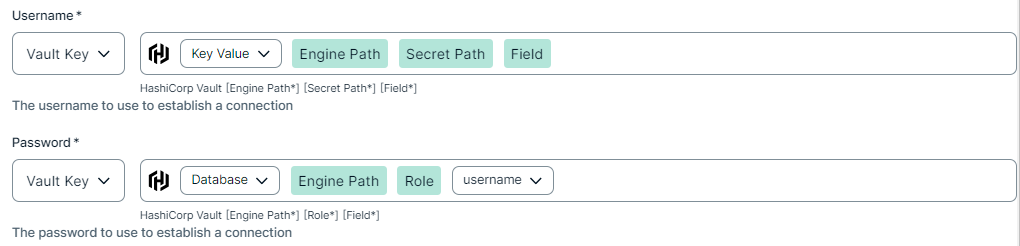
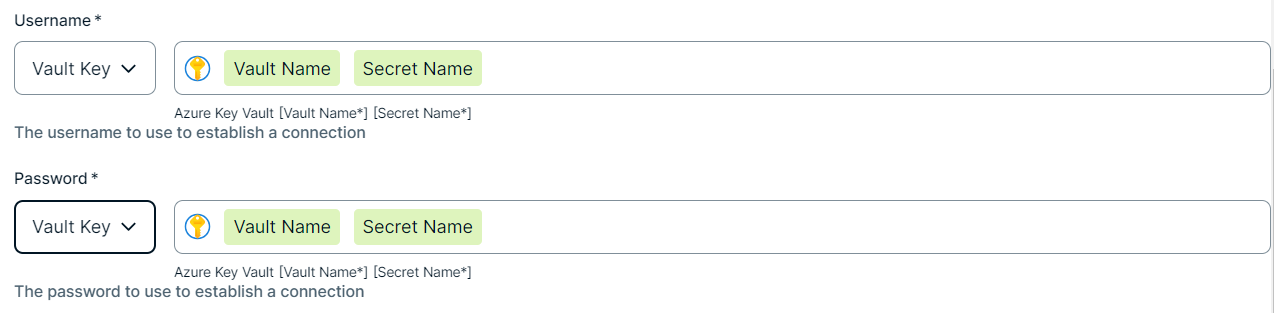
To retrieve data from Qlik, you have to connect to Qlik via the Edge or Collibra Cloud site.
Prerequisites
- You have a global role with the Product Rights > System administration global permission.
- You have a global role that has the Manage Edge sites global permission.
- You have a global role that has the Manage connections and capabilities global permission.
- You have a resource role with the Configure external system resource permission, for example, Owner.
- You have added a vault to your Edge site.Note Vaults are not supported on Collibra Cloud sites.
- If your data source connection requires a file from your vault, the file must be encoded into Base64 and stored as a regular secret in your vault.
- Ensure that your OAuth client has the required scope.
Steps
- Open a site.
-
On the main toolbar, click
 →
→
 Settings.
The Settings page opens. -
In the tab pane, click Edge.
The Sites tab opens and shows a table with an overview of your sites. - In the site overview, click the name of a site.
The site page appears.
-
On the main toolbar, click
-
In the Connections section, click Create Connection.
The Create Connection dialog box appears. - Select Qlikconnection.
- Enter the required information.
Field Description Required Name The name of the connection. The name can be anything, as long as it is unique.
Tip The name that you provide here is the name you have to select in the Qlik connection field, when adding the Technical Lineage for Qlik capability to the Edge site.
 Yes
Yes
Description The description of the connection.  No
No
Qlik URL The base URL of your Qlik instance, for example https://customer.eu.qlikcloud.com. Yes
Client ID Your client ID for OAuth authentication.
Yes
Client secret key Your client secret key for OAuth authentication.
Yes
- Click Create.
Add the Qlik Integration capability to your Edge or Collibra Cloud site.