The Databricks Unity Catalog integration for AI in Collibra comes out of the box with your software.
The functions of the Databricks Unity Catalog AI integration is limited if you do not enable AI Governance. When you enable AI Governance, you can add custom attributes or relations to the Databricks AI asset.
- Tip
-
- If you're looking for information on how to create technical lineage for Databricks Unity Catalog via Edge, go to the technical lineage for Databricks Unity Catalog documentation.
| Databricks object | Asset type | Description |
|---|---|---|
| Registered model in Unity Catalog | AI Base Model | Represents foundational business concepts that define the model’s purpose and governing principles in your Databricks AI workspace. |
Model version (status READY only) |
Databricks AI Model Version |
A subtype of AI Model Version that represents AI model versions in Databricks AI. |
| Served entity on a serving endpoint | AI Model Deployment | The operational instance where a model version is assigned computational resources to execute and generate real-time outputs. |
| Serving endpoint with an agent/* task; Knowledge Assistant; Genie Agent; Supervisor Agent; Agent Bricks tile (Information Extraction and Text Classification) | AI Agent |
An autonomous system that perceives its environment, makes decisions based on predefined rules or learned patterns, and takes actions to achieve specific goals. |
| Created for a Knowledge Assistant, Genie Agent (only if at least one of its tables is already in Collibra), Supervisor Agent, or Agent Bricks tile (Information Extraction and Text Classification) | AI Agent Version |
A specific, immutable implementation of the model logic and parameters that serves as the audited "raw" model version before it is activated. |
| Knowledge Assistant knowledge source; Genie Agent table reference; Supervisor Agent tool; Agent Bricks tile (Information Extraction and Text Classification) | AI Agent Tool |
A service accessible to an AI agent that automates tasks, generates content, or delivers intelligent insights. |
| Serving endpoint (serving an ingested model version); Knowledge Assistant or Supervisor Agent serving endpoint, connected to its agent version through the AI Agent Deployment complex relation | AI Endpoint | The access point for external systems that provides a consistent interface while allowing for the seamless exchange of underlying deployments. |
| Data quality monitor on the inference table; Scheduled scorer (LLM judge) | AI Monitor | The configuration of automated tracking parameters and alerting thresholds used to observe a deployment’s real-world performance and detect deviations from expected behavior. |
| Volume used by a knowledge source or tile | Databricks Volume |
Unity Catalog objects for governing non-tabular datasets. |
|
Notebook used to train a model version (run input with source type |
Storage Container | Represents the folder that contains the notebook file used to train your AI model versions in your Databricks AI workspace. This asset is optional, you can ingest this data during the integration by selecting the Ingest input datasets and deployment output for AI models and deployments checkbox. |
Notebook used to train a model version (run input with source type code) |
File | Represents the notebook file used to train your AI model versions in your Databricks AI workspace. This asset is optional, you can ingest this data during the integration by selecting the Ingest input datasets and deployment output for AI models and deployments checkbox. |
| Training dataset from a Delta table or inference table (AI Gateway), if not already present | Database | A collection of data that is systematically organized or structured to make it easy to create, update, and query the information. This asset is optional, you can ingest this data during the integration by selecting the Ingest input datasets and deployment output for AI models and deployments checkbox. |
| Training dataset from a Delta table or inference table (AI Gateway), if not already present | Schema |
An asset that contains the location of specific data. It provides all the details that are required for setting up a connection to a database or server. This asset is optional, you can ingest this data during the integration by selecting the Ingest input datasets and deployment output for AI models and deployments checkbox. |
| Training dataset from a Delta table; inference table (AI Gateway) | Table |
An implementation of data entities in columns and rows, in a given database system. It is the basic structure of a relational database. This asset is optional, you can ingest this data during the integration by selecting the Ingest input datasets and deployment output for AI models and deployments checkbox. |
| Training dataset from a Delta table or inference table (AI Gateway), if not already present | Column |
An atomic unit of data that can be stored in a database table. This asset is optional, you can ingest this data during the integration by selecting the Ingest input datasets and deployment output for AI models and deployments checkbox. |
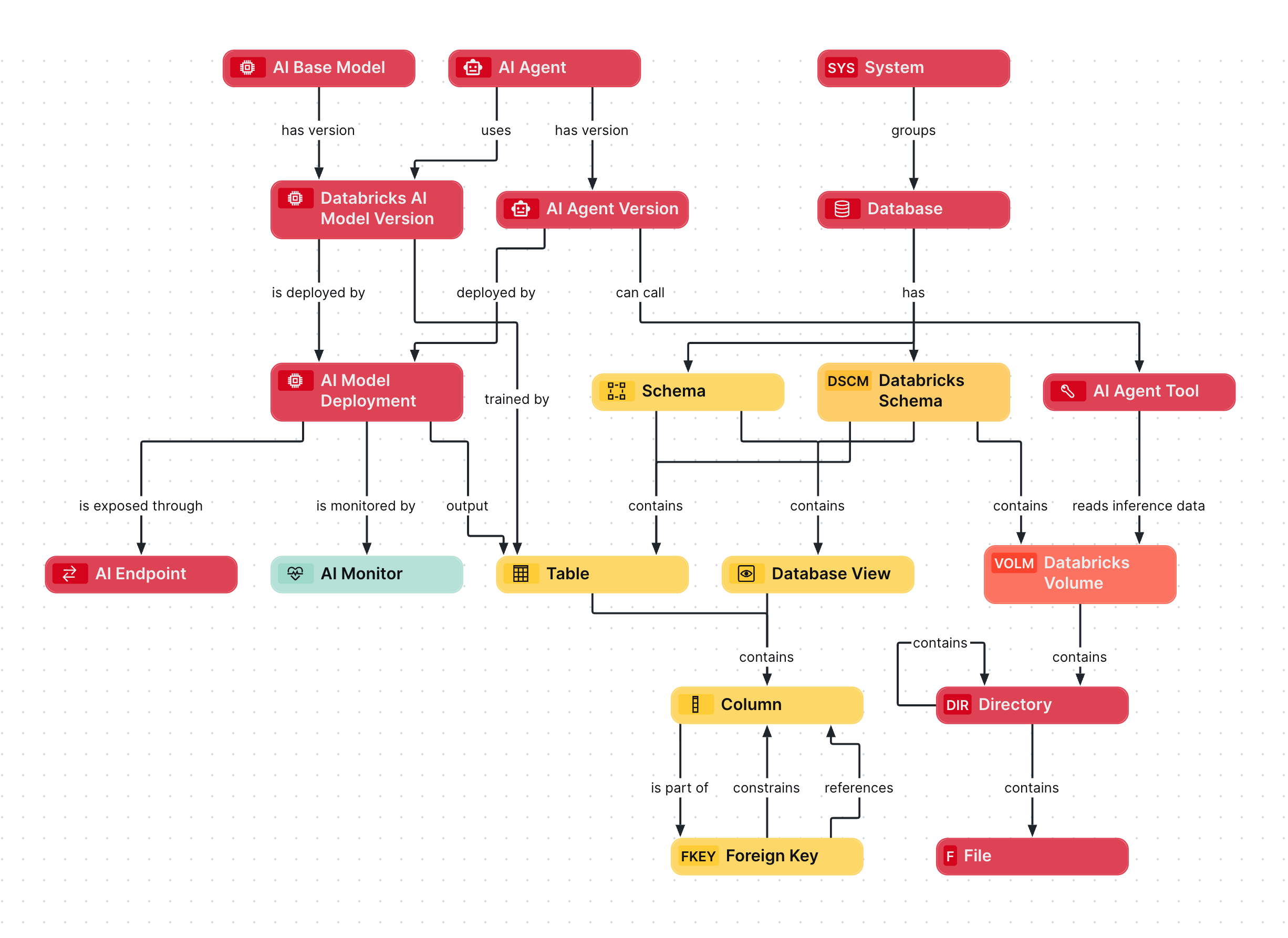
Databricks Unity Catalog diagram view
The following image provides a comprehensive overview of the relations between Databricks Unity Catalog asset types and cardinality of the relation types in the assets' assignment.
- For metadata and listings ingestion data from Databricks Unity Catalog, go to Integrated Databricks Unity Catalog data.
- For AI ingestion data from Databricks Unity Catalog, go to Integrated Databricks AI data.
Steps
- Open the asset page.
- Click the
Diagram tab.
The diagram is shown in the default diagram view. - Click
 to add a new view.
 - Select the Text option below the diagram view name.
The diagram view text editor is shown. - Copy the code from the Show JSON code section below and paste it in the diagram view text editor.
- Click Save.
- Edit the name and description of the diagram view as needed.
{
  "nodes": [
    {
      "id": "System",
      "type": {
        "id": "00000000-0000-0000-0000-000000031302"
      }
    },
    {
      "id": "Database",
      "type": {
        "id": "00000000-0000-0000-0000-000000031006"
      }
    },
    {
      "id": "Notebook",
      "type": {
        "id": "00000000-0000-0000-0000-000000033000"
      }
    },
    {
      "id": "Schema",
      "type": {
        "id": "00000000-0000-0000-0001-000400000002"
      }
    },
    {
      "id": "Databricks Schema",
      "type": {
        "id": "00000000-0000-0000-0000-000000031413"
      }
    },
    {
      "id": "Table",
      "type": {
        "id": "00000000-0000-0000-0000-000000031007"
      }
    },
    {
      "id": "Database View",
      "type": {
        "id": "00000000-0000-0000-0001-000400000009"
      }
    },
    {
      "id": "Column",
      "type": {
        "id": "00000000-0000-0000-0000-000000031008"
      }
    },
    {
      "id": "Foreign Key",
      "type": {
        "id": "00000000-0000-0000-0001-000400000003"
      }
    },
    {
      "id": "Databricks Volume",
      "type": {
        "id": "00000000-0000-0000-0000-000000031412"
      }
    },
    {
      "id": "Directory",
      "type": {
        "id": "00000000-0000-0000-0000-000000031303"
      }
    },
    {
      "id": "File",
      "type": {
        "id": "00000000-0000-0000-0000-000000031304"
      }
    },
    {
      "id": "AI Base Model",
      "type": {
        "id": "00000000-0000-0000-0000-000000031422"
      }
    },
    {
      "id": "Databricks AI Model Version",
      "type": {
        "id": "00000000-0000-0000-0000-000000031405"
      }
    },
    {
      "id": "AI Model Deployment",
      "type": {
        "id": "00000000-0000-0000-0000-000000031500"
      }
    },
    {
      "id": "AI Endpoint",
      "type": {
        "id": "00000000-0000-0000-0000-000000031501"
      }
    },
    {
      "id": "AI Monitor",
      "type": {
        "id": "00000000-0000-0000-0000-000000031502"
      }
    },
    {
      "id": "AI Agent",
      "type": {
        "id": "00000000-0000-0000-0000-000000031450"
      }
    },
    {
      "id": "AI Agent Version",
      "type": {
        "id": "00000000-0000-0000-0000-000000031452"
      }
    },
    {
      "id": "AI Agent Tool",
      "type": {
        "id": "00000000-0000-0000-0000-000000031453"
      }
    },
    {
      "id": "Databricks Listing",
      "type": {
        "id": "00000000-0000-0000-0000-000000031416"
      }
    },
    {
      "id": "Data Product Port",
      "type": {
        "id": "00000000-0000-0000-0000-000000050004"
      }
    }
  ],
  "edges": [
    {
      "from": "System",
      "to": "Database",
      "label": "",
      "style": "arrow",
      "type": {
        "id": "00000000-0000-0000-0000-000000007054"
      },
      "roleDirection": true
    },
    {
      "from": "System",
      "to": "Notebook",
      "label": "",
      "style": "arrow",
      "type": {
        "id": "00000000-0000-0000-0000-000000007054"
      },
      "roleDirection": true
    },
    {
      "from": "Database",
      "to": "Schema",
      "label": "",
      "style": "arrow",
      "type": {
        "id": "00000000-0000-0000-0000-000000007024"
      },
      "roleDirection": true
    },
    {
      "from": "Database",
      "to": "Databricks Schema",
      "label": "",
      "style": "arrow",
      "type": {
        "id": "00000000-0000-0000-0000-000000007024"
      },
      "roleDirection": true
    },
    {
      "from": "Schema",
      "to": "Table",
      "label": "",
      "style": "arrow",
      "type": {
        "id": "00000000-0000-0000-0000-000000007043"
      },
      "roleDirection": true
    },
    {
      "from": "Schema",
      "to": "Database View",
      "label": "",
      "style": "arrow",
      "type": {
        "id": "00000000-0000-0000-0000-000000007043"
      },
      "roleDirection": true
    },
    {
      "from": "Databricks Schema",
      "to": "Table",
      "label": "",
      "style": "arrow",
      "type": {
        "id": "00000000-0000-0000-0000-000000007043"
      },
      "roleDirection": true
    },
    {
      "from": "Databricks Schema",
      "to": "Database View",
      "label": "",
      "style": "arrow",
      "type": {
        "id": "00000000-0000-0000-0000-000000007043"
      },
      "roleDirection": true
    },
    {
      "from": "Table",
      "to": "Column",
      "label": "",
      "style": "arrow",
      "type": {
        "id": "00000000-0000-0000-0000-000000007042"
      },
      "roleDirection": false
    },
    {
      "from": "Database View",
      "to": "Column",
      "label": "",
      "style": "arrow",
      "type": {
        "id": "00000000-0000-0000-0000-000000007042"
      },
      "roleDirection": false
    },
    {
      "from": "Column",
      "to": "Foreign Key",
      "label": "",
      "style": "arrow",
      "type": {
        "id": "00000000-0000-0000-0000-000000007093"
      },
      "roleDirection": true
    },
    {
      "from": "Foreign Key",
      "to": "Column",
      "label": "constrains",
      "style": "arrow",
      "type": {
        "id": "00000000-0000-0000-0000-000000007091"
      },
      "roleDirection": true
    },
    {
      "from": "Foreign Key",
      "to": "Column",
      "label": "references",
      "style": "arrow",
      "type": {
        "id": "00000000-0000-0000-0000-000000007092"
      },
      "roleDirection": true
    },
    {
      "from": "Databricks Schema",
      "to": "Databricks Volume",
      "label": "",
      "style": "arrow",
      "type": {
        "id": "00000000-0000-0000-0000-000000007044"
      },
      "roleDirection": true
    },
    {
      "from": "Databricks Volume",
      "to": "Directory",
      "label": "",
      "style": "arrow",
      "type": {
        "id": "00000000-0000-0000-0001-002600000001"
      },
      "roleDirection": true
    },
    {
      "from": "Directory",
      "to": "Directory",
      "label": "",
      "style": "arrow",
      "type": {
        "id": "00000000-0000-0000-0001-002600000003"
      },
      "roleDirection": true
    },
    {
      "from": "Directory",
      "to": "File",
      "label": "",
      "style": "arrow",
      "type": {
        "id": "00000000-0000-0000-0000-000000007060"
      },
      "roleDirection": true
    },
    {
      "from": "AI Base Model",
      "to": "Databricks AI Model Version",
      "label": "",
      "style": "arrow",
      "type": {
        "id": "00000000-0000-0000-0000-000000077000"
      },
      "roleDirection": true
    },
    {
      "from": "Databricks AI Model Version",
      "to": "AI Model Deployment",
      "label": "",
      "style": "arrow",
      "type": {
        "id": "00000000-0000-0000-0000-000000077001"
      },
      "roleDirection": true
    },
    {
      "from": "AI Model Deployment",
      "to": "AI Endpoint",
      "label": "",
      "style": "arrow",
      "type": {
        "id": "00000000-0000-0000-0000-000000077006"
      },
      "roleDirection": true
    },
    {
      "from": "AI Model Deployment",
      "to": "AI Monitor",
      "label": "",
      "style": "arrow",
      "type": {
        "id": "00000000-0000-0000-0000-000000077007"
      },
      "roleDirection": true
    },
    {
      "from": "Databricks AI Model Version",
      "to": "Table",
      "label": "trained by",
      "style": "arrow",
      "type": {
        "id": "00000000-0000-0000-0000-000000007102"
      },
      "roleDirection": true
    },
    {
      "from": "AI Model Deployment",
      "to": "Table",
      "label": "output",
      "style": "arrow",
      "type": {
        "id": "00000000-0000-0000-0000-000000077004"
      },
      "roleDirection": true
    },
    {
      "from": "AI Agent",
      "to": "Databricks AI Model Version",
      "label": "uses",
      "style": "arrow",
      "type": {
        "id": "00000000-0000-0000-0000-000000007108"
      },
      "roleDirection": true
    },
    {
      "from": "AI Agent",
      "to": "AI Agent Version",
      "label": "",
      "style": "arrow",
      "type": {
        "id": "00000000-0000-0000-0000-000000007206"
      },
      "roleDirection": true
    },
    {
      "from": "AI Agent Version",
      "to": "AI Agent Tool",
      "label": "",
      "style": "arrow",
      "type": {
        "id": "00000000-0000-0000-0000-000000007207"
      },
      "roleDirection": true
    },
    {
      "from": "AI Agent Tool",
      "to": "Databricks Volume",
      "label": "reads inference data",
      "style": "arrow",
      "type": {
        "id": "00000000-0000-0000-0000-000000007211"
      },
      "roleDirection": true
    },
    {
      "from": "AI Agent Version",
      "to": "AI Model Deployment",
      "label": "deployed by",
      "style": "arrow",
      "type": {
        "id": "00000000-0000-0000-0000-000000007213"
      },
      "roleDirection": true
    },
    {
      "from": "Databricks Listing",
      "to": "Data Product Port",
      "label": "exposes data as",
      "style": "arrow",
      "type": {
        "id": "00000000-0000-0000-0000-000000050040"
      },
      "roleDirection": true
    },
    {
      "from": "Data Product Port",
      "to": "Table",
      "label": "is implemented as",
      "style": "arrow",
      "type": {
        "id": "00000000-0000-0000-0000-000000050042"
      },
      "roleDirection": true
    },
    {
      "from": "Data Product Port",
      "to": "Database View",
      "label": "is implemented as",
      "style": "arrow",
      "type": {
        "id": "00000000-0000-0000-0000-000000050042"
      },
      "roleDirection": true
    },
    {
      "from": "Data Product Port",
      "to": "Databricks AI Model Version",
      "label": "is implemented as",
      "style": "arrow",
      "type": {
        "id": "00000000-0000-0000-0000-000000050042"
      },
      "roleDirection": true
    }
  ],
  "showOverview": false,
  "enableFilters": true,
  "showLabels": true,
  "showFields": true,
  "showLegend": true,
  "showPreview": true,
  "visitStrategy": "directed",
  "layout": "HierarchyTopBottom",
  "maxNodeLabelLength": 50,
  "maxEdgeLabelLength": 30,
  "layoutOptions": {
    "compactGroups": false,
    "componentArrangementPolicy": "topmost",
    "edgeBends": true,
    "edgeBundling": true,
    "edgeToEdgeDistance": 5,
    "minimumLayerDistance": "auto",
    "nodeToEdgeDistance": 5,
    "orthogonalRouting": true,
    "preciseNodeHeightCalculation": true,
    "recursiveGroupLayering": true,
    "separateLayers": true,
    "webWorkers": true,
    "nodePlacer": {
      "barycenterMode": true,
      "breakLongSegments": true,
      "groupCompactionStrategy": "none",
      "nodeCompaction": false,
      "straightenEdges": true
    }
  }
}