Once you have created and used collections, you may ask the following questions:
- How do I remove an asset from a collection?
- How do I change the name of a collection?
- How do I delete a collection?
- How do I share a collection with others?
You can do all of this via the Collections page.
For general information on collections, go to Collections.
In Collibra 2024.02, we've launched a new user interface (UI) in beta for Collibra Data Intelligence Platform! You can learn more about this latest UI in the UI overview.
Use the following options to see the documentation in the latest UI or in the previous, classic UI:
Before you begin
Data Marketplace and Collections are enabled.
Steps
-
Click your avatar → Collections.
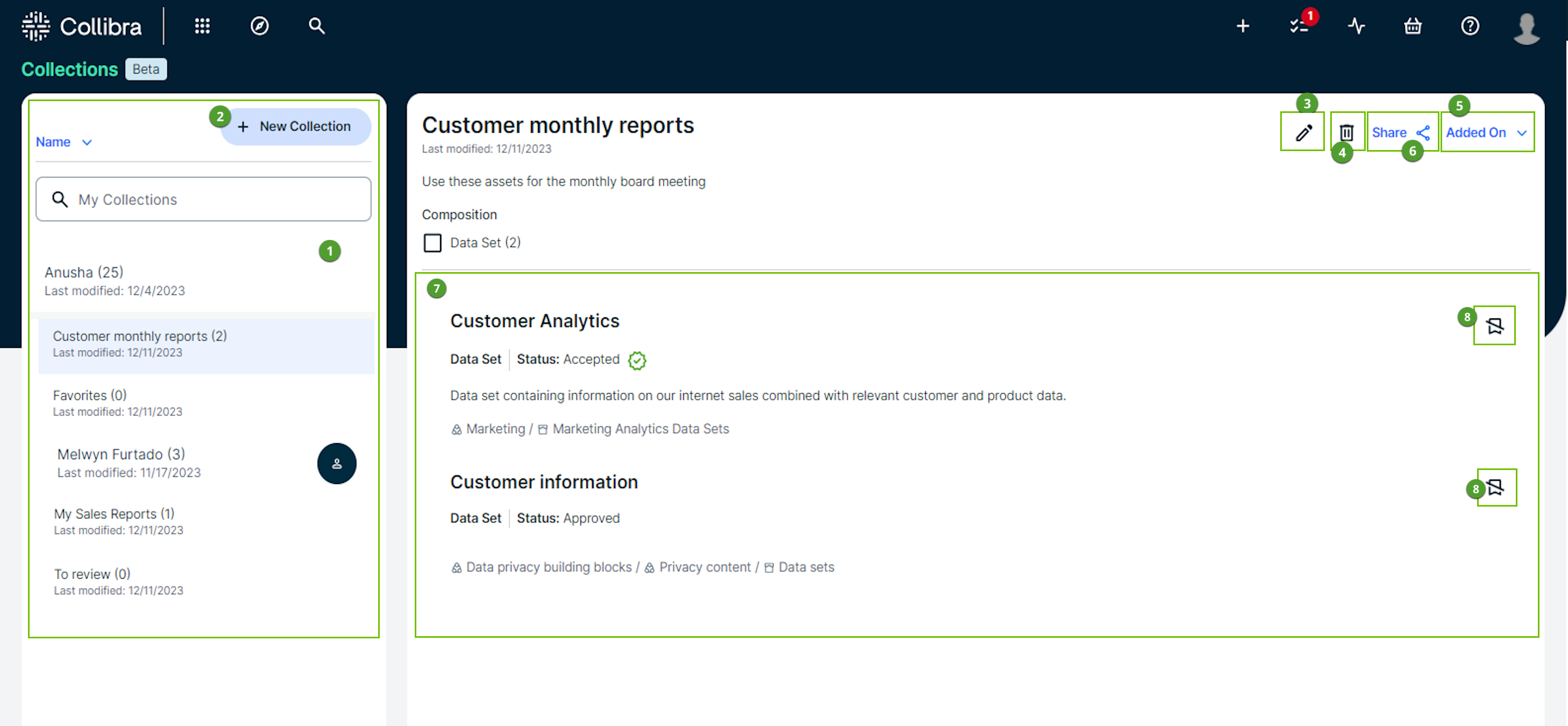
The Collections page opens. On the left-hand side, all collections you have access to are shown.
- You can search for a specific collection and sort the collections based on name, when the collection was created, or when the collection was last updated.
For collections that have been shared with you, you see the avatar of the owner. Click the avatar to see the full name of the owner.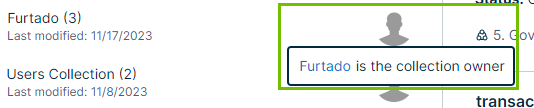
Note Only 100 collections are displayed. It's possible, however, that the total number of collections you have access to is more than 100.
In that case, use the search to retrieve the collection. - When you click a collection name, the assets in a collection are shown on the right-hand side.

Via the Added On drop-down list , you can change the order of the assets in the collection. You can sort based on the asset name or on the date the asset was added to the collection.

- You can search for a specific collection and sort the collections based on name, when the collection was created, or when the collection was last updated.
-
Perform one of the following actions.
- To create a new collection, click + New Collection.

Tip You can also create a collection from an asset preview. For more information, go to Create a collection and add an asset from the Asset Preview (Beta).
- To change a collection name or description, click
 .
. 
- To delete a collection, click
 .
.  Note
Note- Only the collection owner can delete the collection.
- The Favorites collection can't be deleted nor renamed.
- To share a collection with others, click
 .
. 
For more information, go to Share a collection. - To remove an asset from a collection, click
 .
. 
- To open an asset, click the asset name or right-click and select Open in New Tab.
For more information, go to Open an asset you collected (Beta).
- To create a new collection, click + New Collection.