Important
In Collibra 2024.02, we've launched a new user interface (UI) in beta for Collibra Data Intelligence Platform! You can learn more about this latest UI in the UI overview.
Use the following options to see the documentation in the latest UI or in the previous, classic UI:
Assets can be added to a collection or removed from a collection via the asset preview in Data Marketplace.
Before you begin
Data Marketplace and Collections are enabled.
Steps
- Open Data Marketplace.
- Search for the asset that you want to add to your collection and click the title of the asset.
The asset preview dialog opens. - Click
 .
.
The Add To list appears.TipA colored bookmark icon in the Add To list indicates that the asset has been added to that collection already. You can remove the asset from a collection by clicking the colored bookmark icon.
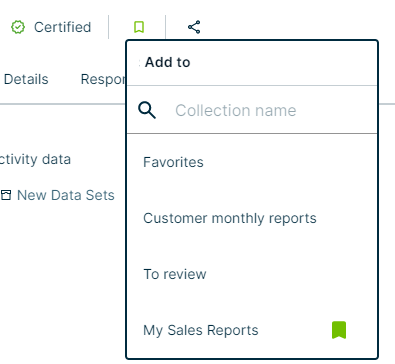
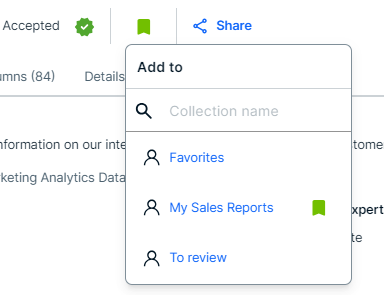
- Perform one of the following actions:
- To add the asset to an existing collection, select the name of the collection.
The asset has been added. - To create a new collection and add the asset to it:
- Type the name of your new collection.
For example: My Sales Reports.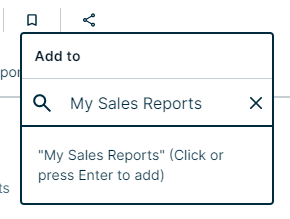
- Press Enter.
The new collection has been created and the asset has been added.
To access your collection, click your avatar → Collections. For more information, go to Manage collections (Beta).
- Type the name of your new collection.
- To add the asset to an existing collection, select the name of the collection.